



Google Forms is one of the most popular form builders as it is included in the Google Workspace for free.
It has millions of users, and overall,l it’s a decent tool to create forms and surveys. However, it has its own limitations, especially in features and customization.
For two weeks, I have tested alternative tools to Google Forms, taken notes, and created a list based on our experiences. In this article, you will first see our top picks to get a quick idea of how we tested each tool and compared it to Google Forms, and then the detailed review of each Google Forms alternative, so you can make informed decisions if you are considering making a switch.
Our top picks for Google Forms Alternatives
- The best overall Google Forms alternative: forms.app
- A free Google Forms alternative: Microsoft Forms
- Open-source Google Forms alternative: OpnForm
- Offline Google Forms alternative: Clappia
- Privacy-focused Google Forms alternative: Block Survey
How I put Google Forms alternatives to the test
I have tested over 20+ form builders that can be a good alternative to Google Forms over the past two weeks. While testing, I have developed a methodology to compare and rank these form builders. This article includes the top 5 picks and 10 detailed reviews based on my notes.
I have 5 criteria for reviewing each form builder:
- Simplicity: How easy is it to create forms and manage the submissions?
- Features: How capable is the tool?
- Integrations: How does it integrate with other business apps?
- Form experience: How does the created form look and feel?
- Pricing: How much does it cost?
Here is my 7-point testing process:
- I signed up to the form builder app.
- I checked the dashboard and overall vibe.
- I created at least 4 types of forms: Registration form, payment form, a customer survey, and a knowledge quiz.
- I submitted the form myself to check the form-filling experience, and I asked my friends to submit and get their feedback.
- I tested the results panel of the tools, the export options, and if available, the statistics.
- I integrate my forms with popular tools, such as Google Sheets, Excel, and Slack, when available.
- I put together my notes about the tool, my experience, the features, the pricing, and how it compares to Google Forms.
10 Google Forms Alternatives to use in 2026
Based on my 7-point testing process, I have reviewed each Google Forms alternative. Below, you will find my overall experience with the form builder apps, a screenshot from their site, key differences I noted, and who should choose that tool and why.
1. forms.app – Best all-rounder form builder
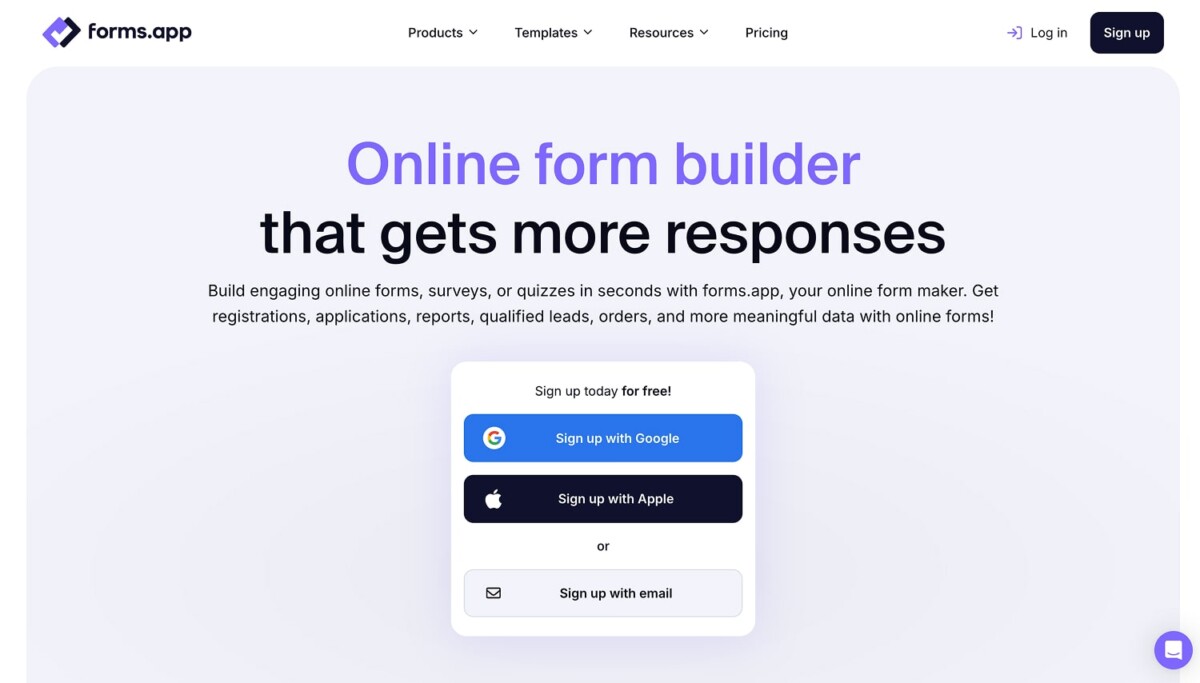
forms.app is an all-around form builder tool and is a solid alternative to Google Forms. My experience with forms.app was almost buttery smooth compared to other tools I have tested. It offers an AI form generator and a really huge template library. I have created one of my forms with AI; it was really fast, and the questions were accurate. It really saved me time. The templates were plenty, and I was able to choose the one I was looking for, which was a registration form. Another option I used was AI imports. I simply entered my Google Forms URL, and it simply copied my form, and I did just minor edits. For my simplicity criteria, forms.app got the perfect score.
When creating my forms, I was able to find most features that are lacking in Google Forms, such as advanced conditional logic, multi-lingual forms, save and continue later, auto email replies, form close and open dates, e-signatures, and payments. And using the features felt easy, even though some of the features were really complex. On the integration side, forms.app also got many native integrations and Zapier, so I didn’t encounter any issues or blocks.
The form experience was really surprising, in a positive sense. One of my forms was in classic form view, which they call “List view”, and others were in step view, where questions are shown one at a time. In both layouts, it’s possible to use media, but with the one-at-a-time option, you have more options to decide where you want to show the media; on the side, above the questions, etc. The layout does really bring life to the form, and the animations feel great. The response from my friends was also positive.
forms.app has a free plan that allows up to 100 responses per month. So if you require fewer responses than 100, it is possible to switch to forms.app for free. The higher plans start from $25/mo and stay relatively affordable considering their response limits and features. Overall, forms.app is the obvious choice if you are looking for a solid alternative to Google Forms that performs well on multiple fronts.
Key differences between forms.app and Google Forms
- forms.app has advanced features that don’t exist on Google Forms, such as Payments, open-close dates, advanced logic, and signatures
- Google Forms is less customizable and offers a static form-filling experience.
- Google Forms is a part of Google Workspace and is completely free.
- Google Forms has a plugin marketplace for additional features; however, these plugins sometimes have their own subscription.
- forms.app has many native integrations and connects with Zapier for 3d party integrations.
- forms.app is more suited for team collaboration and multiple users.
- forms.app allows users to import forms from other sources, including Google Forms.
Who should choose forms.app?
forms.app is our top choice for any type of business or organization that is looking for a Google Forms alternative that is more flexible, has more functionality, and comes with affordable pricing.
2. Microsoft Forms – Free alternative to Google Forms
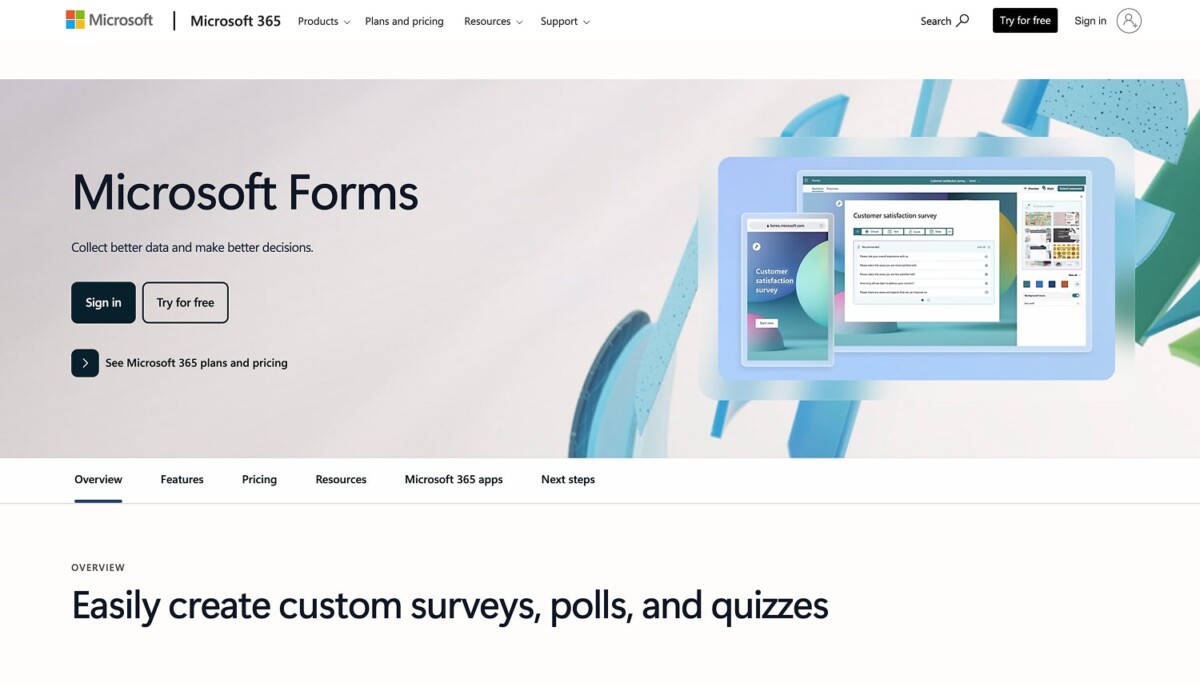
Microsoft Forms is Microsoft’s equivalent of Google Forms and comes bundled with Microsoft 365. If you’re already in the Microsoft ecosystem, this is probably the most natural switch you can make.
My experience with Microsoft Forms was similar to Google Forms, with a few notable differences. Setting up forms in Microsoft Forms was quick and intuitive. Overall, MS Forms looks cle,an but the platform feels clunky and unpolished.
One feature I really appreciated was the branching logic, which was better and easier to set up compared to Google Forms. When it comes to features, Microsoft Forms sits somewhere between basic and intermediate. It has features like branching, file uploads, and math equations, which are solid for most use cases. However, it lacks some of the advanced capabilities I found in forms.app, such as payment collection, e-signatures, and scheduling options.
On the integration front, Microsoft Forms connects seamlessly with other Microsoft products like Excel, Teams, OneDrive, and SharePoint. This is where it really shines if you’re already using Microsoft 365. However, third-party integrations are more limited compared to Google Forms. You can use Power Automate (Microsoft’s version of Zapier) to connect with other apps, but it requires a bit more setup.
Microsoft Forms is completely free if you have a Microsoft 365 subscription, which many businesses and educational institutions already have. There’s also a free personal version so it can be a free alternative to Google Forms.
Key differences between Microsoft Forms and Google Forms
- Microsoft Forms integrates deeply with Microsoft 365 apps (Excel, Teams, SharePoint), while Google Forms integrates with Google Workspace.
- Both have similar built-in quiz features with automatic grading and instant feedback, though I would give a slight edge to MS Forms.
- Google Forms has more third-party integrations and add-ons through its marketplace
- Microsoft Forms offers branching logic in a more user-friendly interface.
- Google Forms restricts file uploads to Google Drive and requires respondents to be signed into Google, while MS Forms straight out doesn’t allow file uploads for personal users.
- Google Forms is completely free for anyone with a Google account, while Microsoft Forms requires Microsoft 365 for full features.
- Microsoft Forms has a cleaner, more modern interface design.
Who should choose Microsoft Forms?
Microsoft Forms is a great choice if you’re already using Microsoft 365 for work or school. It’s ideal for educators running quizzes, small to medium businesses that rely on the Microsoft ecosystem, and teams that need seamless integration with Excel, Teams, and SharePoint. If you’re already in the Google Forms world, the learning curve of MS Forms will be minimal.
3. OpnForm – Open-source Google Forms alternative
For this list, I have looked for a few open-source alternatives. OpnForm caught my attention for its transparency and flexibility. Overall, testing OpnForm was refreshing. It’s fairly modern and has both a cloud-hosted version and a self-hosted option.
My experience with OpnForm is based on their cloud version. I must say it was surprisingly polished for an open-source project. The interface is clean and modern, though not as refined as some of the commercial tools I tested. Creating forms was straightforward – the builder has a simple drag-and-drop interface with a good selection of field types.
Despite being open-source and free, it includes conditional logic, file uploads, and even webhooks for developers. The form templates are decent, though not as extensive as others.
The form-filling experience was smooth and responsive. The forms load quickly and work well on mobile devices. My friends who tested the forms didn’t encounter any issues, though a couple mentioned the design felt more “functional” than “flashy” compared to some other tools (They already saw forms I created with Typeform and forms.app at that point.). You can customize colors, change font sizes, and border radius of inputs, but the styling options are more limited than commercial alternatives. On the integration side, OpnForm covers the basics. There’s no direct Zapier integration on the free tier, which might be a limitation for some users.
OpnForm’s pricing is where it really stands out. The cloud version has a generous free plan that includes unlimited forms and submissions – yeah, I know. The pro plan at $19/month adds features like custom domains, removed branding, and priority support (The classics). Self-hosting, of course, has its own costs and requires technical knowledge, but among Google Forms’ open-source alternatives, it is a solid option.
Key differences between OpnForm and Google Forms
- OpnForm is open-source and can be self-hosted, giving you complete control over your data
- Google Forms is proprietary and cloud-only, with data stored on Google’s servers
- OpnForm includes webhooks for developers, making it more flexible for custom integrations
- Google Forms has a larger ecosystem of add-ons and third-party integrations
- Google Forms has better real-time collaboration features for teams
- OpnForm has a more modern, customizable interface despite being open-source
- OpnForm requires more tech knowledge than Google Forms, at least for its initial setup
Who should choose OpnForm?
OpnForm is perfect for “independent ones”. What I mean by that is privacy-conscious users, developers, and organizations that want complete control over their forms.
4. Formester
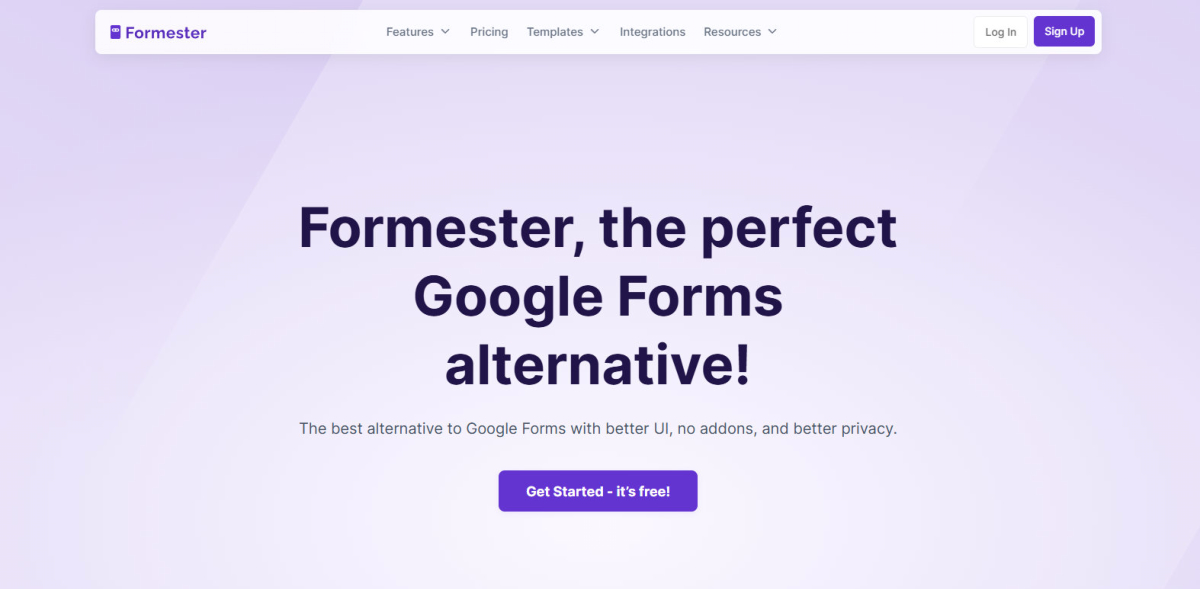
Formester is an all in one form builder and a free Google Forms alternative. My experience with Formester felt smooth and simple from the first minute. The interface is clean, fast, and very easy to understand. Everything is placed where you expect it to be, so you spend less time learning and more time building.
One of the biggest highlights of Formester is its AI powered form builder. I used AI to create a form just by explaining what I wanted, and it generated accurate questions in seconds. It saved me a lot of time and effort. Formester also comes with ready to use templates for surveys, lead forms, registrations, and quizzes. Picking a template and customizing it took only a few clicks.
Formester clearly goes beyond what Google Forms offers. While building forms, I had access to advanced features like conditional logic, calculations, save and continue later, multi step forms, custom thank you pages, auto email notifications, and payments. Even though these features are powerful, they are very easy to use. Nothing feels confusing or heavy.
The form experience itself is much better than Google Forms. You can create classic forms or step by step forms where one question appears at a time. You can add images, videos, and custom layouts that make the form feel modern and engaging. The UI looks polished and professional, and the animations make the form feel alive. People who filled my forms said they enjoyed the experience.
Automation is another strong point of Formester. You can automate your entire workflow using just one tool. From capturing leads to sending emails, pushing data to other apps, and managing responses, everything can run automatically. Formester connects with popular tools and also supports automation platforms, so you never feel stuck.
Support is where Formester truly stands out. You get 24 by 7 support, which is rare for tools in this price range. Whenever I had a question, I got quick and helpful replies. This makes Formester a great choice for businesses that need reliable help at any time.
Pricing is one of the biggest reasons Formester feels like the most cost effective option. You get powerful AI features, advanced form controls, automation, and great support at a very affordable price. Compared to other tools, Formester gives you more value without pushing you into expensive plans.
Overall, Formester is a modern, AI powered, and cost effective Google Forms alternative. It offers better UI, smarter features, full workflow automation, and round the clock support. If you want a form builder that saves time, looks great, and grows with your business, Formester is an easy choice.
Key differences between Formester and Google Forms
- Formester is AI powered and helps you create forms faster
- Formester has a modern and clean user interface
- Google Forms offers a basic and static form experience
- Formester supports advanced logic, calculations, payments, and automation
- Google Forms is free but limited in features and customization
- Formester provides 24 by 7 customer support
- Formester lets you automate your entire workflow using one tool
Who should choose Formester?
Formester is perfect for businesses, marketers, creators, and teams who want a smarter Google Forms alternative. If you care about saving time, automating work, and giving users a better form experience without spending too much, Formester is the right choice.
5. Clappia – Offline Google Forms alternative
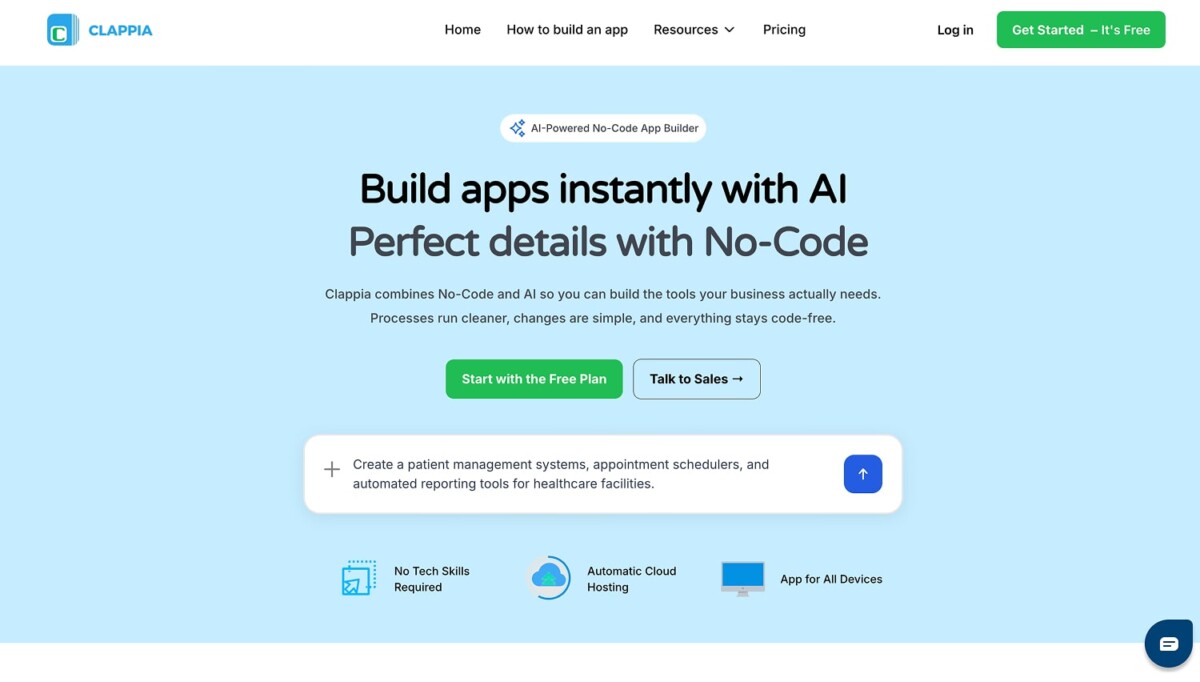
Clappia is not a dedicated form builder like Google Forms or any other form builder in this list; it is a no-code app builder. Then, why is it on this list? Because you can also use Clappia for form-like applications, and they can work offline too.
Getting started with Clappia took longer than other tools on this list. The interface is more involved because it’s designed for building entire workflows and applications, not just simple forms. The learning curve is there, but not unbeatable.
I tested it as a Google Forms’ offline alternative; I created a form-like app, downloaded the mobile app, and submitted responses without an internet connection. The data synced automatically once I reconnected to the internet. This functionality could be valuable in specific scenarios, like field data collection or events in areas with poor connectivity.
Feature-wise, Clappia goes beyond standard form building. It includes workflow automation, approval processes, and GPS location tracking. These are business app features rather than form features. Many of these capabilities are overkill, but they can come in handy for custom processes in field ops.
The form experience was functional but not particularly polished. The forms work and are responsive, but the interface looks more utilitarian than modern.
Integration options include connections to Google Sheets, various databases, and APIs. The platform is built primarily for internal business processes rather than for external integrations with marketing or productivity tools.
Clappia’s pricing starts at $8 per user per month for the starter plan, and the professional plan is at $10 per user per month. The pricing is per user, which can add up quickly for teams. There’s a free plan with limited functionality and 400 submissions/month.
Key differences between Clappia and Google Forms
- Google Forms is a dedicated form builder, while Clappia is a no-code app platform that includes forms.
- Clappia offers offline data collection through mobile apps, while Google Forms requires internet connectivity.
- Clappia includes workflow automation and approval processes that Google Forms lacks.
- Google Forms has a simpler, more intuitive interface for basic form creation.
- Clappia charges per user per month, while Google Forms is free.
- Clappia includes features like GPS tracking and an NFC reader for field work.
- Google Forms has better integration with consumer-focused tools and a larger add-on marketplace
- Clappia requires more setup time and has a steeper learning curve
- Google Forms is better for simple surveys and data collection, while Clappia is built for complex business processes
Who should choose Clappia?
Clappia makes sense for organizations that need offline and complex data collection capabilities.
6. BlockSurvey – Privacy-focused Google Forms alternative

BlockSurvey is a form builder that emphasizes privacy and data security as its core selling point. As its name gives a hint, it uses blockchain technology to protect respondent data.
Creating forms in BlockSurvey was relatively simple. The form builder includes standard field types – text inputs, multiple choice, dropdowns, and file uploads. The AI-powered form generation feature is available. However, I noticed the template library is smaller and form-building features are limited.
The form-filling experience was standard.
Integration capabilities are limited compared to Google Forms or other mainstream alternatives. BlockSurvey connects with a few tools, including Slack and webhooks. Data export works through CSV and Excel formats.
BlockSurvey’s pricing starts with a free plan that allows 10 responses per month (Like Typeform’s pricing, they are both for testing only, no meaningful use with 10 responses per month). Paid plans begin at $49/month for 500 responses.
Key differences between BlockSurvey and Google Forms
- BlockSurvey uses end-to-end encryption and blockchain technology, while Google Forms stores data on Google’s servers.
- Google Forms is completely free with unlimited responses, while BlockSurvey’s free plan caps at 10 responses per month.
- BlockSurvey positions itself as a privacy-first tool.
- Google Forms has significantly more integrations and add-ons available.
- BlockSurvey’s paid plans are expensive.
Who should choose BlockSurvey?
BlockSurvey is appropriate for organizations that handle sensitive data and need to demonstrate strong privacy commitments, healthcare providers collecting patient information, researchers conducting confidential studies, etc.
7. Cognito Forms – Google Forms alternative with most features
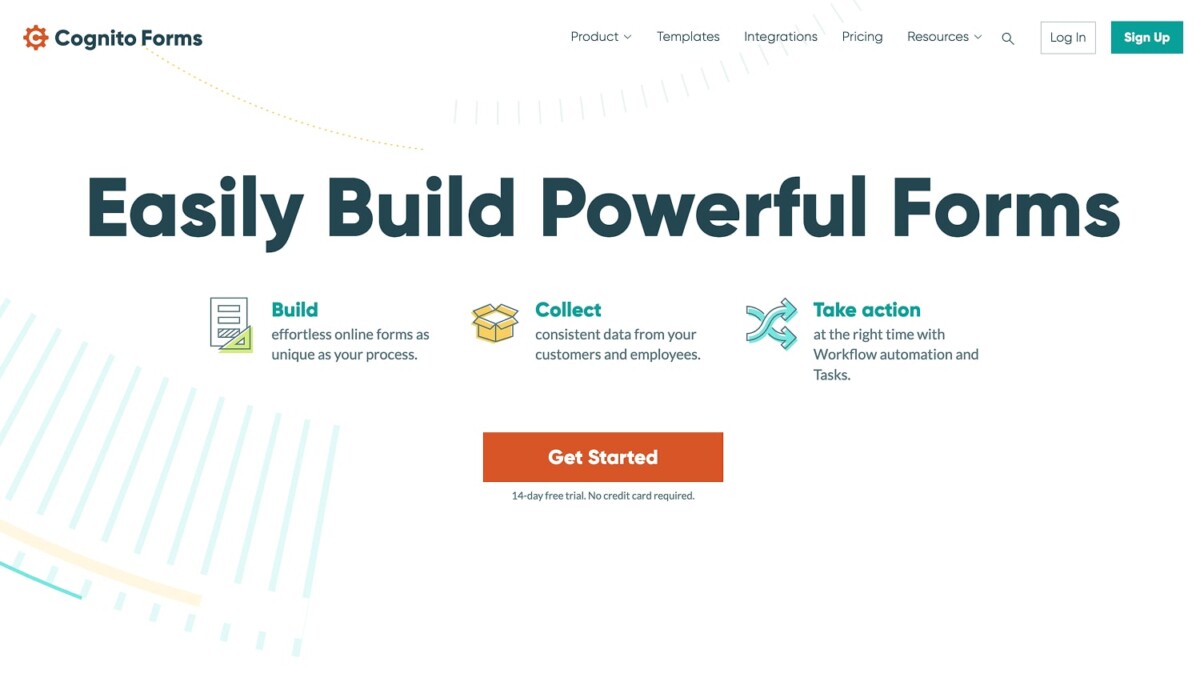
Cognito Forms is feature-rich. Like Richie Rich rich. It includes advanced capabilities like calculations, payment processing, and document generation.
While the features are great, other things, like the user experience, form looks, integrations, and all, were standard, if not subpar. The interface design feels more, how should I put it lightly?, traditional.
The form-filling experience was adequate but not exceptional. Forms are functional and mobile-responsive, though the design aesthetic is more, again, “traditional” compared to other form builders and even Google Forms.
Cognito Forms offers a free plan limited to 100 entries per month and one user. Paid plans start at $19/month for individual use.
Key differences between Cognito Forms and Google Forms
- Cognito Forms includes advanced field calculations and mathematical operations.
- Cognito Forms has built-in payment processing.
- Google Forms is completely free with unlimited responses, while Cognito Forms caps free plans at 100 entries per month.
- Google Forms has a simpler, more intuitive interface for basic form creation
- Google Forms has a larger ecosystem of add-ons and third-party extensions
- Google Forms integrates more seamlessly with Google Workspace apps
Who should choose Cognito Forms?
Cognito Forms makes sense for users who need technical features like calculations, conditional pricing, or document generation, and don’t especially seek modern-looking forms.
8. Forminator – Google Forms alternative for WordPress
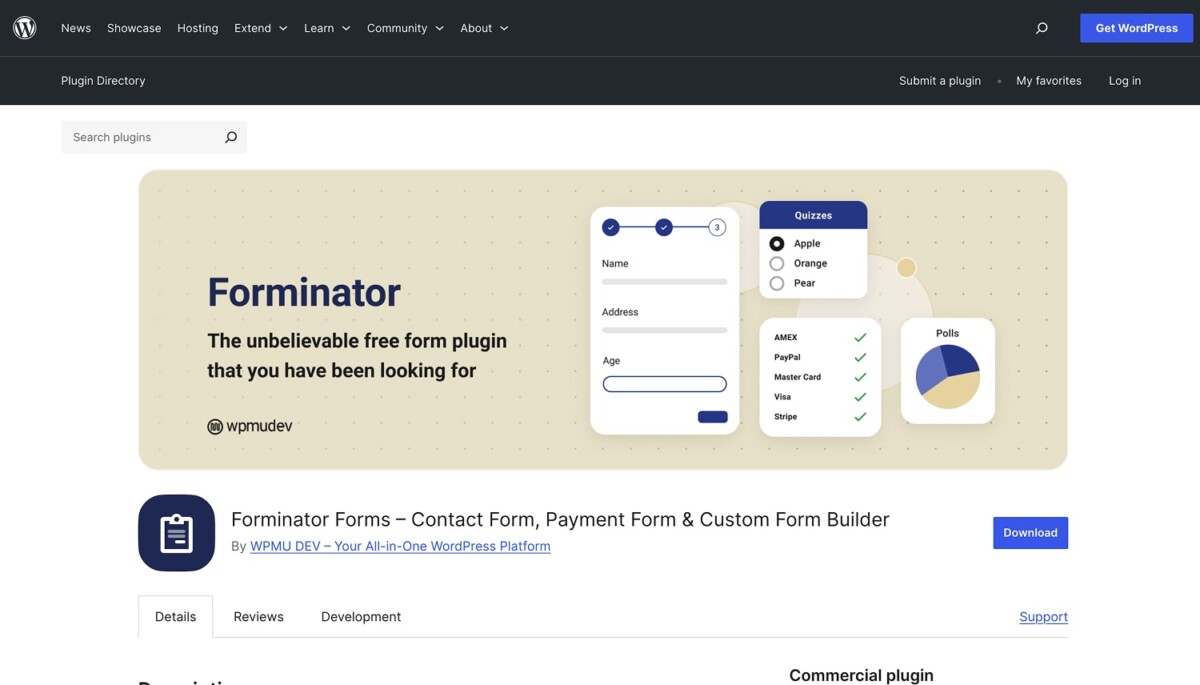
Forminator is a WordPress plugin for creating forms within WordPress. Unlike the other tools I tested, Forminator isn’t a standalone web application.
The setup was straightforward for anyone familiar with WordPress plugins. The plugin adds a new section to your WordPress admin panel where you manage all your forms.
Forminator Forms are embedded directly into your WordPress pages and posts. There’s no external hosting or iframe – the forms are part of your site’s content. This means they inherit your site’s styling and load on your page, which can be an advantage for design consistency.
The feature set includes conditional logic, file uploads, and multi-page forms.
Forminator offers a free version with core functionality, including unlimited forms and submissions. The pro version starts at $15/mo for a single-site license. This pricing structure is typical for WordPress plugins; you pay once per year rather than a monthly subscription.
Key differences between Forminator and Google Forms
- Forminator is a WordPress plugin that must be installed on a WordPress site, while Google Forms is a standalone cloud service
- Forminator forms are hosted on your own website and server, while Google Forms hosts everything on Google’s infrastructure
- Google Forms is completely free with no hosting costs, while Forminator requires WordPress hosting
- Forminator forms inherit your website’s design and styling automatically
- Google Forms has better real-time collaboration features for form editing
- Google Forms has a larger ecosystem of integrations and add-ons
- Forminator requires technical knowledge of WordPress for installation and management
Who should choose Forminator?
Forminator is appropriate for WordPress site owners who want forms integrated directly into their website without relying on external services. It makes sense if you’re already paying for WordPress hosting and want to keep all your data within your own infrastructure.
9. Notion Forms – Google Forms alternative for Notion
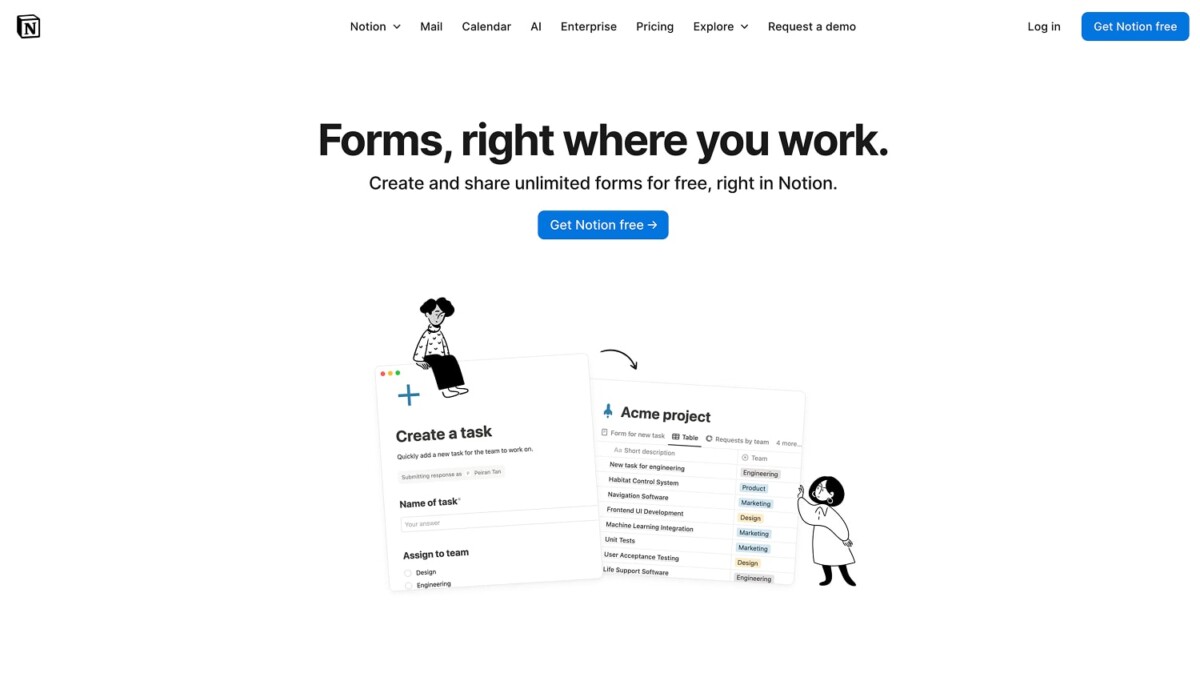
Notion Forms is a native form feature within Notion. It allows users to collect data directly into Notion databases. Notion is a free note-taking app, but they introduced many new products, like databases, forms, a calendar, AI, and more. It is another Google Forms alternative for free.
Accessing Notion Forms requires a Notion account and workspace. The setup involves creating or selecting a Notion database, then generating a form view from that database. This approach is different from traditional form builders. Instead of building a form that creates a database, you’re creating a form interface for an existing database structure.
The field types available are limited to what Notion databases support – text, select, multi-select, date, checkbox, people, and files. More specialized form fields like rating scales, matrix questions, or calculation fields don’t exist.
The feature set is basic compared to dedicated form builders. There’s no conditional logic, no payment processing, no calculation fields, and no advanced branching. File uploads work but are subject to Notion’s file storage limits. Multi-page forms aren’t possible – all questions appear on a single page. Email notifications can be set up through Notion’s automation features, but this requires additional configuration. Integration capabilities are tied to Notion’s ecosystem.
The form-filling experience is straightforward but unpolished. The forms have a clean, minimal design that matches Notion’s aesthetic, but customization is extremely limited.
Notion Forms is included with all Notion plans at no additional cost. If you already pay for Notion (plans start at $10/month for Plus, $18/month for Business), the forms feature is available. For free Notion users, forms are also accessible but subject to the workspace limitations of the free plan.
Key differences between Notion Forms and Google Forms
- Notion Forms submits data directly into Notion databases, while Google Forms stores data in Google Sheets.
- Notion Forms requires a Notion account and workspace, while Google Forms only needs a Google account.
- Google Forms has more field types and question formats, including scales, grids, and file uploads with better controls.
- Notion Forms has minimal customization options, while Google Forms offers themes and basic styling.
- Google Forms includes built-in conditional logic and section branching.
- Notion Forms is tied to Notion’s database structure and limitations.
- Google Forms can be shared as standalone forms, while Notion Forms can be shared in a Notion page.
- Google Forms has built-in analytics and response charts, while Notion requires manual database views.
- Notion Forms lacks quiz functionality, calculations, and validation rules that Google Forms provides.
- Google Forms has a larger add-on ecosystem for extended functionality.
Who should choose Notion Forms?
Notion Forms makes sense for teams and individuals already using Notion as their primary workspace tool.
10. Typeform – Google Forms alternative for enterprises
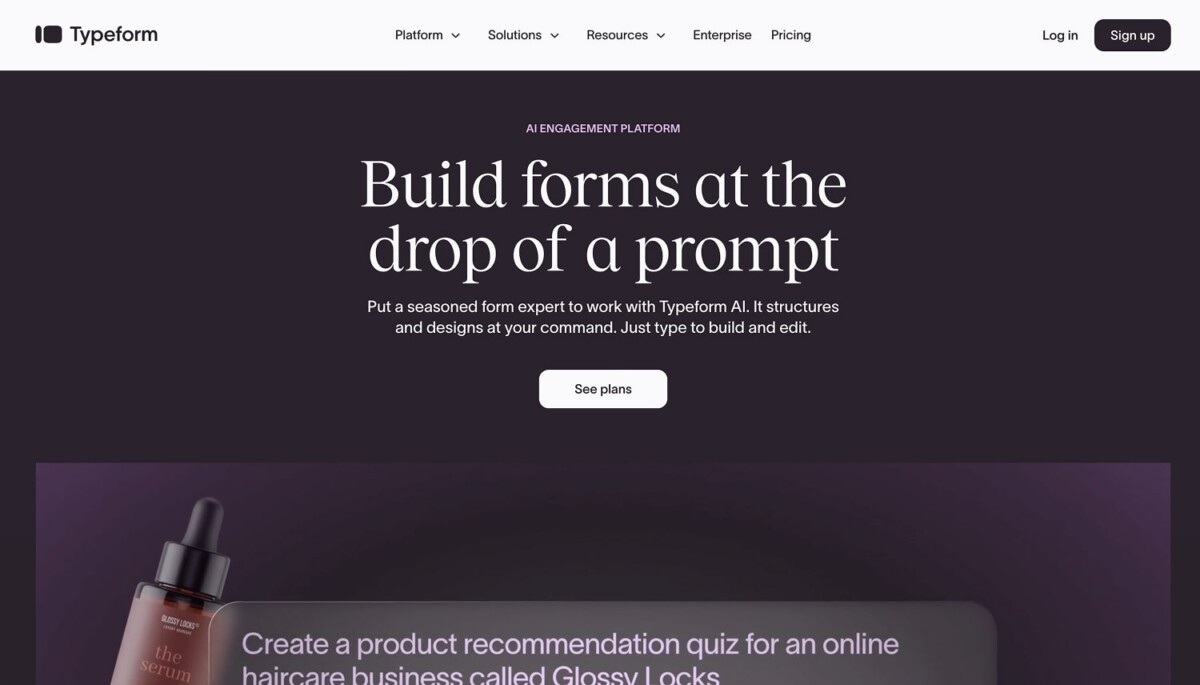
Typeform describes itself as an AI engagement platform. It’s been in the market longer than most alternatives I tested and has built a reputation around creating engaging forms.
The signup process was quick, and the dashboard presents a polished, modern interface. Typeform immediately stands out visually compared to other tools. The design is just clean.
The experience of building forms felt smooth, though the one-at-a-time format isn’t always appropriate – some use cases work better with traditional multi-field layouts. Typeform doesn’t handle that as well.
The feature set includes conditional logic (called “Logic Jumps”), calculations, hidden fields, and payment integration through Stripe. There is also an abundance of integrations.
The form-filling experience is where Typeform differentiates itself. The one-question-at-a-time format with smooth transitions creates an experience that feels more engaging than traditional forms. My test respondents generally preferred the Typeform experience over standard multi-field forms, noting it felt less overwhelming.
The real issue with Typeform is that it has expensive pricing. When I say expensive, I mean breaking-the-bank kind of expensive. The free plan is just for testing, limiting you to 10 responses per month and basic features. The paid plans start at $29/month with only 100 responses per month. So, if you need to collect data in larger quantities, it’s not the best. But if you have the resources, it offers a better experience than Google Forms.
Key differences between Typeform and Google Forms
- Typeform uses a one-question-at-a-time conversational interface, while Google Forms shows multiple questions per page by default
- Google Forms is completely free with unlimited responses, while Typeform’s free plan caps at 10 responses per month
- Typeform has a more polished design and animations focused on user engagement
- Google Forms has a simpler interface, better suited for straightforward data collection
- Typeform’s paid plans are expensive.
- Typeform provides better analytics on form completion rates and drop-off points (however, it’s only available with paid plans)
Who should choose Typeform?
Typeform is appropriate for organizations that have a large budget and are looking for the optimal form experience.
11. Paperform – Google Forms alternative for agencies
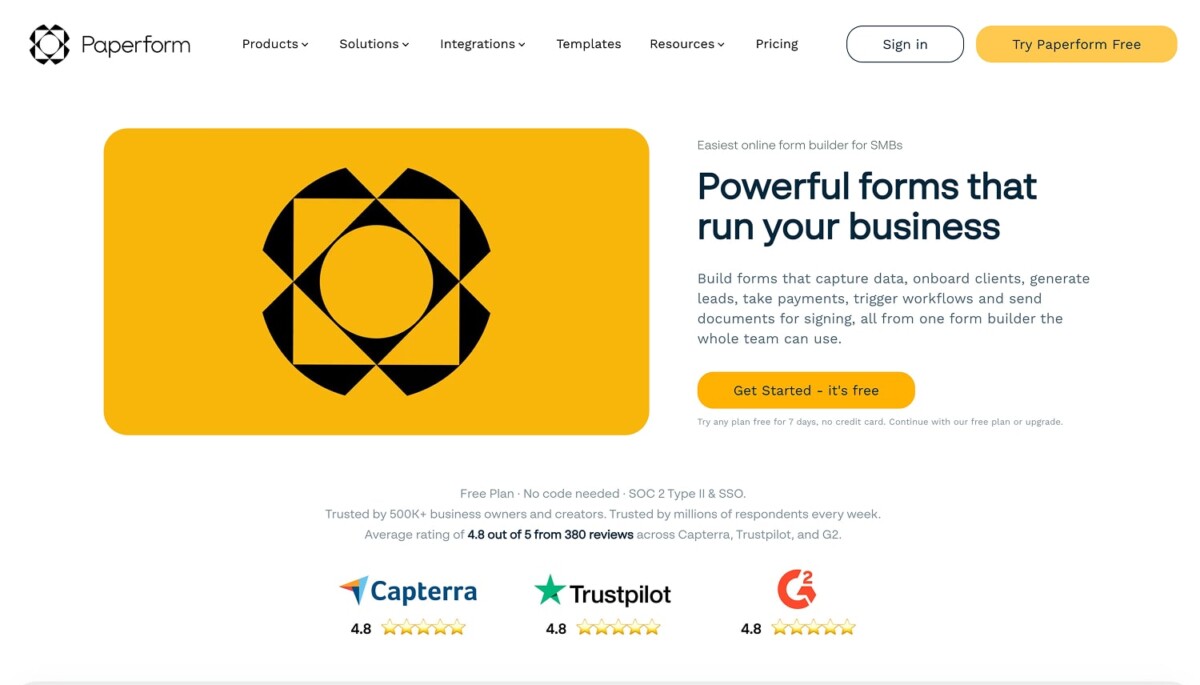
Paperform positions itself as a versatile tool for creating forms, landing pages, and product pages. The platform uses a text-based editor approach rather than traditional drag-and-drop. It took me a while to get adjusted.
The feature set is extensive. Paperform includes conditional logic, calculations, payment processing through Stripe and PayPal, appointment scheduling, file uploads, and product selling capabilities. Integrations are available for popular tools.
The form-filling experience varies depending on how the form is designed. Not the best, not the worst.
Paperform’s free plan allows 30 responses per month, and paid plans start at $29/month for 100 responses per month. It has a specific plan for agencies called “Paperform Agency+,” and it is priced at $190/month.
Key differences between Paperform and Google Forms
- Paperform uses a text-based editor for form building
- Google Forms is completely free, while Paperform starts at $24/month with limited free plan
- Paperform includes built-in payment processing and subscription billing
- Google Forms has a simpler learning curve for basic form creation
- Paperform offers more extensive design customization, including custom CSS
- Google Forms integrates more directly with Google Workspace applications
- Paperform includes appointment scheduling functionality
- Google Forms has better real-time collaboration for team editing
Who should choose Paperform?
Paperform makes sense for agencies simply because other alternatives don’t have agency-specific features, like multiple custom domains.
Closing thoughts
After two weeks of testing form builders and closely examining these 10 Google Forms alternatives, the right choice depends entirely on your specific needs and context. Google Forms remains a solid option for basic data collection, especially if you need something free and simple. However, the alternatives I’ve reviewed each address different limitations and use cases.
If you need a well-rounded upgrade with advanced features at reasonable pricing, forms.app provides the most balanced option. For users already invested in specific ecosystems – Microsoft 365, WordPress, or Notion – the native options (Microsoft Forms, Forminator, or Notion Forms) make practical sense despite their limitations. Privacy-conscious organizations should consider BlockSurvey or the self-hosted option of OpnForm. Teams needing offline capability have Clappia, though it comes with complexity. Typeform and Paperform serve organizations willing to pay premium prices for specialized features.
My testing process focused on practical use rather than feature checklists. I built real forms, collected actual responses, and evaluated the complete experience from creation to data analysis. Your experience may differ based on your technical skill level, team size, budget constraints, and specific use cases. Most platforms offer free plans, so I recommend testing the top 2-3 options that match your requirements before committing to a paid plan.