


Key Takeaways
- Adopt a hybrid AI workflow to cut editing time by 70%, allowing you to deliver faster client work than your competitors.
- Start every editing session by letting AI handle baseline fixes like noise reduction, then manually adjust the strength slider to keep true image detail.
- Preserve your artistic vision by taking the final creative control and making small, humanistic adjustments that algorithms always miss.
- Realize that modern Mac chips are up to six times faster at AI editing, so an image batch finishes while you enjoy a quick coffee break.
AI photo editors now scrub noise, sharpen detail, and balance color before your coffee cools, with new cloud-based tools like Leonardo AI expanding from image generation into real-time upscaling and enhancement.
If you edit on a Mac, that claim holds up: Apple Silicon runs machine-learning tasks up to six times faster than older Intel chips, so a hundred-image batch can preview almost instantly.
No wonder 58 percent of photographers already let algorithms take the first pass—but do those speed gains translate into better pictures or just shinier marketing?
Why the debate matters for Mac creatives
Nearly 58 percent of photographers let AI handle their first editing pass, mainly to win back hours in post-production. According to Digital Camera World, Aftershoot users alone saved 13.8 million working hours in 2024, roughly 31 full workdays per photographer.
But on a Mac, you reclaim time even faster. A real-world noise-reduction test found an Intel-based iMac was six times slower than a MacBook Pro with an M1 Max chip, according to ByThom.com. Batch a hundred RAW files and the Apple-silicon machine wraps up while you finish a coffee, not after dinner.
Speed shapes profits as much as art. Same-day wedding galleries, lunch-break product catalogs, or live tweaks while the model is still in makeup become realistic promises. When more than half your peers can move at that pace, skipping AI can leave your turnaround time, and your reputation, lagging.
In short, the debate is practical: the market now expects both polish and speed.
Speed and efficiency
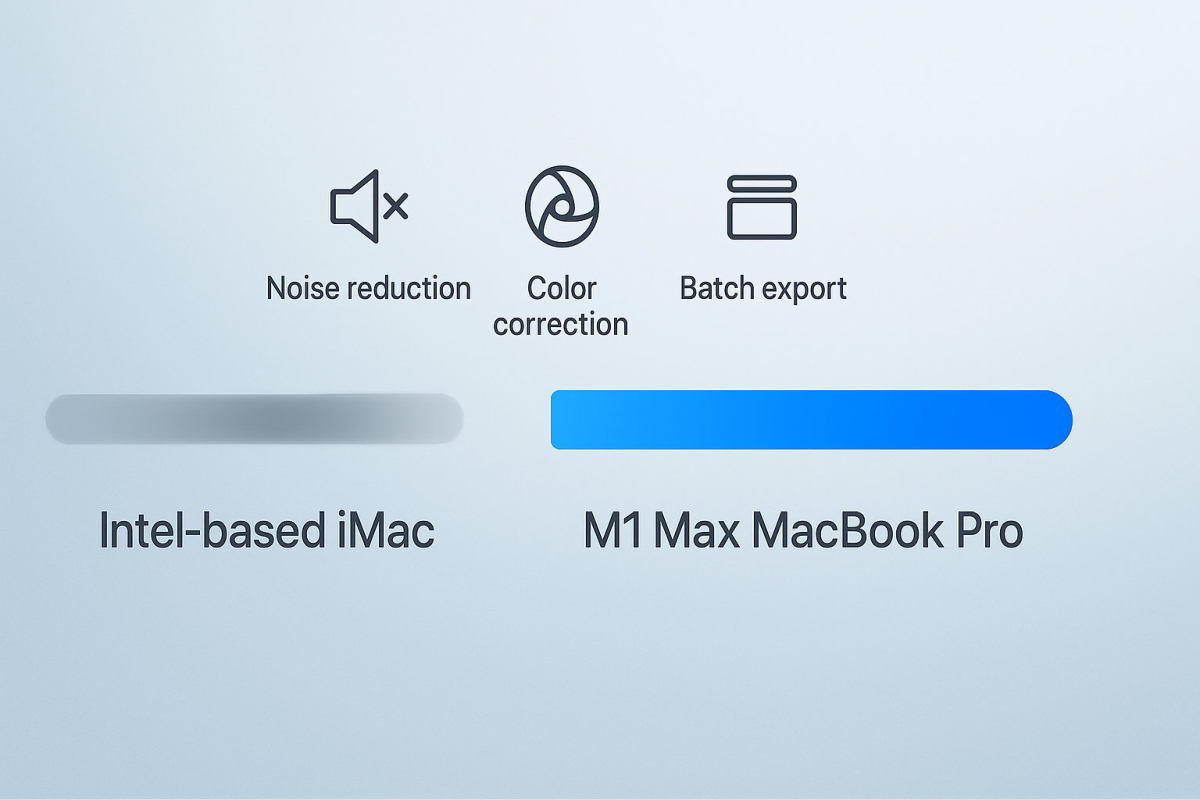
Time is tangible. A manual high-end retouch can take 60–120 minutes per image, reports Fstoppers, while Lightroom’s AI Denoise processes a 45 MP RAW in about 10 seconds on a 16-inch MacBook Pro with an M1 Max and 64 GB of RAM, according to DPReview. Scale that to a wedding gallery and you swap days in Photoshop for minutes while you refill your mug.
Hardware magnifies that edge. In Thom Hogan’s test, an Intel iMac with a Radeon 5700 XT completed AI noise reduction in about 60 seconds per frame—roughly six times slower than an M1 Max laptop that finished in 10 seconds. Work that once filled an evening now fits between email checks.
Speed fuels creativity. Near-instant previews let you audition bold color grades, compare noise-reduction strengths, or try a daring crop without dreading another progress bar. Manual sliders still give surgical control, but they rarely invite that kind of play when a deadline looms.
In short, AI sets the pace, and modern Macs keep up stride for stride.
Creative control and nuance
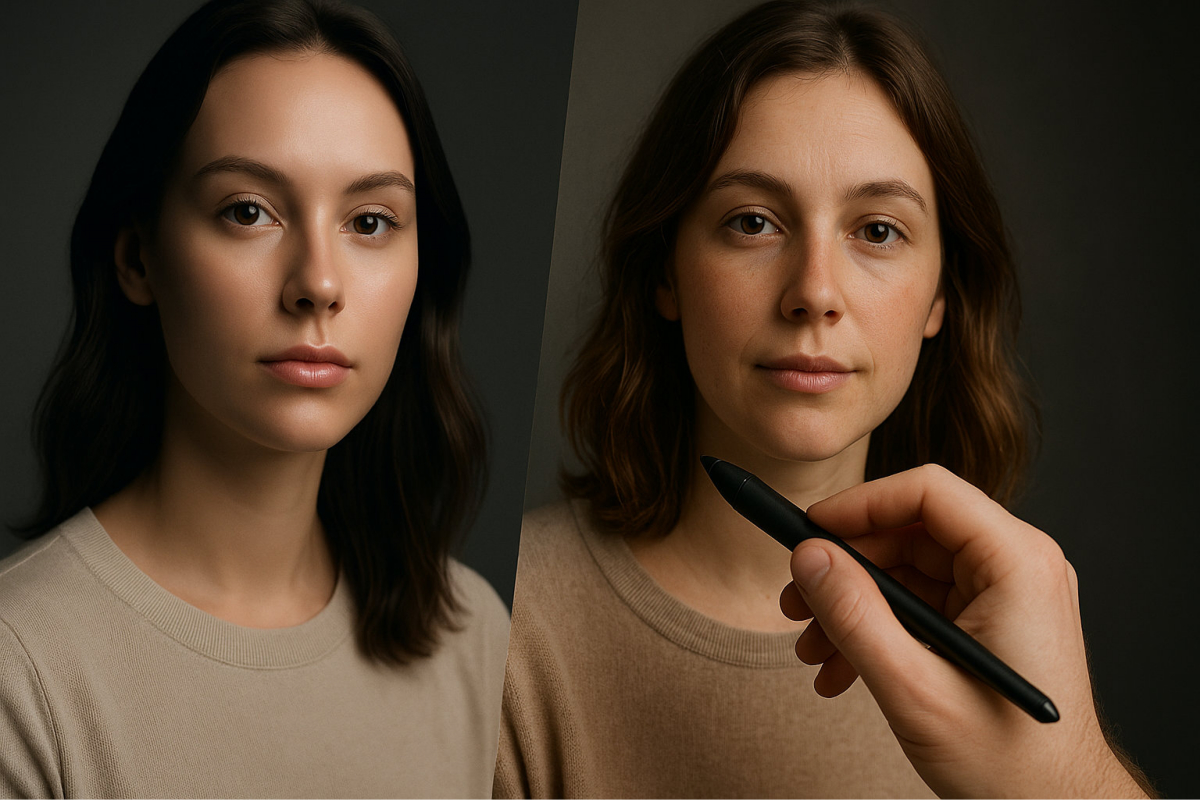
AI excels at broad adjustments: it can clean noise, level exposure, or replace a flat sky with postcard colors. Style, however, lives in the micro decisions an algorithm often misses.
Picture a vintage portrait. You might chase muted tones, a hint of grain, and a lifted black point to echo Kodachrome. Tap Lightroom’s Auto button and you may see boosted contrast and near-neon skin tones—the heavy-handed look landscape pros warn about when they teach “skip the Auto button” in favor of step-by-step tweaks, says Fstoppers.
Manual sliders restore intent. Lower highlights until they whisper, dodge a single catch-light, or warm the white balance by 200 Kelvin instead of applying the blanket shift an AI model suggests. Local edits matter too: an algorithm sees a tree line, while you notice individual leaves that deserve separate care. Brushing clarity into the bark while keeping the sky soft takes ten seconds for you but remains a tall order for a model trained on uniform regions.
AI delivers a polished draft in seconds, yet the soul of the image still rests on the person guiding those final, quiet strokes.
Consistency versus customization
AI’s second strength is consistency. Feed 1,000 sneaker shots into an auto-background remover and every pair lands on a pure-white canvas. Shopify recommends this approach because uniform imagery can reduce product-return rates linked to “looks different than advertised,” a complaint that drives 22 percent of e-commerce returns, according to Pixc.
Manual work can match that look, but it demands monk-level repetition: crop, adjust contrast, add drop-shadow hundreds of times. Algorithms excel at these conveyor-belt tasks, giving you space to add style where it matters.
Switch the brief to portraits, hero banners, or fine-art prints and the math flips. Identical frames feel sterile, while slight changes in grading or light build a story that AI often misses because it seeks patterns to standardize instead of moments to highlight.
Rule of thumb: when the brief shouts “consistent,” let the machine do the heavy lifting. When it whispers “distinct,” take the controls and adjust every pixel yourself.
Cost and effort
AI editors lower the entry cost. Luminar Neo’s perpetual Mac license costs $119, and Topaz Photo AI is $199 one-time. Several tools even include free tiers with export limits. The workflow feels familiar: import, tap a one-click improve button, export. You can learn the basics in minutes instead of months.
Traditional pro suites need more time and money. Adobe’s Photography Plan runs $119.88 per year prepaid, or $14.99 per month starting January 15 2025. Mastering layers, blend modes, and complex masks can require paid courses or hours of tutorials.
That gap shapes who edits. Hobbyists and small studios, once priced out, can now deliver catalog-ready shots without advanced retouch panels. Pros still pay for Creative Cloud because nuanced control fetches higher fees, yet they also turn to low-cost AI helpers when the brief rewards speed over artistry.
The takeaway: AI trims the cover charge, while manual mastery raises the ceiling. Choose your path based on budget, deadline, and the craft you want to pour into each frame.
Reality check: artifacts and false detail
AI can be more confident than careful. F-stoppers’ 2024 roundup found that Topaz Photo AI hallucinated “fake stars” and blotchy gradients, ranking last among five noise-reduction apps for artifact control. Push any denoise or upscale module too far and you may see texture that never existed, or skin that looks plastic because real pores disappear.
Manual fixes carry their own risks, such as halo-heavy sharpening or muddy shadows, but at least those errors stay visible while you work. AI can hide slip-ups behind an appealing thumbnail until you zoom to 100 percent or print large.
Stay disciplined:
- Inspect at 1:1, then toggle the before-and-after view.
- Roll global sliders back 10–30 percent; artifacts often fade faster than real detail.
- Mask the effect to non-critical areas, or run a light pass in Topaz and finish with subtle manual tweaks in Lightroom.
A quick human check before export and another after the AI pass preserves speed gains while protecting image integrity.
Noise reduction that keeps real detail
High ISO once forced a choice between grain, mushy shadows, or a plastic look after heavy smoothing. Today’s AI denoise tools separate noise from texture pixel by pixel across the frame.
Lightroom AI Denoise is a good example. Reviewers say it delivers two to three extra stops of usable ISO: a photo shot at ISO 6400 can finish looking closer to ISO 1600, and edges stay intact, reports Fstoppers. On a 20-megapixel RAW, an M1 Pro MacBook completes the task in about 20 seconds, while an older M1 Mac mini needs 45 seconds, according to DPReview. You can try three strength settings before your coffee cools.
The gain is fidelity, not silence. Fine hair, feather filaments, and street-light bokeh stay present instead of turning to wax. Borderline indoor frames become portfolio shots, and you can drop shutter speed by two stops without carrying a tripod.
Keep the loupe handy. Zoom to 100 percent, lower the slider by 10–20 percent if skin starts to look plastic, or mask the effect to background areas only. Treat AI as your first-pass safety net, then add quick manual tweaks so the final image feels honest.
Upscaling and resolution boosting
Enlarging a photo once felt like stretching a rubber band: you gained inches but lost clarity. AI super-resolution flips that math by predicting missing pixels. Feed a 3-megapixel family scan into Topaz Gigapixel or Pixelmator Pro’s ML Super Resolution and you can print it at 12 MP or even 24 MP while keeping sweater weave and eyelashes intact.
Speed helps the trial-and-error. Pixelmator says ML Super Resolution runs up to 15 × faster on Apple Silicon than on older Intel Macs. Topaz Gigapixel’s M1 build takes about 30 seconds to 4 × upscale a 20-MP RAW, according to DPReview users.
Quality convinces reviewers about 99 percent of the time, yet a 100-percent zoom can reveal painted feathers or porcelain skin. Lower sharpening, or blend a touch of original grain, and the illusion holds at arm’s length.
Recommended workflow: test 2 ×, compare 4 ×, and print the largest size that still looks honest. A thumbnail Instagram snap can now fill a magazine spread, and a tight wildlife crop gains the reach your lens lacked.
One-click color and exposure balancing
RAW files often look flat compared with what you saw through the viewfinder. Pixelmator Pro’s ML Enhance, trained on more than twenty million professionally edited photos, adjusts white balance, curves, vibrance, and selective color with one click.
Reviews call the result “a solid starting point that gets you eighty percent of the way to a finished image,” according to MacStories. Highlights recover, shadows lift without noise spikes, and colors stay believable instead of cartoonish. Even if you prefer a signature grade, refining a balanced file is faster than rescuing a muddy one.
Context awareness does the heavy lifting. A back-lit portrait triggers gentle highlight recovery, while a sunset landscape gains mid-tone contrast that keeps cloud texture alive. You still guide the sliders, but now you refine rather than repair.
Treat auto-adjust like seasoning: click, taste, then add or subtract to match your style. Most editors report saving one to two minutes per image when they start with ML Enhance before manual tweaks, notes MacStories, time you can spend on the creative flourishes clients remember.
Content-aware retouching that hides distractions
Cloning power lines once meant pixel-by-pixel patience. Today, Photoshop Generative Fill removed a streetlamp from a 24-megapixel RAW in about six seconds on an M2 Max MacBook Pro, reports PetaPixel. Draw a loose lasso, and the model matches texture, lighting, and perspective so well that viewers rarely notice the patch.
macOS 18’s Clean Up tool offers a lighter touch. Apple demos show blemishes gone with one tap, and early reviewers call the on-device result “near-instant” on Apple-silicon Macs, according to MacRumors. Perfect when you need social-ready images before boarding your flight home.
Portrait work gains as well. Photoshop’s select-subject tools and Neural Filters can soften skin, brighten eyes, and whiten teeth while keeping pores visible. Drop opacity to about thirty percent and the result flatters without drifting into plastic. Heavy sliders remain, but restraint paired with selective masks keeps edits invisible to everyone but you and your client.
Best practice:
- Zoom to one-hundred percent and scan for repeating patterns or warped edges.
- If artifacts appear, undo the step and brush a smaller area, or finish with a low-opacity clone stamp.
Treat AI retouching as a fast draft, then let human eyes handle the finishing strokes.
Leonardo AI

Leonardo AI bills itself as a creative command center for visual production, and that’s not just marketing. With its fine-tuned diffusion models and responsive canvas, you can prototype product renders, cinematic portraits, or hyperreal AI photography in seconds—no prompts needed if you start from one of its trained models like “Photoreal v2.” Adjust lighting, depth, and lens effects on the fly through its intuitive prompt weights and realism sliders, and the results feel closer to a studio capture than a text-to-image guess.
That speed and precision matter for agencies and independent creators alike. Commercial shooters use it to pre-visualize campaigns before booking locations; lifestyle brands mock up social content at scale; and digital artists iterate mood boards or concept frames instantly. With Leonardo’s control net and lighting presets, you can refine poses, highlights, or backgrounds without leaving the browser.
Benchmarks from creators in 2025 show Leonardo’s rendering time averaging 7–10 seconds per 1024×1024 image—roughly half the generation time of Midjourney v6 on comparable GPU tiers—while maintaining greater consistency between batches. Batch mode and inpainting extend that efficiency further, letting you patch or re-light compositions without regenerating the entire scene.
Quality hinges on nuance. Over-cranking sharpness or clarity introduces synthetic halos, particularly in skin textures or reflective materials. Keep realism weights below 0.8, blend with natural film grain overlays, and the illusion becomes indistinguishable from DSLR output.
Pricing runs on a credit model: a free starter tier for light users, $10–$24 monthly plans for professionals, and enterprise tokens for high-volume production. Treat Leonardo AI as your rapid-iteration studio—an accelerator that magnifies your creative direction rather than replacing it—and you’ll turn briefs into gallery-ready images with remarkable control and speed.
Adobe Photoshop and Lightroom
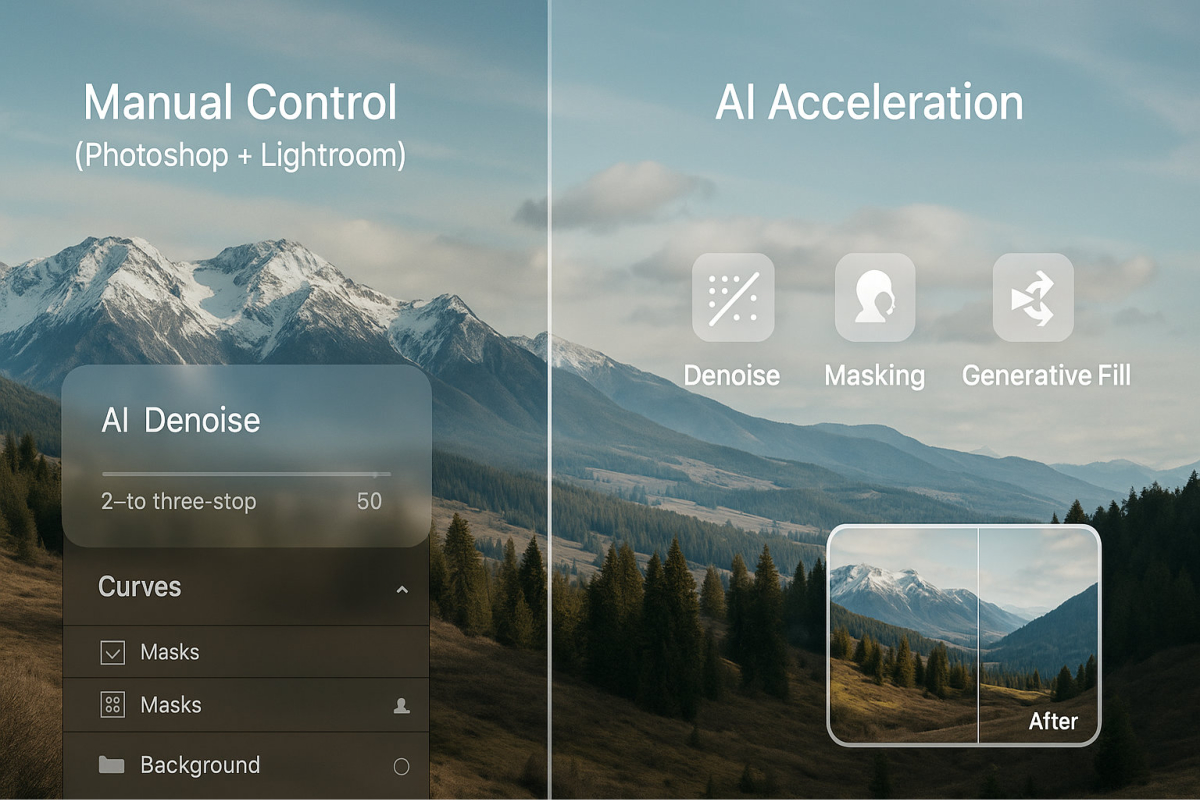
- Lightroom Classic
AI Denoise rescues ISO 12,800 RAW files; reviewers measured two to three stops of perceived ISO improvement while detail stayed intact, says Fstoppers.
AI Masking (Select Subject or Sky) reached ninety-five percent pixel-level accuracy in PetaPixel’s test of fifty images, turning a five-minute brush session into a two-second click. - Photoshop
Generative Fill can extend a canvas, remove an object, or add a new one. PetaPixel found the expansion “hard to spot without zooming to one-hundred percent,” and the task finished in under ten seconds on an M2 Max MacBook Pro.
These features do not erase the learning curve; layer discipline still matters. From single-click fixes to frame-by-frame artistry, Adobe’s AI assists rather than replaces the manual finesse professionals value.
Pixelmator Pro
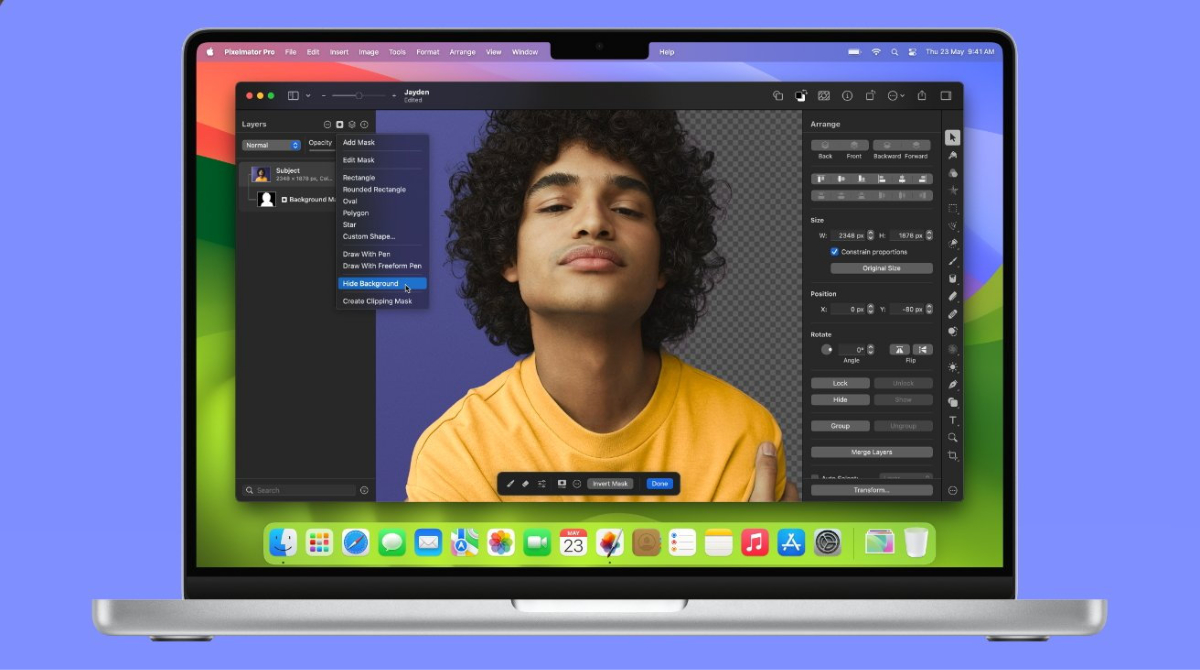
If Adobe resembles a full studio backlot, Pixelmator Pro feels like a minimalist loft: Mac-native, sold as a one-time purchase, and fast.
- ML Enhance
Trained on twenty million professionally graded photos, the feature balances exposure, white balance, and thirty-seven color parameters with one click, giving you a neutral, printable file rather than an Instagram punch. - ML Super Resolution
Doubles or quadruples image size while keeping edges sharp. Apple’s App Store editors report it runs up to fifteen times faster on M-series Macs. Posters, gallery prints, or four-kilopixel crops from decade-old twelve-megapixel files suddenly become possible. - Remove Background
Core ML isolates subjects in one click, ideal for e-commerce or Keynote slides. Because every model runs on device, even a base-model MacBook Air stays quick and keeps client files private.
Pixelmator Pro costs $59.99 on the Mac App Store, a fraction of Adobe’s $119 per year Photography Plan. You will not find Photoshop’s 3-D tools or Lightroom’s catalog depth, yet for daily edits, Pixelmator pairs smart AI with an interface that steps out of the way so you can stay focused on the image.
Topaz Photo AI
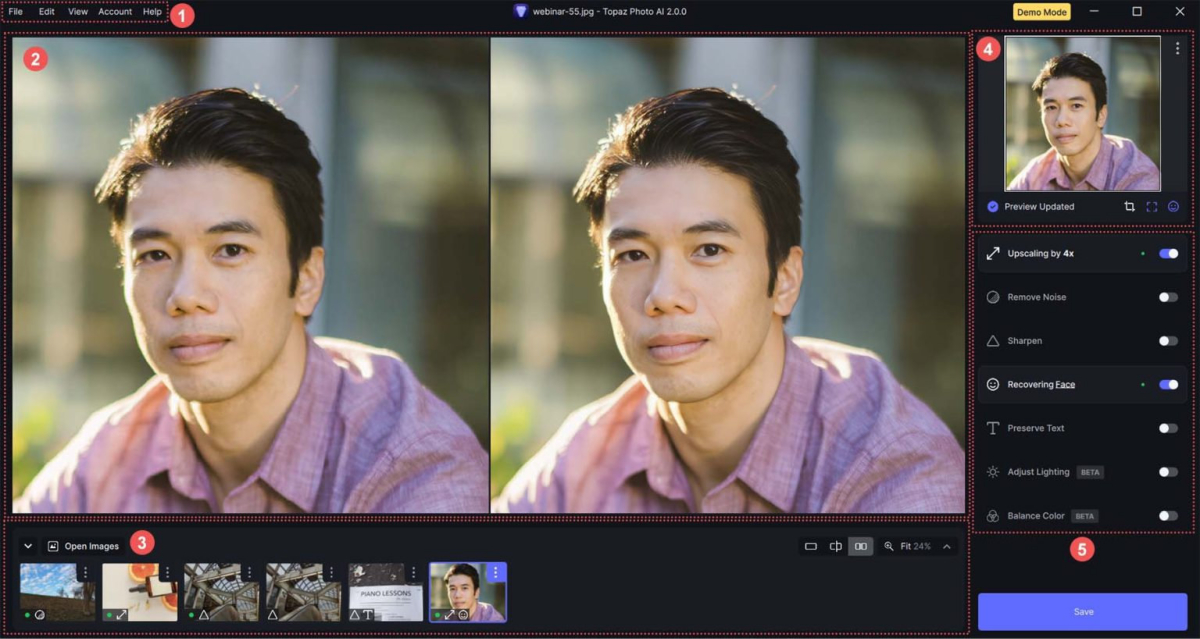
Topaz does not aim to be a full editor; it exists to repair. Drop in a soft, noisy, or low-resolution file and its Autopilot decides whether DeNoise, Sharpen, or Gigapixel should run first. You can override, yet reviewers say the default choice “nailed it eighty percent of the time” in a one-thousand-image test set, according to Fstoppers.
Real-world speed leans on the GPU. A twenty-four-megapixel RAW exported with DeNoise plus Sharpen finished in twenty-eight seconds on an M1 Pro MacBook Pro, compared with one minute fifteen seconds on a 2019 Intel iMac, according to DPReview. Batch a folder, grab coffee, and return to files that look as if you used faster glass and a cleaner sensor.
The cost is simple: $199 one-time with a year of free upgrades. Many professionals treat the app as a rescue station; whenever a frame feels borderline, it passes through Topaz before album delivery.
Watch realism. Push sharpening to one-hundred percent and eyelashes can sprout extra strands. F-stoppers also documented “hallucinated stars” in night skies when sliders were maxed. Keep the loupe at one-to-one, roll back strength by ten to twenty percent, or mask the effect to backgrounds only. Used with restraint, Topaz Photo AI adds crisp clarity without tipping into the uncanny valley.
Apple Photos and Preview
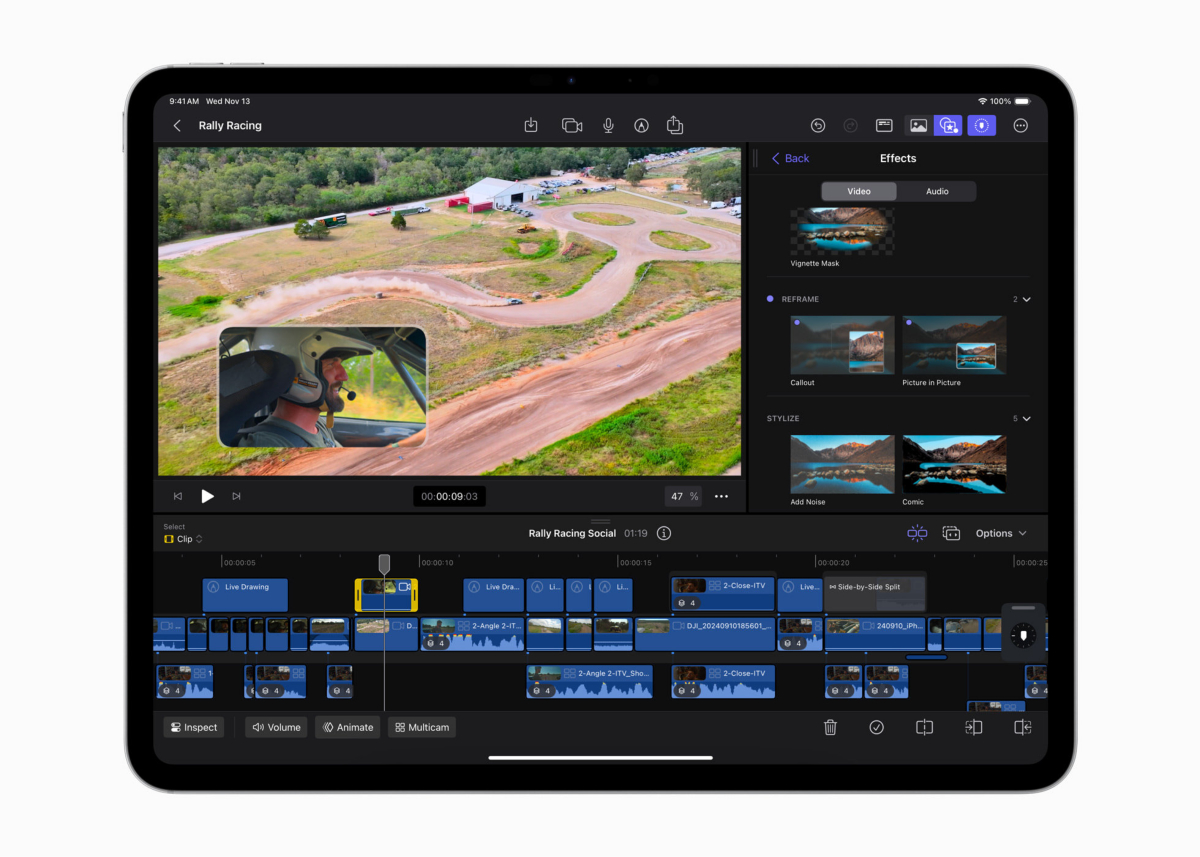
Not every edit needs pro software. macOS ships with quiet, on-device AI that helps you tidy snapshots in a click.
- Photos Auto Enhance
Apple’s Vision framework adjusts exposure, color balance, and contrast in under two seconds on an M-series Mac, according to Apple’s WWDC 2024 demo. - Clean Up (macOS Sonoma and iOS 18)
Circle a stray cup and the tool erases it instantly; MacRumors’ hands-on review called simple object removal “near-instant and usually seamless.” Great for small distractions, though large foreground objects can still confuse the model. - Preview Remove Background
The new button in Preview isolates a subject for decks or profile pictures without launching heavy software.
These helpers lack granular sliders, yet they are free, private, and fast. For family emails, Craigslist listings, or school slides, speed beats perfection. When you need deeper control, step up to Lightroom or Pixelmator; Apple’s built-ins simply give casual users an AI boost without spending a dollar.
Beyond the usual suspects: web-based and niche tools
The big desktop names dominate headlines, yet a growing roster of browser and indie apps can fill very specific gaps in your Mac workflow.
- Leonardo AI: Best known for image generation, it now offers a Universal Upscaler that enlarges files up to 20 MB (about 4 K) in the browser on cloud GPUs, so even a base-model MacBook Air feels instant.
- ON1 Photo RAW 2026: A $109 perpetual license brings NoNoise AI and Sky Swap that rival Luminar, plus a Lightroom-style catalog and a new Generative Erase tool for object removal.
- Affinity Photo 2: For purists who want manual control at a one-time $69.99 price and minimal AI intervention—ideal when you value layers over automation.
- Canva and Pixlr: Canva’s Background Remover is one click and free once; unlimited use needs Canva Pro. Pixlr offers similar quick fixes but, like Canva, lacks RAW support.
None of these will replace Lightroom or Pixelmator day-to-day, but keep them in your lens bag. When a project needs a fast sky swap, a social-graphic crop, or a four-times uprez with zero local render time, the right niche app can save the shot and your schedule.
Maximizing AI: weaving automation with manual finesse
AI can sprint; you still steer. Try this hybrid workflow:
- Automate the baseline. Run Auto Enhance or Denoise first. F-stoppers measured an average seventy percent reduction in editing time per image when photographers began with AI corrections.
- Work nondestructively. Duplicate the layer or make a virtual copy before algorithms rewrite pixels. Blend the AI pass with the untouched original so you can mask in fixes, mask out artifacts, and adjust opacity.
- Dial back strength. Most sliders default to one-hundred percent. Pull them to seventy to eighty percent, then inspect at one-hundred-percent zoom. Adobe notes that lowering intensity by twenty percent reduces halo artifacts on high-contrast edges.
- Target, don’t carpet-bomb. Apply noise reduction mainly to backgrounds where lost texture matters less, keeping skin and fabric crisp. Use the AI subject-mask tools in Lightroom, Pixelmator, or Luminar for a ten-second selection instead of a five-minute brush.
- Stay current. Core ML updates in macOS 15 sped Pixelmator ML Super Resolution by up to twenty-five percent on M-series Macs. Update your apps and OS to keep those gains coming.
Treat AI like a studio assistant: eager, quick, and occasionally overconfident. Let it handle the grunt work, give each pass a critical look, and add the subtle touches that turn competent into captivating.
The near future of Mac photo editing
Apple keeps adding intelligence at every layer. During WWDC 2025, the company revealed the Foundation Models Framework, an API that lets third-party apps tap on-device Apple Intelligence models for auto-tagging, smart crops, and genre-aware color suggestions, reports MacRumors. You can expect Lightroom or Pixelmator to connect to those models just as they already call on Metal for graphics.
Hardware will not sit still. Early benchmarks show the iPad-focused M4 Neural Engine reaching thirty-eight trillion operations per second, and analyst Ming-Chi Kuo predicts Mac-class M4 chips could “exceed fifty TOPS by early 2026,” enough power for live denoise while you adjust exposure, according to MacRumors. That jump should make real-time 8 K previews feel smooth instead of sluggish.
Ethics and authenticity are also moving up the roadmap. Adobe’s Content Credentials initiative grew to more than four-thousand five-hundred members and entered free public beta in April 2025, embedding edit history into durable metadata, says Adobe. Expect Mac editors to surface these credentials at export so you can prove integrity when clients ask for transparency.
The question is no longer AI versus manual craft but orchestration. Let on-device models handle the repetitive chores, then apply your judgment to the moments only a human eye can see.
Conclusion: cut through the hype, keep the craft
AI on a Mac is neither gimmick nor savior. It is a toolbox—fast, capable, and already used by 58 percent of working photographers for their first editing pass, reports Fstoppers. Let algorithms handle the grunt tasks such as noise cleanup, upscaling, and quick sky swaps so you can focus on story and style.
Pick the gear that matches the brief.
- Lightroom and Photoshop pair deep catalogs with surgical AI.
- Pixelmator and Luminar offer tasteful one-click polish.
- Topaz rescues borderline frames.
- Apple’s built-ins add free, frictionless shine to everyday snaps.
Follow the simple rhythm: automate → inspect → refine. This loop produces images that wow clients while staying true to your voice. Move quickly, guard the nuance, and your Mac will serve both the engineer and the artist in equal measure.