

Key Takeaways
- Boost your product photos by using AI background removers to create clean, high-converting images faster than manual editing.
- Follow a simple workflow: upload your photo, run the AI remover, refine the edges, then export a transparent or new background file.
- Save hours and reduce stress by choosing beginner-friendly tools that remove backgrounds in one click and still look sharp.
- Try swapping in a bold color or scene after removal to make the same photo feel brand-new for ads and posts.
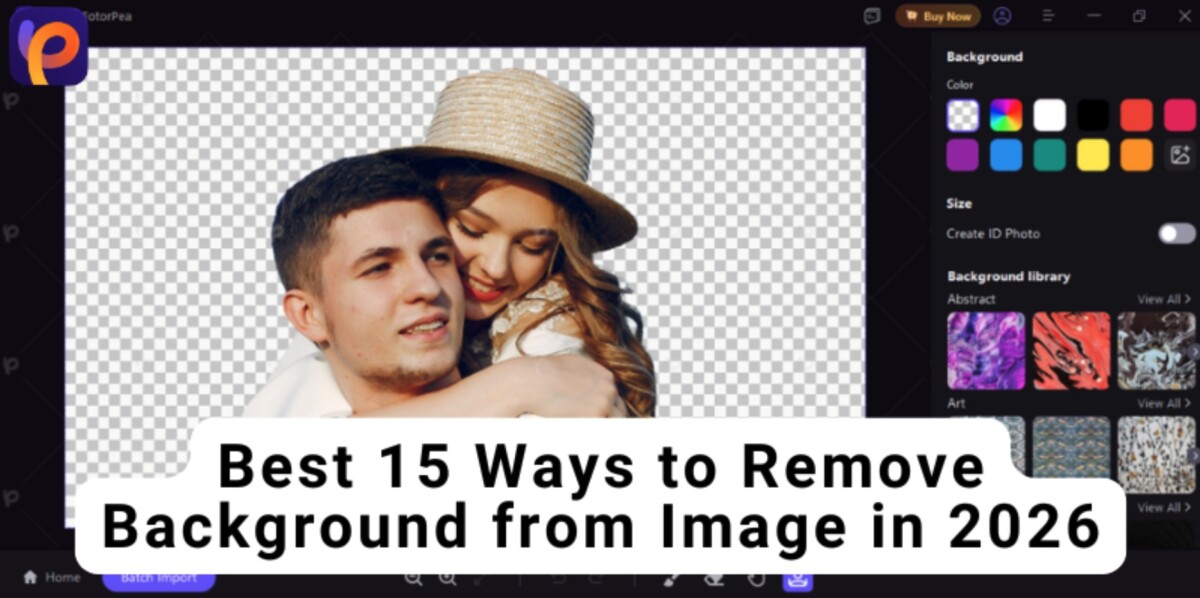
The demand to remove background from image files keeps growing as visuals become more important online.
A messy background can instantly lower the impact of social media posts or product listings you’re sharing.
Clean visuals are the deciding factor now, which is why there are tons of AI tools and online platforms for removing backgrounds. It can sometimes be tough to find the right tool.
But don’t worry! In this guide, we’ll break down the most effective options that are tried and tested by experts.
How to Remove Background from an Image Step by Step
To remove image backgrounds, you no longer need design skills or hours of editing. With modern tools, the process is much faster and more accurate. Below are the recommended methods you can use to remove the background from any image.
Remove Background from Image with AI (Recommended)
The first and best way to remove the background from images is to use AI. Now, there are multiple ways you can use in this regard, so let’s go through a few of them.
1. HitPaw FotorPea

HitPaw FotorPea is an AI-powered photo editing tool designed to make background removal quick and precise. It uses AI to remove background from an image by automatically detecting the main subject, such as people, products, pets, or objects.
Moreover, HitPaw FotorPea includes tools for photo enhancement, noise reduction, color correction, image upscaling to up to 8K, AI image generation, and image restoration. With it, you do not need to manually trace edges or tweak complex settings.
This makes this tool suitable for e-commerce visuals, social media content, marketing materials, and general photo editing tasks.
How to Remove Background with HitPaw FotorPea
Step 1: Download and install HitPaw FotorPea on your device, then open the software.
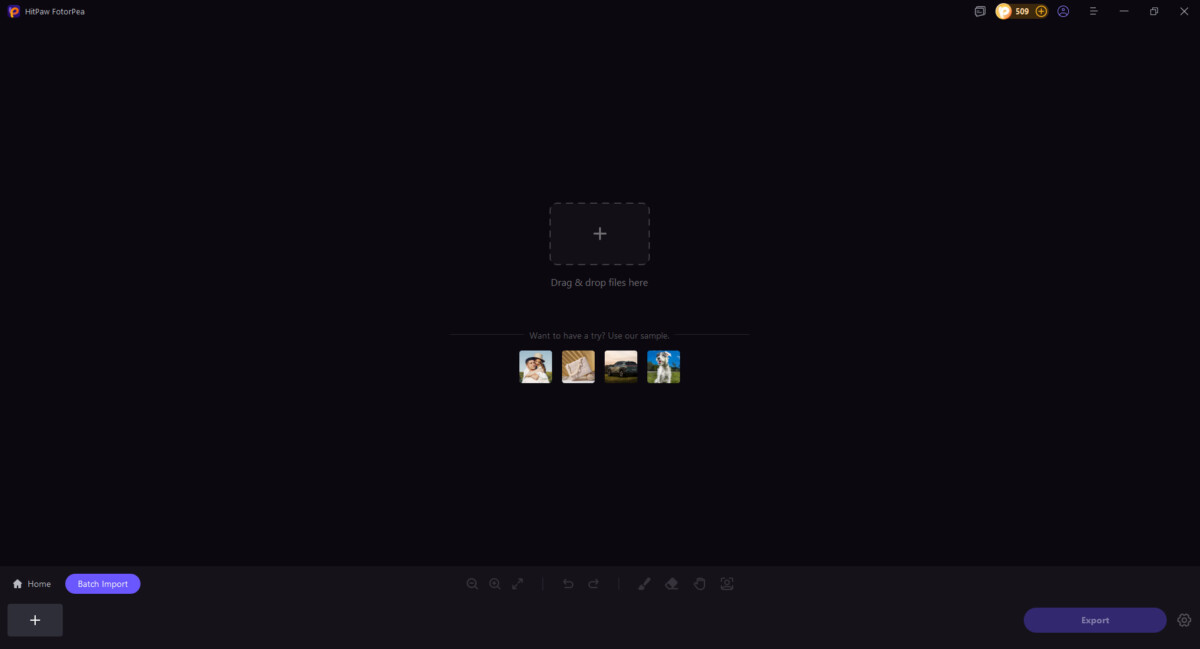
Step 2: Select the “BG Remover” option from the main screen or in ToolBox below.

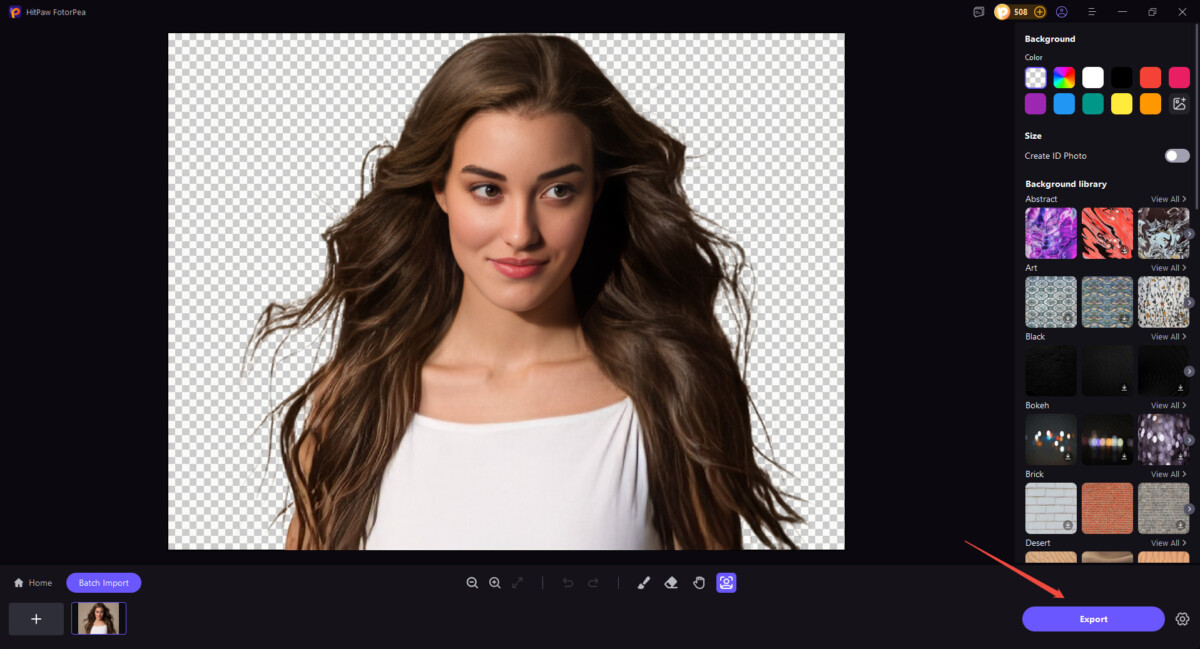
Step 3: Select the image you want to remove the background from. You can upload one from your device or try one of the templates below.
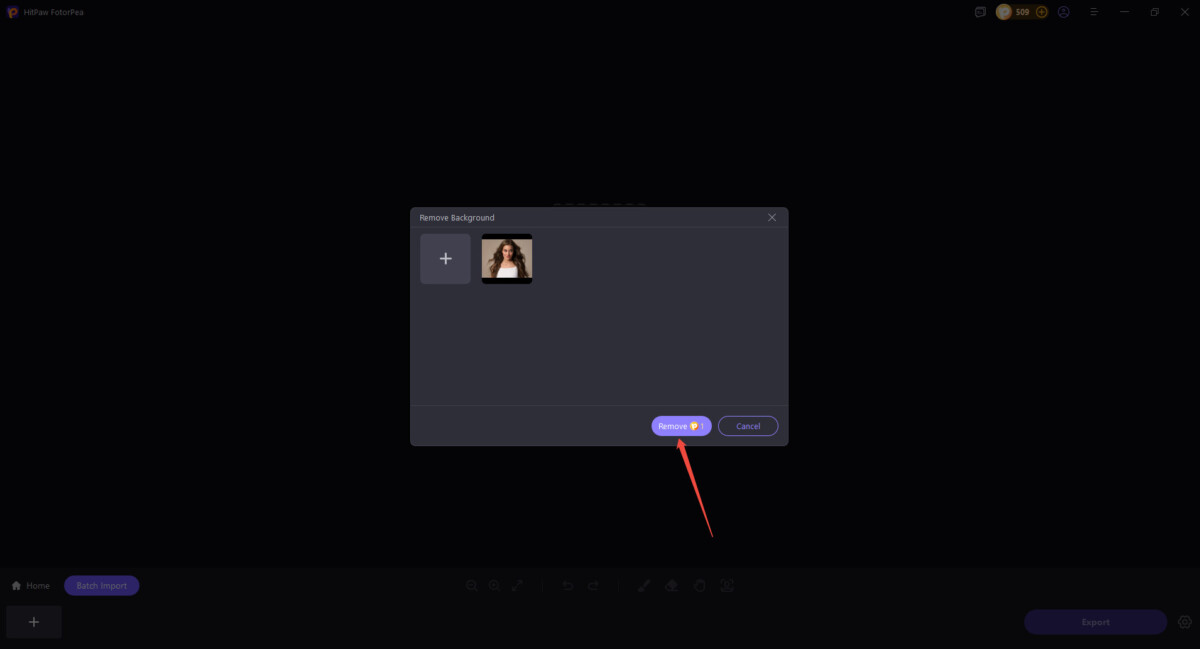
Step 4: Click on “Remove” to let the AI remove the background from the image.
Step 5: Preview the result and make minor adjustments as needed, such as refining edges or adding a solid-color background. Once satisfied, export the image with a transparent or any other background of your choice.
| Pros | Cons |
| Best for beginners with no editing experience | Might need a stronger GPU/CPU |
| Delivers sharp, high-resolution results | Full features require a paid subscription |
| Processes images quickly |
2. Aiarty Image Matting
Step 1: Download and open Aiarty Image Matting on your PC.
Step 2: Click Import Image(s) to load the photo.
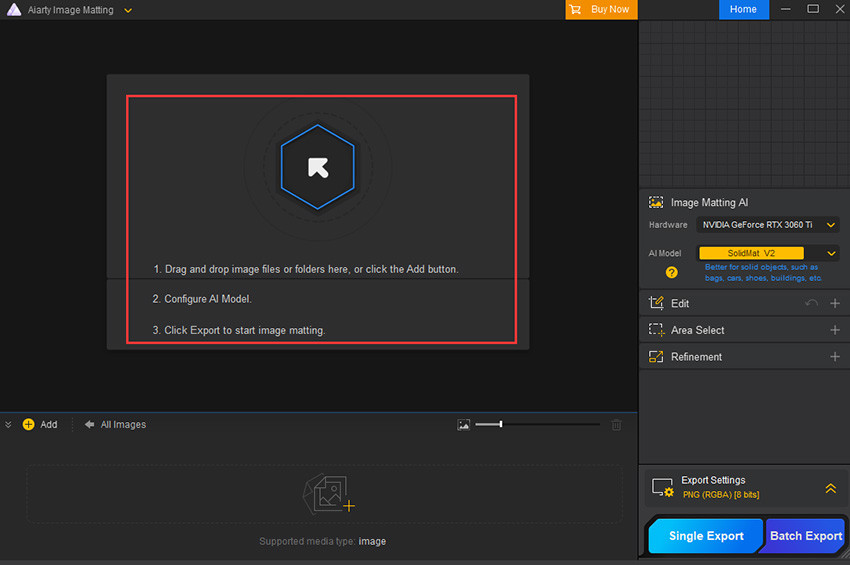
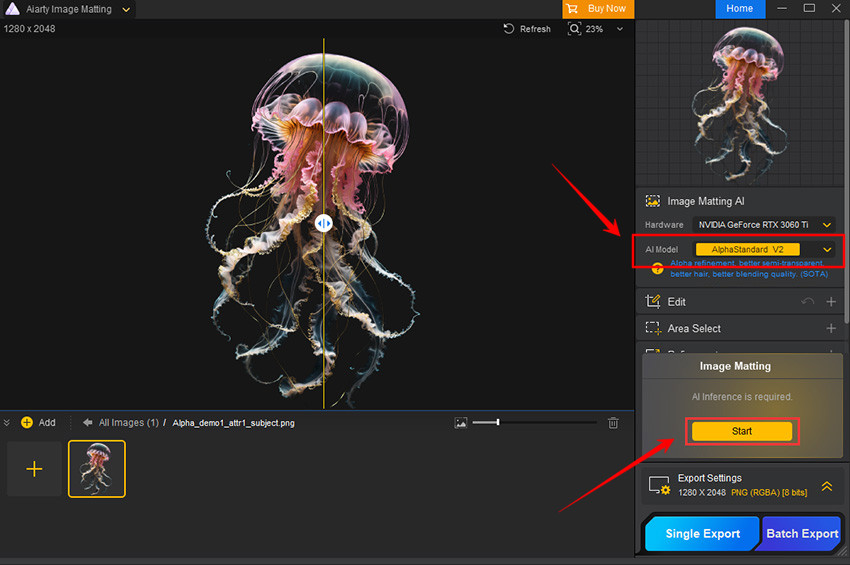
Step 3: Select an AI model and press ‘Start’ to let the tool start removing the background.
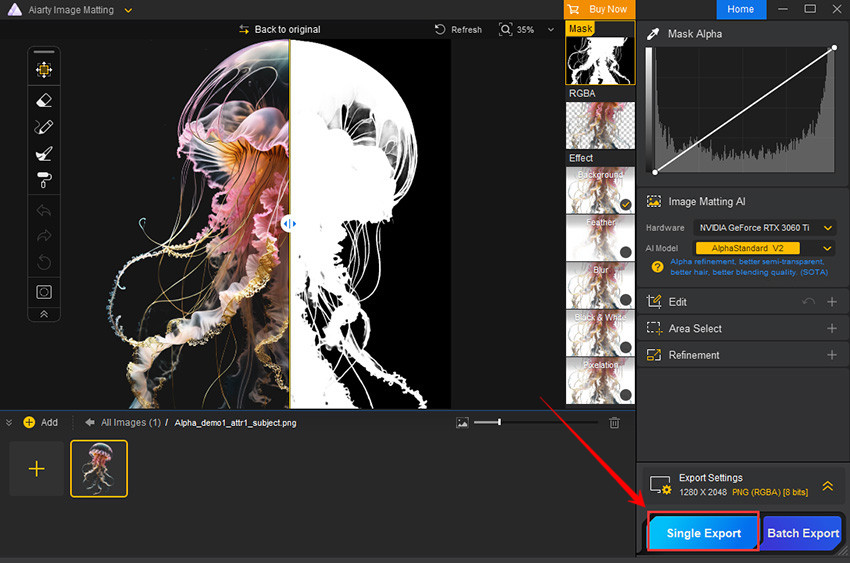
Step 4: Make necessary adjustments and export the final image. You can also change the background as per your liking.
| Pros | Cons |
| Exceptional precision on complex edges | There is no browser-based version available |
| Can process images in bulk | Access to all features requires a paid license. |
| Limited creative tools beyond background removal. |
3. PhotoRoom
Step 1: Go to the PhotoRoom background remover page.
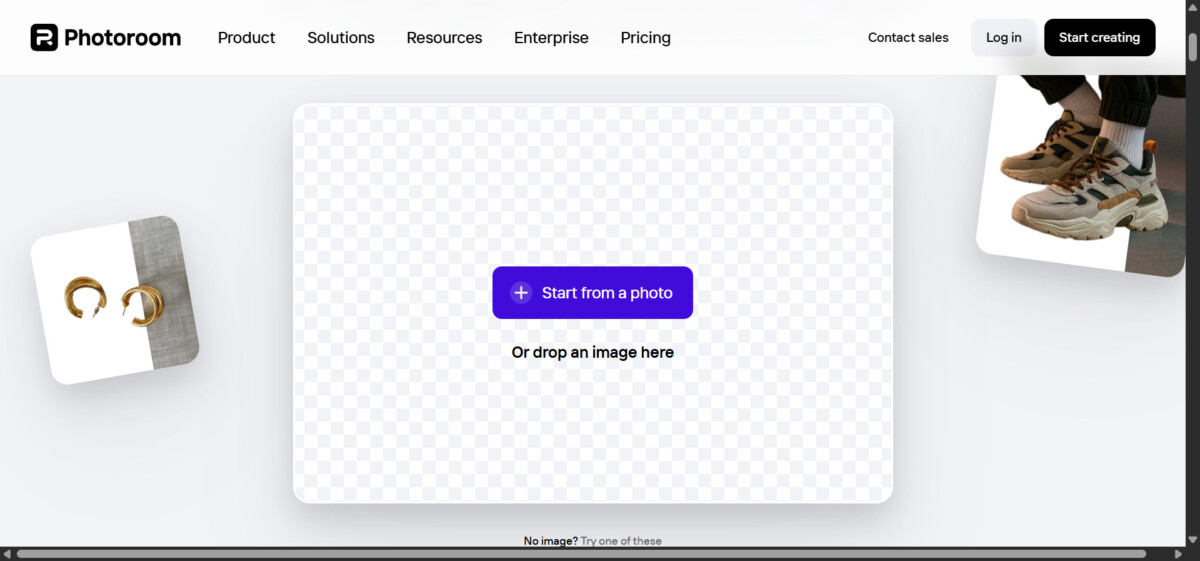
Step 2: Upload your image, and the AI will instantly remove its background.
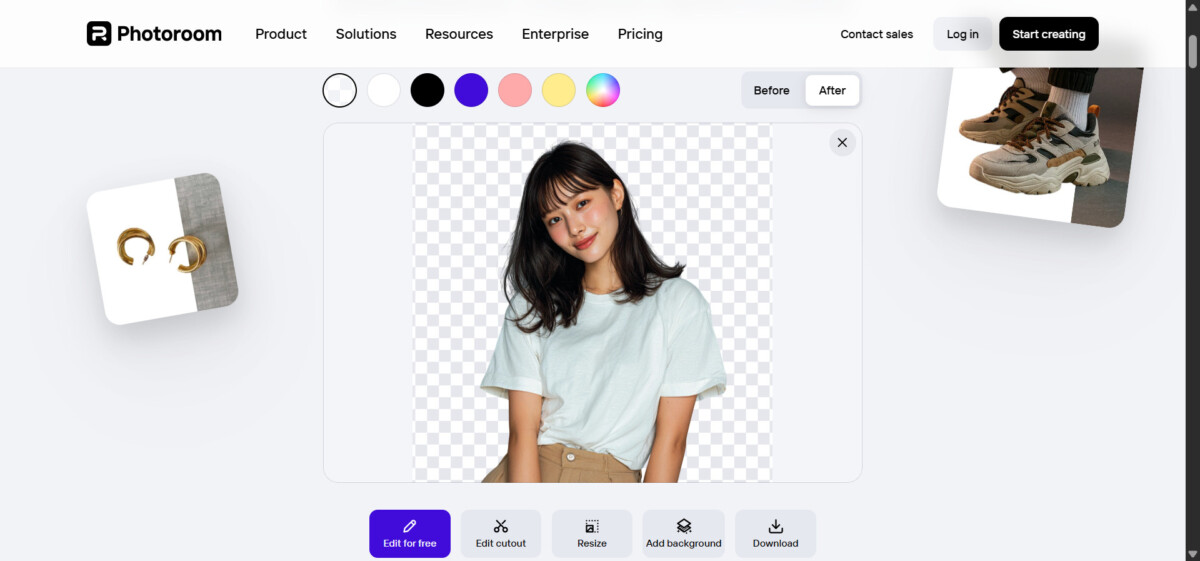
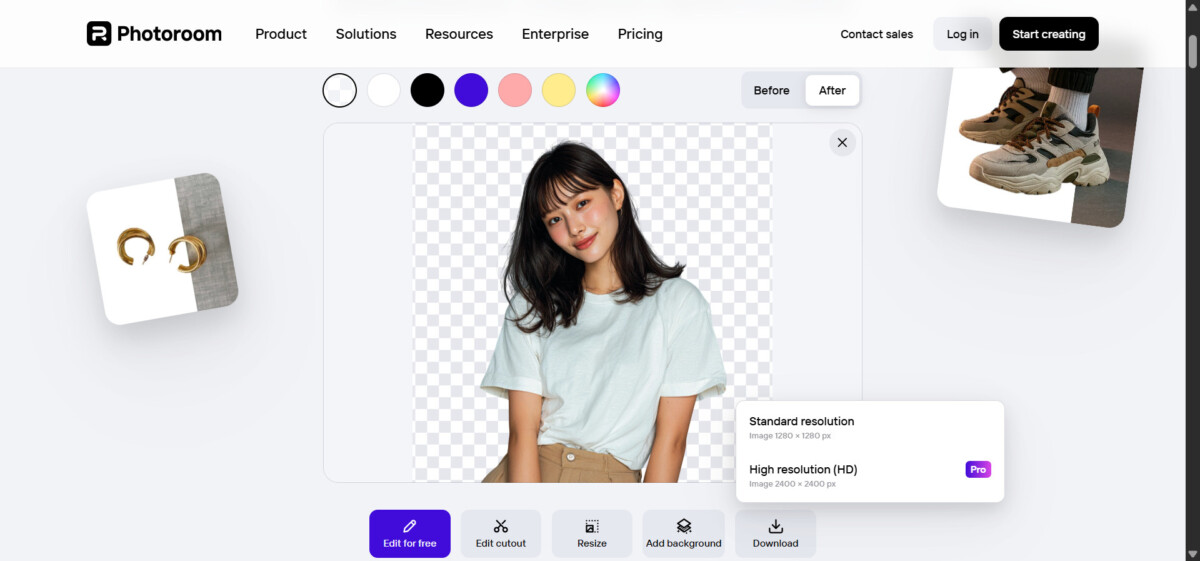
Step 3: Now you’ll have the option to add a solid color, resize, or choose another background. Once done, use the “Download” button to save the image to your PC. For HD resolution, you might need to get the Pro version.
| Pros | Cons |
| Fast, browser-based tool with no installation | High-resolution exports require a paid plan. |
| Easy preset options for eCommerce | Some advanced editing features are locked |
| Can struggle with very fine details |
4. Snapclear
Step 1: Install the Snapclear software on your PC, then open it to start using it.
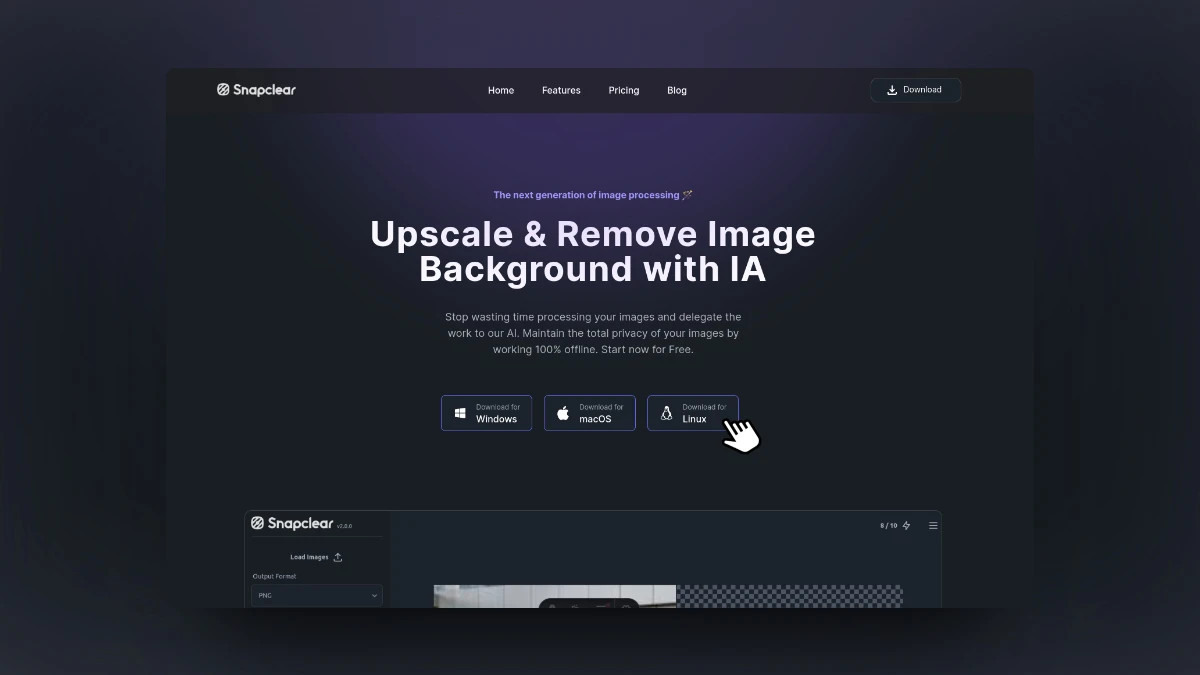
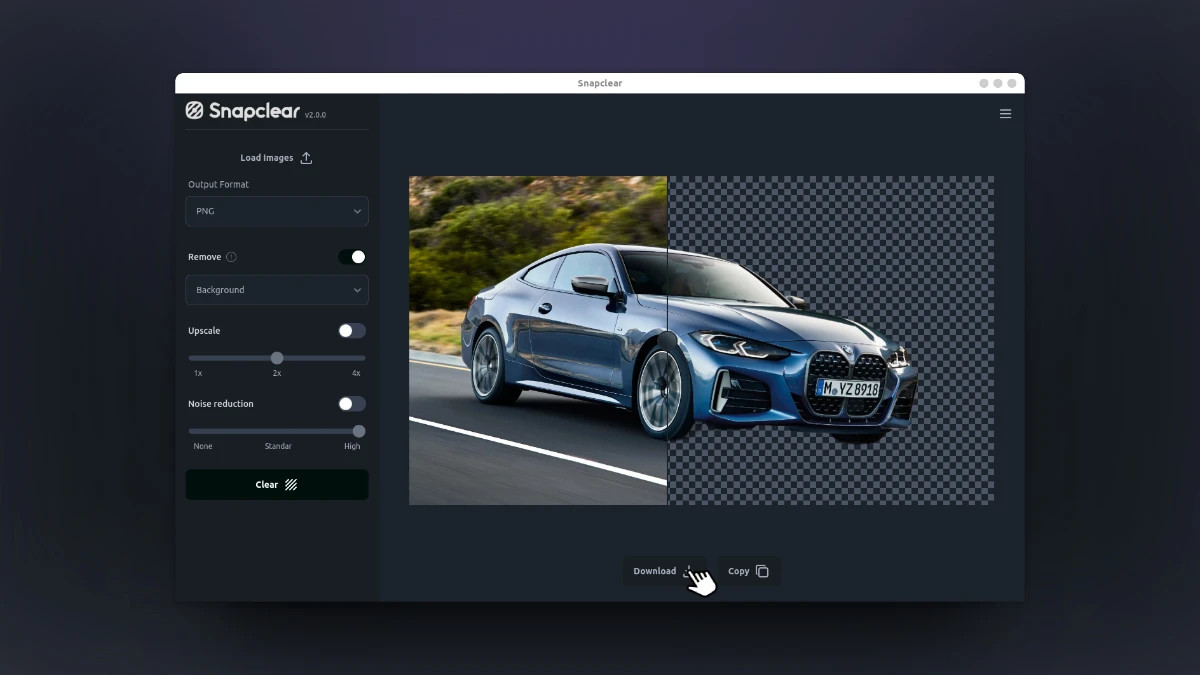
Step 2: Load your image into the software and set the parameters. Click “Clear” to let the AI do the trick.
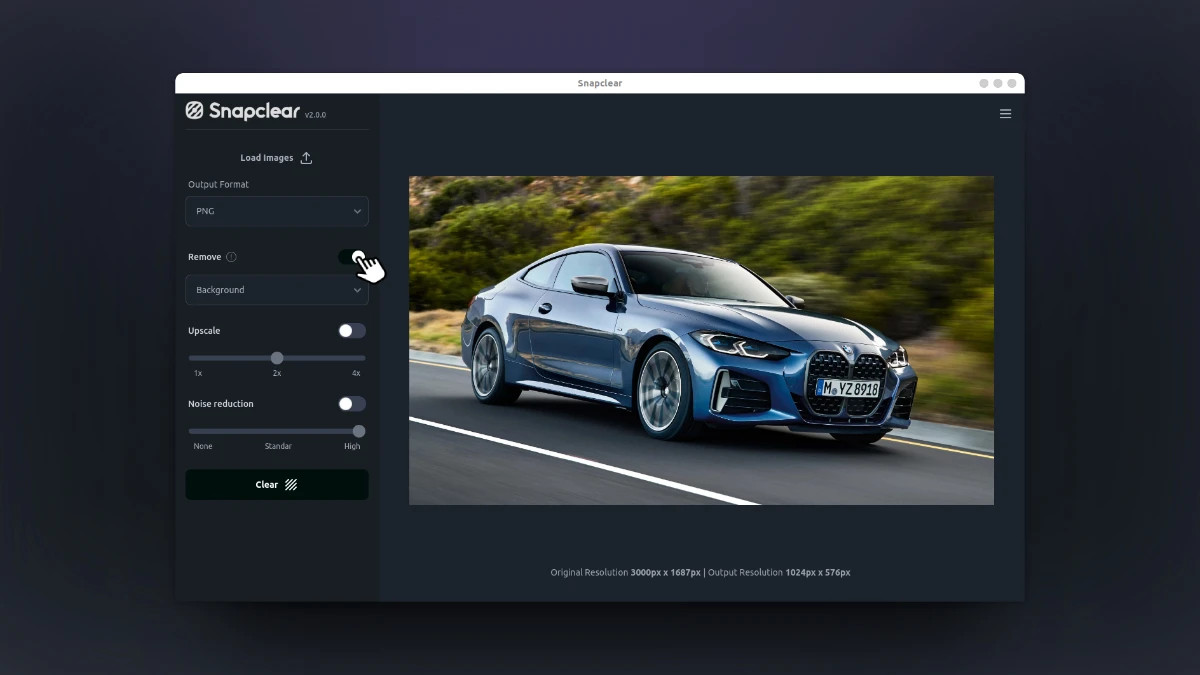
Step 3: After it’s done, click on “Download” to start using the image anywhere you want.
| Pros | Cons |
| Processes images locally to preserve privacy. | Desktop installation is required |
| Supports bulk image processing | The free tier has limited monthly uses. |
| Background removal quality can vary with very detailed subjects. |
5. Luminar Neo
Step 1: Go to Luminar Neo’s official website and download the software. Open the tool and upload your image.
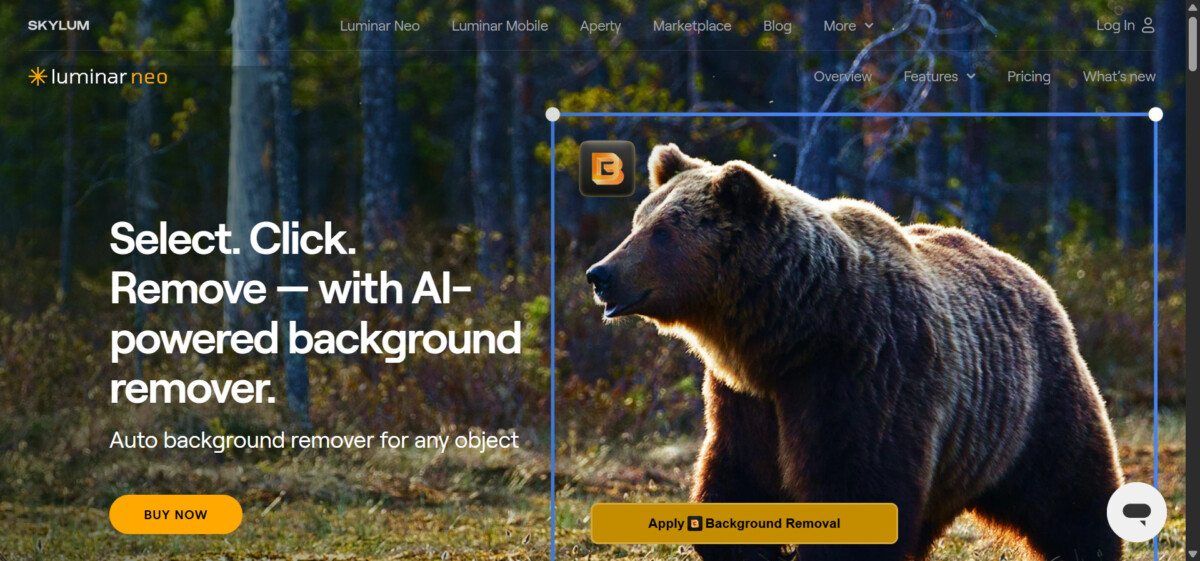
Step 2: To remove the background, click on “Layer Properties” from the right panel and select “Masking” from the drop-down menu. Here, you’ll see “Background Removal AI” that will start the process.
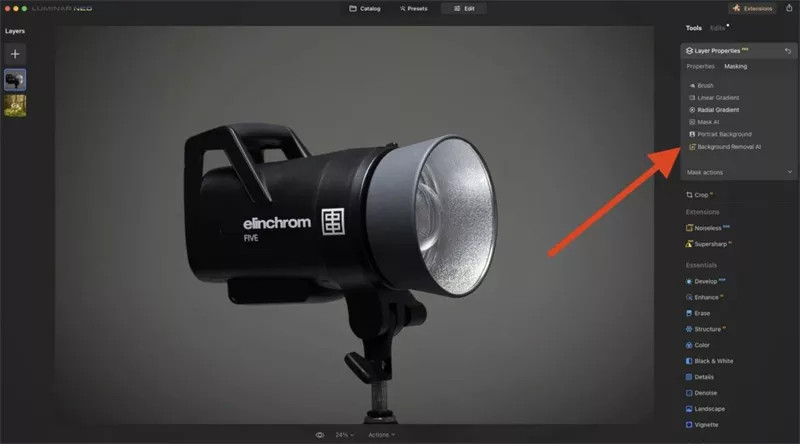
Step 3: The AI will detect the subjects you want to keep and will ask you to select more if you want to improve the mask. Click the “Remove” button as soon as you’re done masking selections.
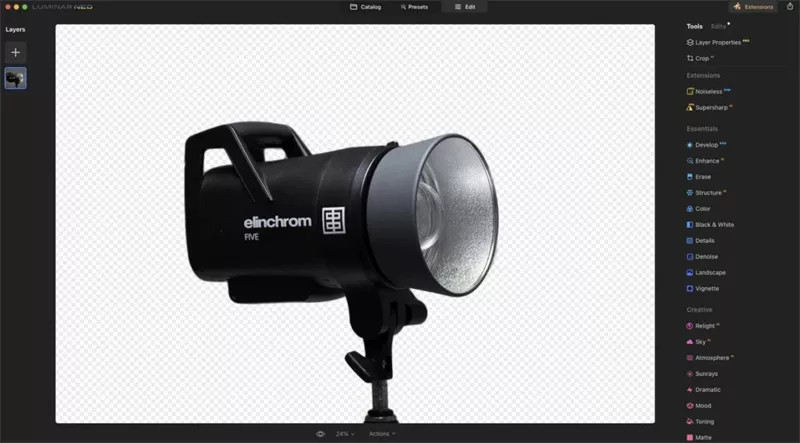
Step 4: You can make minor adjustments to the image after removal and download the finished image in any format you want.
| Pros | Cons |
| Integrated into a complete photo editing suite | Not as intuitive as simple background remover tools |
| Strong AI subject detection | Requires purchase or subscription |
| Extra editing features may be unnecessary |
Remove Background from Image Online for Free
If you want to remove the background from an image for free, you can use any of the tools below:
1. removebg
It is one of the most widely used online tools for removing image backgrounds. Let’s see how you can use it.
Step 1: Visit remove.bg and upload your image.
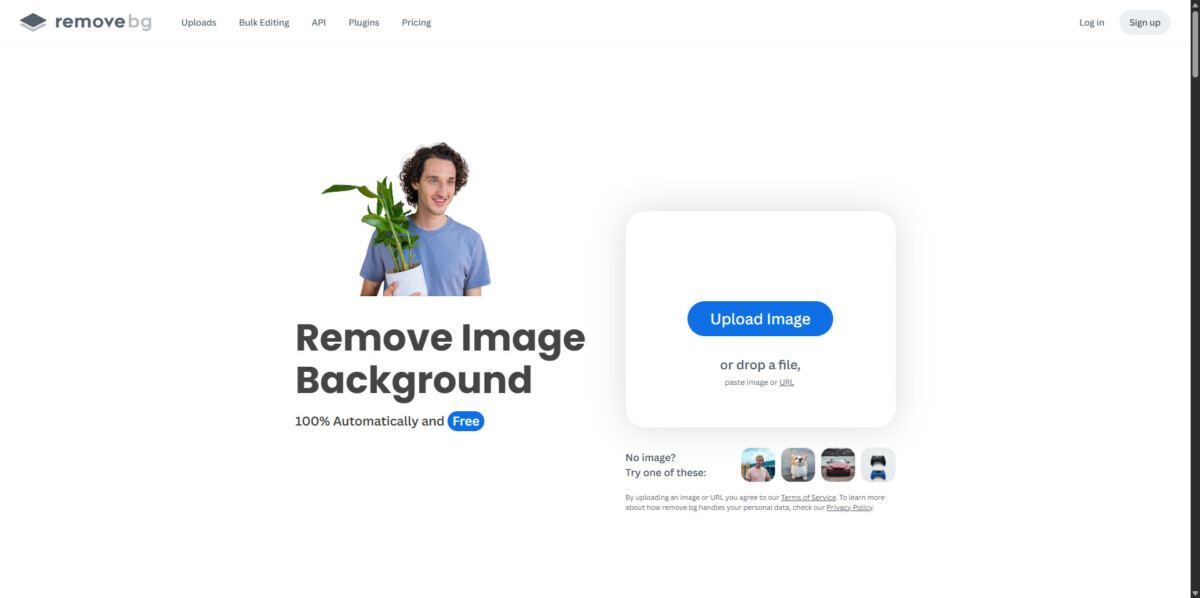
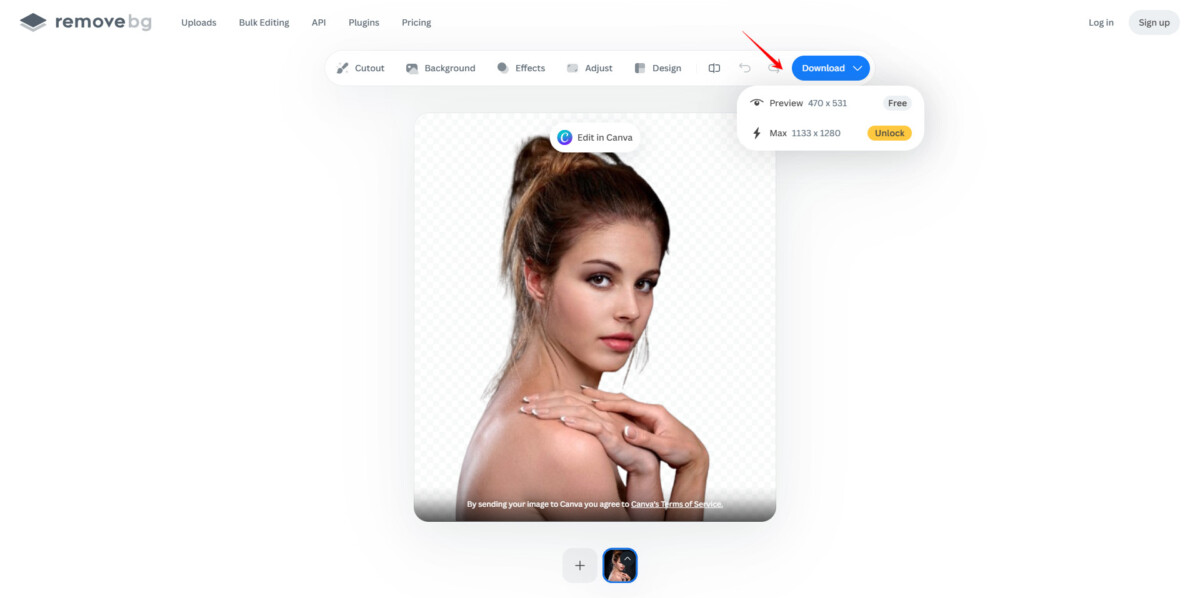
Step 2: Wait for the tool to remove the background automatically, and simply download it in the exact resolution for free.
| Pros | Cons |
| Very fast and beginner-friendly | Free downloads are low resolution |
| Strong accuracy for people and products | Credits needed for HD images |
| Limited manual editing options |
2. EzRemove
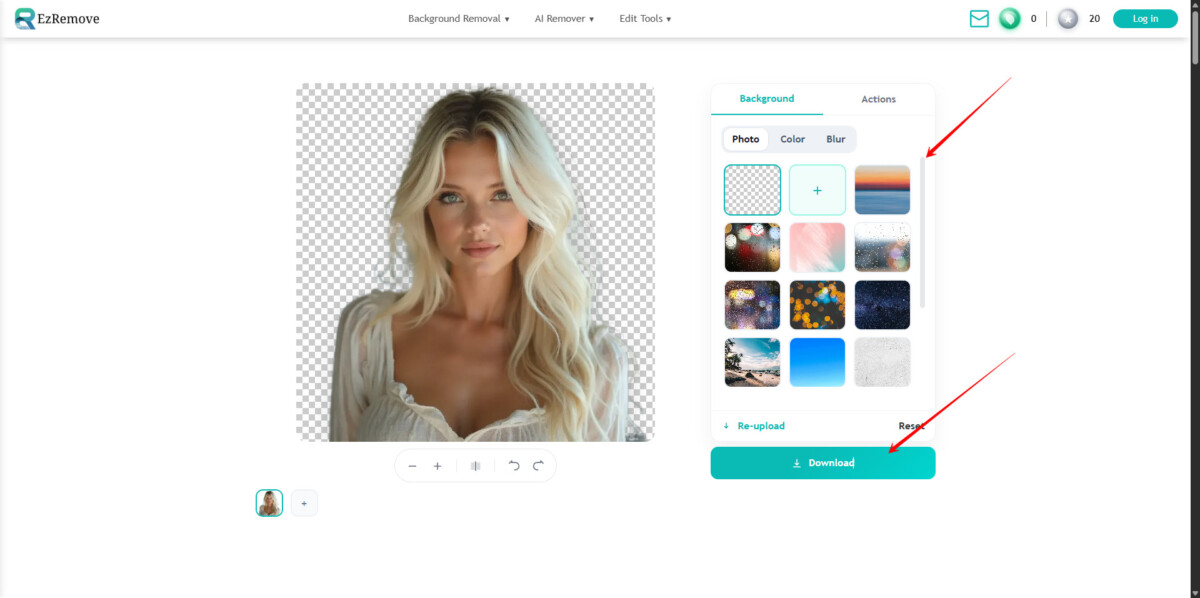
EzRemove is a free, browser-based AI tool focused on simple and quick background removal. Its working process is as follows.
Step 1: Go to ezremove.ai and upload the image you want to remove the background from.
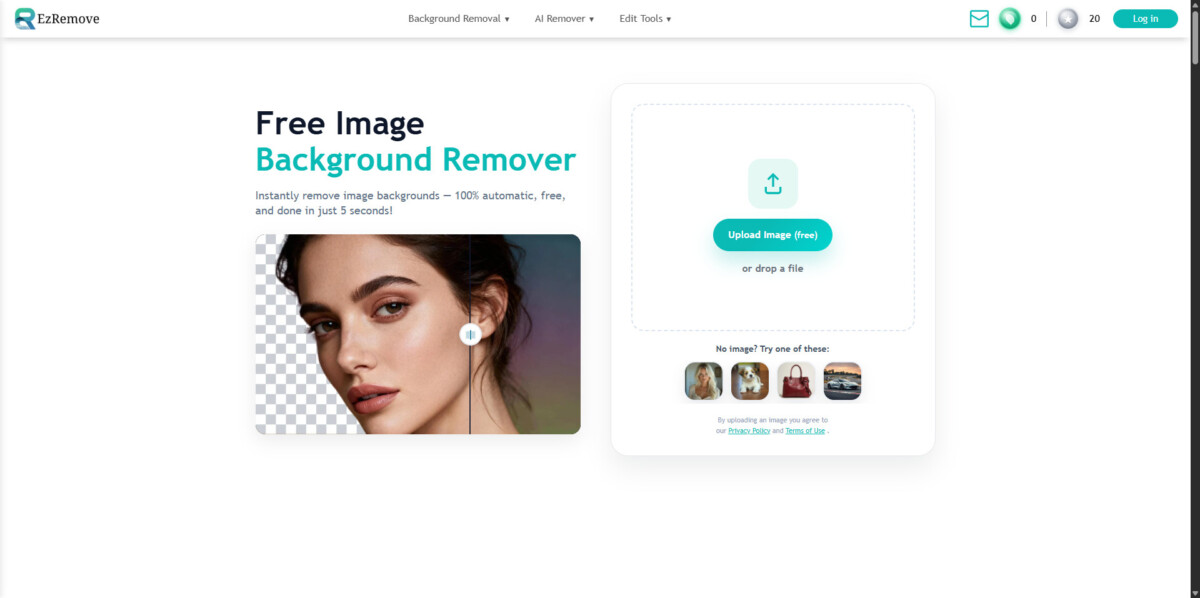
Step 2: Let the AI remove the background in the best possible way. You can also add a solid-color background or blur the image. Once you’re done, download the image in the available resolution.
| Pros | Cons |
| Simple and clean interface | Limited advanced refinement tools |
| No account required for basic use | Quality drops with complex edges |
| Fewer export options |
3. cutout.pro
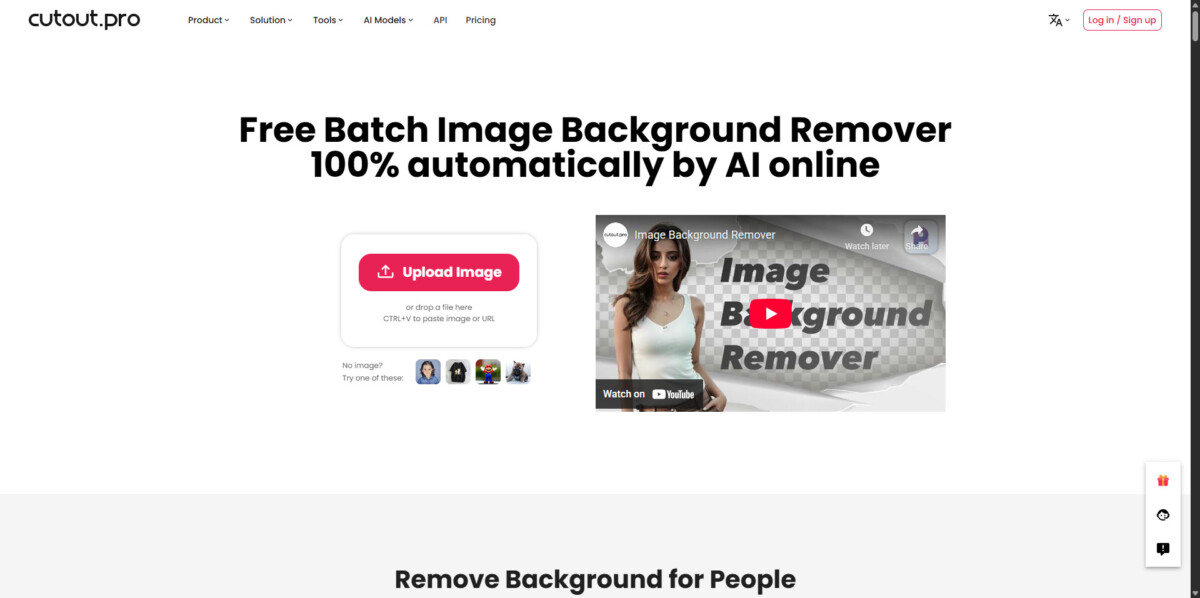
Cutout.pro offers AI background removal along with extra tools like background replacement and photo enhancement. The steps are particularly the same, but let’s still go through them.
Step 1: Open the cutout.pro background removal tool and upload your image.
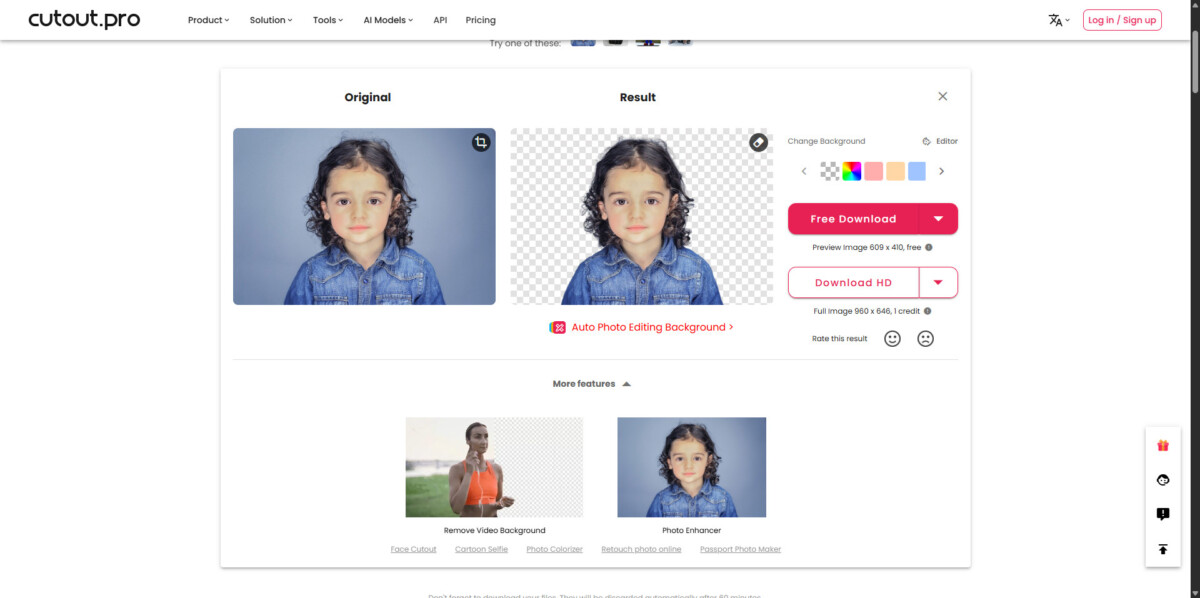
Step 2: The tool will show you the before-and-after of the background removal and give you further options to either enhance it or add a solid color.
| Pros | Cons |
| Multiple tools in one platform | Free exports are limited |
| Works well for product images | Watermarks on some outputs |
| Requires credits for HD results |
4. Pixelbin AI
Pixelbin AI is designed more for businesses and batch image processing. Its AI background remover works online and supports automation. To use this online tool, follow these steps:
Step 1: On the Pixelbin AI website, go to the “AI background remover” from the AI tools drop-down menu. Here, drag the image or upload it directly.
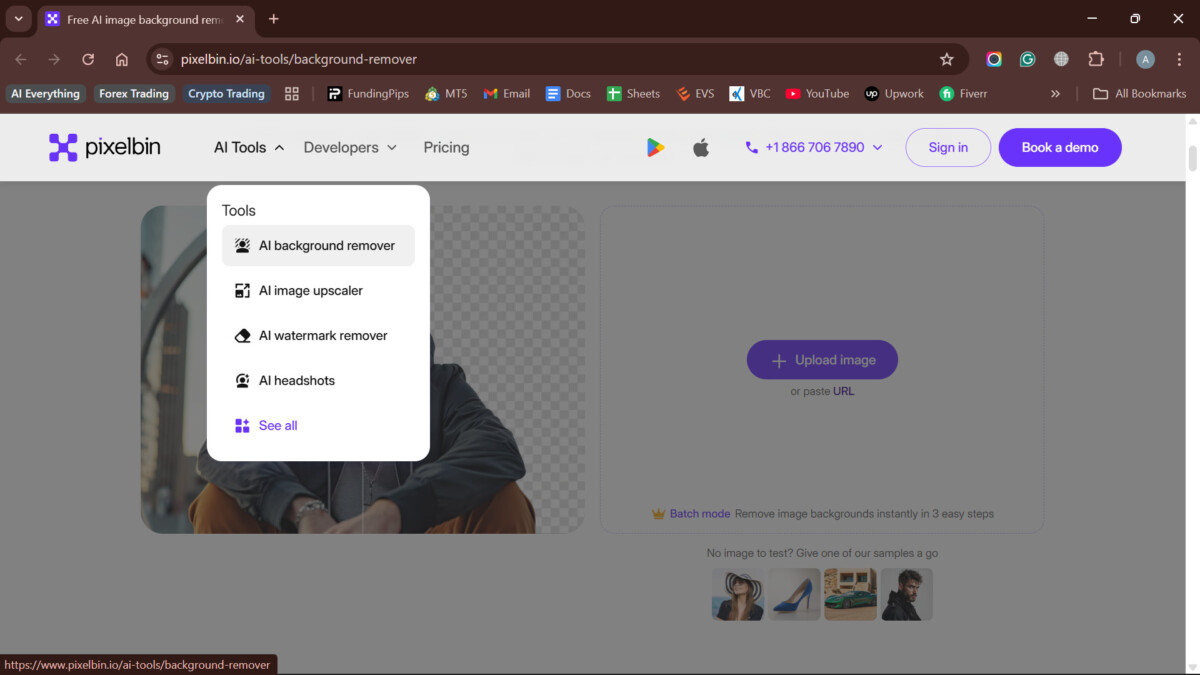
Step 2: The tool will automatically remove the background and give you the option to add another background. Finally, use the “Download” button to get the image just like you want without the background.
| Pros | Cons |
| Works fast in your browser | The free plan is limited |
| Consistent AI results | Requires account sign-up |
| Not ideal for one-time users |
5. PIXLR
PIXLR combines AI background removal with basic online photo editing. With it, you can remove the background and then refine the image using brushes, layers, and effects. Here’s how it works:
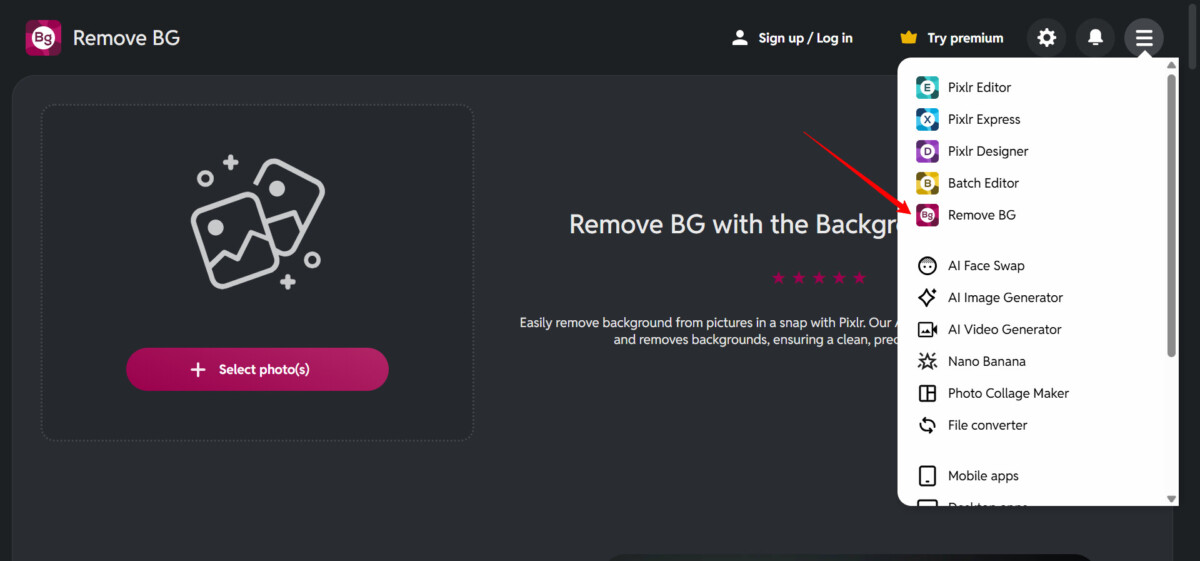
Step 1: After opening the PIXLR website, hover over the right hamburger icon and click on the Remove BG tool.
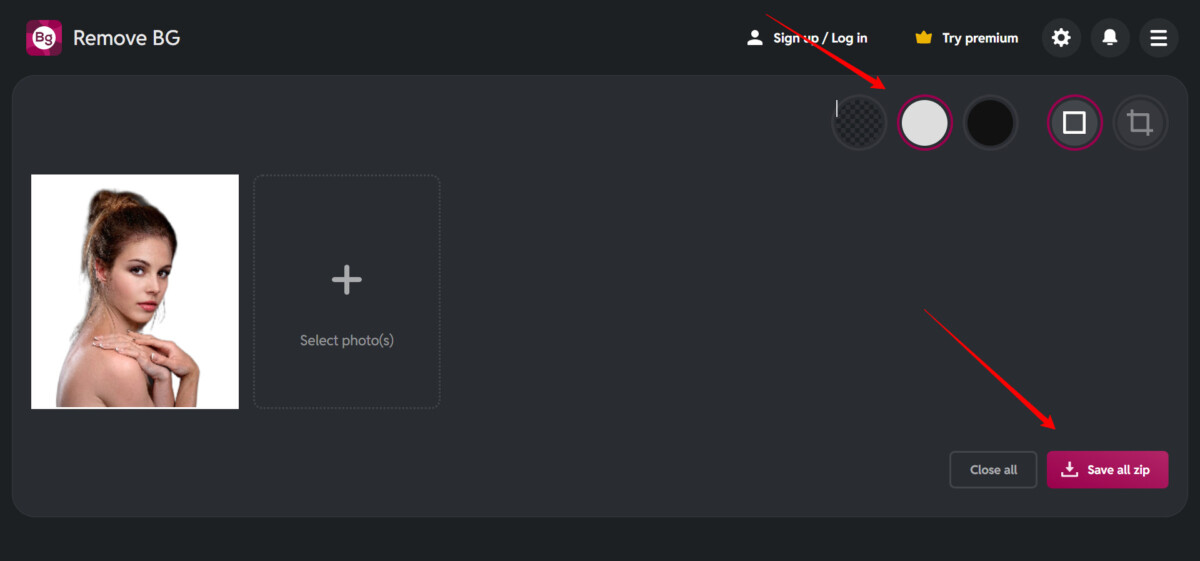
Step 2: Select photos for which you want the background removed. You can add multiple images at once, and the tool will remove the background instantly. However, like other tools, PIXLR only supports black or white backgrounds.
Step 3: It also allows you to auto-crop the image, and once done, you can download the edited images as a ZIP file.
| Pros | Cons |
| Built-in editing tools | The interface can feel overwhelming |
| Allows you to remove the background for multiple images at once | Output quality can drop slightly |
| Slower than one-click tools |
Remove Background from Image Manually
While AI tools are fast, manual background removal still matters when you need precision or full control. These methods work best when the subject has clear edges or when AI struggles with complex scenes.
1. Finder (Only for macOS Ventura)
macOS Ventura introduced a quick background-removal feature directly in Finder. It uses Apple’s Visual Look Up to detect the main subject and isolate it instantly. This method is ideal for quick cutouts of people, animals, or objects.
How It Works
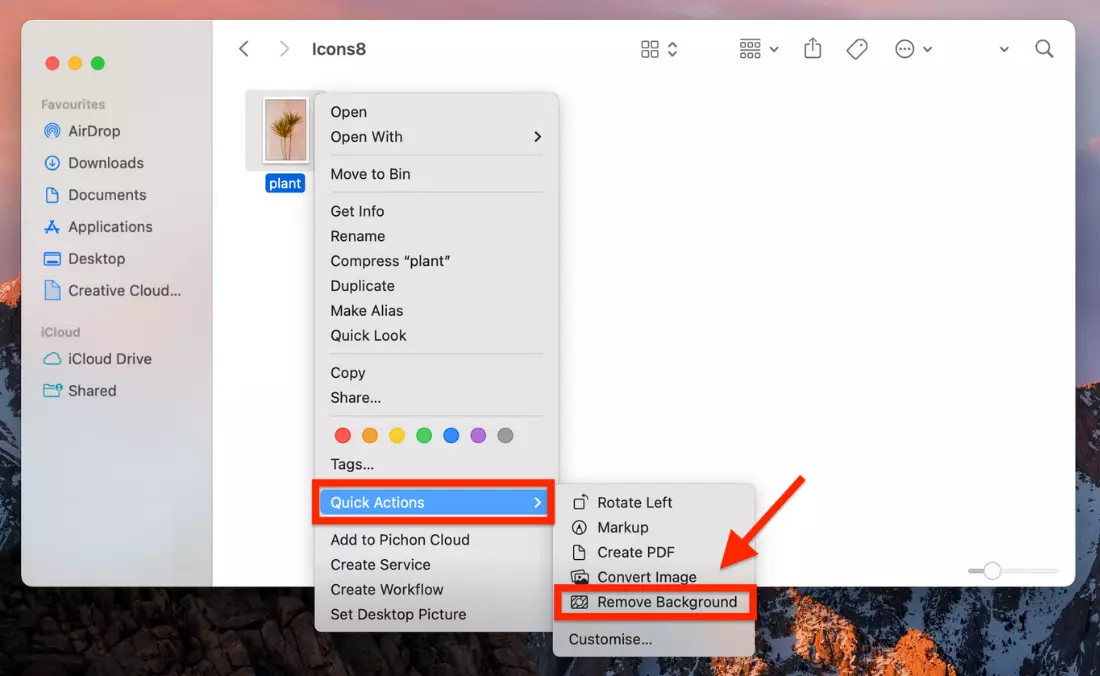
Step 1: Open Finder and locate your image. Right-click on the image and select “Remove Background” from the “Quick Actions” drop-down.
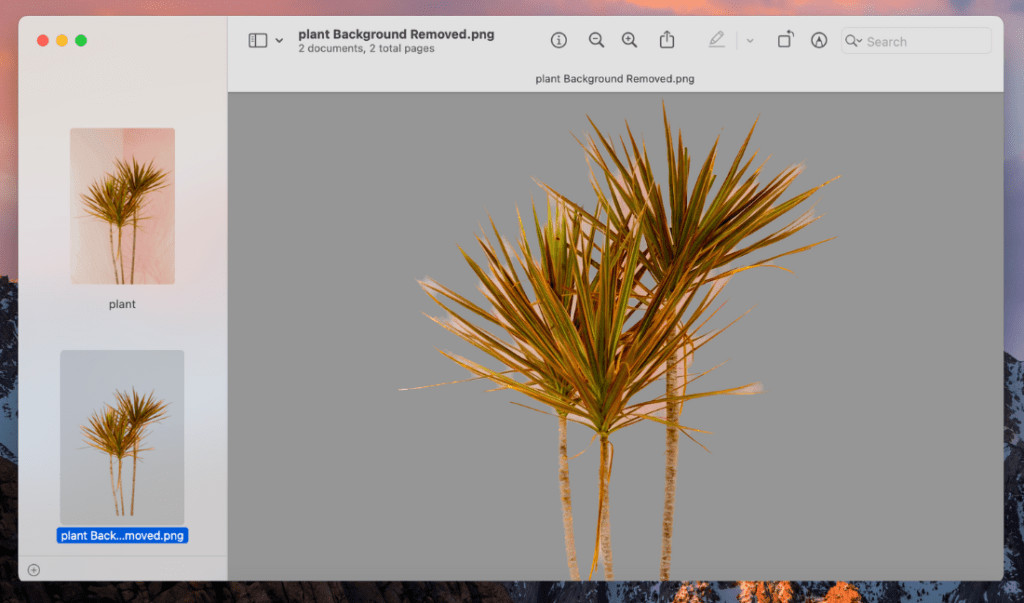
Step 2: The selected image will be saved without the background in the Finder as a PNG file.
2. Preview (macOS Monterey and earlier)
On older macOS versions, Preview offers basic manual selection tools for background removal. It does not use AI, so accuracy depends on how carefully you select the subject. This method is slower but useful for simple images with solid backgrounds.
How It Works
Step 1: Open your image in Preview and tap on the Markup Toolbar in the top-right corner of the pop-up window.
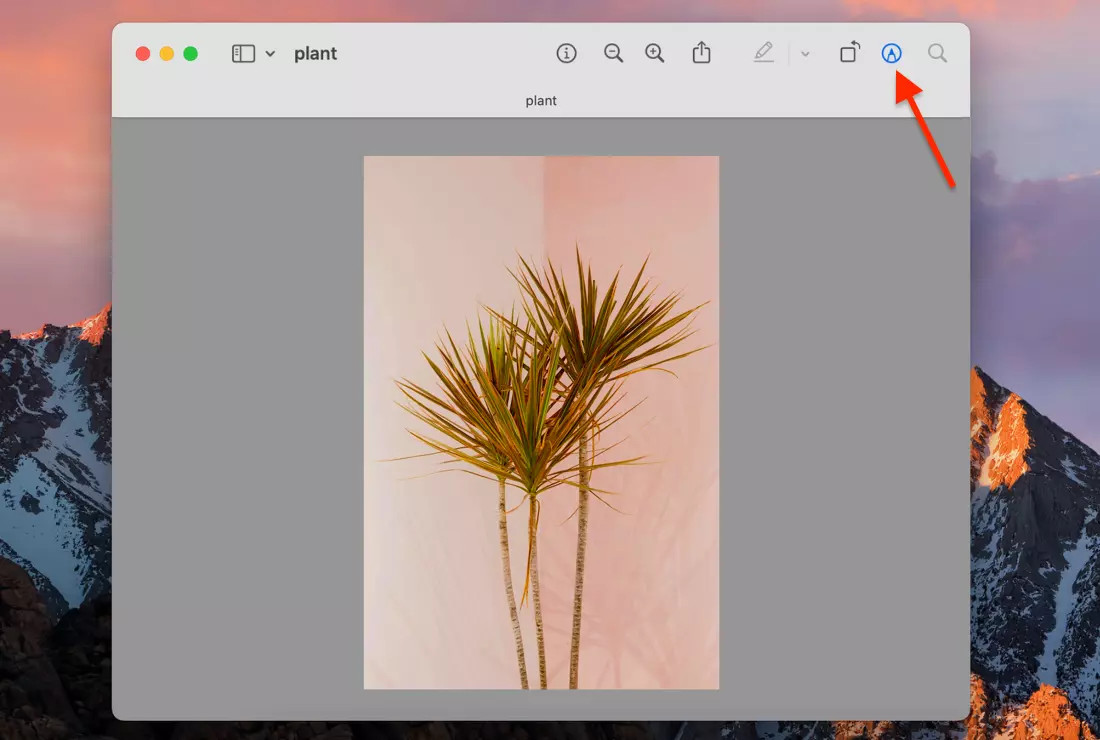
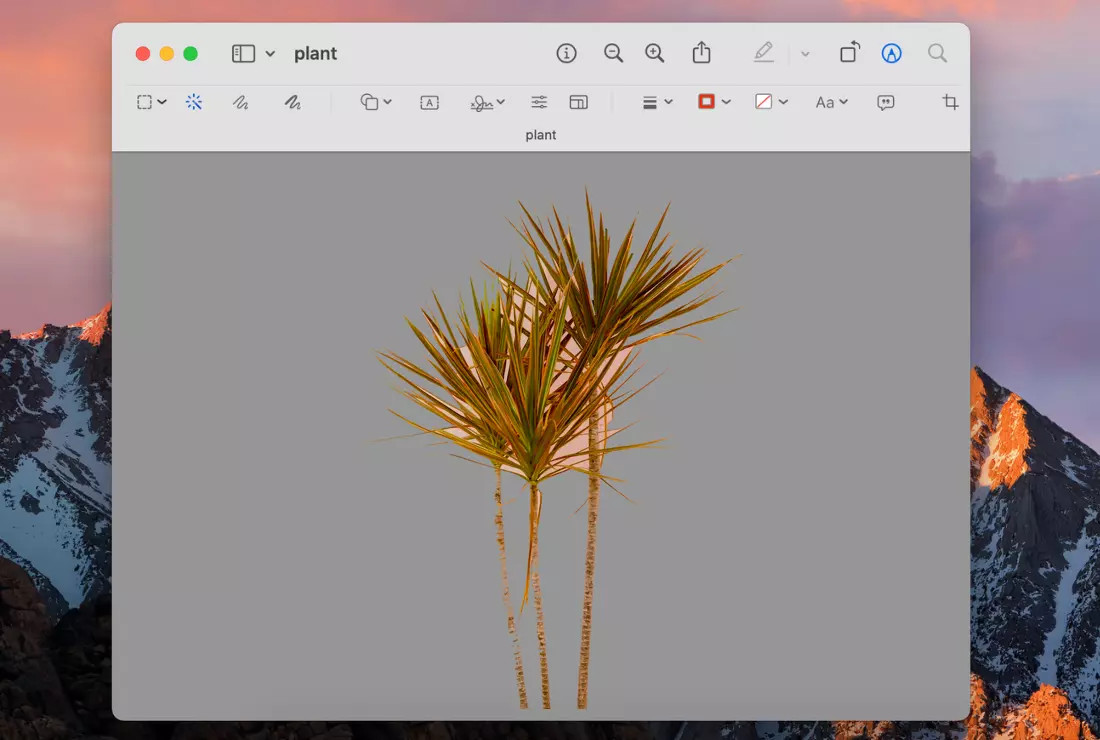
Step 2: Now choose the Instant Alpha option, then tap the background you want to delete. As you see a transparent overlay around your object, press the delete button, and you’ll have a clean cutout. Simply save this in your images.
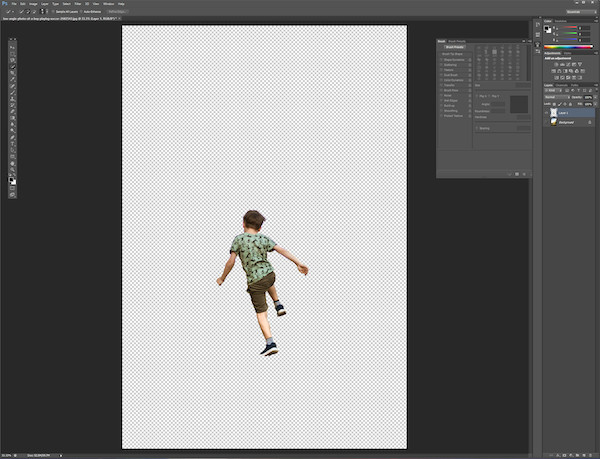
3. The Quick Selection Tool in Photoshop
Photoshop’s Quick Selection Tool allows you to paint over a subject to create a selection manually. It automatically snaps to edges as you brush and gives you more control than one-click tools.
How It Works
Step 1: Open the image in Photoshop and go to the “Quick Selection Tool” from the left toolbar.
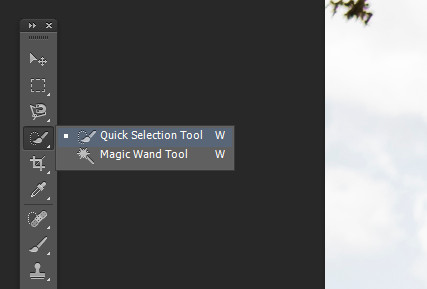
Step 2: Start brushing over the subject you want to preserve during the background removal. Make sure to zoom in to go over the edges precisely.
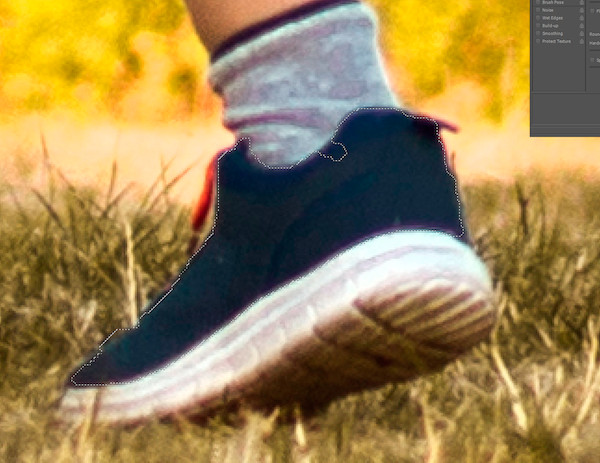
Step 3: Once you’re done with the selection, right-click it and tap Layer Via Copy. This will transfer the cutout to another layer with a transparent background without disturbing or cutting your original image.
4. The Remove Background Tool in Photoshop
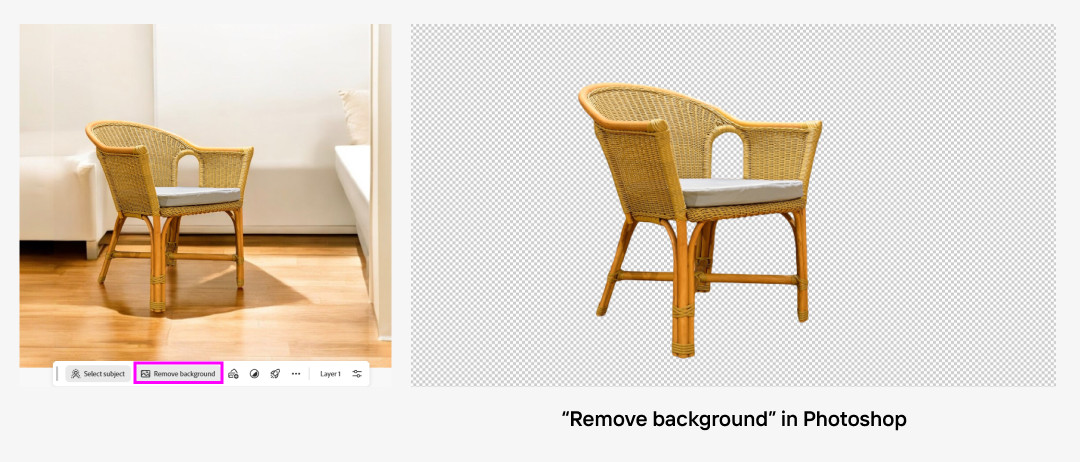
Photoshop also offers a built-in AI Remove Background option inside the Properties panel. It combines automation with manual refinement, making it faster than traditional selection tools.
How It Works
Step 1: Open the image in Photoshop.
Step 2: In the next editing screen, you’ll see the “Remove Background” option just at the bottom of it. Tap on it, and you’ll have a clean image with a transparent background.
5. The Eraser Tool in Photoshop
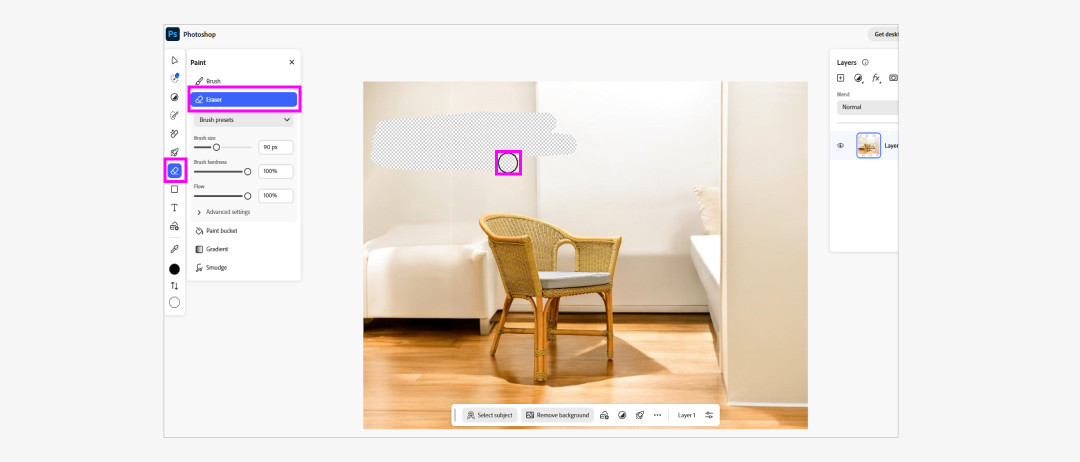
The Eraser Tool is the most manual method in Photoshop. It gives pixel-level control, but you need to be patient and precise. This option is best for simple shapes or small touch-ups after using other selection tools.
How It Works
Step 1: In Photoshop, upload your image and create a duplicate layer.
Step 2: Select the Eraser Tool from the side panel just inside the Paint menu.
Step 3: Start manually erasing the background after adjusting the brush size and hardness until the background is gone.
Comparison of Image Background Removal Methods
Here’s a quick comparison between all the different methods we’ve discussed to remove a background from an image:
| Method | Ease of Use | Quality | Speed | Batch | Free | Best For |
| HitPaw FotorPea | 5/5⭐ | 4k/8k | Very Fast | Yes | Limited | Everyone |
| Aiarty Image Matting | 4/5⭐ | Up to 4K | Fast | Yes | No | Complex edges, hair, fur, product photography |
| PhotoRoom | 4.5/5⭐ | HD-4K | Very Fast | No | Low-Res | Social media, eCommerce, and quick product images |
| Snapclear | 4/5⭐ | Up to 4K | Fast | Yes | Limited | Offline background removal and privacy-focused users |
| Luminar Neo | 3/5⭐ | Up to 4K | Moderate | No | No | Photographers who want background removal inside a full editor |
| remove.bg | 4.5/5⭐ | 720p free / up to 4K paid | Very Fast | Limited | Low-Res | One-click background removal for portraits |
| ezremove.ai | 4.5/5⭐ | 1080p to 2K | Fast | No | Yes | Simple, quick background removal with no setup |
| cutout.pro | 4/5⭐ | 1080p to 4K | Fast | Yes | Limited | Product images and basic design workflows |
| pixelbin.io | 4/5⭐ | 1080p to 4K | Fast | Limited | Yes | Quick online removals and lightweight automation |
| pixlr.com | 3/5 ⭐ | Up to 1080p | Moderate | Yes | Yes | Users who want manual edits after AI removal |
| Finder | 4.5/5⭐ | Same as the image | Very Fast | No | Yes | Quick cutouts directly on Mac without tools |
| Preview | 3/5⭐ | Same as the image | Slow | No | Yes | Simple images with solid backgrounds |
| Quick Selection Tool | 3/5⭐ | Source resolution | Moderate | No | No | Manual control with decent speed |
| Remove Background Tool Photoshop | 4/5⭐ | Source resolution / 4K+ | Fast | No | No | Fast AI removal with refinement options |
| Photoshop Eraser Tool | 2.5/5⭐ | Source resolution | Very Slow | No | No | Small touch-ups or very simple shapes |
Clean product images are no longer “nice to have.” They are a sales tool. This post breaks down practical ways to remove backgrounds so your listings, ads, and social posts look sharp and consistent. The big theme is simple: messy backgrounds distract buyers, while clean cutouts help your product stand out and look more trustworthy.
The fastest path in 2026 is AI background removal. You do not need design skills or long editing sessions anymore. Many tools can detect the main subject (people, products, pets, objects) and cut it out in seconds. Several options also go beyond cutouts and bundle useful upgrades like photo enhancement, noise reduction, color correction, restoration, and even upscaling for crisp, high-resolution images, which matters when shoppers zoom in.
For ecommerce founders and marketers, the real win is building a repeatable workflow:
- Upload the photo,
- Run the background remover
- Check the edges (hair, glass, thin parts, shadows)
- Refine if needed
- Export as transparent or place it on a clean brand background.
If you list a lot of SKUs, prioritize tools that support bulk processing so you can update dozens or hundreds of images in one session. If privacy is a concern, consider options that process images locally on your computer instead of in a browser.
Also watch for the “free vs. usable” gap. Some browser tools are quick and convenient, but HD downloads or certain edits may require a paid plan. Before you commit, test your top 10 products, compare edge quality, speed, and export size, then standardize on one tool and one set of background rules (white, light gray, or a branded color). That consistency makes your store look bigger and more reliable.
Summary
Removing backgrounds is one of the highest-impact, lowest-effort upgrades you can make to your product photos, and AI tools now make it fast enough to use every week, not once a year.
There are dozens of ways to remove background from image files, and most of them feel either limited, slow, or half-done. While a few get the job done, even fewer are truly reliable, and most offer nothing beyond a basic cutout.
However, HitPaw FotorPea gives you the control you need. It goes beyond background removal with powerful AI editing tools that actually save time and deliver clean results. For users interested in AI-powered creative software, HitPaw also offers a range of other AI solutions on its official website, which may be worth exploring.