

Key takeaways 
Email-safe fonts like Arial, Georgia, and Helvetica ensure consistent display across all major email clients, enhancing readability and user experience.
Custom fonts can elevate your brand’s design but may not be supported by all email clients, leading to potential display issues; always include fallback options.
Testing your email across various platforms and devices is crucial to ensure that fonts render correctly and maintain your intended design and readability.
Prioritize accessibility by choosing fonts that are easy to read and ensuring sufficient contrast against backgrounds to cater to all users.
Email-safe fonts display correctly across all email clients, from Gmail to Outlook. Popular options include Arial, Times New Roman, and Helvetica.
Custom fonts, on the other hand, let you tailor your design to help your brand stand out. However, not all email clients support them. In such cases, the custom fonts in email will be replaced with a safer option, which may affect how your email looks.
In this post, we’ll explain the difference between email-safe fonts and custom fonts. You’ll also learn the best practices for using fonts in emails.
In this post:
- What are email-safe fonts?
- What is the default email font?
- Email client font support matrix
- Best fonts for different email types
- How to add email-safe fonts when creating an email
- Custom fonts in emails
- What are web-safe fonts?
- Using brand fonts in emails when they’re not “email-safe”
- Summary
- FAQs
Use Omnisend to design high-converting emails that render beautifully across devices
Quick sign up | No credit card required
What are email-safe fonts?
Email-safe fonts are pre-installed fonts, such as Arial, Georgia, and Helvetica. All major email clients support them and appear consistently across all devices. Because they’re easy to read, they provide a seamless user experience.
The standard email fonts are sans-serif fonts. Some popular examples include Arial, Calibri, Helvetica, and Verdana.
Here are more email-safe fonts you can use:
- Arial
- Courier
- Courier New
- Georgia
- Helvetica
- Helvetica Neue
- Lucida
- Tahoma
- Times
- Times New Roman
- Trebuchet MS
- Verdana
1. Arial

Font type: Sans-serif
Classification: Neo-grotesque
Designers: Robin Nicholas and Patricia Saunders
Date released: 1982
Arial is one of the most commonly used email-safe fonts. Since this sans-serif typeface offers a clean, modern look that enhances readability, it works well for various email types, from newsletters to promotional messages. Its neutral style makes it a versatile choice, appealing to a broad audience.
2. Georgia

Font type: Serif
Classification: Transitional
Designer: Matthew Carter
Date released: 1993
Georgia brings a touch of elegance to your emails. This serif font stands out for its readability, even in smaller sizes. Its classic appearance adds a sense of professionalism, making it perfect for formal communications or content-heavy emails. Georgia is a perfect option if you want to convey authority without sacrificing style.
3. Lucida

Font type: Sans-serif
Classification: Humanist
Designers: Charles Bigelow and Kris Holmes
Date released: 1985
Lucida is another solid choice among email-friendly fonts. Its design emphasizes clarity, making it easy for readers to digest your content. With its friendly vibe that can help foster a connection with your audience, Lucida works great for casual communications, such as updates or personalized messages.
4. Tahoma

Font type: Sans-serif
Classification: Humanist
Designer: Matthew Carter
Date released: 1994
Tahoma resembles Verdana but has sharper edges and higher contrast between thick and thin strokes. It’s a good choice if you want something that’s easier to read than Arial but still has a modern feel. If you’re sending tech-related content or anything that requires clarity, Tahoma fits the bill.
5. Times

Font type: Serif
Classification: Transitional
Designers: Stanley Morison and Victor Lardent
Date released: 1931
Times, or Times New Roman, is a classic serif font that brings a sense of tradition to your emails. While it might not have the modern flair of some other fonts, its timeless design makes it suitable for formal communications. Use Times when you want to convey seriousness or authority in your messaging.
6. Trebuchet MS

Font type: Sans-serif
Classification: Humanist
Designer: Vincent Connare
Date released: 1996
If you want to add a bit of fun and whimsy to your emails, Trebuchet MS is the font for the job. It’s an easy-to-read Sans Serif typeface with a wide range of weights and styles. Despite being a non-standard font, Trebuchet MS is widely supported by email clients, so you don’t have to worry about your emails looking strange on different devices.
7. Verdana

Font type: Sans-serif
Classification: Humanist
Designer: Matthew Carter
Date released: 1996
Verdana is a favorite among email marketers, engineered for readability. Its wide spacing and clear letters make it easy to read, even on those smaller screens. This sans-serif font fits perfectly with any kind of email, whether you’re sending out newsletters or promotions. If you want to ensure your message gets across easily, definitely consider using Verdana.
What is the default email font?
There’s no single default email font. Each email client has its own default font. If you don’t specify a font in your email’s design layout, the client falls back to its default.
Even if you find the best font for your email, the email client will revert to the default if the font is unsupported. As a result, the email may appear differently, depending on whether it’s opened on Gmail, Outlook, or Apple Mail.
Here are some default fonts of major email clients and their fallback options:
| Client | Default font | Fallback font |
|---|---|---|
| Gmail | Roboto/Arial | Generic sans-serif |
| Outlook | Calibri/Aptos (for newer versions) | Times New Roman or serif |
| Apple Mail | SF Pro/Helvetica | Helvetica or sans-serif |
| Yahoo Mail | Helvetica | Arial or sans-serif |
Use a proper email format as it can affect readability, branding, and overall design. This is why marketers should always indicate a variety of fonts in their email code. This provides more options when your first-choice font isn’t available.
Email client font support matrix
Email clients handle fonts differently. Some support custom web fonts using @font-face, while others ignore them and display a default font instead. The table below shows Gmail-supported fonts compared with those of other major clients, allowing you to design with clarity.
| Email client | Email-safe fonts | @font-face (web fonts) | Default fallback | Known quirks |
|---|---|---|---|---|
| Gmail (web/mobile) | Arial, Helvetica, Roboto, Verdana, Georgia, Times New Roman | No | Roboto/Arial | Strips web fonts entirely |
| Outlook (Windows 2003–2019) | Arial, Calibri, Times New Roman | Buggy | Calibri/Aptos | Uses Word rendering engine |
| Outlook for Mac (2011–2016) | Arial, Helvetica, Times New Roman | Yes | Aptos | Better CSS support than Windows |
| Outlook (Web/365) | Arial, Calibri, Verdana, Times New Roman, Lucida Sans Unicode | Limited | Aptos | Inconsistent rendering |
| Apple Mail (iOS/macOS) | Helvetica, Arial, Verdana, Georgia, Trebuchet MS | Yes | SF Pro/Helvetica | Full support for web fonts |
| Yahoo Mail | Arial, Helvetica, Georgia, Times New Roman, Verdana | No | Arial/Helvetica | Overrides some styles |
| Samsung Mail | Arial, Helvetica, Roboto, Verdana, Tahoma, Courier New | Yes | Roboto | May not work if the email is Microsoft-based |
In practice, only Apple Mail and Outlook for macOS reliably support custom web fonts. Apple Mail accounts for an estimated 52–58% of email opens. This means about half your audience may see your chosen font, while the rest will see a fallback.
Having a well-planned font stack is one of the essential email design best practices. It ensures the fallback font resembles your brand font.
Outlook (Windows)
Outlook on Windows uses the Microsoft Word engine to render emails, which severely limits support for custom fonts. It can override spacing, line height, and even fallback fonts. As such, your design may look professional elsewhere but appear broken on Outlook.
Stick to email-safe fonts like Arial, and test every email before sending. Use conditional code where needed. The transition between the classic and “new Outlook” continues to create inconsistencies between versions. The new Outlook is still developing and lacks advanced support for font customization.
Gmail
Gmail doesn’t support @font-face, meaning any custom font you include will be removed. It also rewrites some inline styles, changing the font size, weight, and overall layout. These changes happen when the email is sent, so you may not see them in preview tools.
To stay safe, use specific email-safe fonts for Gmail. This ensures you send a responsive email to subscribers.
Apple Mail
Apple Mail offers the best support for custom fonts, making it ideal for brand consistency. However, relying heavily on this can create uneven experiences across your audience.
Use custom fonts strategically, but ensure your fallback fonts preserve readability and hierarchy.
How to add email-safe fonts when creating an email
Incorporating email-safe fonts into your emails is simple. Most email marketing platforms, including Omnisend, offer options for selecting standard fonts. Here’s how to do it:
1. Choose your email-safe font
Email marketing apps offer several email-safe font options for your message. When selecting a font, keep readability and brand consistency in mind. For headings, you can go with something a bit more eye-catching, like Georgia or Tahoma.
2. Set up your email marketing tool
Look for the font dropdown menu on your email marketing app, usually located in the text editing section. This menu will display a variety of fonts.
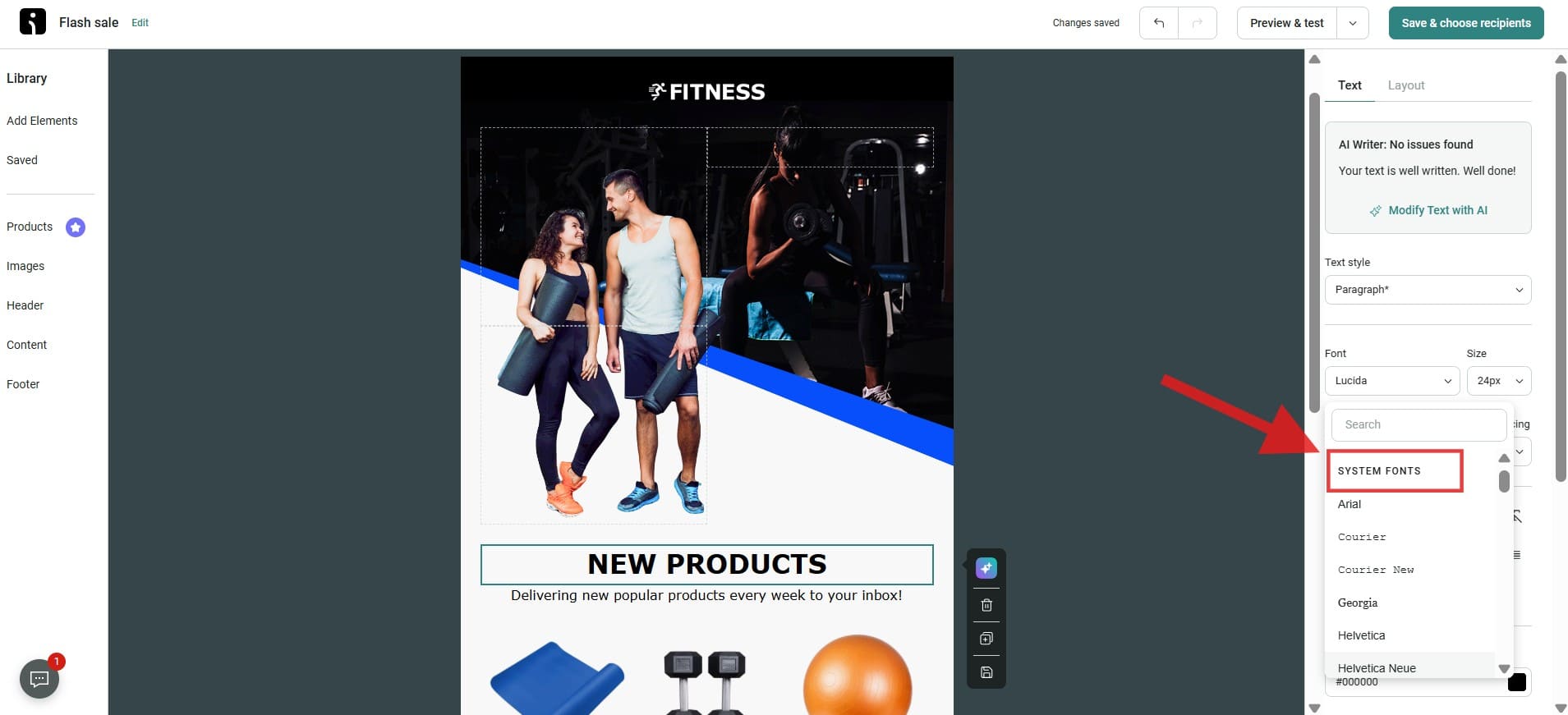
On Omnisend, for example, the email-safe fonts are labeled “system fonts” in the font selection menu, as shown in the image below.
3. Adjust font size and style
Once you have selected your font, you can adjust its size and style as needed. You also need to consider how your readers will read your text. This brings up the point that, above all, your text’s readability needs to be considered. You can also use styles such as bold or italic to emphasize your points in your email. Just be careful not to overdo it, as it could make your email look messy.
4. Apply the font to your email content
After selecting your font, use it in your content. You can use your selected font throughout your email, including headings and other text. It is recommended to avoid using more than one font in a single email. You can use one or two fonts to make your email clean and professional.
5. Preview your email
It is good practice to preview your emails before sending them. This is to ensure you can view your emails, including their design, content, and layout, exactly as the recipient sees them. It is necessary to preview your emails because it gives you a sneak peek, and this is very important.
6. Preview the email on desktop and mobile
After you’re done with your initial preview, it’s vital to check your email on different platforms, such as desktop and mobile devices. This will help you identify any issues that may arise when you send your email. This is super important since people access emails from a variety of devices.
7. Send a test email to a device of your choice
Before you send your email, test it on a device of your choice. This will provide you with valuable insight into what your recipient’s inbox will look like. You may send a test email to your phone, tablet, or another computer.
Testing on different devices ensures the formatting, images, and links function correctly, ultimately allowing you to address any last-minute issues before the email reaches your audience.
8. Use fallback fonts
If the font you have selected is not supported by the email client your recipient uses, it is always best to set up fallback fonts. Fallback fonts are used when your original font is not supported. For example, if your original font is Helvetica, then your fallback fonts would be Helvetica Neue and Arial.
Below is a list of the fonts supported by Omnisend and their fallback variants. However, keep in mind that this is just a portion of the fonts supported by the platform:
| Font name | Fallback 1 | Fallback 2 | Fallback 3 | Fallback 4 |
|---|---|---|---|---|
| Arial | Sans Serif | |||
| Courier | Courier New | Monospace | ||
| Courier new | Courier | Monospace | ||
| Georgia | Serif | |||
| Helvetica | Helvetica Neue | Arial | Verdana | Sans Serif |
| Helvetica Neue | Helvetica | Arial | Verdana | Sans Serif |
| Lucida | Lucida Sans Unicode | Lucida Grande | Sans Serif | |
| Tahoma | Sans Serif | |||
| Times | Times New Roman | Serif | ||
| Times New Roman | Times | Serif | ||
| Trebuchet MS | Sans Serif | |||
| Verdana | Sans Serif |
9. Making iterations if needed and testing again
If you notice any issues or areas for improvement during your previews or test emails, make the necessary adjustments. Perhaps the font size is too small, or certain elements are misaligned. Once you’ve made those changes, run another test to confirm that everything appears as intended.
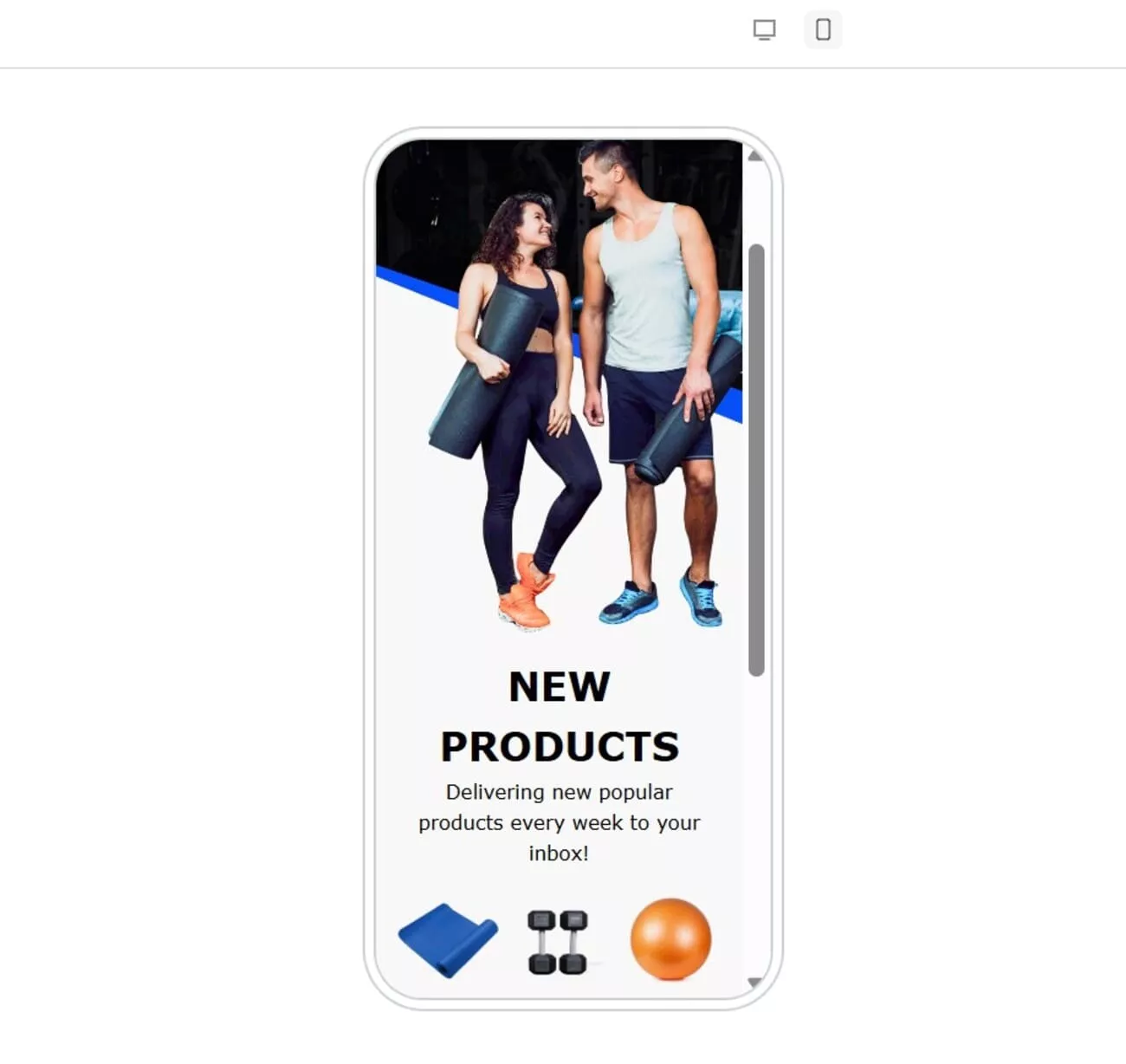
The image below shows how an email in Arial would look on a mobile phone screen:
Custom fonts in emails
Custom fonts can give a unique touch to your email marketing campaigns and help you stand out from the crowd. There are various custom fonts available on platforms like Google Fonts that you can explore to find the perfect font for your brand identity.
Some popular custom fonts for giving your email marketing campaigns a unique look include Roboto, Open Sans, Lora, Montserrat, and Poppins.
Considerations for using custom fonts in emails
Using custom fonts in emails comes with considerations to ensure your message renders properly across various devices and email clients:
- Limited support: Not all email clients support custom fonts. For example, Gmail and Outlook may default to standard email fonts, potentially disrupting your intended design. Knowing which clients support custom fonts is crucial for maintaining consistency.
- Fallback fonts: Always specify fallback fonts in your CSS to ensure readability and design aesthetic. If a custom font isn’t supported, a similar standard font will take its place so your email still looks polished.
- Brand consistency: Custom fonts can significantly enhance brand identity. Choose fonts that align with your overall branding strategy to ensure consistency. Cohesive typography helps reinforce recognition and build trust with your audience.
- Loading time: Custom fonts can enhance your website’s design. However, if not optimized, they might slow down the website, thereby affecting the user experience. Therefore, a balance needs to be struck when choosing a website font.
- Accessibility: Some fonts may not be easily readable for all users. It’s essential to prioritize legibility to ensure your message is accessible to everyone, including those with visual impairments.
The most reliable way to load a custom font in email is to use the @font-face rule. You must assign a name for the custom font, then enter the URL of the font file inside the src descriptor. Here’s the standard implementation:
The @font-face Rule
Websites can use other fonts than the pre-selected “web-safe” fonts.
Based on the email client support matrix, only Apple Mail and Outlook for Mac fully support custom fonts. Gmail only supports Roboto and Google Sans as web fonts.
Best practices for using custom fonts in emails
To maximize the effectiveness of custom fonts in your email campaigns, adhere to these best practices:
- Test across platforms: Before sending your email, test it across various email clients and devices to see how the fonts render. Early testing lets you catch issues before they escalate.
- Limit font usage: As with email-safe fonts, use only one or two fonts to avoid a cluttered look. A simple design is very effective in getting your message across.
- Use email-safe or web-safe fonts as fallbacks: Always include them in your CSS. This ensures that a standard font is used if the custom font fails to load, maintaining the email’s readability.
- Keep accessibility in mind: Choose fonts that are easy to read and have sufficient contrast against the background. Ensuring accessibility for all users is a crucial part of effective email design.
Here’s a list of custom fonts you can consider for emails:
- Roboto
- Open Sans
- Montserrat
- Raleway
- Playfair Display
- Oswald
- Ubuntu
- PT Sans
- Dosis
- PT Sans
- Source Sans Pro
- Anton
What are web-safe fonts?
Web-safe fonts come pre-installed on most users’ devices, ensuring that they display correctly across most platforms. These fonts aren’t the same as email-safe fonts, which have been specifically tested and verified to work across major email clients. Most email-safe fonts are also web-safe, but not every web-safe font behaves predictably inside every email client.
Here, we’ve listed the most popular web-safe fonts for email:
1. Arial Black

Arial and Arial Black are widely supported across different browsers and devices, making them versatile choices for various design needs. The primary difference between the two is in their weight: Arial Black is a much bolder version of Arial. Arial’s clean and readable design makes it ideal for body text, while Arial Black’s thicker, more striking appearance is perfect for headings and adding emphasis.
2. Calibri

Calibri is a modern sans-serif font designed in 2004. It’s the default font in Microsoft Office and favored by many for its professional yet casual tone.
3. Cambria

Cambria is a great all-purpose font for emails, offering sharp, modern styling that’s easy to read on screens of any size. Its versatility makes it a reliable choice for clear and polished communication.
4. Helvetica

Helvetica is a versatile sans-serif font widely used in corporate branding and advertisements. Its simple and clean look creates an impression of professionalism, so it’s perfect for emails where you want to convey a sense of trustworthiness.
5. Segoe UI

Segoe UI, a modern sans-serif font, is well-known for its elegant curves and legible letterforms. Its popularity stems from its unique ability to maintain sharpness and readability across devices, making it an excellent choice for email newsletters and digital projects.
Using brand fonts in emails when they’re not “email-safe”
Your brand’s unique identity is essential for effective communication with your audience, and typography plays a vital role in this process. Fonts can evoke emotions and establish visual consistency, which enhances brand recognition.
However, many brands face challenges with email-safe fonts widely supported by email clients. If your brand’s font is not compatible, here are some strategies to effectively convey your brand’s essence in emails:
- Use images: If your brand font is crucial to your message, consider using it in images. Just ensure the text is legible.
- Fallback fonts: If you must use the font for text, use a web-safe font as a fallback. Try to find the one that best matches the original font.
- Test different formats: Experiment with various formats and templates to see how your brand fonts perform across email clients. Since email platforms render fonts differently, A/B testing can reveal how your audience engages with your emails.
Here are some examples of brands that use fancy typefaces to express their brand identity:
Rifle Paper Co.
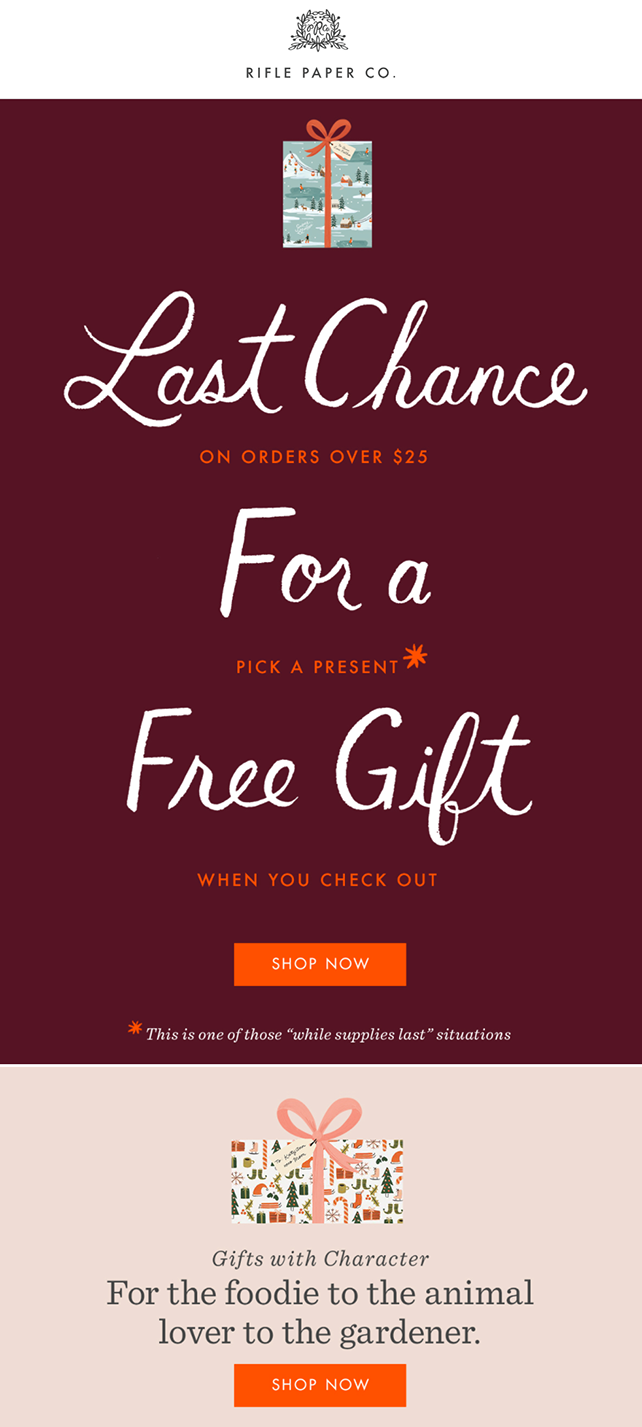
Rifle Paper Co., a stationery brand, mixes fonts like Futura, Average Mono, Rifle Open Narrow, and other email font families to show off its artistic characteristics.
True Grit Texture Supply
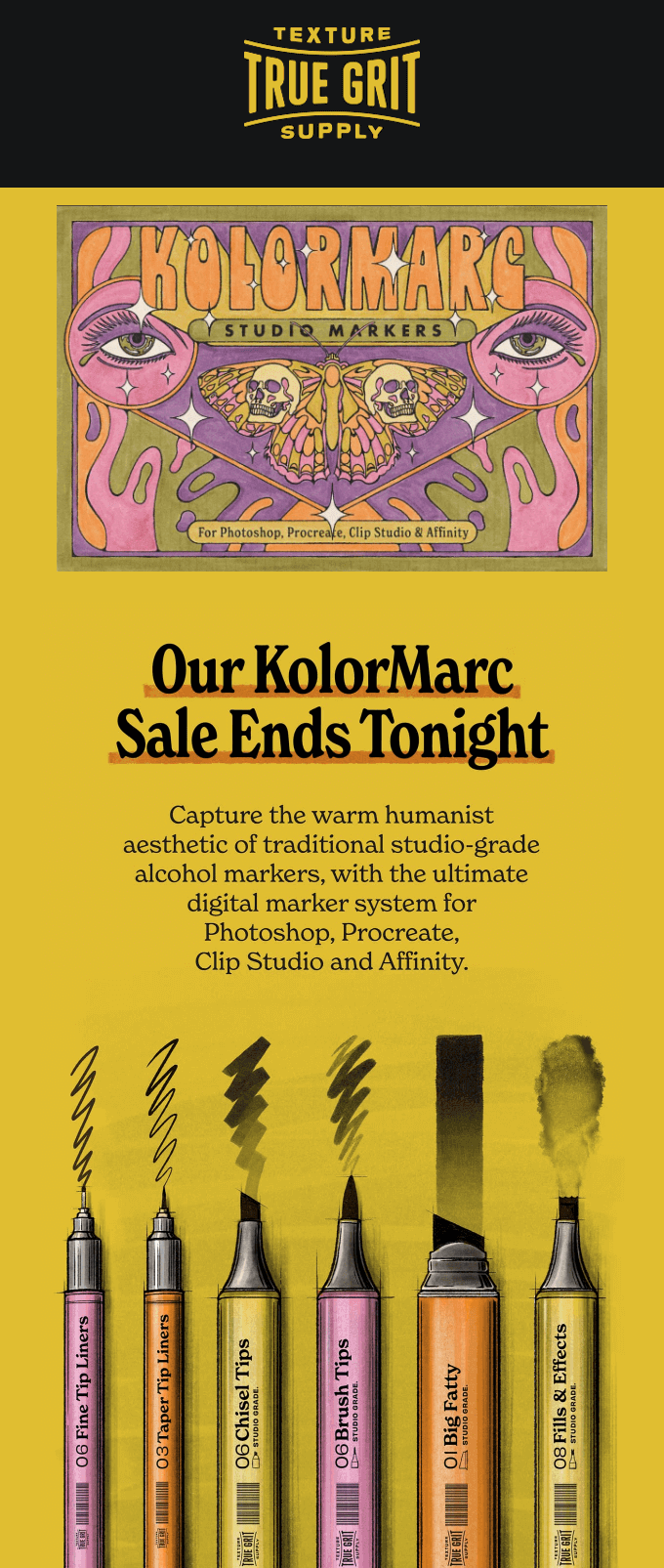
True Grit Texture Supply really knows how to make their emails pop with amazing visuals and typography. It uses eye-catching images that highlight the brand’s fonts and creative elements, all while keeping everything else easy to read and understand.
Nominal
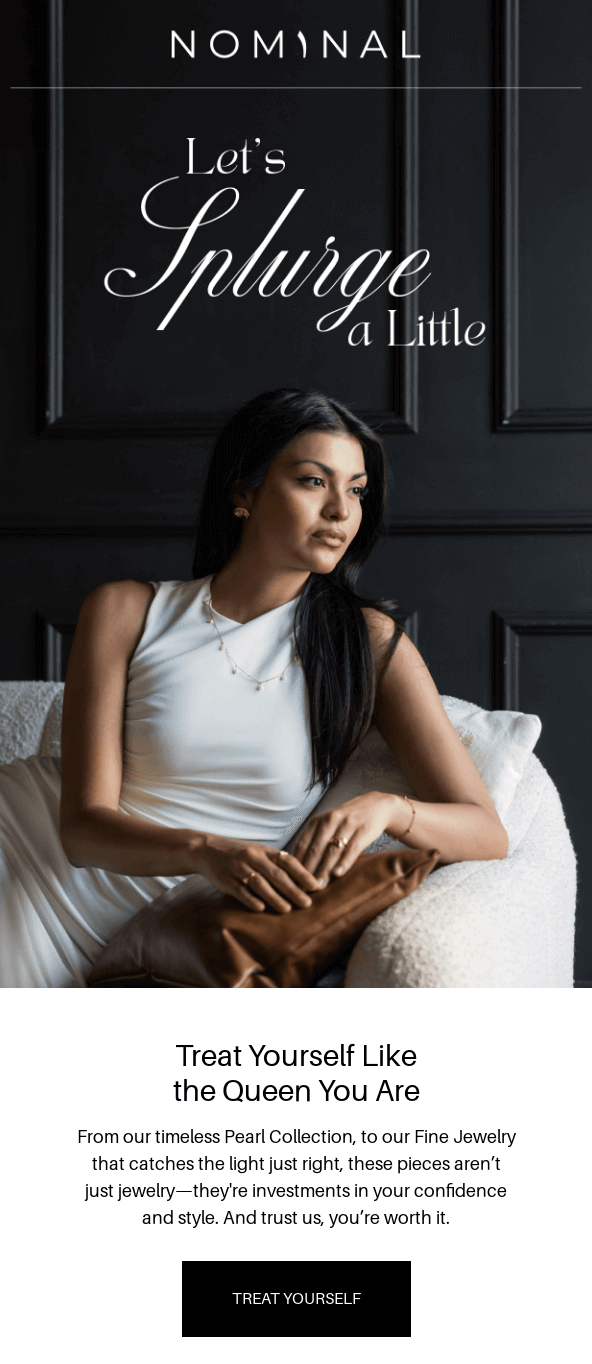
This Nominal newsletter stands out due to its elegant and sophisticated design, which perfectly reflects the brand’s identity as a purveyor of meaningful, Arabic-inspired jewelry. Fancy typefaces, such as sleek serif fonts for headings and stylish script fonts for special announcements, add a touch of luxury and exclusivity.
Summary
So far, you’ve seen that custom fonts are great for brands, but not all email clients support them. The best way to ensure your emails look good wherever they appear is to use email-safe fonts.
Whether you choose email-safe fonts or custom fonts, test a few email sends before launching campaigns. Always aim for readability and mobile-responsiveness.
FAQ
Can I use any font in an email?
While you can technically use any font, sticking to email-safe fonts ensures compatibility across different emails. Using non-standard fonts can lead to rendering issues that may distort your email’s layout and undermine your message’s professionalism and readability.
What font is similar to Times New Roman?
Georgia is a great alternative to Times New Roman. Both are serif fonts, but Georgia flaunts a more modern design and enhanced legibility, especially on digital screens. This combination of traditional and contemporary aesthetics makes Georgia an excellent choice for a range of professional and casual documents.
What happens if a recipient doesn’t have my font?
If a font isn’t supported, the email client uses a fallback font from your font stack. If you didn’t specify one in the code, it defaults to its system font. This can change spacing, layout, and overall design.
Can I use Google Fonts in an email?
You can use Google Fonts in email, but support is limited. Only clients like Apple Mail reliably display Google Fonts using @font-face. Gmail and most Outlook versions ignore them and show fallback fonts instead.
What fonts are safe and supported by Gmail?
Gmail supports a variety of email-safe fonts, including Arial, Georgia, Times New Roman, Tahoma, and Verdana. Using these Gmail-supported fonts ensures your emails look consistent and professional across devices and email clients.
What fonts are safe and supported by Outlook?
Outlook supports a range of email-safe fonts, including Arial, Tahoma, Verdana, and Georgia. Using these fonts prevents rendering issues, so your emails appear consistent across Outlook versions and devices.
Try Omnisend today for an intuitive and powerful tool to create the best-looking emails
Quick sign up | No credit card required