


Key Takeaways
- Maintain your printer properly to ensure professional results and avoid the high costs of frequent repairs or ink waste.
- Use the built-in cleaning and alignment tools only when necessary to keep your print heads clear without overworking the machine.
- Save yourself time and stress by printing a small test page once a week to keep the ink from drying out and clogging.
- Turn your printer off using the power button rather than the wall plug to help it safely seal and protect the ink nozzles.
Inkjet printers are reliable, versatile machines, but they rely on liquid ink moving through very small nozzles.
Because of this, they need regular care to perform well over time. Many common printer problems such as streaky prints, faded colours, or error messages are not caused by faulty hardware but by simple maintenance issues that can be prevented with the right habits. Proper inkjet printer maintenance not only improves print quality but also extends the life of the printer and reduces ink waste.
One of the most important aspects of inkjet printer maintenance is using the printer regularly. Inkjet ink is water-based and can dry out if the printer sits unused for long periods. When ink dries inside the print head nozzles, it can cause blockages that lead to missing lines or uneven colours. Printing a small test page once a week, even if you don’t have regular printing needs, helps keep ink flowing through the system and prevents the ink from drying inside the print head.
Keeping the printer clean is equally important. Dust, paper fibres, and airborne particles can settle inside the printer and interfere with the paper feed or print quality. The exterior of the printer should be wiped down occasionally with a soft, dry cloth. Inside the printer, loose paper dust can be gently removed using compressed air or a soft brush. Care should be taken not to touch internal rollers or electronic components directly, as oils from your fingers can affect their performance.
Print head maintenance plays a central role in inkjet printer care. Most inkjet printers have built-in print head cleaning and alignment utilities, accessible through the printer’s control panel or software on your computer. These tools flush ink through the nozzles to clear minor clogs and realign the print head for sharper text and images. It’s best to use these cleaning cycles sparingly. Running them too often can waste ink and, in some cases, accelerate wear. If print quality drops, start with a single cleaning cycle and check the results before repeating the process.
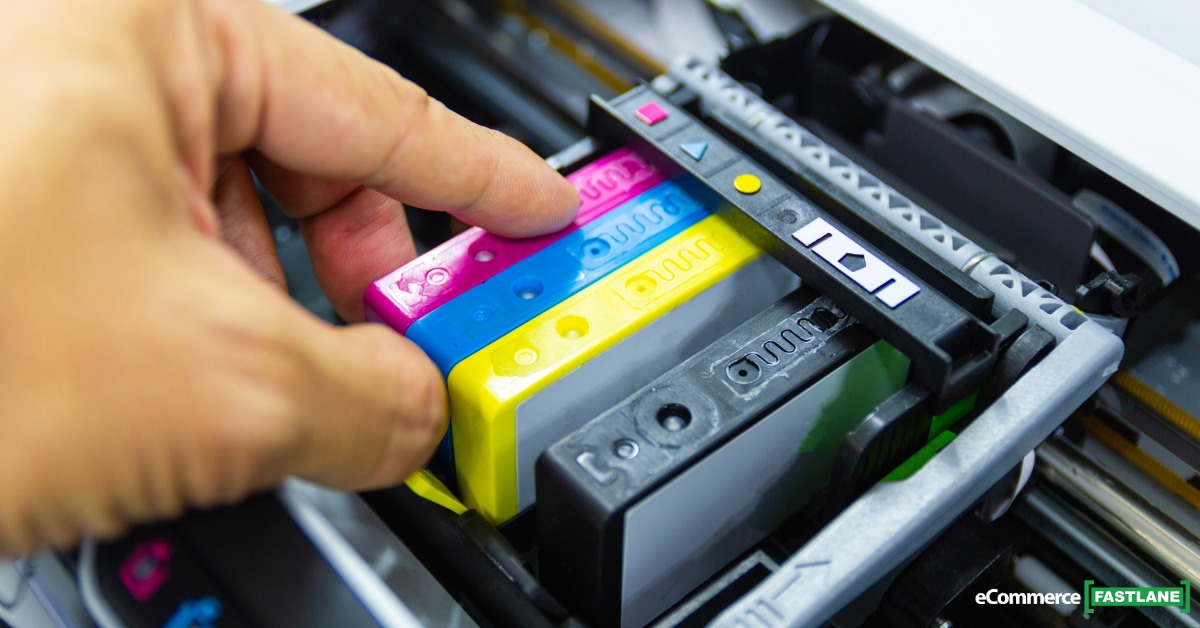
Using the right ink cartridges is another critical factor. Low-quality or incompatible cartridges can leak, clog print heads, or produce inconsistent results. Whether you use original or high-quality compatible cartridges, it’s important they are designed specifically for your printer model. Storing spare cartridges properly also matters. Ink cartridges should be kept sealed in their packaging and stored at room temperature, away from direct sunlight or extreme heat, which can degrade the ink.
Paper choice and handling often get overlooked but can have a significant impact on printer performance. Using paper that is too thin, too thick, or dusty can cause jams, misfeeds, or poor print quality. Always use paper types recommended by the printer manufacturer and store paper in a dry place to prevent moisture absorption. Fan the paper stack lightly before loading it into the tray to reduce static and sticking, and avoid overfilling the paper tray.
The environment in which the printer is kept also affects its longevity. Inkjet printers perform best in stable, moderate conditions. Excessive heat can cause ink to dry too quickly, while high humidity can lead to smudging and paper feed issues. Placing the printer away from windows, heaters, and air conditioning vents helps maintain consistent conditions. Good airflow around the printer also helps prevent internal components from overheating during longer print jobs.
Powering the printer down correctly is another small but important habit. Always use the printer’s power button rather than unplugging it or switching it off at the wall. When powered down properly, the printer parks the print head in a capped position that seals the nozzles and prevents ink from drying out. Interrupting this process can leave the print head exposed, increasing the risk of clogs.
Software and firmware updates are part of modern printer maintenance. Manufacturers occasionally release updates that improve performance, fix bugs, or enhance compatibility with operating systems. Keeping printer drivers and firmware up to date can resolve unexplained issues and ensure the printer continues to function smoothly with new devices and software.
Ink levels should be monitored, but cartridges should not be replaced prematurely. Running a cartridge completely dry can introduce air into the ink system, which may lead to printing issues. However, replacing cartridges too early increases running costs unnecessarily. When print quality starts to fade or the printer reports low ink, it’s best to have a replacement ready and change it once quality noticeably declines or the printer prompts you to do so.
If a printer will not be used for an extended period, some preparation is required. Printing a test page before storing the printer, ensuring cartridges are not empty, and powering the printer off correctly can reduce problems later. For very long periods of non-use, some users choose to remove cartridges and store them sealed, but this should only be done if the manufacturer recommends it for that model.
Finally, knowing when to stop troubleshooting is part of good maintenance. If repeated cleaning cycles do not restore print quality, or if there are persistent error messages, it may indicate a worn print head or internal component failure. At that point, professional servicing or replacement may be more cost-effective than continued maintenance efforts.
Regular care, sensible usage habits, and attention to the printer’s environment go a long way toward keeping an inkjet printer running smoothly. By taking a proactive approach to maintenance, users can avoid most common problems, reduce ink waste, and get consistent, high-quality results for years from the same machine.
Frequently Asked Questions
Why does the printer power button matter more than the wall outlet?
Using the printer’s own power button allows the machine to move the print head into a protected, capped position. This process seals the tiny nozzles to keep air out and prevents the liquid ink from drying into a hard clog. If you cut the power at the wall, the head stays exposed, which significantly increases the risk of streaky or failed prints later.
How often should I print to keep my inkjet nozzles from clogging?
You should print at least one small test page or a single color document once a week. This regular movement keeps the water-based ink flowing through the system and prevents it from settling and drying inside the print head. Consistent use is often more effective at saving ink than running heavy cleaning cycles after the printer has sat idle for a month.
Is it safe to use compressed air to clean the inside of my printer?
Yes, you can use compressed air to gently blow away loose paper dust and fibers that settle on internal parts. However, you must be careful not to touch the delicate electronic sensors or the oily rollers with your fingers. Keeping these areas free of debris helps prevent paper jams and ensures the internal feed system moves smoothly.
When is the best time to replace a low ink cartridge?
Wait to replace your cartridge until the print quality actually starts to fade or the printer refuses to print. While running a cartridge completely dry can sometimes let air into the system, replacing them the moment a “low ink” warning appears often wastes a significant amount of usable ink. Having a spare cartridge ready in your desk ensures you can swap it out exactly when the performance drops.
Does the type of paper I use really affect the printer hardware?
Lower-quality or dusty paper can shed small fibers that clog the internal gears and coat the print head in debris. Using the paper weight and type recommended by the manufacturer reduces the chance of frustrating jams and ensures the ink absorbs correctly. Proper paper handling, like fanning the pages before loading them, also stops static from pulling multiple sheets in at once.
Can high humidity or heat damage my inkjet printer?
Extreme environmental conditions can change how the ink and paper behave during the printing process. High heat may cause ink to dry too quickly and clog the nozzles, while humidity can make paper damp and prone to smudging or jamming. Placing your machine in a stable, climate-controlled room away from windows or heaters will extend the life of its sensitive components.
What is the biggest myth about running print head cleaning cycles?
Many people believe that running multiple cleaning cycles in a row is the best way to fix a stubborn clog. In reality, these cycles use a lot of ink and can eventually cause wear on the print head if overused. It is much better to run a single cycle, print a test page, and wait a few minutes before deciding if another cleaning is actually necessary.
Why should I bother with firmware and driver updates?
Manufacturers release these digital updates to improve how your printer communicates with your computer and to fix known hardware bugs. Keeping your software current can solve mysterious error messages and improve the overall efficiency of your ink usage. These updates ensure your older printer stays compatible with newer operating systems and devices.
What should I do if I plan to leave my printer unused for a long vacation?
Before you leave, print a final test page and make sure you power the machine down using its physical power button so the head is capped. Ensuring that your cartridges are not almost empty before you go can also help prevent air from entering the lines while you are away. For very long periods of storage, check your user manual to see if the manufacturer recommends removing the cartridges entirely.
How do I know when a printer is beyond repair?
If you have performed several cleaning cycles and the prints are still missing lines or showing distorted colors, the print head may be permanently worn out. At this stage, the cost of a new print head or professional labor often exceeds the price of a new machine. Knowing when to stop troubleshooting prevents you from wasting more expensive ink on a device that can no longer produce quality results.