

Key takeaways
Setting up a WooCommerce store can be completed in just two to three hours with the right steps, allowing you to start accepting orders quickly.
Essential prerequisites for launching include having a registered domain, a reliable hosting provider, and a functioning WordPress installation.
Choose a hosting provider that meets WooCommerce’s technical requirements to ensure optimal performance and security for your online store.
Integrating marketing automation tools like Omnisend can significantly boost your revenue, with users reportedly earning $79 for every $1 spent on the platform.
To set up a WooCommerce store, you must make several key decisions about hosting, design, payments, shipping, and taxes. That said, you don’t need coding skills to get started.
When you follow the right steps, you can complete your WooCommerce store setup in about two to three hours. By then, your store can accept orders.
WooCommerce is an open-source ecommerce plugin for WordPress. It has more than seven million active installations and a 4.5-star rating. Store owners choose it because it’s flexible, reliable, and easy to use.
However, simply installing the plugin isn’t enough to launch a store. You must know how to properly set up your WooCommerce store to ensure that it works smoothly. This leads to better performance, sales, and business growth.
This WooCommerce store setup guide is designed for anyone launching a new WooCommerce store.
You’ll also learn about Omnisend, a WooCommerce marketing automation platform, and how successful stores use it to grow revenue through email and SMS.
What you need before setting up WooCommerce
Before we tackle WooCommerce store setup, let’s first look at the key things you need.
WordPress installation requirements
The first requirement is an active WordPress installation. Since WooCommerce is a WordPress plugin, you can’t use it without a working WordPress website.
The easiest way to install WordPress is via your hosting provider. Most hosting companies offer a one-click WordPress installation in their dashboards.
After purchasing your hosting plan and connecting your domain name, log in to your hosting account and install WordPress.
If your hosting provider doesn’t offer one-click installation, you can install WordPress manually. You’ll have to download WordPress from WordPress.org, upload the files to your hosting account, and run the installation script.
Essential prerequisites checklist
Before you begin installing WooCommerce, review this simple checklist:
- A registered domain name that represents your brand
- A reliable hosting provider that supports WordPress and WooCommerce
- WordPress is installed and accessible through your hosting dashboard
With these requirements, setting up the WooCommerce store becomes much easier.
How to install and activate WooCommerce
Setting up WooCommerce the right way gives your online store a strong foundation for sales, performance, and long-term growth.
This practical WooCommerce store setup checklist can guide you through the process:
Steps 1 to 3: Foundation setup (about 45 minutes)
- Step 1: Choose a hosting provider and set up your server — Select a reliable hosting provider and configure your server for speed, security, and stability
- Step 2: Install and activate the WooCommerce plugin — Add WooCommerce to your WordPress dashboard and activate it to unlock ecommerce features
- Step 3: Complete the onboarding wizard and setup checklist — Use the built-in wizard to define store details, currency, and basic preferences
Steps 4 to 8: Store configuration (about 60 to 90 minutes)
- Step 4: Add your first product — Create product listings with clear titles, prices, images, and descriptions
- Step 5: Choose and customize your theme — Pick a theme that matches your brand identity and improves the shopping experience
- Step 6: Set up shipping — Define shipping zones and rates to ensure smooth and accurate delivery
- Step 7: Configure taxes — Apply the correct tax rules based on your location and products
- Step 8: Set up payment gateways — Connect secure payment methods so customers can check out with confidence
Steps 9 to 11: Optimization and launch (about 45 minutes)
- Step 9: Add extensions and add-ons — Expand your store’s features to meet your business needs
- Step 10: Manage store settings — Review emails, inventory, and customer settings to streamline operations
- Step 11: Test and verify before launch — Place a test order to confirm your store is fully functional and ready to launch
Follow these steps carefully for a smooth WooCommerce store setup. Your store should be fully functional and ready to handle customers and sales.
Step 1: Choose your hosting provider
Estimated time to complete: 15–20 minutes
Before starting your WooCommerce store setup, you must choose the right host. This can save you from performance problems later.
WooCommerce hosting requirements
Before selecting a provider, make sure it meets WooCommerce’s technical requirements for 2026:
- PHP 8.0 or higher
- MySQL 5.7 or higher or MariaDB 10.4 or higher
- At least 256 MB of WordPress memory limit
- HTTPS support with a valid SSL certificate
Using PHP 8.0 or higher improves speed and security. An SSL certificate protects customer data and builds trust during checkout. Also consider storage space, bandwidth, automatic backups, and uptime guarantees.
Reliable hosting helps improve SEO because search engines favor fast and stable websites.
There are four main types of hosting to consider:
- Shared hosting: typically costs $3–10/month. Affordable and suitable for small stores with low traffic.
- VPS hosting: Usually costs $20–80/month. Offers dedicated resources and better performance for growing stores
- Dedicated hosting: Often starts at $100/month. Provides full control and maximum performance for high-traffic stores
- Managed WordPress hosting: Ranges from $25–100/month. Optimized for WordPress and includes updates, backups, and enhanced security
Recommended hosting providers
Below are some of the best WooCommerce hosting options recommended for users.
| Provider | Best for | Price starting from | Standout feature |
|---|---|---|---|
| Bluehost | Beginners launching their first store | $4.99/month | WooCommerce and WordPress pre-installed |
| Pressable | Agencies and growing stores need performance | $25/month | Built for WordPress with scalable infrastructure |
| SiteGround | Store owners want expert support | $3.99/month | Daily backups and built-in security tools |
| Hostinger | Store owners needing managed WooCommerce maintenance | £12.99 ($17.43) | Optimized WooCommerce hosting with free SSL, caching, and easy setup |
A reliable hosting provider will deliver the speed, stability, and security your WooCommerce store needs.
Step 2: Install and activate WooCommerce
Estimated time to complete: About five minutes
Before installing the WooCommerce plugin, it’s essential to have a functioning WordPress website. If you use a recommended host, the setup will already include basic configuration.
However, if you’re using a host that doesn’t natively support it, you’ll need to install a WordPress full package first.
How to install WooCommerce in WordPress
Once your WordPress site is running, follow these steps to install and activate the WooCommerce plugin:
- Log in to your WordPress dashboard using your admin username and password
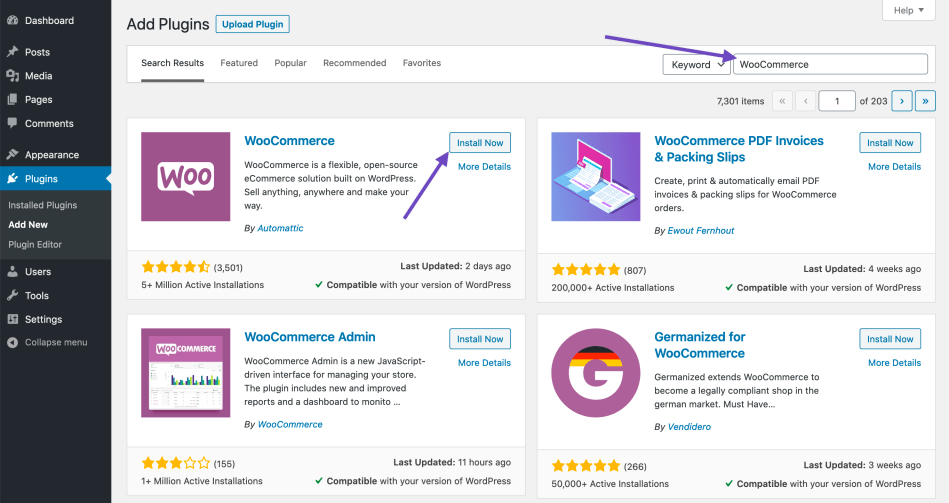
- Navigate to Plugins in the left-hand menu and click on Add New
- Search “WooCommerce” and press Enter
- Look for the official WooCommerce plugin by WooCommerce, and click Install Now
- After the installation is complete, click Activate to activate the plugin
Congratulations! You successfully installed and activated the WooCommerce plugin on your WordPress website.
If you see an error during installation, confirm that your hosting meets the minimum requirements listed in Step 1. Most issues stem from outdated PHP versions or limited server resources. Updating your hosting settings usually resolves the problem.
Finding additional plugins
As you build your store, add more plugins to expand your website functions. To find trusted WooCommerce plugins, go to the official WordPress plugin repository and type “WooCommerce”:
You can also take ideas from our list of the best WordPress plugins. Plugins can help improve SEO, speed, security, and marketing. However, install only what you need, as too many plugins can slow down your site.
With WooCommerce activated, you’re ready for the next step in your WooCommerce store setup.
Step 3: Complete the WooCommerce setup wizard
Estimated time to complete: 10–15 minutes
After activating WooCommerce, you can now configure the WooCommerce store setup wizard. While this step is optional, it can help ensure that all WooCommerce settings run smoothly on your store.
Using the WooCommerce setup wizard
You need to follow these five steps to complete the WooCommerce setup wizard:
- Configure Store Profiler
- Activate free features
- Connect Jetpack
- Complete Profiler
- Review the setup checklist
Store profiler configuration
The Store Profiler is the first and most important screen. It collects basic information about your business.
You’ll be asked to provide the following information:
- Store address: Enter your real business address, which determines tax calculations and shipping zones
- Country and region: Choose where your business is based
- Currency: Select the primary currency for your target market
- What type of products do you plan to sell: Select the option that best matches your main inventory
- Business details: Indicate how many products you plan to display and whether you’re currently selling elsewhere

Remember that all this information is flexible. You can update it later from your dashboard.
Free features activation
Next, WooCommerce will suggest free features to enhance your store. These may include automated taxes, WooCommerce payments, marketing tools, and other built-in enhancements.
You can accept or skip any recommendation:

As a general guideline:
- Enable automated tax features if you want help calculating taxes
- Consider WooPayments if it’s available in your country and you want a simple payment setup
- Review and choose from any marketing or growth tools based on your needs
The setup wizard recommends basic marketing features, which means advanced marketing automation isn’t included by default. You’ll need a dedicated tool for email and SMS automation, which we’ll cover in Step 9.
You can remove any feature later, so there’s no long-term commitment.
Connecting Jetpack
In this step, you’ll be prompted to connect your WordPress.com account to enable Jetpack:
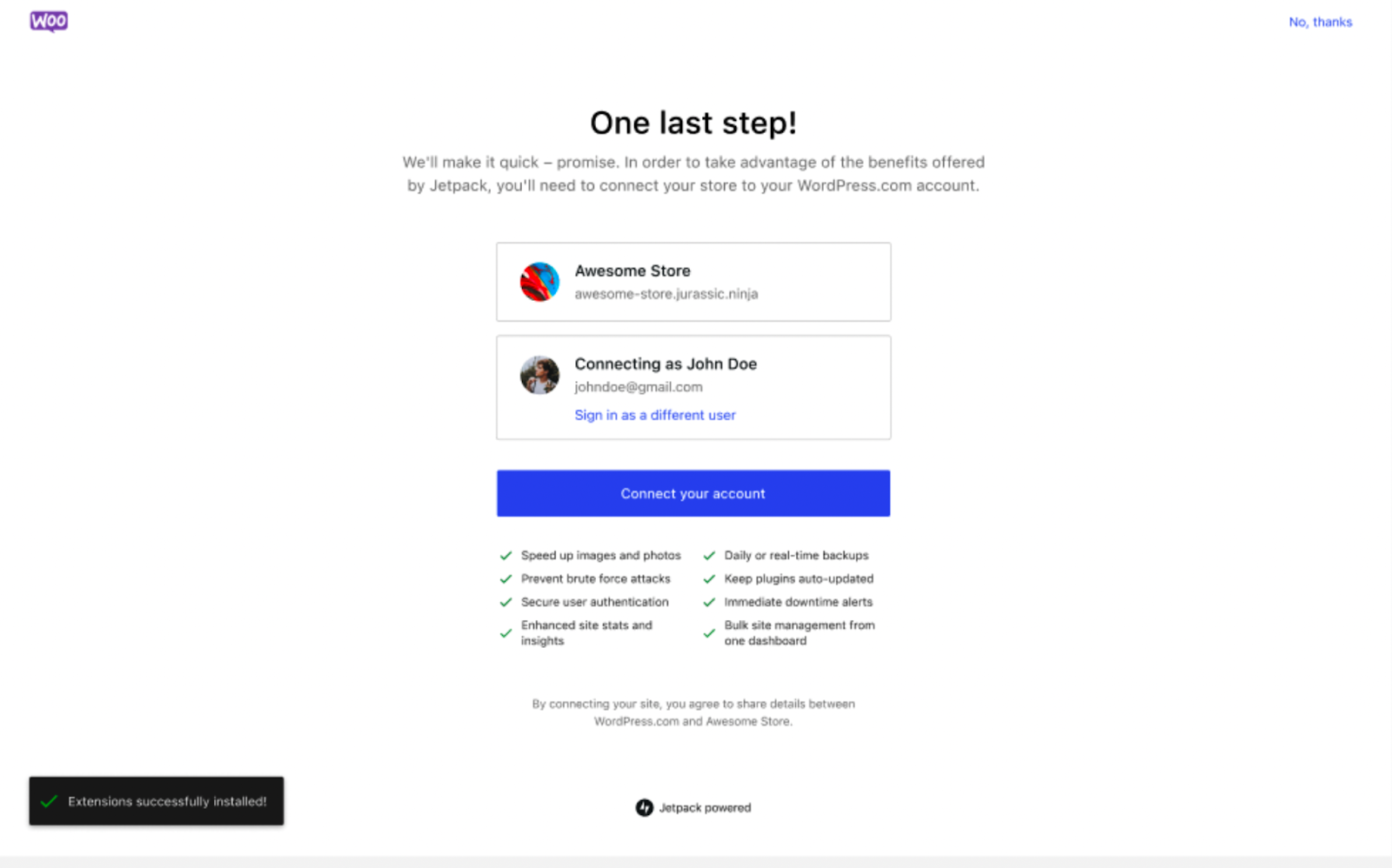
Jetpack adds important features, such as:
- Basic security protection
- Brute force attack protection
- Downtime monitoring
- Performance enhancements
- Activity logs
Connecting Jetpack helps protect your store and improve reliability. For most new store owners, enabling Jetpack is recommended because security and uptime are critical for ecommerce.
Profiler completion
Once you finish these screens, the wizard will finalize your settings and prepare your WooCommerce dashboard:
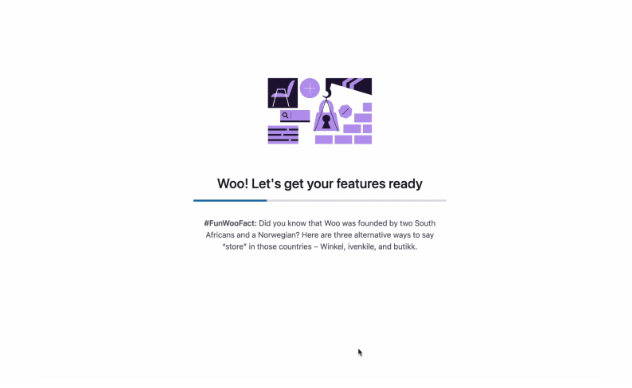
At this point, your core configuration is complete. WooCommerce will begin setting up your store environment based on your selections.
Setup checklist overview
After completing the Store Profiler, you’ll see a built-in setup checklist inside your WooCommerce dashboard:
This checklist outlines important remaining tasks, such as:
- Adding products
- Setting up payments
- Configuring shipping
- Customizing your store design
As you go through the WooCommerce setup wizard, you might have a few questions. Here are answers to the most common concerns:
- Can I skip the setup wizard?
Yes, but it’s not recommended as this may leave important settings incomplete.
- Can I re-run the setup wizard later?
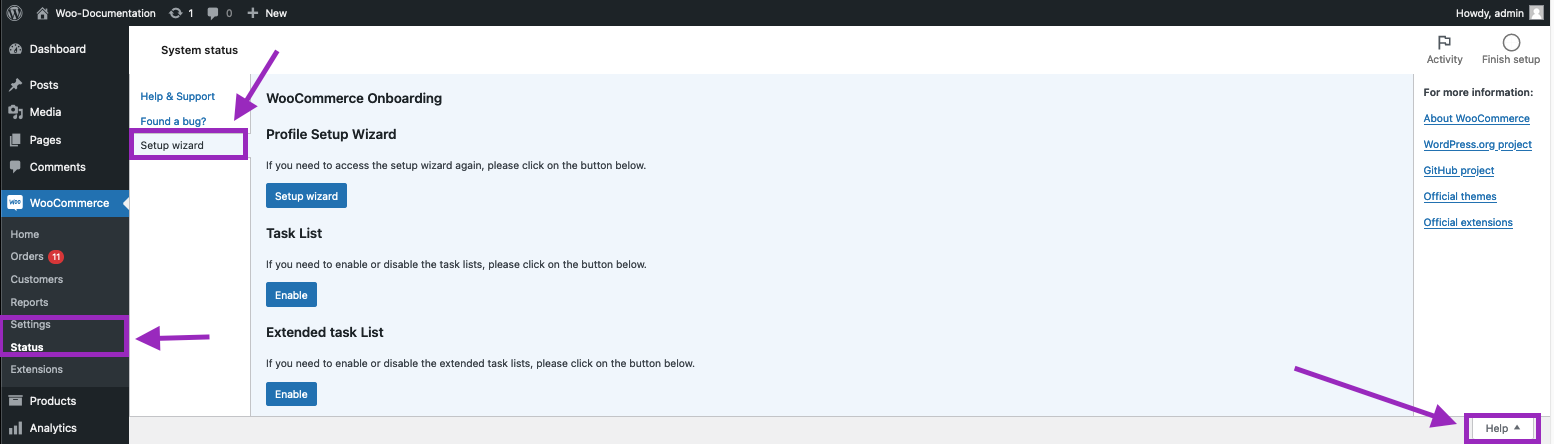
Yes. If you accidentally skip it, go to WooCommerce and navigate to Help > Setup Wizard. You can launch it again and review your configuration.
Step 4: Add your first product
Estimated time to complete: About 10 minutes for a simple product
In this step of your WooCommerce store setup, you’ll add your first product. This is where your store starts to take shape and become ready for sales.
Product types in WooCommerce
You have several options when choosing products to sell on WooCommerce:
- Physical product: A tangible item delivered to a customer and labeled as “Simple Product” in the product editor
- Variable product: A physical product with variations in size, color, or other attributes
- Grouped product: A collection of related products sold together
- Digital product: A service, downloadable file, or locked content
- External product: A product listed on another website that you link to for purchase
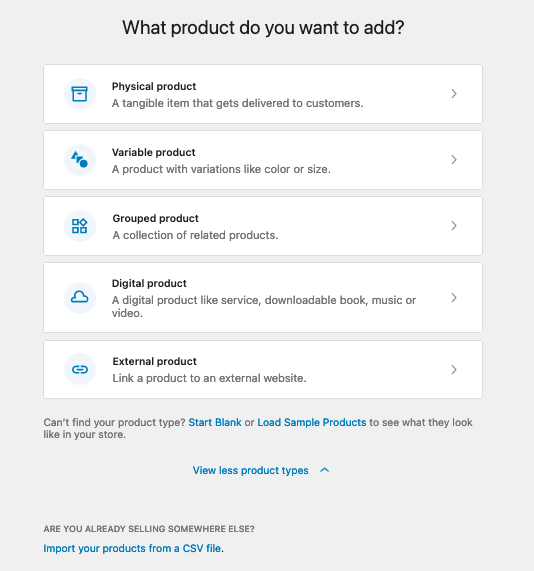
If you’re new to WooCommerce, start with a simple product. It’s the easiest way to learn the interface and understand how pricing, inventory, and images work.
Product entry methods
There are several ways to input products into WooCommerce:
- Add manually: Create a product using the WordPress editor with WooCommerce features
- Start with a template: Choose a pre-filled template for physical, digital, or variable products
- Import: Upload product data from a CSV file
- Migrate: If you’re migrating from an existing ecommerce platform, you can use Cart2Cart to move your data
Take time to write clear product titles and detailed descriptions. Upload high-quality images. Strong product pages can increase sales and improve marketing campaign performance.
A more detailed guide to product management and optimization is covered later in this article.
Step 5: Select your theme
Estimated time to complete: About 15 minutes, including basic customization
Your theme controls your store’s design, layout, and shopping experience. It influences how products are displayed, how fast pages load, and how smooth the checkout process feels. These details are critical because they affect conversions and revenue.
Your theme also impacts marketing performance. It determines where you can place email signup forms, popups, and promotional banners.
When selecting a theme, focus on:
- Speed and performance: A fast theme improves user experience and search visibility
- Mobile-responsiveness: Your WooCommerce store design or theme should look and function well on mobile devices
- WooCommerce compatibility: Choose a theme built for WooCommerce to avoid layout or checkout issues
Recommended WooCommerce themes
Some of the best WooCommerce themes include Astra, Shoppe, and OceanWP. They’re optimized for ecommerce and offer ready-made, easily customizable templates:
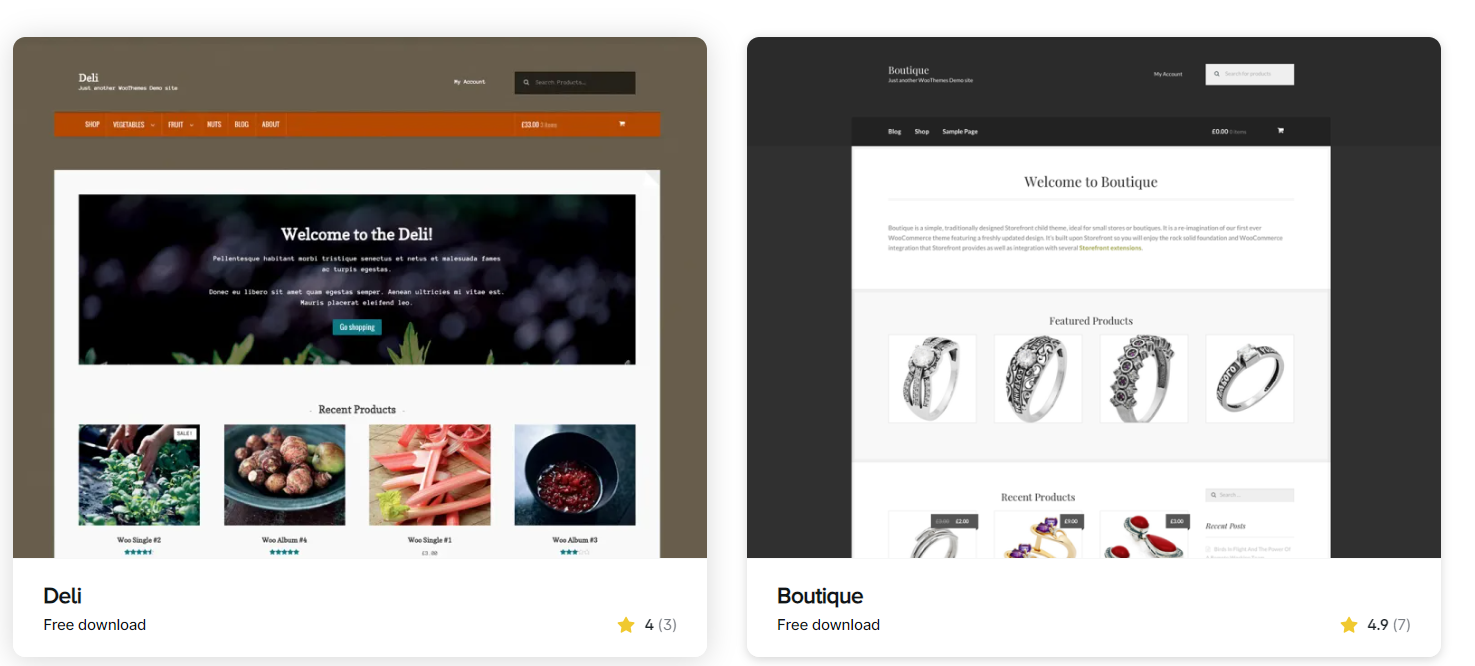
Theme customization options
After installing your theme, go to Appearance > Customize in your WordPress dashboard. From there, you can adjust colors, typography, and product page design.
Don’t worry about making everything perfect right away. You can always update or change your theme as your store grows. If you want more design flexibility, you can use WordPress page builders to create custom layouts.
Step 6: Configure shipping settings
Estimated time to complete: About 15–20 minutes
WooCommerce shipping setup is key to delivering a smooth buying experience. For this step, you need to verify the store location that you specified in the Store Profiler. This location determines your default shipping origin. It also affects tax and delivery calculations.
Setting up shipping zones
Shipping zones allow you to define where you ship and how much you charge based on customer location.
To set up shipping zones:
- Go to WooCommerce in your dashboard
- Click Settings > Shipping
- Click Add shipping zone
- Enter a zone name, such as United States, Europe, or a local area
- Select the regions covered in that zone
- Add shipping methods
You can create multiple zones for domestic and international customers. By default, international shipping is turned off, but you can enable it by creating a zone that includes other countries.
If shipping options don’t appear at checkout, make sure the customer address falls within a defined shipping zone.
WooCommerce Shipping for USA stores
If your store is located in the USA, you can install WooCommerce Shipping. It lets you link your store with WordPress.com, so you can print shipping labels:
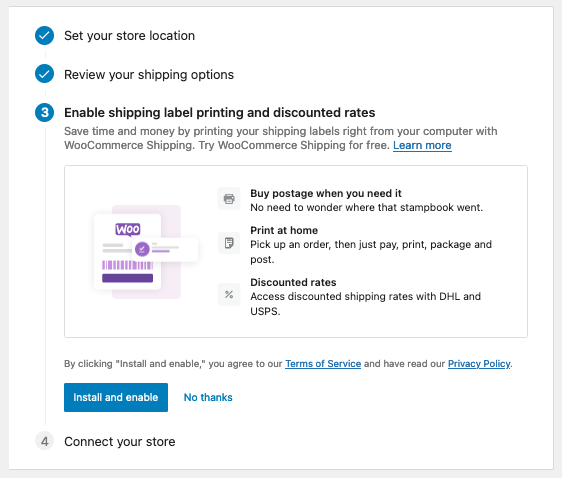
You can offer flat rate shipping, free shipping, or local pickup. A popular strategy is to offer free shipping on orders above a certain threshold to encourage customers to add more items to their carts.
For order tracking, you can extend your store with shipment-tracking tools that automatically update customers on their delivery status.
Due to their high open rates, shipping notifications also serve as useful marketing touchpoints. They offer a great opportunity to recommend related products through automated email workflows.
Step 7: Set up tax calculations
Estimated time to complete: About 10 minutes
Depending on your business needs, WooCommerce offers several ways to handle tax settings, including:
- WooCommerce Tax: This automatically calculates how much sales tax you should collect. It provides information on city, state, and country sales tax requirements.
If you have Jetpack installed, you can start automatically calculating taxes by connecting your store to WordPress.com. This is a convenient choice for small and medium-sized stores that want automatic compliance:
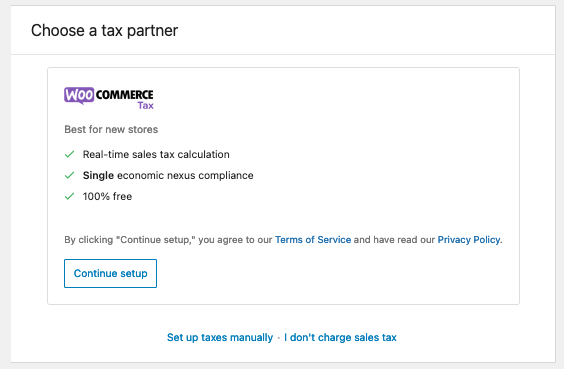
- Avalara: A more robust tax compliance solution. The system calculates taxes and helps manage tax returns and tax rules across large product sets. This option is useful if you sell across several states or need detailed tax reporting.
- Manual tax configuration: You can set tax rates manually if you prefer full control. This method requires you to define percentages for each region and product type. It works well for businesses with simple tax rules.
- No tax required: If your products are tax-exempt, you can turn off tax collection. This option is useful for certain digital services or products that don’t fall under taxable categories in your region.
If you’re unsure which of these methods to choose, consult a tax professional to ensure compliance with local regulations. And don’t forget about the shipping tax!
Step 8: Configure payment gateways
Estimated time to complete: About 15 minutes
WooCommerce simplifies payment setup by automatically installing and activating gateways when you enable them in settings.
Before selecting a gateway, consider transaction fees, regional availability, and customer preferences. Major gateways handle PCI compliance, so sensitive payment data is processed securely.
The following are the most common ecommerce payment processing options for your store:
| Processor | Typical fee | Best for | Notable features |
|---|---|---|---|
| Stripe | 2.9% + $0.30 per transaction | Subscriptions and global sales | Supports cards, Apple Pay, Google Pay, and recurring billing |
| PayPal | 3.4% + fixed fee | Global payment recognition | Redirect checkout, strong buyer protection |
| Square | $49/month/location | Online and in-person stores | POS integration, gift cards, Cash App |
| WooPayments | Free | Native WooCommerce integration | Managed inside the dashboard, multi-currency support |
Stripe

Stripe supports credit cards and digital wallets. It’s available in many countries. It offers a smooth checkout experience and supports recurring payments. This makes it suitable for subscription products and businesses serving international customers.
PayPal

PayPal is widely recognized and trusted by online shoppers. Customers complete transactions on PayPal’s platform, which adds an extra layer of security. It works well for businesses that want a simple payment option with global recognition.
Square
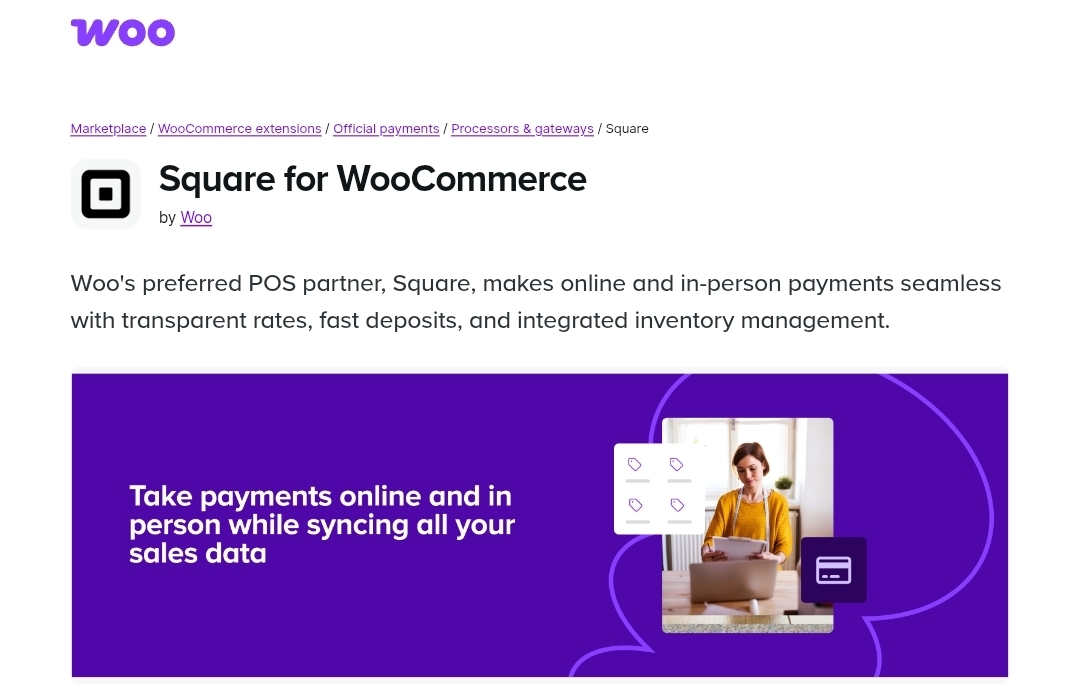
Square accepts online and in-person payments, making it useful for businesses that operate both online and physical locations. It also supports digital wallets and gift cards. This flexibility suits retailers with omnichannel sales.
WooPayments
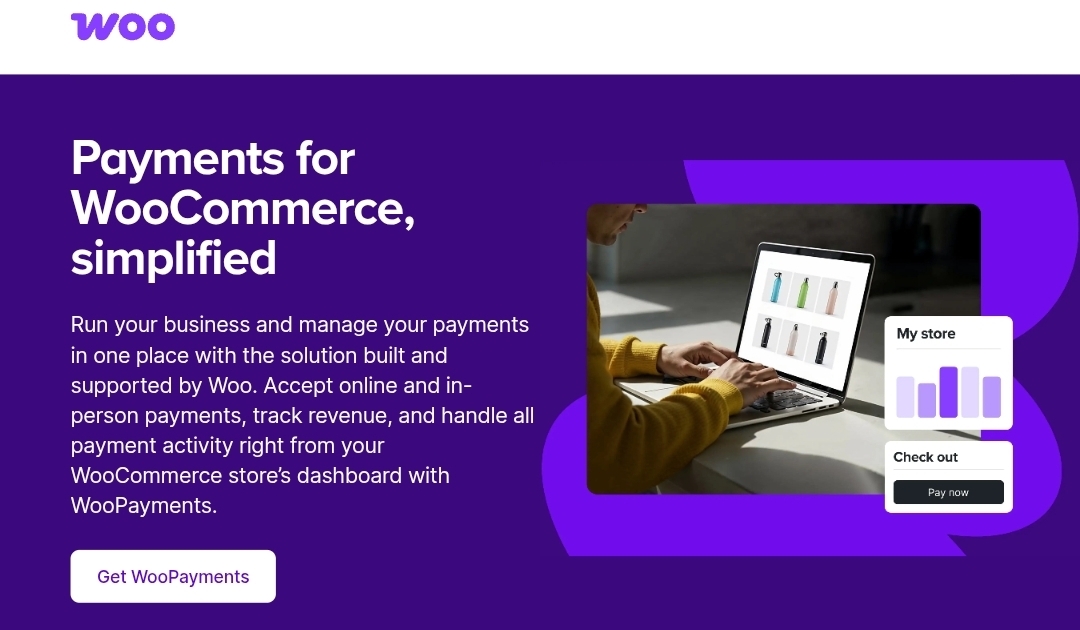
WooPayments integrates directly with your store and provides a streamlined checkout experience. It supports major payment methods and simplifies management inside the WooCommerce dashboard. It’s a convenient choice for businesses that want native integration.
Which payment gateway should you choose?
Stripe works well for international customers and subscription models. Many shoppers trust PayPal, and it provides simple global coverage. Square is ideal if you also sell in person. WooPayments offers deep integration and easy management.
You can enable multiple gateways to provide several options at checkout. After configuration, test the checkout and payment process with a small order to confirm.
Step 9: Install essential extensions
Estimated time to complete: About 20 minutes to research, choose, and install the right extensions
At this point, your WooCommerce store setup is complete. However, WooCommerce provides users with additional free or paid tools that help run their store smoothly.
Start with tools that directly impact revenue. You should prioritize marketing automation and analytics. Analytics tools help you collect store data and analyze it to make better decisions. Meanwhile, WordPress automation tools can help you connect different apps and reduce repetitive, manual tasks that could slow down operations.
As your store continues to grow, you can install other WooCommerce plugins as needed.
For now, here are some automation and analytics tools we highly recommend.
Omnisend for email and SMS marketing
As a top WooCommerce plugin, Omnisend helps integrate automated email marketing and SMS functions into your marketing strategy.
Omnisend customers see an average of $79 in revenue for every $1 spent on the platform across email, SMS, and push notifications.
With pre-built automation workflows, you can launch welcome emails, abandoned cart recovery, order confirmations, and follow-ups within minutes. You also get SMS integration, advanced audience segmentation, and product recommendations inside emails.
Another great feature is the audience sync for ads. This synchronizes your existing subscribers or customers to Facebook’s or Google’s ad platforms for better targeting.
Unlike some marketing tools that restrict features to higher-priced plans, Omnisend’s free plan includes full ecommerce capabilities. You also get 24/7 customer support on every plan, including the free one.
Your WooCommerce store setup won’t be complete without marketing automation. Automated campaigns convert visitors into subscribers and subscribers into repeat customers.
Generate up to $6.30 per email with our WooCommerce email marketing plugin
Quick sign up | No credit card required
Site Kit by Google

This Google plugin is a powerful tool for WooCommerce analytics. It brings the power of Google Analytics, Google Search Console, and Google AdSense to your store.
With this tool, you can understand where you stand in terms of SEO, page experience, and traffic generation.
The plugin from WordPress also provides detailed insights that can guide your store’s marketing strategy:
MonsterInsights
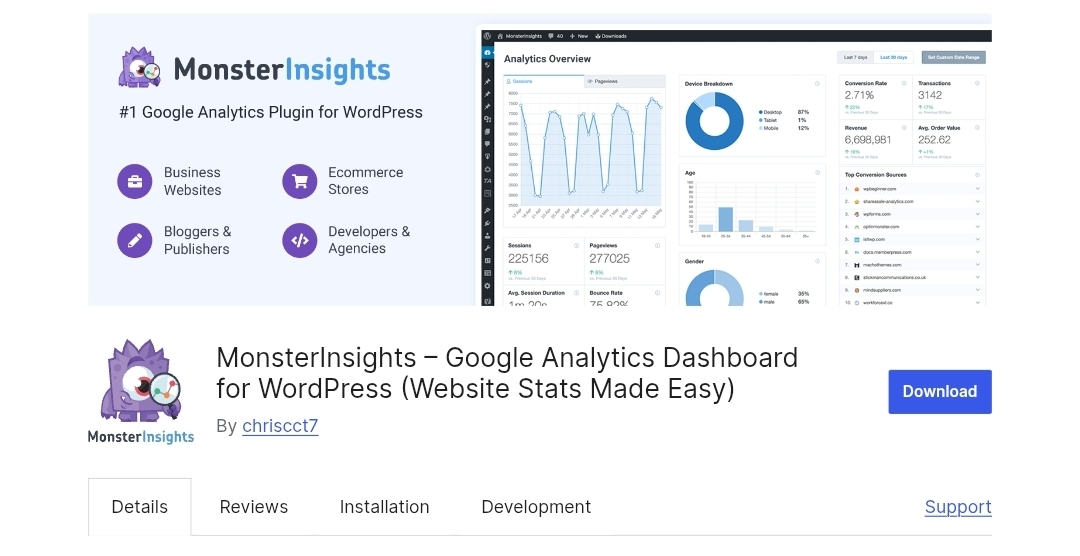
MonsterInsights is the best Google Analytics plugin for WordPress, used by 3,000,000+ website owners. It comes with an ecommerce add-on that lets you easily track your WooCommerce store’s conversions.
In MonsterInsights’ ecommerce reports, you can instantly view your revenue, transactions, average order value, and more.
Moreover, you can use MonsterInsights’ Popular Posts feature to identify your top-selling products. Then, you can easily display those popular products anywhere on your WooCommerce site to improve sales:

Zapier
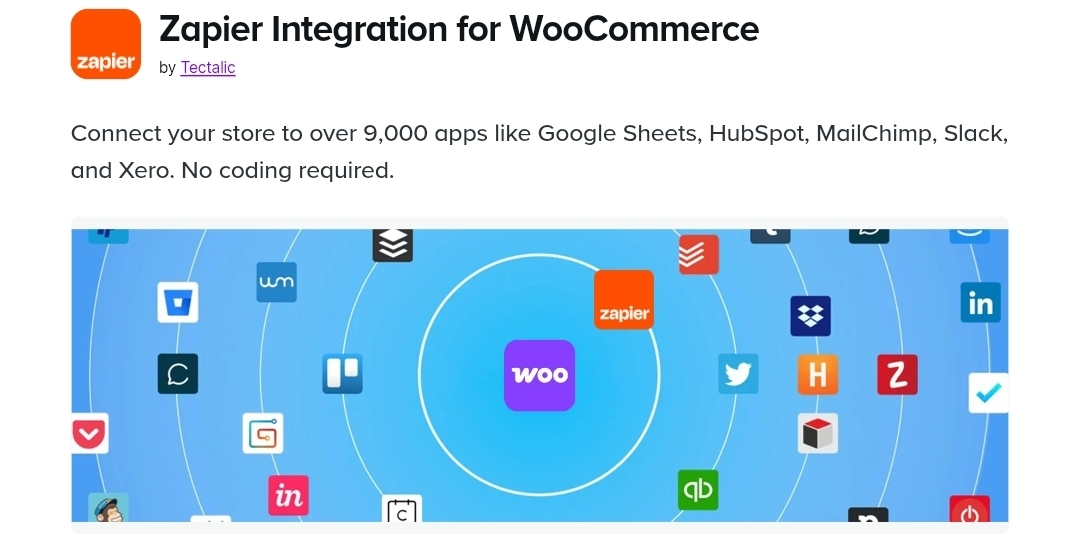
Adding Zapier to your list of WooCommerce extensions is a no-brainer. This versatile platform helps connect your WooCommerce store to 7,000+ cloud apps and services to expand its functionality. However, we’d like to note that this is a paid extension.
Step 10: Manage your store
Estimated time to complete: Ongoing
After you finish the store setup checklist (or hide it), the store management widget will pop up. This widget provides convenient links to the most frequently used WooCommerce pages for store management:
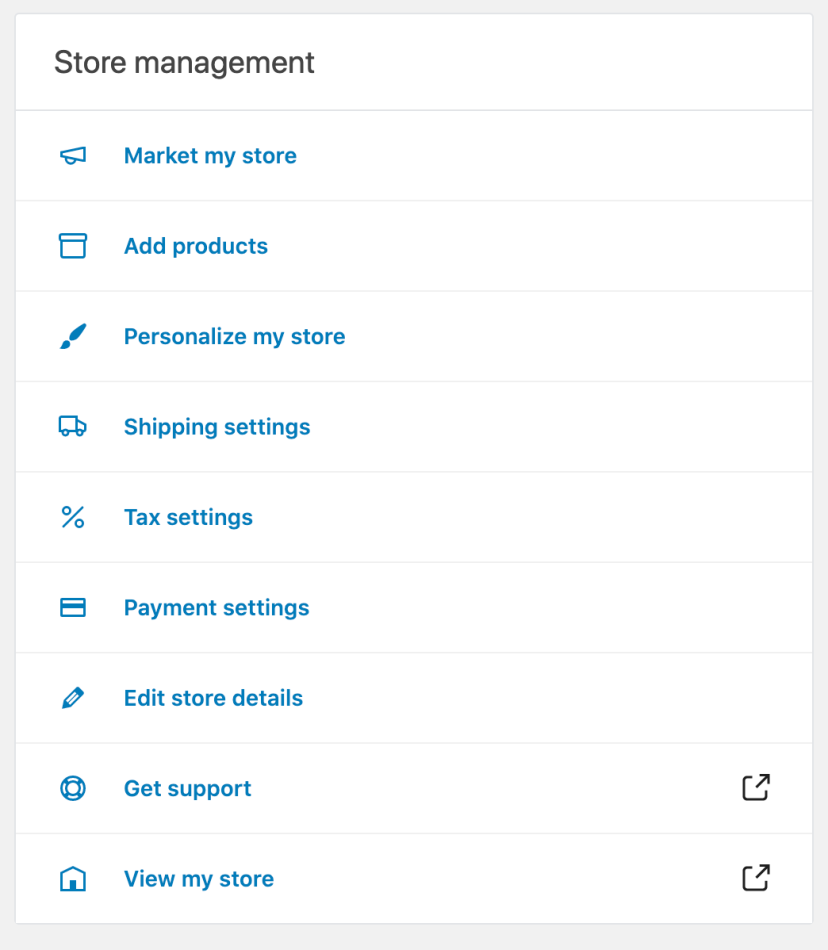
Store management dashboard
From here, you can process orders, update order statuses, manage refunds, and monitor inventory levels. The dashboard provides quick access to products, coupons, reports, and settings. This way, you don’t have to navigate through multiple menus to run your store.
Product data configuration
Within your dashboard, you can update pricing, manage stock quantities, and edit product descriptions at any time. You can also sync customer and order data with marketing tools like Omnisend, enabling personalized campaigns based on real purchase behavior.
Step 11: Test and launch your store
Estimated time to complete: 15–20 minutes for a thorough verification
At this point, your ecommerce store is almost ready for launch. All that’s left to do is to re-check whether all store pages are up and running:
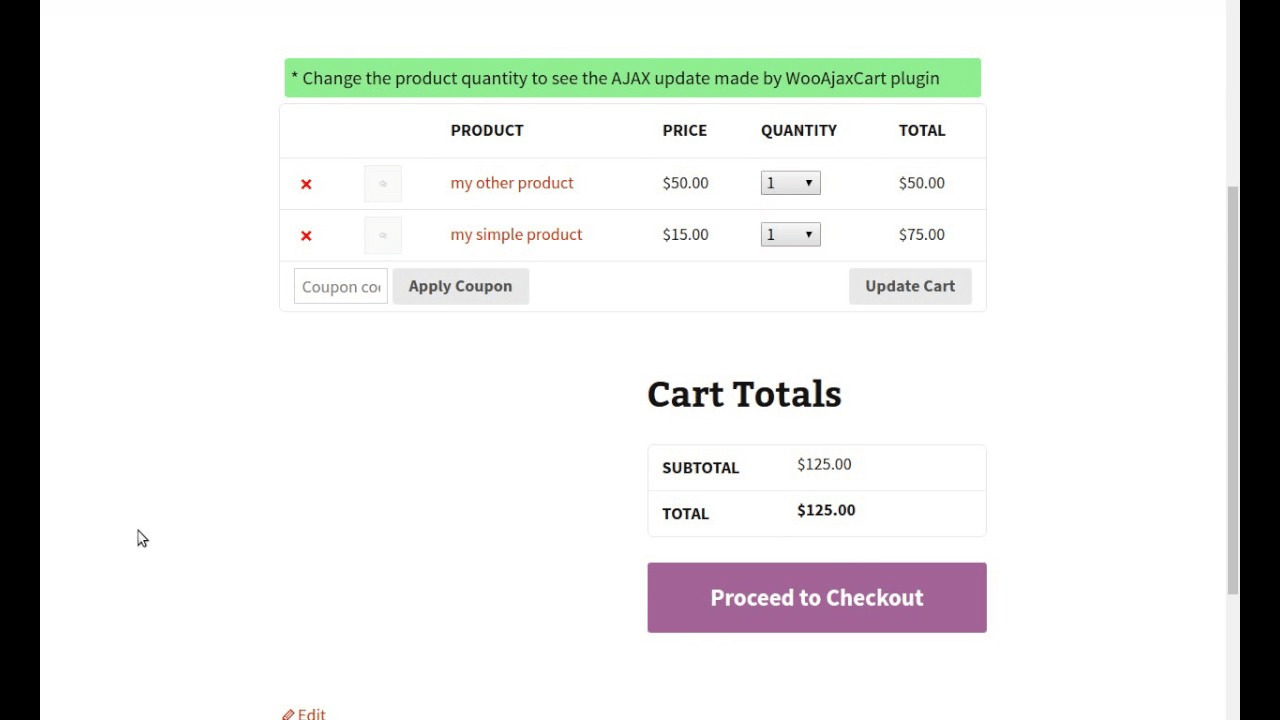
Pre-launch verification checklist
Before going live, go through this structured checklist to ensure everything works as expected:
- Test the complete purchase flow (add to cart → checkout → order confirmation page)
- Verify mobile-responsiveness on different screen sizes
- Confirm that your SSL certificate is active (your URL should begin with https://)
- Test email notifications (order confirmation, shipping confirmation)
- Check that all payment methods process transactions correctly
- Verify shipping rates are calculated accurately based on location
- Review product pages for correct pricing, images, descriptions, and stock status
Visit your website as a customer would and go through your shop, cart, payment, and checkout pages.
Touring the skeleton pages lets you check that everything is set up correctly and matches your preferences.
Placing test orders
You could also place a few test orders to see whether the entire system is functioning properly.
If your WooCommerce store requires any changes, you can make them at any time by going to the Settings tab. Here, you’ll be able to modify shop pages, inventory, shipping, payment, and more:

How to add products on WooCommerce
The estimated time is around 5–10 minutes per product, depending on the detail of your descriptions and images.
Now that you’ve installed and set up your store, let’s review how to use WooCommerce to add products.
To add a new product, click on the Products tab on the left-hand side of the dashboard and click Add New. A screen similar to the one below will appear:
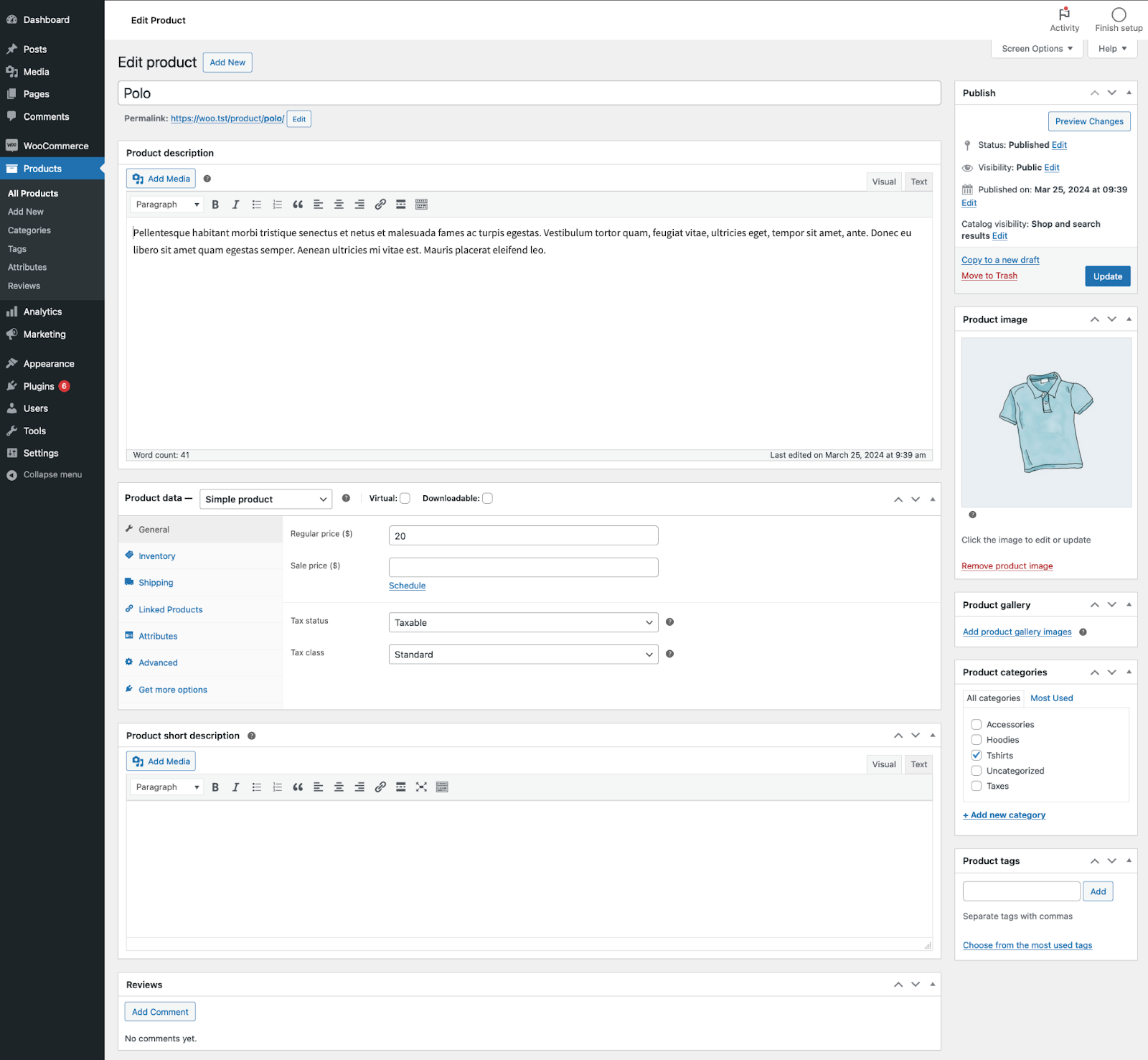
Proceed to add your product title and a description detailing its key features and benefits.
When writing product titles and descriptions, use keywords your customers search for. Also, write benefit-driven copy, not just basic features.
For descriptions, it’s also important to write short paragraphs or bullet points to make them easier to scan.
Well-crafted product descriptions and high-quality images can improve SEO and on-site conversions. It can also power your marketing campaigns when products are featured in emails and ads.
Product management
Managing your products is a vital part of running your WooCommerce store. Knowing how to enter, categorize, and label your products properly improves visibility, navigation, and reporting.
Product types
WooCommerce allows you to sell multiple product types, including simple, grouped, and variable products. Choosing the correct product type can ensure accurate pricing, variation handling, and inventory tracking.
Product categories
Grouping your products into categories helps customers easily find what they’re looking for. For example, if you sell gym equipment, you would have categories for “weights,” “treadmills,” and “exercise bikes.” This way, customers can quickly locate products in the same category. You can create as many categories as you want and change them anytime.
Product labels
Labels, also known as tags or attributes, help filter products. Size, color, and material are common examples that help users refine their search. You can assign labels individually to each product or configure global attributes to apply across multiple items.
Product data section
This section contains nearly all the critical information about your product. At this point in our WooCommerce setup tutorial, we’ll look at the various sections on the product data page.
General data
To start, you’ll need to add the product’s price. Indicate the regular price. If there’s a sale price, enter the discounted amount. You must also show the product’s tax status and tax class:
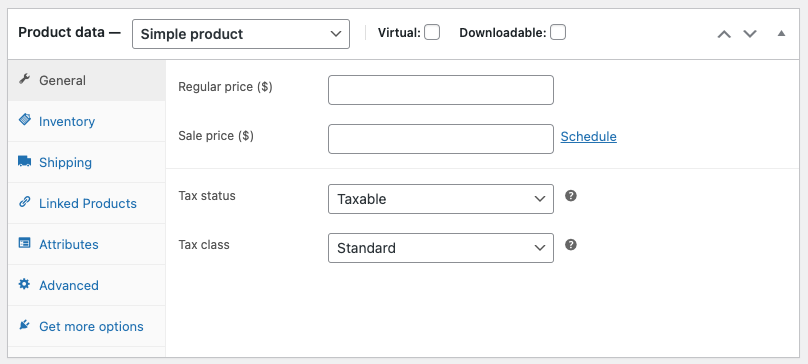
Inventory section
This important section helps you manage products individually, including the ability to allow backorders. Here’s where you allow customers to choose products and add them to the cart.
For better inventory management, you’ll need to enable stock management:
Once you enter the stock quantity, WooCommerce will automatically manage the store’s inventory and update the status to show if an item is in stock or out of stock.
Better yet, you can specify the Low Stock Threshold. This sets the number at which you’ll be notified if a product is running low in your inventory.
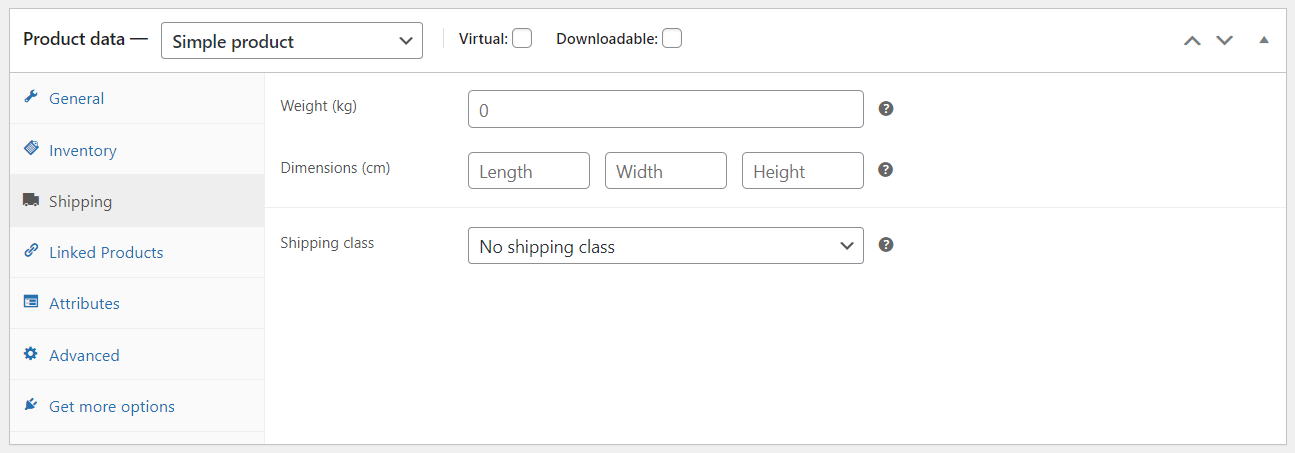
Shipping section
Here, you’ll have to enter shipping information, such as the weight and dimensions of the product and shipping class:
Advanced section
Although this is optional, you may add some advanced details to enhance the customer experience on the site:

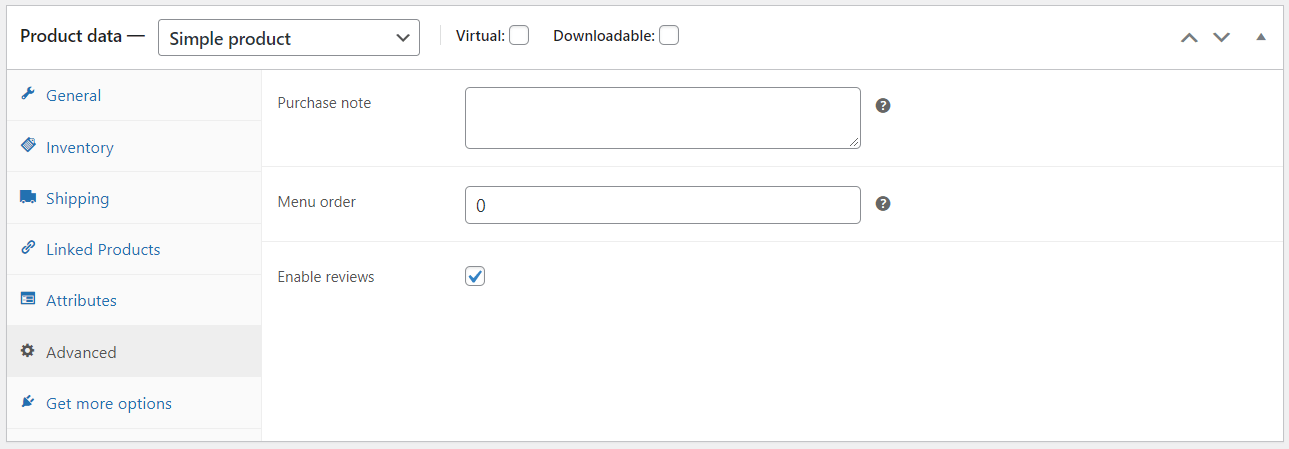
You also have the option to include a purchase note. This is sent to the customer after a purchase. You can also turn customer reviews on or off.
Once you’ve completed all sections, click Publish. Repeat this process for each product in your catalog. Remember to keep formatting consistent and optimize descriptions.
Customizing your WooCommerce store
So far, this WooCommerce store setup tutorial has shown you how to set up your store and add new products.
Now, let’s look at a couple of features you can customize to ensure your store runs smoothly.
Advanced WooCommerce settings
WooCommerce lets you change some default settings and connect your store to external tools. To access these options, navigate to the Advanced option under Settings. Here, you’ll find Page Setup, REST API, Webhooks, and Legacy API.
Page setup
You can assign pages other than the default ones for Cart, Checkout, My Account, and Terms and Conditions.
- Cart page: Shows items in your customer’s cart
- Checkout page: Where your customer will enter their payment information and submit orders
- My Account page: Where registered customers will go to view their orders or update their account details
- Terms and conditions: Where customers can review your store’s terms and conditions on refunds, returns, and more
Changes in this section should be made with care. For instance, if you assign the wrong page as your checkout page, customers won’t be able to complete purchases.
Rest API
You can create API keys to use the WooCommerce REST API. This will allow developers to connect the WooCommerce platform with external applications. Technical users may find this helpful when managing their own integrations across their marketing tech stack.
Coupons and discounts
Coupons are a great way to improve sales. To add coupons, go to Marketing on your WooCommerce dashboard. Then, click on Create New Coupon.
Add the coupon code and a short description of the coupon.
In the General section, you can add basic information, such as the type of coupon, its value, and the expiry date:
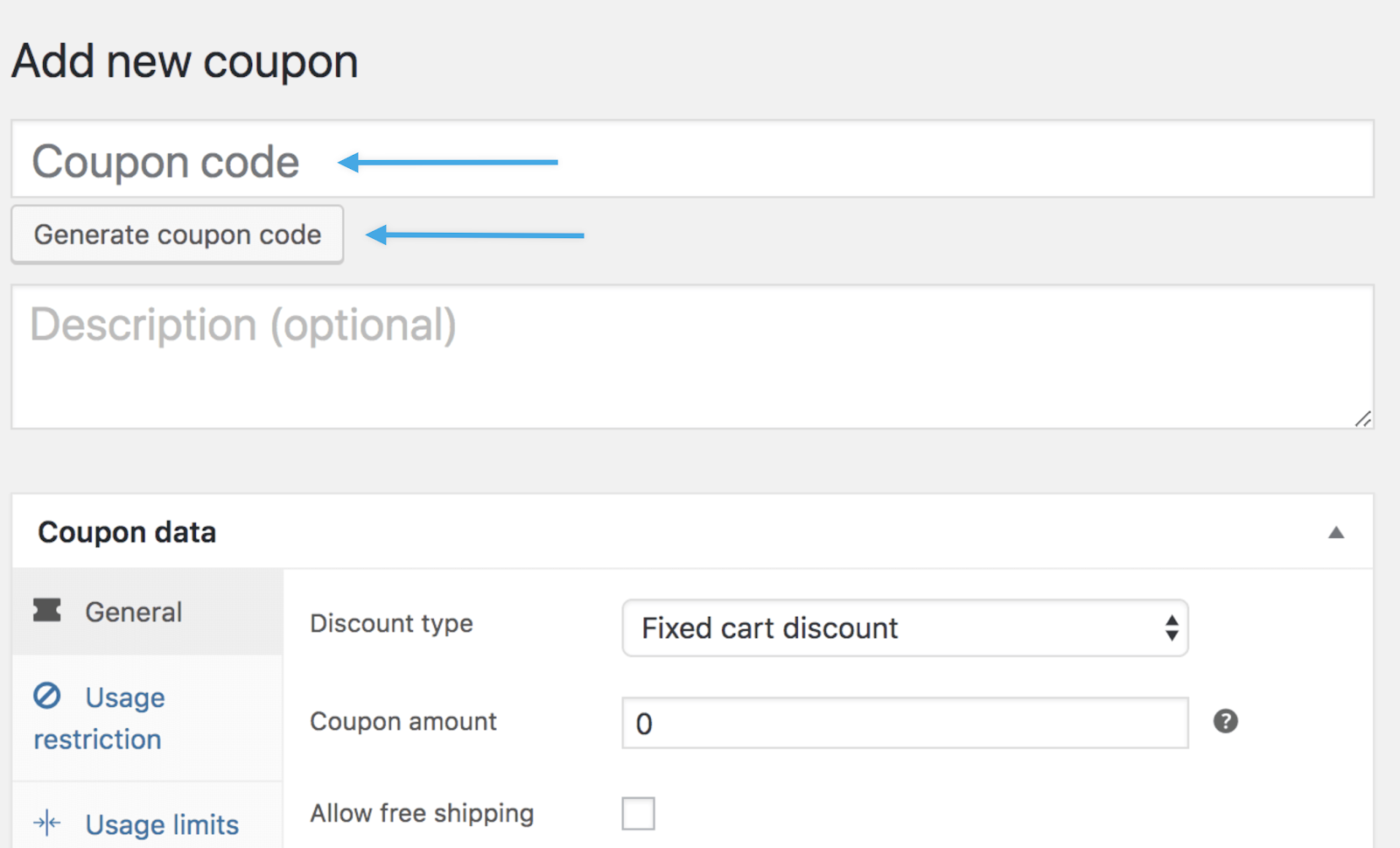
Moreover, under the Usage restriction tab, you can set the minimum spend necessary to activate the coupon.
You can also click on Individual use only to prevent the coupon from being combined with other coupons in the same order. Once set, publish the coupon and let customers know about it.
Coupons and discount codes are more powerful when integrated into your marketing automation strategy. Instead of displaying the same public code to everyone, you can send targeted or unique discount codes through automated email flows.
Personalized codes increase urgency, improve tracking accuracy, and help measure campaign performance more precisely.
Account and privacy settings
Check out the Accounts and Privacy tab for more important settings that you’ll need to customize to help guide a customer’s experience:

By ticking the settings under Guest Checkout, you can allow customers to buy products without creating an account. This flexibility can help improve your conversion rate. It encourages more purchases, particularly among customers who might find filling out a registration form tedious.
You can also control account settings and personal data settings from here.
Maintaining your WooCommerce store
After you complete your WooCommerce store setup, you must know how to keep your store safe, secure, and running smoothly. Here are some tips to help you maintain your WooCommerce store.
Software updates
You must keep your WooCommerce store’s software up to date. This is crucial for security and smooth operations.
- Regularly update WordPress core, WooCommerce, your theme, and any plugins when new versions are available
- Before applying major updates, test them on a staging site if possible
For smaller stores, schedule a weekly check to review available updates and apply them during low-traffic periods.
Backups and security
Backups ensure you can quickly recover from technical issues, cyberattacks, or accidental changes.
- Regularly back up your WooCommerce database and files to avoid losing critical data
- Use reliable backup solutions such as Jetpack Backup which makes real-time backups of your site’s data
- Use strong passwords, enable two-factor authentication where possible, and limit admin access to trusted users only
Performance monitoring
Monitoring your store’s performance and analytics helps you make informed decisions.
- Keep a close eye on your store’s performance using WooCommerce Analytics
- Track metrics like sales, orders, and refunds, as well as discounts, taxes, and more
- Run periodic speed tests and optimize images, hosting, or plugins if load times increase
Customer support
Providing excellent customer support is key to boosting customer satisfaction and loyalty.
- Provide prompt and helpful customer support to address inquiries, issues, and concerns
- Handle refunds and returns efficiently to maintain customer satisfaction
- Regularly update your FAQ section and provide self-help resources to reduce repetitive questions
WooCommerce setup checklist summary
The WooCommerce setup checklist below gives you a concise reference, allowing you to track your progress as you build your store:
The total estimated time to complete your WooCommerce store setup is about two to three hours. Verify that every step of your setup is completed and that your store is ready for customers.
Conclusion
There’s no doubt that WooCommerce is the best ecommerce plugin on WordPress. It gives you full control over your ecommerce store setup and integrates perfectly with WordPress.
The process to set up a WooCommerce store involves choosing hosting, installing the plugin, configuring payments and shipping, and optimizing your store for growth. Once these steps are complete, you’ll have a functional and revenue-ready online shop.
However, the WooCommerce store setup is only the beginning. To build a successful ecommerce business, you need marketing and customer engagement.
WooCommerce marketing automation helps you send targeted emails and build customer relationships.
Easily automate your WooCommerce marketing with Omnisend’s automated features. With this tool, ecommerce businesses can generate up to $79 in revenue for every $1 spent across their marketing channels. This is according to Omnisend’s internal data.
With automation, you can optimize your store for customer engagement and long-term profitability.
Ensure the profitability of your WooCommerce store with marketing automation
Quick sign up | No credit card required
FAQs
What do I need to set up my WooCommerce store?
You need a domain name, web hosting, WordPress installation, and the WooCommerce plugin for WooCommerce store setup. You need about $50–$200 for the first year. This covers hosting, domain registration, and a basic theme.
Is WooCommerce free to use?
The core WooCommerce plugin is free to install. However, running an online store involves other costs such as hosting, a domain name, themes, and extensions.
Basic hosting can cost anywhere from $3 to $30/month. Meanwhile, a domain can cost about $10–15/year. Premium extensions and themes are optional, but they can expand your store’s functionality and customization options.
Is WooCommerce good for beginners?
Yes, WooCommerce is suitable for beginners because it integrates with WordPress and includes a setup wizard to guide you through the setup. However, it requires more hands-on configuration for hosting, plugins, and settings than hosted platforms. The learning curve is manageable, but you’ll have to follow step-by-step instructions.
How long does it take to set up WooCommerce?
A basic store with products, payments, and shipping configuration can be ready in one to two hours. Implementing full customization using extensions and marketing automation tools like Omnisend may add another 30–60 minutes. However, this can improve revenue potential. Use the WooCommerce store setup checklist to ensure you don’t miss any important steps.
Which is better to use, Shopify or WooCommerce?
WooCommerce and Shopify serve different needs. WooCommerce gives you control over your store and costs less because you pay only for hosting and optional extensions. Shopify is a hosted platform that simplifies setup and maintenance, but you’ll have to pay monthly fees and transaction costs.
What are the disadvantages of WooCommerce?
WooCommerce requires self-managed hosting and regular updates. Unlike hosted platforms, you’re responsible for security and performance. The learning curve is steeper because you must configure settings and plugins.
Does WooCommerce charge a monthly fee?
WooCommerce doesn’t charge a monthly fee since the plugin is free to use. Your monthly costs come from hosting and optional premium extensions.
What is the monthly cost for WooCommerce?
Monthly expenses depend on hosting and optional extensions. Hosting typically costs $3–$30. Premium themes and extensions are optional. Many essential extensions, including the Omnisend marketing automation solution, offer a free plan to start.