

Looking to level up your print-on-demand (POD) business? Say hello to Adobe Express – your ultimate design sidekick.
Packed with intuitive tools and powerful AI, it’s your one-stop shop for creating jaw-dropping product mockups, standout marketing materials, and scroll-stopping designs.
Whether you’re just starting out or a seasoned pro, these tips will transform your workflow and amp up your brand.
This post may contain affiliate links, which means we may earn a commission if you make a purchase through those links. This comes at no additional cost to you.
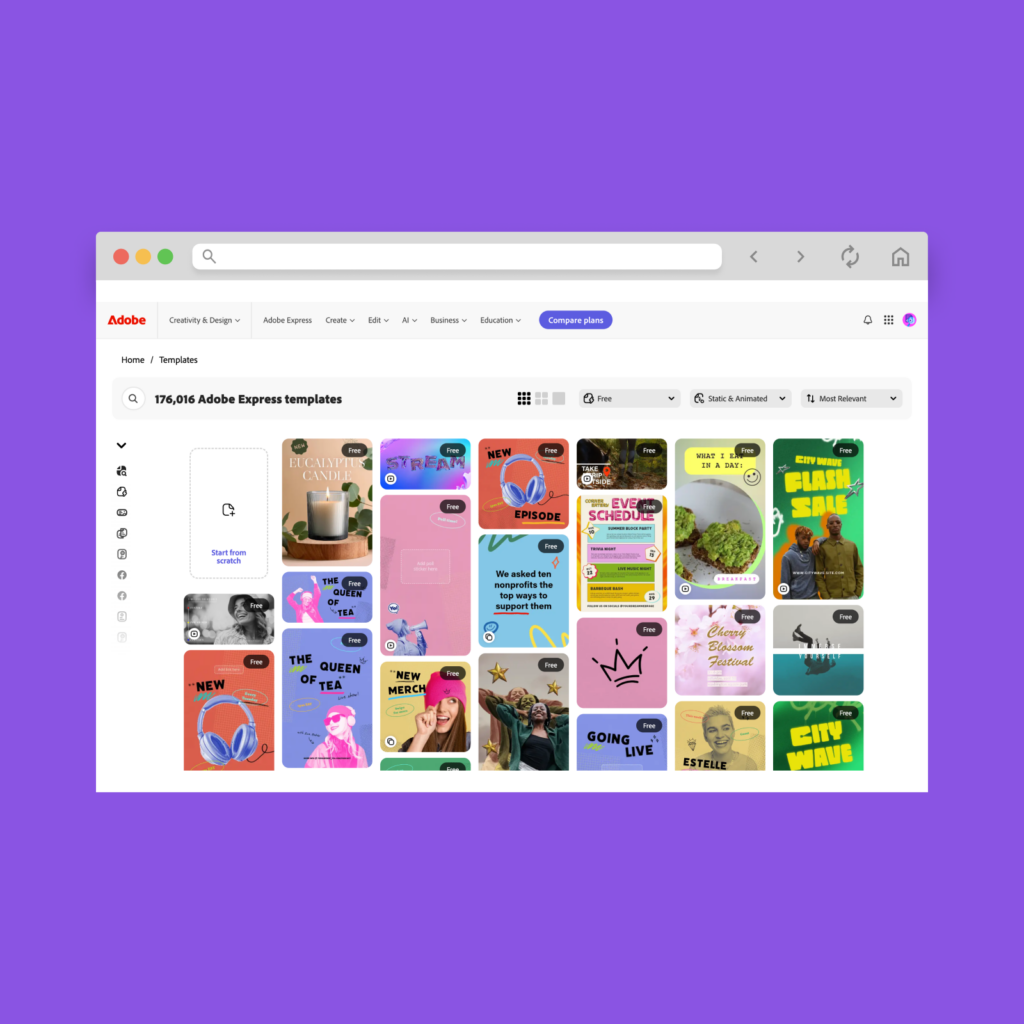
Adobe Express provides an extensive collection of pre-designed templates. They save time and effort, but the real benefit lies in customization.
Use Adobe Express with Printify to create your product design and branding assets.
Navigate to the Templates section on the homepage. This lets you search for templates by category, such as social media posts, flyers, and logos, or filter based on themes.
Here are the basic steps for customizing Adobe Express templates:
Let’s discuss design specifics with our list of template do’s and don’ts.
| Do | Don’t |
|---|---|
| Define your audience: Focus on their motivations and preferences to align your visual branding. | Design for everyone: Trying to please everyone weakens your brand. Focus on a niche. |
| Create a purposeful hierarchy: Use size, color, and spacing to guide attention. | Overemphasize everything: Avoid equal emphasis. Choose one standout element. |
| Select complementary fonts: Pair header and body fonts that work well together. | Use too many fonts: More than three fonts can create clutter. |
| Plan a consistent color palette: Choose colors that evoke the right emotions. | Overuse vibrant colors: Use bold colors sparingly to avoid overwhelming the design. |
| Refine the details: Use proper spacing, alignment, and visual balance. | Ignore white space: Don’t overcrowd elements. White space improves focus and readability. |
Learn from Adobe and explore more design tips to get the most out of your creative projects.
Adobe Express’ intuitive interface helps you organize your work. Easily handle projects across platforms through cloud-based storage and smart file management. Here are the key organizational features:
Cloud-based access: Access projects from any device and switch between them seamlessly.
Project syncing: Changes show automatically across devices, keeping designs up to date.
Template organization: Save and organize templates for use across projects.
Auto-save: Never worry about losing your design progress.
Shared libraries: Collaborate with teams by accessing shared assets and designs.
Asset management: Categorize images and graphics in collections for faster access.
Organize projects on Adobe Express effectively by using these strategies:
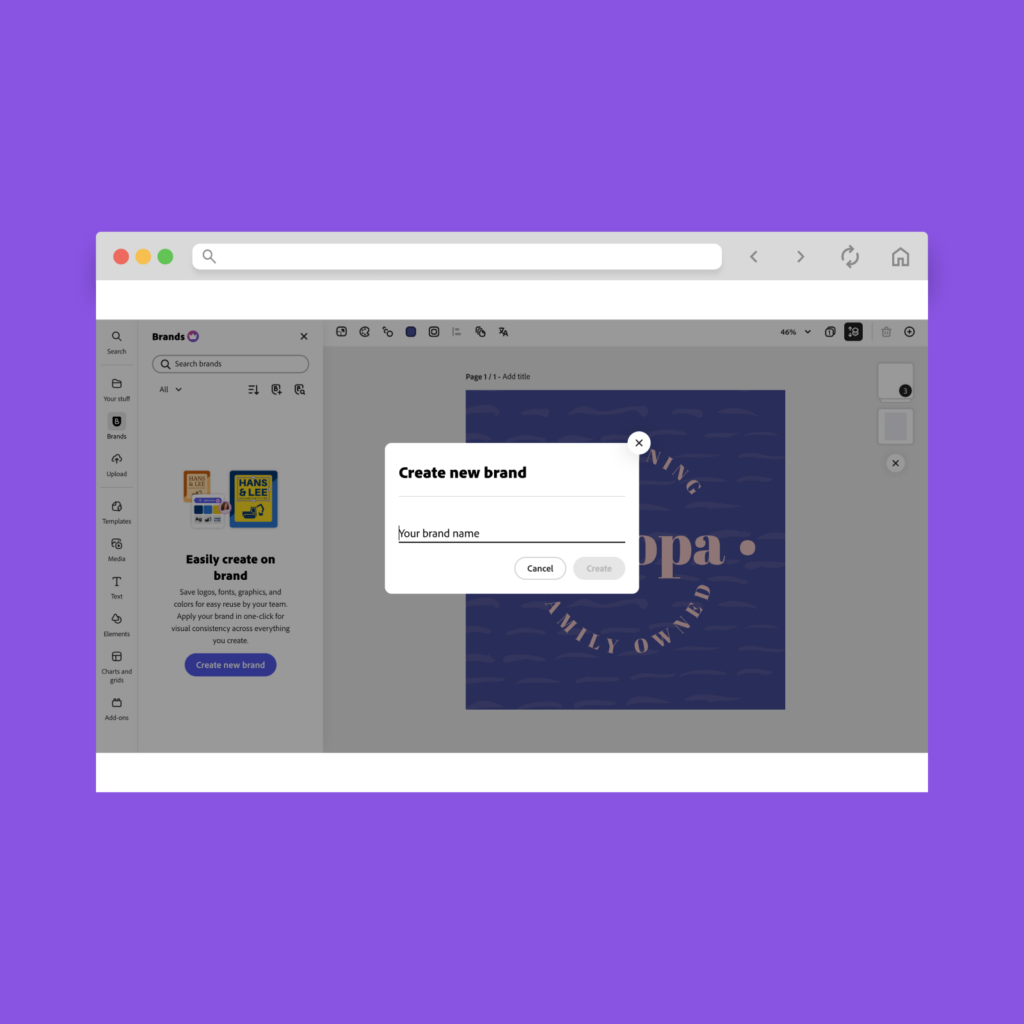
Adobe Express simplifies applying your brand’s visual identity across designs. Use the built-in branding tools to store and apply logos, colors, and fonts in just a few clicks.
Option 1: Create a Brand Kit from an existing library
If you already have a brand library from Photoshop or Illustrator, Adobe Express lets you convert it into a Brand Kit. Here’s how:
Then, organize your assets by right-clicking on them and editing tags:
Once converted, your brand elements will appear in the Brands tab of Adobe Express. They will still remain in your other Adobe apps.
Option 2: Create a Brand Kit from scratch
If you’re starting fresh, you can upload logos, colors, fonts, and graphics directly into Adobe Express. Here’s how:
Refining your design with Adobe Express’ built-in effects is simple. Even the smallest edits, like adding a filter or adjusting lighting, can completely transform the impact of a visual.
Instead of diving into complicated software, you can make these tweaks intuitively.
Select a photo on your canvas to access its properties. Start with Opacity and Blend, then move to the Effects menu for Greyscale, Darken, Duotone, and other customization options.
Adobe Express’ Adjustments panel offers a range of tools to help you fine-tune photos for maximum impact. These are some of the most useful adjustments:
Pro tip
Stick to subtle changes when editing and keep it simple and clean. Over-editing can distract from your design’s intended message.
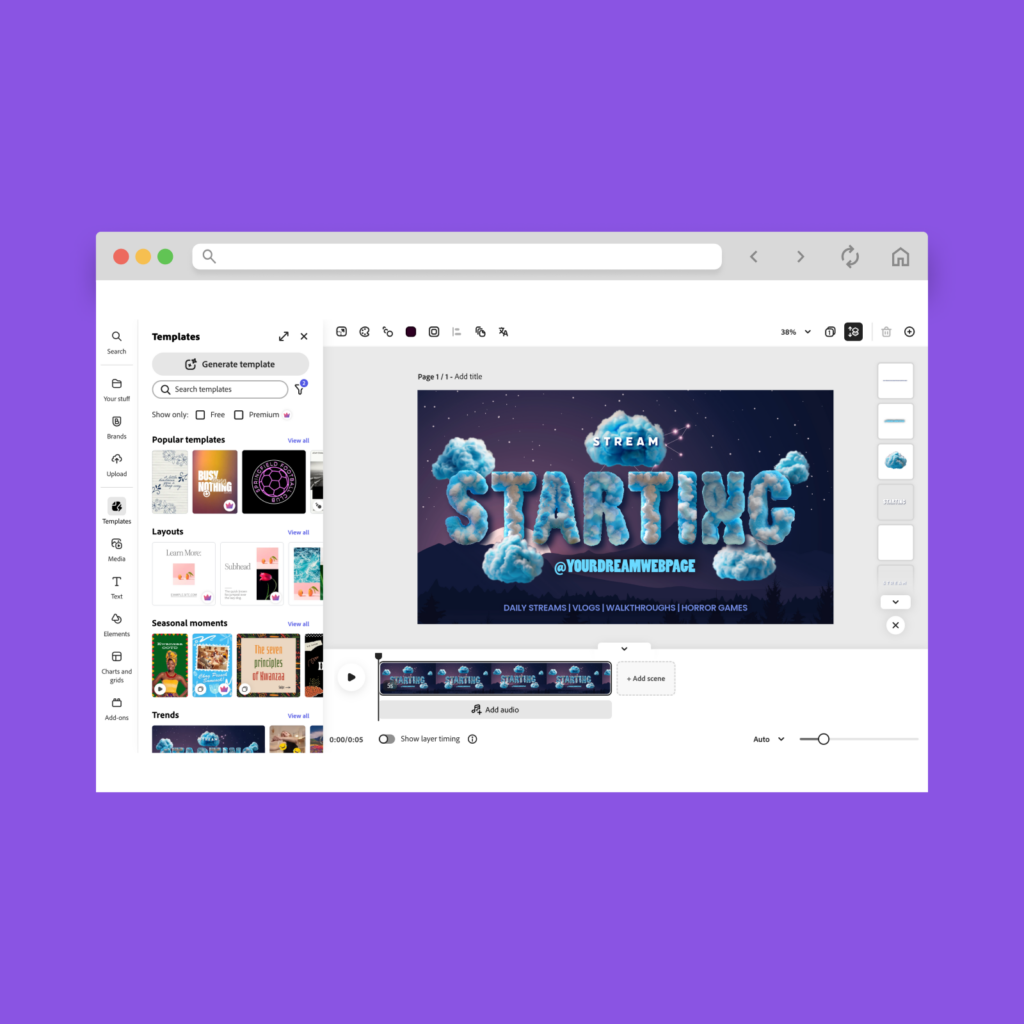
Animations can transform static designs into dynamic, attention-grabbing visuals. It’s especially useful for social media, ads, or product displays.
Bring text, photos, and even videos to life in a few clicks:
Using animations effectively is all about enhancing your design without overloading it:
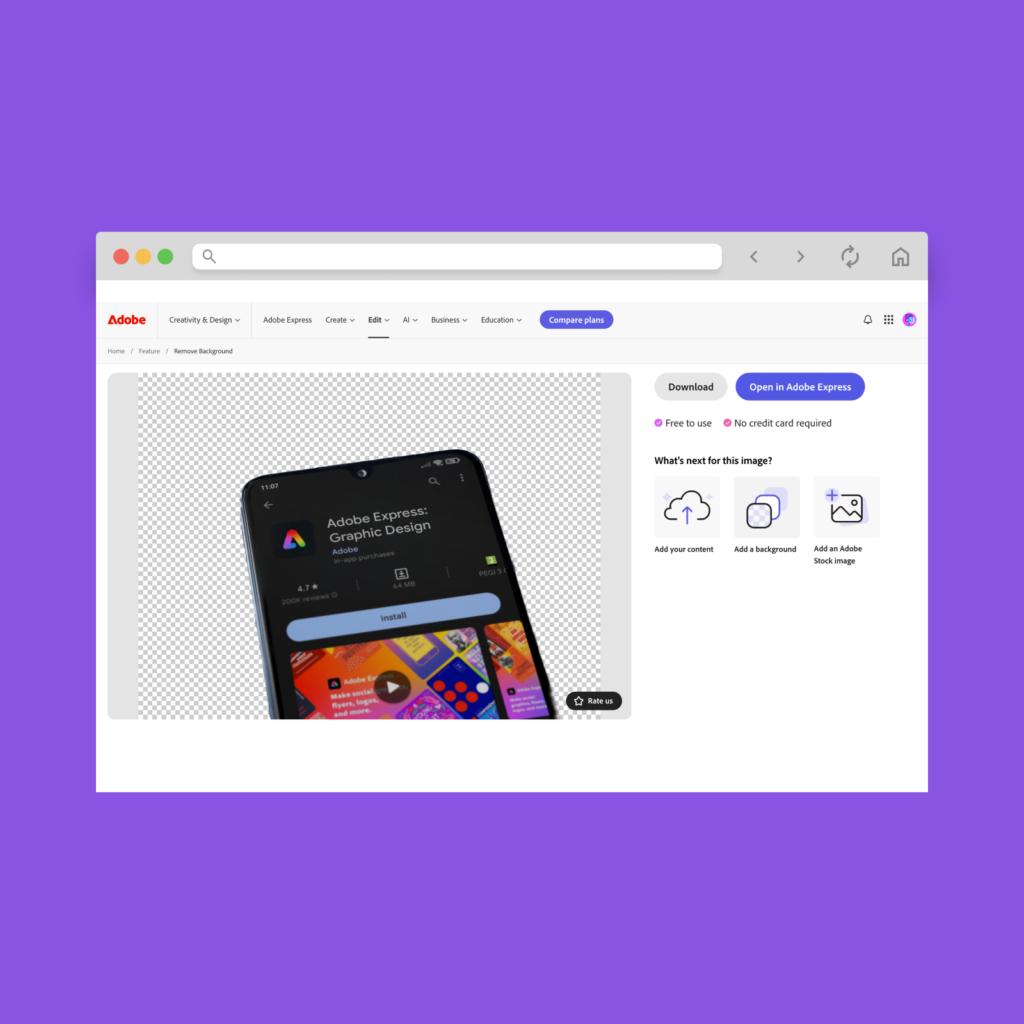
Adobe Express’ AI-powered background remover is an efficient way to create professional-quality images by quickly isolating your subject. It’s ideal for product photos, marketing visuals, or social media posts.
How to use the AI background remover:
Pro tip
For product photography, always inspect the edges of your cutout to refine any rough spots.
Adobe Express’ voice animation lets you bring a character to life using your voice or an audio file. It’s a fun feature for your promotional material that takes little effort.
How to animate using audio in Adobe Express:
Adobe Express streamlines collaboration with shared libraries and real-time editing. Your team can access the same logos, fonts, and templates to edit branding assets cohesively.
Real-time editing lets everyone contribute simultaneously, speeding up the process and reducing the need for back-and-forth revisions.
Version control also tracks changes, letting you revert to earlier versions if necessary to maintain an organized and smooth workflow.
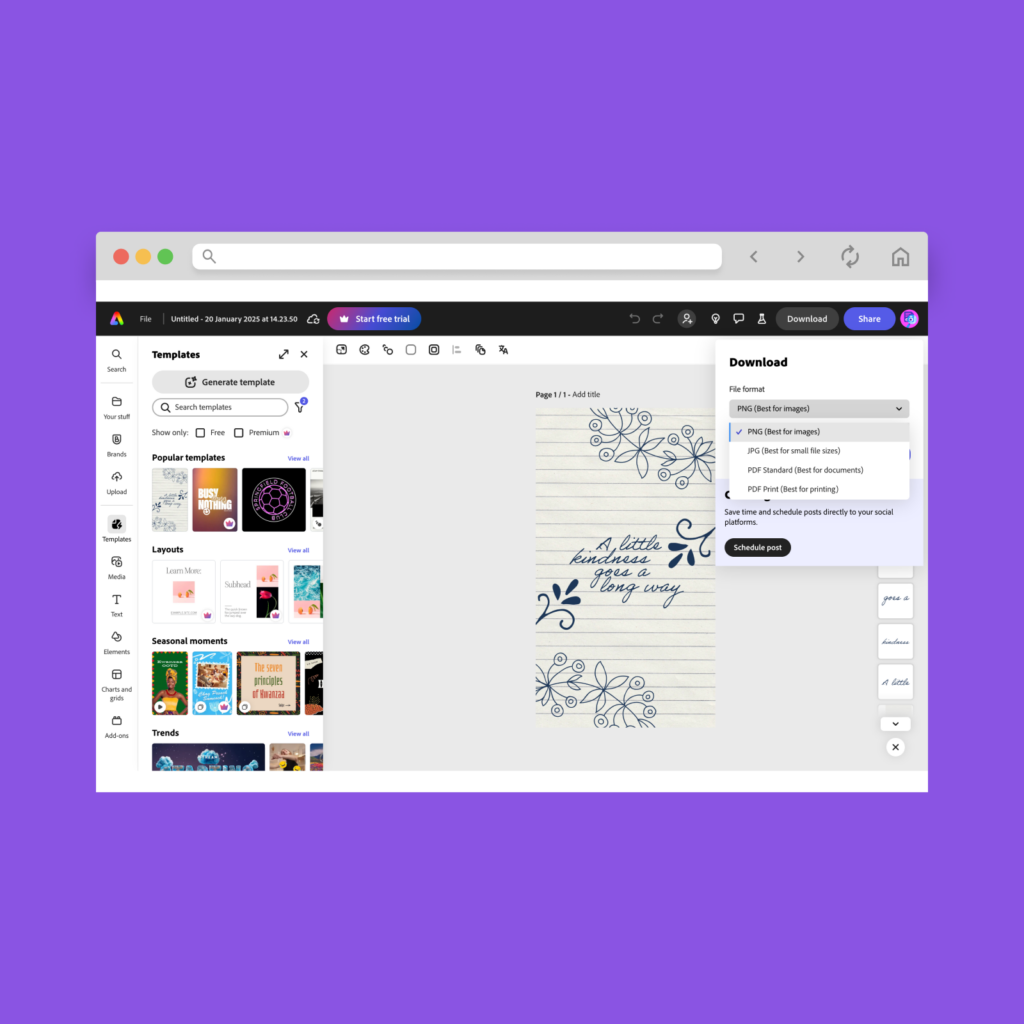
Exporting your design file in the correct format and resolution helps maintain its quality. Adobe Express offers multiple export options to suit both print and digital platforms.
For print:
Export in a PDF format with a resolution of 300 DPI or higher. This keeps the design sharp, whether it’s for posters, brochures, or business cards.
For t-shirt printing, select PNG with a transparent background to help your design integrate seamlessly with the product.
For social media or online use:
Choose formats like PNG or JPEG, and adjust the resolution to balance quick loading times with clear image quality.
Make sure to export your designs in the correct dimensions – such as square for Instagram or wide banners for Facebook and LinkedIn.
Printify and Adobe have collaborated to bring the best Adobe Express subscription offer for print-on-demand merchants, with a complimentary premium trial for advanced features.
For designers and brands working across multiple platforms, Adobe Creative Cloud is a cost-effective option. It gives you access to all Creative Cloud tools:
In addition to the core apps, the Adobe Creative Cloud suite includes:
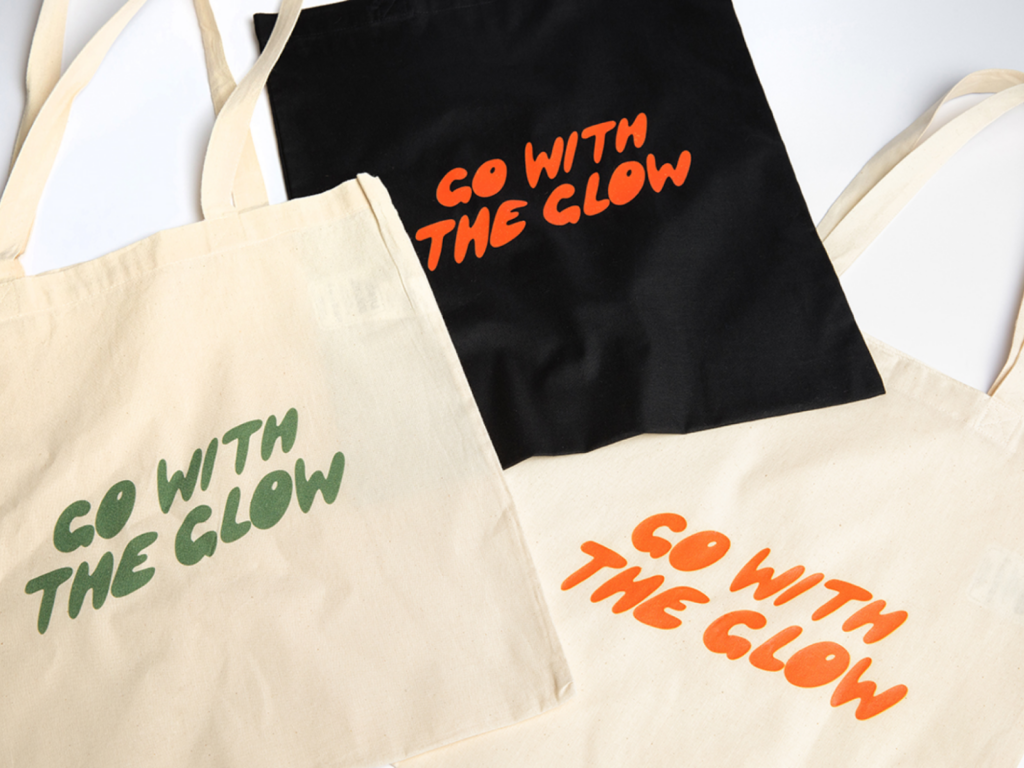
It’s time to turn your designs into products and start selling. Printify’s seamless print-on-demand service makes the process easy.
Create an account for free.
Choose from over 1,000 products in our Catalog, from t-shirts and mugs to posters and stickers.
Upload your Adobe Express designs to our Product Creator and customize them.
Our Print Providers handle production, packaging, and shipping on your behalf.
Adobe Express gives you everything you need to create high-quality, professional designs quickly and efficiently.
From customizing templates and organizing assets to using AI tools for animations and background removal, it simplifies every step of the creative process.
Paired with Printify, you can easily turn your designs into products. Whether you’re a freelancer, business owner, or creative entrepreneur, Adobe Express empowers you to create standout visuals, while Printify helps you bring them to market with no hassle.
The post 10 Adobe Express tips for Print on Demand appeared first on Printify.