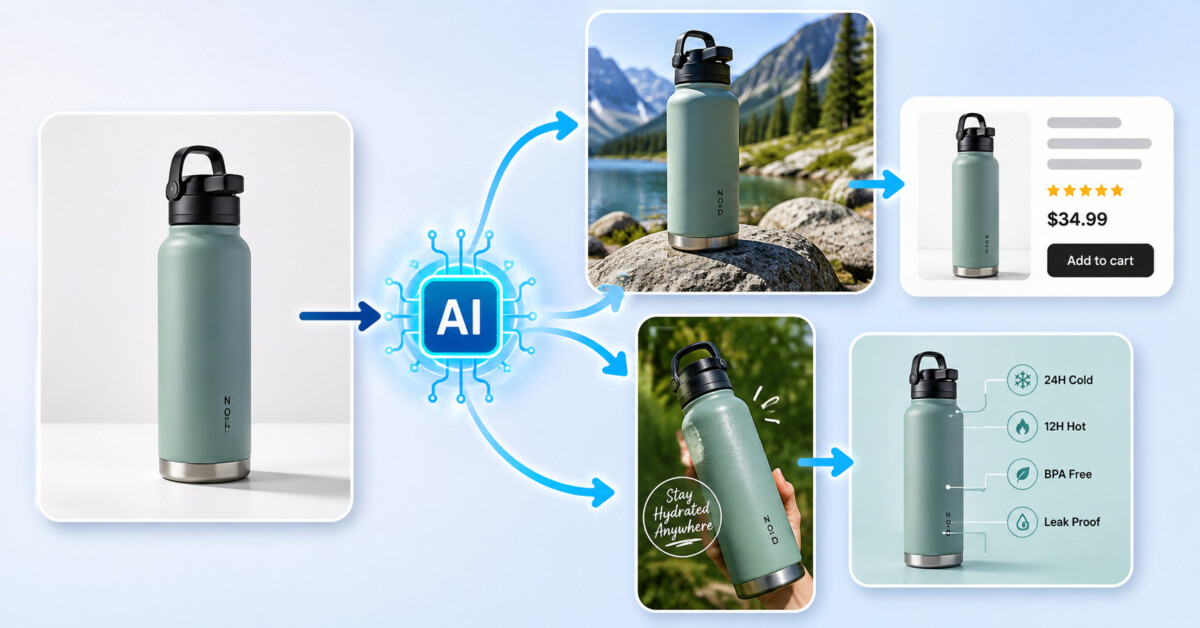
AI Imagine is most useful as an adaptation layer for approved product photography, because it can change background, canvas, and resolution without changing the SKU the customer will receive.
The safest ecommerce image workflow is to generate around the product, not through it.
Shopify teams rarely suffer from having only one product photo. They suffer from having one approved photo that must fit a product page, collection tile, email, marketplace card, and paid-social placement without changing what the customer will receive. That makes AI Imagine most useful as an adaptation layer: change the canvas, background, or resolution while the approved SKU remains the source of truth.
The distinction matters because synthetic polish can create merchandising debt. A cleaner background may also alter the cap edge. A wider banner may invent a second item in the empty space. Upscaling may make invented label detail look more convincing. The asset gets easier to publish at the exact moment it becomes harder to trust.
A safer operating rule is to generate around the product, not through it. Start with a source image that product and brand owners have already accepted. Use narrow tools for a named channel problem. Then compare every result against product facts at the size where shoppers will actually see it. This workflow does not promise a perfect image. It makes wrong images cheaper to reject.
Channel adaptation sounds like a design task, but its failure cost lands in operations. If a listing image shows a different texture, quantity, accessory, or package message, customer support inherits the confusion. If a marketplace rejects the crop, the listing team loses time. If a paid ad shows a feature that the product does not have, the problem can move beyond aesthetics into refunds and trust.
The easiest way to avoid this is to separate the immutable product from the flexible scene. The product shape, count, color option, logo, label facts, and included accessories stay locked. Background, negative space, ratio, and file resolution can change when the placement requires it. Lighting can be adjusted only if it does not conceal surface detail that matters to the purchase.
This also clarifies when a fresh generation is the wrong tool. If the team already has a correct product photograph, asking a model to recreate the whole item adds risk without adding channel value. A buyer does not reward the merchant for regenerating a bottle that was already photographed accurately. The buyer rewards a clear image that fits the page and matches the delivered product.
The useful role for AI Imagine is therefore narrower than “make all our ecommerce images.” Its practical tools can replace a background, extend a frame, and increase resolution from a browser. Each action solves a distinct placement problem. The team still decides whether the SKU survived the action.
Before opening an editor, create a small approved SKU reference sheet. It can be a single page beside the source photo. Record only facts a reviewer can see: exact package count, cap or closure shape, label wording, colorway, accessories, and any surface details that distinguish one variant from another. Add the placements you need, such as 1:1 collection tile, 16:9 email hero, or 9:16 social story.
The reference sheet prevents a common handoff failure. A designer sees “make it premium” and changes the scene. A merchandising manager sees the result later and notices that the bundle count changed. A performance marketer then crops a different version because the first one did not fit. By the time the file reaches the ad account, nobody knows which image still matches the live SKU.
Use one approved source per colorway or package version. Do not mix sources from old and new packaging in the same adaptation batch. If the source is blurry, badly compressed, or missing an important side, stop. AI can create pixels, but it cannot turn absent product evidence into reliable product truth.
The pass rule should fit on the same sheet:
That last rule is easy to underestimate. A kitchen background can suggest heat resistance. An outdoor scene can imply weatherproofing. A clinical-looking surface can imply a level of hygiene or certification. Background choices carry product meaning even when the product pixels look untouched.
AI Imagine exposes several tools that map cleanly to ecommerce adaptation. The order matters. Replace or simplify the background first, extend the canvas second, and upscale only after the crop is approved. If you upscale too early, you spend time reviewing detail on a composition that may still be rejected. If you regenerate the product at every step, there is no stable source left to compare.
The Background Changer accepts JPG, PNG, and WebP uploads. After upload, the user can choose a solid color, upload a background image, or describe a generated scene with text, then click Generate and download the result. Those three options should serve three different merchandising jobs.
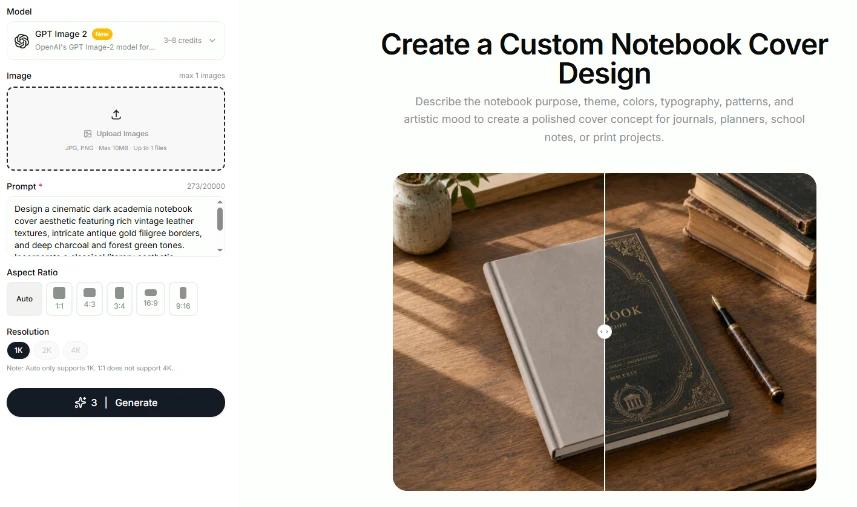
A solid color is the lowest-risk choice for clean marketplace or collection images. An uploaded brand background works when a campaign already has an approved surface or set. A generated scene is useful for exploration and lifestyle context, but it deserves the strictest review because new objects, shadows, and implied uses enter the frame.
Compare the output to the source before moving on. Look at thin edges, transparent parts, straps, hair-like fibers, and reflective packaging. A clean white background does not count as a win if the tool shaved off the handle, created an unreadable label, or invented a second bottle. Reject and mark that variant discarded while the defect is still easy to name.
The Image Extender can change the frame by selecting a ratio such as 16:9 or 9:16, or by dragging the borders to define a new size. It uses outpainting to create the new area around the original image. That is a better fit for turning a vertical source into a banner than stretching the entire file or cropping away the product.
Keep the product inside the original region whenever possible. Ask the new pixels to supply negative space for copy, not a second interpretation of the SKU. After generation, inspect the boundary where the real image meets the extended area. Repeated shelf lines, broken shadows, and duplicate props are visible failure signals. A wide hero should make room for the headline without making the product look as if it belongs to a different scene.
This is the point where a focused image generator workflow saves a reshoot. One approved still can support a wider email or homepage layout when the added canvas passes review. The saving disappears if the team accepts invented merchandise or spends an afternoon retouching an extension that was never suitable for the placement.
The AI Image Upscaler accepts one image up to 10MB and offers 1K, 2K, and 4K resolution choices. Use it after the background and ratio are approved. Resolution is a finishing decision, not a rescue plan for a wrong composition.
Check packaging text, textured materials, and fine borders after upscaling. An upscaler can make a soft image look cleaner, but greater sharpness can also make reconstructed detail look authoritative. If the original label was too small to read, compare against the physical package or an approved label file. Do not assume the sharper result recovered letters that were never present.
AI Imagine places these jobs within the same broader online tool family, which keeps the adaptation path short. The discipline still comes from the order: approve content, approve crop, then approve resolution. Reversing the order creates expensive-looking files before the product facts have passed.
Full-screen review hides ecommerce failures. Collection tiles and mobile search results shrink the image. A label that looked readable on a large monitor may collapse into noise. A generated prop may become more visually dominant than the SKU. A pale package may disappear into a light background. Review each asset inside a mock placement or at least at the final pixel dimensions.
| Placement | Primary check | Reject when |
|---|---|---|
| Collection tile | Silhouette and colorway | The item is unclear at thumbnail size |
| Product page hero | Label, texture, included parts | Any visible fact differs from the SKU |
| Email banner | Negative space and crop | Copy space cuts or distorts the product |
| Paid social | Offer and use context | The scene implies an unsupported claim |
The table is a rejection map, not a creative scorecard. A variant can be attractive and still fail its placement. Kill it early if a shopper could misunderstand the item. That decision is cheaper than explaining an incorrect image to customer support, replacing live creative, or processing a preventable return.
Reviewers should also compare siblings. Put the square tile, wide hero, and vertical story beside the approved source. If the bottle becomes taller in one version or the fabric pattern changes across crops, the batch has lost consistency. Looking at one image at a time makes plausible drift harder to catch.
Generated backgrounds can help a small merchant test mood and context before booking a shoot. They are especially useful when the product is already isolated cleanly and the scene does not need to prove a functional claim. A candle on a neutral table or a bag against a simple color field carries less factual risk than electronics shown in rain or cookware shown over an open flame.
Use the lowest-change method that solves the placement. Start with a solid color. Move to an uploaded brand background when the campaign requires texture. Use a generated scene when context truly adds value and the reference sheet gives the reviewer enough facts to reject misleading results. Creative generation remains available, but it belongs in frames where invention is allowed and false variants never ship.
Keep the original source beside every approved variant in the asset folder. The file does not need a complex naming system; it needs a visible relationship to the evidence. If a future reviewer cannot find the source, the team has lost the ability to prove that an edit preserved the SKU.
AI Imagine fits ecommerce teams that already have truthful source photography and need more channel shapes from it. Background replacement, controlled canvas extension, and final-stage upscaling can reduce routine reshoots when each output is checked against the same SKU facts.
The tool is a weaker fit when the source is missing, the product itself must be invented, or nobody owns the approval gate. In those cases, more variants only multiply uncertainty. Keep the product fixed, adapt the space around it, and reject anything that changes what the shopper will receive. That is how an image workflow creates usable inventory instead of prettier merchandising debt.
AI Imagine is best used for adapting approved product photos into different channel formats. That means changing the background, extending the canvas, or increasing resolution after the image has already passed product review. It is most valuable when the team needs one truthful source image to work across product pages, collection tiles, email, and social placements without creating a new reshoot for each channel.
Keep the product stable by approving one source image first and comparing every variant back to it. The source should define the exact SKU details, including count, label wording, colorway, and visible accessories. Then use AI only for the surrounding scene, crop, or resolution. If the generated result changes the item in any meaningful way, it should be rejected even if the image looks better.
Use background changes when the product photo is already correct and the problem is only the scene. That is the safest way to get a cleaner marketplace image, a better collection tile, or a more on-brand email creative. A full regeneration is riskier because it can rewrite details you did not ask it to change. If the SKU is already accurate, keep it and adapt the surroundings.
Upscaling is the last step because resolution should refine an approved composition, not rescue a bad one. If you upscale too early, you may spend time polishing an image that still needs a crop change or a background replacement. Once the product and layout are approved, upscaling can improve readability and finish, but it should never be used to hide a product mismatch.
Check the image at the size shoppers will actually see it, not just on a large monitor. Confirm the silhouette, label, colorway, accessories, and any product facts still match the source. Then compare siblings across all placements to catch drift. If a variant implies a feature the product does not have, or if the product becomes harder to trust after the edit, do not ship it.