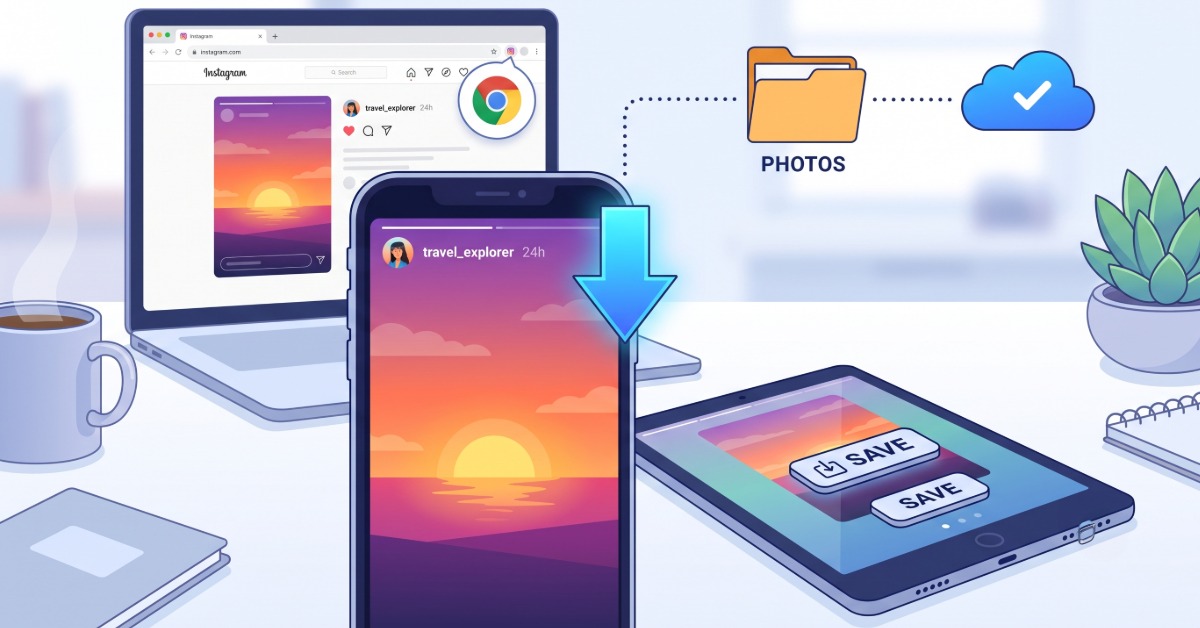
You can keep Instagram Stories permanently by saving them in the app, turning on archiving and Highlights, and using tools like SaveFromInsta to automate backups and embed Story widgets on your website, while third‑party downloaders handle public Stories from other accounts.
Instagram Stories are built to disappear, but with the right settings and tools you can turn them into durable content you control instead of losing them after 24 hours.
Instagram Stories vanish after 24 hours by default, which is frustrating if you’ve put real effort into a post. Fortunately, there are several reliable ways to hang onto your Stories — and even a few options for saving Stories other people have posted. Here’s a complete rundown with Savefrominsta.
Another option is the StoriesIG Instagram Story Saver, which lets you download publicly available Instagram Stories when you need to retain a copy outside the app. Tools like Save From Insta’s Instagram Stories widget work with public accounts: you link your Instagram account, pick which Stories to show, adjust the widget’s look, and drop the generated embed code into your site. This gives visitors a way to browse your Story content indefinitely, without needing an Instagram login.
Instagram offers a handful of built-in options for keeping your Stories, whether you act right away or come back to them later.
Save a Story right after posting. Tap your active Story, open the three-dot menu at the bottom, and choose “Save Photo” or “Save Video.” This works identically on iPhone and Android, and the file lands in your phone’s gallery in its original format.
Turn on automatic archiving. Instagram can quietly archive every Story you post once its 24-hour window ends. Go to your profile’s settings menu, open “Archive,” tap the three-dot icon, go to “Settings,” and switch on “Save story to archive.” From then on, every Story you publish gets stored automatically. You can revisit them anytime under Settings > Archive, sorted by date — and this archive doubles as the source for repurposing old Stories into Highlights or reviewing story performance data.
Add Stories to Highlights. Highlights are the permanent story folders that sit under your profile photo. Open an active or archived Story, tap the heart-shaped Highlight icon, and either drop it into an existing Highlight or create a new one by naming it. Businesses often use Highlights to group products, answer FAQs, or feature customer testimonials — and you can customize the cover image after the Highlight is created.
Turn a whole Highlight into one video. Instagram lets you compile an entire Highlight folder into a single downloadable video: open the Highlight, tap “Create,” wait for it to generate a reel (you can pick background music), then tap “Next” and use the “Save” button. The finished video saves straight to your phone.
Repost a Story as a feed post. From an active or archived Story, tap the three-dot menu, choose “Share as post,” and publish. This keeps the content on your profile permanently and makes it visible to your followers.
For a more hands-off approach, a service like SaveFromInsta can connect to your Instagram account and save every new Story automatically, including older archived ones. It also replicates your Highlights and lets you turn all of it into customizable, embeddable widgets — handy for agencies or anyone juggling multiple accounts.
The setup is straightforward: log in (or sign up), connect your Facebook account, grant access to your Instagram accounts, then add the Instagram account as a source. From there you can build sliders, popups, or grid-style widgets and paste the embed code into your site’s HTML.
Instagram doesn’t offer an official way to download other users’ Stories, but two workarounds exist:
Using a tool like Save-From-Insta.com: open the site in your browser, find the public account and content you want on Instagram, copy the profile or post URL, paste it into the downloader, solve any CAPTCHA, and choose “Save as Video” or “Save as Photo.” On mobile, the file typically lands in your Files/Downloads app before you save it to your camera roll; on desktop, it saves directly to your hard drive.
A note on ethics: only download other people’s content from public accounts, and get the creator’s permission before reusing it.
Saving your own Instagram Stories is simple — just use the Story’s “More” menu, or turn on archiving so nothing is ever lost. Saving someone else’s Story is trickier and generally limited to recent posts on public accounts, using a third-party downloader.
Open the Story, tap the three-dot menu, and choose “Save Photo”, or use a third-party app or downloader if you need to save public Stories from other accounts.
Use the same process: open the Story, tap the three-dot icon, and select “Save video” so the clip lands in your camera roll.
Yes, as long as you previously enabled “Save story to archive”; you can find them under Settings > Archive even after the 24-hour window has expired.
Use a third-party tool that accepts public profile links, paste the profile or Story URL, and download, keeping in mind that you should only do this with public content and with respect for the creator’s rights.
Yes, third-party tools typically preserve the audio track on video Stories when they generate a downloadable file.
Instagram’s web version doesn’t support Story downloads natively, so even for your own content you’ll need to use a third-party tool or a screen recording solution on desktop.