
15th
December, 2025
In today’s fast-paced social media world, viewers scroll in a heartbeat – especially on platforms like TikTok and Instagram. For e-commerce brands and Amazon sellers, capturing attention quickly is key. One clever trick? Speeding up your videos. How to speed up a video on iPhone might sound technical, but it’s actually simple and can transform a slow demo into a snappy, engaging clip. By condensing footage into a shorter span, you inject energy into product demos, unboxings, or tutorials that keep viewers hooked. Micro influencers and content creators often use this hack to turn lengthy processes (like makeup tutorials or DIY assembly) into exciting time-lapses that boost engagement. In this guide, we’ll explain four easy methods to speed up iPhone videos – using built-in iPhone tools (like iMovie and the Camera’s Time-Lapse mode), social apps (Instagram Reels and TikTok), and a popular third-party editor (CapCut). You’ll also get pro tips on editing fast-motion clips and ideas for leveraging these techniques in your influencer marketing and UGC content strategy.
Ready to save time and impress your audience? Let’s dive into how to speed up iPhone videos step by step.

One of the easiest ways to fast-forward a video on your iPhone is by using Apple’s free iMovie app. iMovie comes with a straightforward speed adjustment tool, so you can take a normal video and make it play faster (great for trimming down a long clip into a quick highlight). Here’s how to do it:
Using iMovie is great for speeding up a pre-recorded video while still allowing further edits (trimming, adding music, etc.). For instance, you might record a product demonstration that’s 5 minutes long, then use iMovie to speed it up 2× and cut it down to 2.5 minutes. Tip: If your video has sound, note that speeding it up will also speed up the audio pitch (making voices sound like chipmunks). iMovie on Mac has a “Preserve Pitch” option, but on iPhone it’s simpler to mute the video’s audio and add a background music track or voiceover. This way, your fast-motion clip remains clear and professional without distracting high-pitched chatter.
What if you haven’t filmed anything yet, but you want to capture a scene in fast-forward from the start? The iPhone’s Camera app has you covered with Time-Lapse mode. Time-lapse is essentially auto-magical fast-forward: your camera will snap photos at intervals and stitch them into a speedy video. It’s perfect for scenarios like showing a process that takes a long time (e.g. packaging orders, a sunset, or setting up a photoshoot) in a short, satisfying clip. The best part? No editing required – your iPhone does it for you.
To shoot a time-lapse on iPhone:
That’s it! You’ll find the finished time-lapse video in your Photos app. Time-lapse videos compress hours into seconds, delivering a punchy, narrative-driven experience that grabs attention without demanding much viewer time. For example, you could condense a 30-minute product assembly into a 30-second timelapse – perfect for showing off product quality and setup in a quick Instagram Reel. Many micro influencers use time-lapse for behind-the-scenes content because it’s built-in and easy. Just remember to keep your phone charged (and maybe plugged in) for long recordings, and keep it steady to avoid shaky footage. The result will be a polished, high-speed video ready to share or edit further.
Social media apps themselves offer handy tools to control video speed without any third-party editors. If you’re creating content directly in-app (which a lot of influencers do), you can speed up your footage while recording or even after uploading a clip. Here’s how to use the built-in speed features on Instagram Reels and TikTok:
Instagram makes it easy to film Reels at faster speeds – great for fun transitions, tutorials, or any content where you want to fit more action into the 90-second Reel limit. To speed up a video on Instagram Reels:
Instagram’s built-in speed control is quick and no-fuss, ideal for content creators who want to jazz up a video on the fly. For example, an influencer might record a makeup routine at 2× speed to fit it into a 30-second Reel. Or a small business could upload a product demo and use the speed slider to create a snappy before-and-after montage. The key benefit is convenience – no extra apps needed and you can match the speed to trending audios or challenges easily.
TikTok also provides simple speed options, fitting since TikTok thrives on snappy, engaging videos. To speed up a video on TikTok:
TikTok’s speed tool is very straightforward – it essentially lets you create instant time-lapses or slow-mo effects with one tap. This is especially helpful for creators filming DIY projects, quick “before/after” transformations, or any content where a bit of fast-forward adds excitement. For example, a food blogger might show a recipe prep in 60 seconds by using 2× speed to condense the chopping and mixing. Using the app’s native tools also means you’re likely keeping the video in an optimal format for TikTok’s algorithm. And since TikTok is a hub for influencer marketing, brands can encourage their influencers to use these built-in effects to make product videos more engaging without extra editing software.
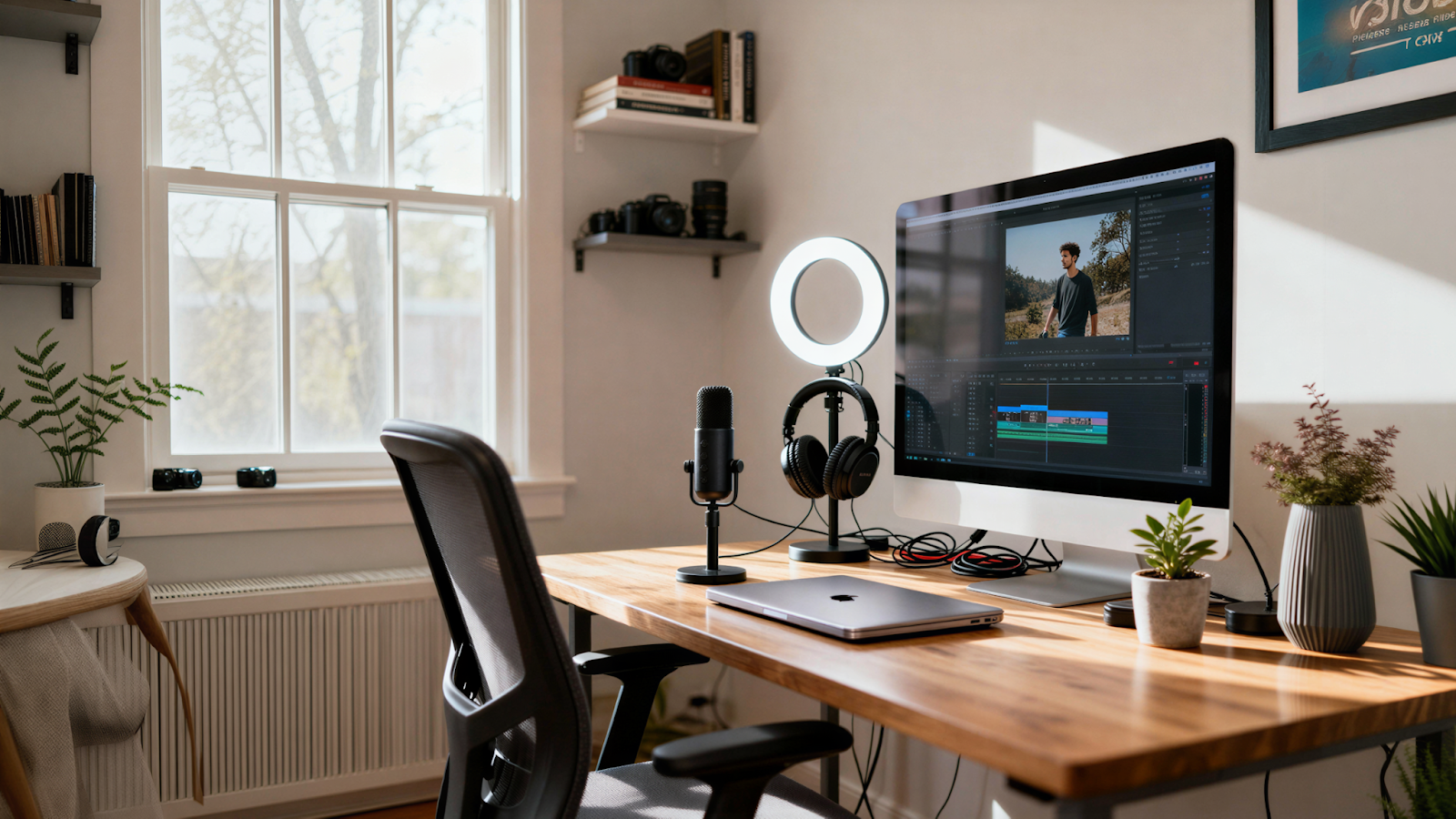
Beyond the iPhone’s own tools, plenty of third-party apps can speed up videos – often with more flexibility. One popular (and free) choice among content creators is CapCut. CapCut is a mobile video editor by the makers of TikTok, loaded with features like speed adjustments, music, text, and more. If you need finer control over your video’s speed or want to combine multiple clips with different speeds, a third-party editor like this is the way to go.
Let’s use CapCut as an example to speed up a video on iPhone:
Using a third-party app like CapCut is powerful. You get more control – for instance, CapCut’s speed range up to 100× far exceeds iMovie’s limits, and you can even speed up only sections of a clip by splitting it and applying different speeds to each part. This is handy for creative videos; for example, you might keep a section at normal speed to talk, then fast-forward a boring part, then return to normal speed for the finale. Other apps offer similar features too – from Slow-Fast-Slow (which specializes in variable speed within a clip) to editors like InShot, VivaVideo, or Adobe Premiere Rush. Most have a speed tool; the UI differs, but the concept is the same: import video → find speed control → increase speed → export. Feel free to use any editor you’re comfortable with. The goal is simply to achieve that time-saving fast-motion effect with the flexibility you need.
Table: Speed-Up Methods for iPhone Videos
| Method | Speed Options | Best For |
| iMovie app (iOS) | Up to ~2× normal speed (approx.) | General editing after filming; basic vlogs or tutorials where you want a simple speed boost without extra apps. |
| Time-Lapse mode (Camera) | Auto-compressed high speed (hours → seconds) | Capturing long processes in real-time (e.g. sunsets, project builds) as fast-forward videos with no editing needed. |
| Instagram Reels (in-app) | 2×, 3×, 4× speeds built-in for recording or uploaded clips | Quick social media content; filming directly in Instagram for trendy, fast-paced Reels (product demos, transitions). |
| TikTok (in-app) | 2×, 3× speeds for recording (or apply to uploads) | Creating viral short videos on TikTok; easy time-lapses or sped-up challenges right in the TikTok app. |
| CapCut app (3rd-party) | Custom: 0.1× to 100× normal speed (plus speed curves) | Advanced editing needs; precise control, mixing fast/slow segments, and adding music/ effects for polished content. |
Speeding up your video is simple, but keep these best practices in mind to ensure your fast-motion content still looks professional and achieves your marketing goals:
By following these tips, your sped-up videos will not only grab eyeballs but also reflect well on your brand. After all, an engaging fast video can showcase a product or tell a story in seconds – but it should still be high quality and easy to follow. Whether you’re a creator editing a clip for a brand partnership or a seller making your own content, a little attention to these details goes a long way.
Learning how to speed up a video on iPhone is more than just a cool trick – it’s a smart content strategy. In an era when the average attention span is shrinking and users crave quick, catchy content, being able to condense your message is a huge advantage. A process that normally takes 5 minutes can be delivered in 30 dynamic seconds, keeping viewers glued till the end. For e-commerce brands and Amazon sellers, this means you can show more product features or tell a richer story without losing your audience’s interest. For example, at Stack Influence we often see micro influencers turn a 10-minute unboxing into a captivating time-lapse highlight – perfect for Instagram and TikTok. The fast-paced nature of these videos not only entertains but also encourages viewers to watch fully and even share, leading to higher retention and brand exposure.
By using the simple methods outlined above (iMovie edits, time-lapse mode, or in-app tools on social platforms), you can create your own high-energy clips with just an iPhone – no expensive gear needed. And don’t forget to apply the pro tips: keep it clear, add music or narration if needed, and align the speed with your story. The result? Videos that feel fresh, modern, and compelling to your audience.
Now it’s time to put this into action. Pick a product or story you want to showcase, and try speeding it up. Post that slick time-lapse or fast-forward demo to your brand’s socials or product page. You’ll likely be amazed at how a little speed can dramatically boost engagement. In the fast-moving world of 2025, creating content that keeps pace with your customers’ scrolling habits is a must. Speed up those iPhone videos and watch how quickly your audience takes notice.

By William Gasner
CMO at Stack Influence
William Gasner is the CMO of Stack Influence, he’s a 6X founder, a 7-Figure eCommerce seller, and has been featured in leading publications like Forbes, Business Insider, and Wired for his thoughts on the influencer marketing and eCommerce industries.
Want new articles before they get published? Subscribe to our Awesome Newsletter.
111 NE 1st St, 8th Floor
Miami, FL 33132



© 2025 Stack Influence Inc
© 2025 Stack Influence Inc
The post How to Speed Up iPhone Videos for TikTok & Reels (2025) appeared first on Stack Influence.