
Choosing POS hardware for a multi-location retail business involves more than picking a screen size and a price point. The device platform you choose affects how your team interacts with customers, which peripherals you can use, and, perhaps less apparent, how much control you have over when software updates reach your stores.
This guide focuses on the tablet platform decision (iPad vs Android) and update management, not peripherals like card readers, printers, or scanners, which work with both platforms through the POS Hub. The first half helps you evaluate iPad and Android for your POS fleet, including a meaningful operational difference between the two that’s often overlooked. The second half walks through a simple, repeatable process for rolling out Shopify POS updates safely across all your locations.
Shopify POS runs on iPads and Android tablets. Both platforms support the same core features and the same peripherals through the Shopify POS Hub: card readers, receipt printers, barcode scanners, and cash drawers. The differences are in device management, update control, and cost.
iPad offers a narrower product line, which can simplify standardization when you want every location running the same hardware. Apple Business Manager provides a streamlined MDM enrollment path, and declarative device management (DDM) on iOS 17.2+ lets you lock devices to a specific app version (version pinning) per device group.
Android tablets cover a wider price range and offer native USB-C connectivity for wired peripheral connections. Managed Google Play lets you delay individual app updates by up to 90 days per app, giving you a clear testing window before any update reaches your fleet. Android also supports direct USB connections to peripherals without requiring a hub.
The best choice depends on what your team already uses, what your MDM supports, and how much flexibility you need on device cost. Check the POS compatibility page for current supported models on both platforms.
This is worth understanding before you commit to a hardware platform, because it directly affects how you manage Shopify POS updates day to day.
On Android, your MDM can set Shopify POS to “Postpone” mode for any device group, which holds the current version for up to 90 days. When you’re ready, you switch that group to “Default” and the update rolls out. It’s straightforward, per-app, per-group control.
On iOS (17.2 and later), Apple’s declarative app management gives you precise version control. Through Apple Business Manager and a DDM-capable MDM, you can pin devices to a specific app version and block auto-update prompts entirely. When a version is pinned, the device ignores all automatic update checks until you change the configuration.
Jamf and Iru (formerly Kandji) support declarative app management with version pinning today. If you use a different MDM vendor, check with them to confirm support for this capability. Both device-based and user-based licensing through Apple Business Manager support version pinning.
The distinction between OS updates and app updates still matters. MDM vendors sometimes talk about “delaying updates for 90 days” when referring to operating system updates (iOS itself). App version control through declarative app management is a separate capability. Make sure your MDM configuration addresses both.
The main difference is the setup path: iOS uses Apple Business Manager, while Android uses Managed Google Play. Both achieve the same result: controlled, phased rollouts per device group.
Both platforms now offer strong update control when paired with MDM. If you’re evaluating hardware, factor in the broader differences (peripheral compatibility, device cost, staff familiarity) rather than update control alone. Switching platforms after you’ve deployed dozens of devices is expensive and disruptive, so the right choice is the one that fits your overall operational needs.
By default, a new device installs the latest version of Shopify POS from the App Store or Google Play. With MDM and declarative app management on iOS (17.2 or later), your MDM’s app configuration can specify a target version for new enrollments, so new devices should match the rest of your fleet. On Android, Managed Google Play offers similar control. Without MDM, plan for new devices to arrive on the latest version and validate accordingly.

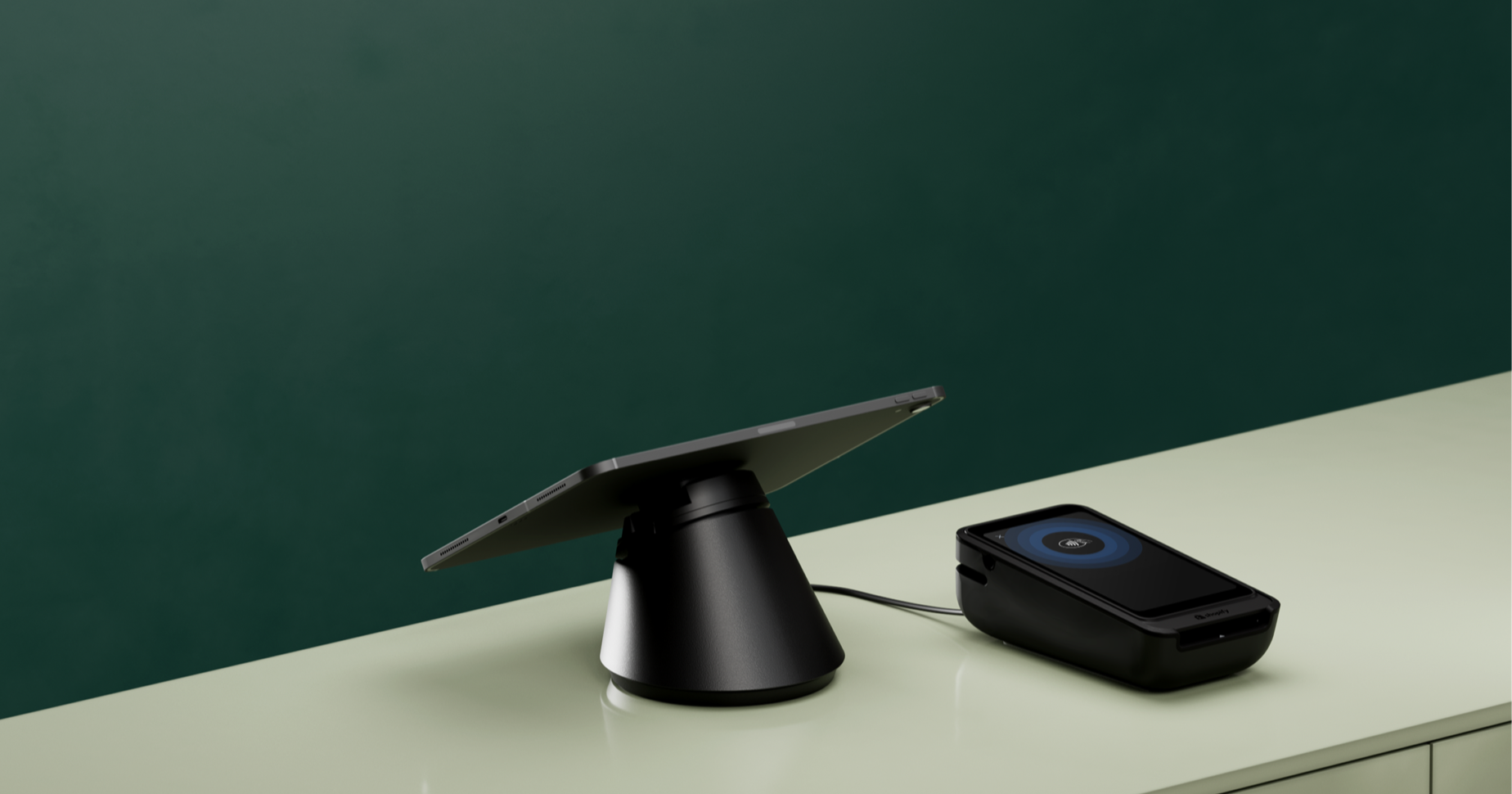
The complete Shopify POS hardware bundle.
Regardless of whether you choose iPad or Android, the principle is the same: test on a small group first, verify your workflows, and then roll out to everyone else.
Every version of Shopify POS goes through extensive testing before release. But every retailer’s environment is different. Your specific card readers, receipt printers, POS UI extensions, and daily workflows might interact with a new version in ways that general testing can’t predict.
A phased rollout lets you catch those issues on a few devices before they affect every register in your fleet. It’s a small investment of time that protects your entire operation.
That said, the goal is always to end up on the latest version. Running old versions means missing bug fixes and security patches, and you’ll start seeing in-app prompts if your version falls too far behind. You can follow what’s in each new release through the Retail Release Roundup, which is updated every two weeks.
Payment Terminals and POS Hubs also receive periodic firmware updates. Terminal updates typically install automatically overnight when connected to power and Wi-Fi. For POS Hub, check for updates in device settings. Keeping all devices on the latest firmware is important. Updates include security patches, performance improvements, and compatibility fixes that ensure your terminals and hubs continue to work reliably with the POS app. Build firmware checks into your regular device management routine alongside POS app updates so your entire hardware stack stays current.
Start with two groups in your MDM:
If you manage devices across many locations and want an extra layer of safety, you can add a middle group: a few devices at select locations, so no single store is fully on the new version until you’re confident. This way, if something goes wrong during testing, every location still has working devices on the previous version.
On iOS (17.2 and later with declarative app management):
If your MDM doesn’t yet support declarative app management, use the on/off toggle approach: enable automatic updates for test groups, disable for others, and toggle per group as you validate.
On Android:
Contact your MDM vendor for platform-specific configuration steps.
When your test devices receive the new version, have staff at your test locations run through this checklist before you enable updates for everyone else. It should take about 10 minutes during a quiet period.
Update validation checklist:
If everything works, roll out to the next group. If anything breaks, stop the rollout, and contact Shopify Support or the extension developer before updating more devices.
A few practical scheduling tips:
Rolling back to a previous version of POS isn’t supported. The App Store and Google Play don’t allow reverting to older versions of any app. This is standard across all mobile apps.
CAUTION: If you need to remove Shopify POS from a device for any reason, first verify that all data has synced. In the POS app, go to Data synchronization and confirm all categories are current. Then check your Shopify admin to verify recent orders and inventory changes are up to date. Unsynced offline transactions are stored locally and will be lost if the app is removed.
If you find a problem during your phased rollout:
This is exactly why phased testing matters. If you catch a problem on three test devices, the rest of your fleet stays on the working version while the fix is developed.
Here’s a quick comparison to help frame the hardware choice:
NOTE: Apple is deprecating legacy MDM update commands in iOS 26 (expected September 2026), with full removal in 2027. Declarative device management (DDM) is the replacement. Jamf, Iru, Microsoft Intune, and Ivanti all support DDM for OS updates today. Jamf and Iru (formerly Kandji) support DDM for both OS updates and app version management today. Microsoft Intune supports DDM for OS updates; app-level DDM management is in development. Check with Ivanti or other vendors for their current DDM capabilities.
Neither choice is wrong. Both platforms support the same Shopify POS peripherals. iPad simplifies standardization with a narrower product line. Android offers more flexibility on device cost and native USB-C connectivity. The best choice depends on what your team already uses, what your MDM supports, and your budget.
Whichever platform you choose, pairing it with MDM and a phased rollout process is the safety net that lets you stay current without risking every register at once.
Yes. Microsoft Intune and Ivanti both manage iOS and Android devices in one platform. You’ll configure update settings separately for each platform, but everything appears in the same dashboard.
Two to three days is usually enough for each release. Run through the validation checklist, process real transactions, and confirm your hardware and extensions work as expected.
You’ll start seeing in-app prompts about outdated versions after a few months, with increasing urgency. Third-party POS UI extensions may also stop working if your app version falls too far behind the API versioning policy, which supports stable versions for a limited window.
With MDM and declarative app management on iOS (17.2 or later), your MDM’s app configuration can specify a target version during enrollment. On Android, Managed Google Play offers similar control. Without MDM, new devices install the latest version from the App Store or Google Play.
Not necessarily. All four major vendors — Jamf, Iru, Microsoft Intune, and Ivanti — support both iOS and Android. If you only use iPads, Jamf and Iru are popular choices with the strongest Apple-specific capabilities, including declarative app management for version pinning.