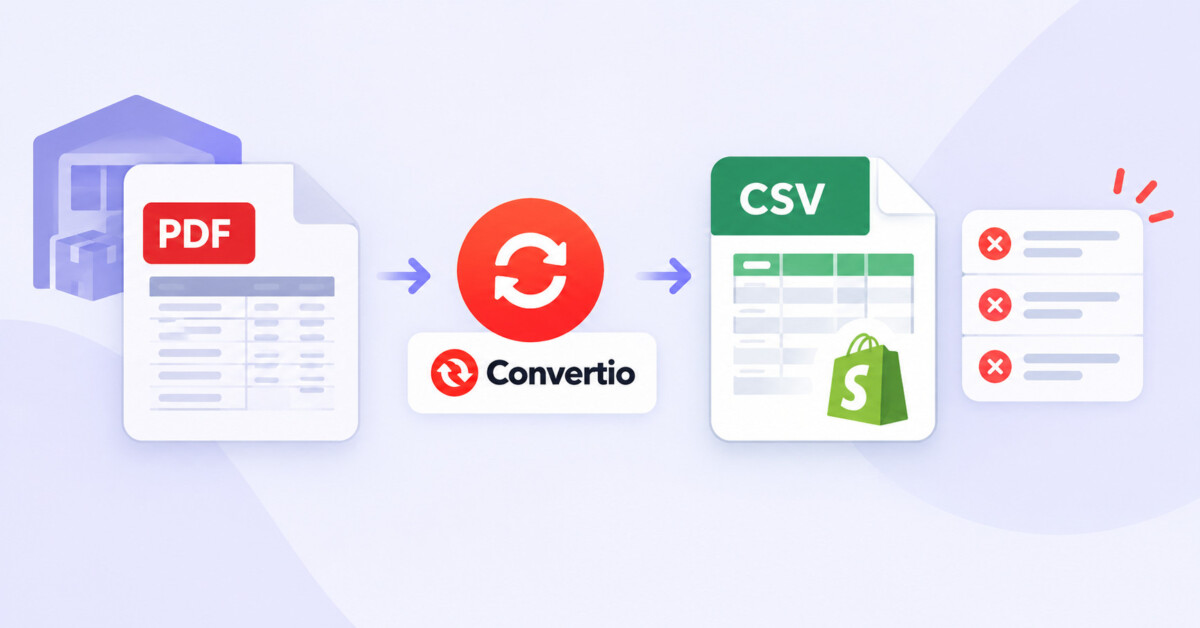
Convertio’s document converter turns a supplier’s text-based PDF or legacy XLS price list into an editable XLSX or CSV in the browser, which removes the retyping step, but the converted file still needs UTF-8 encoding and Shopify’s exact column headers before it imports cleanly.
The retyping was never the expensive part. The expensive part is the import that half works: variants silently rebuilt, curly quotes rejected, a price column that shifted one row down on page four of a PDF nobody checked.
A new supplier signs on, and the catalog arrives as a 30 page PDF line sheet: product names in bold, a wholesale column, a suggested retail column, sizes crammed into one cell, and a footer on every page. Your launch date is two weeks out. The instinct is to open the PDF on one screen and the Shopify admin on the other and start typing. At 250 SKUs with three variants each, that is 750 variant rows entered by hand, and every one of them is a chance to put $24.00 where $42.00 belongs.
Converting the file first is the obvious shortcut, and it works. What most guides skip is the step after conversion, where the file that looks perfect in a spreadsheet gets rejected by Shopify, or worse, imports and quietly deletes variants you already had. This piece covers both halves: getting the data out of the supplier’s format, and getting it into Shopify without damage.
Whether you are loading your first 40 products or onboarding your sixth wholesale brand this year, the mechanics are the same. The difference by stage is how often you do this, and that changes which tool earns its place.
Supplier documents fail at import because Shopify’s product importer reads only a comma separated CSV file with its own column headers, saved in UTF-8 encoding, and most suppliers send files built for printing or for their own internal systems. A PDF line sheet is designed to look identical on every screen and printer. It stores the position of text on a page, not the relationship between a product name and its price, which is why copying a table out of a PDF usually produces one long column of jumbled values.
Shopify is specific about what it accepts. According to Shopify’s product CSV formatting requirements, the first line of the file must be the column headers from its template, every column must be separated by a comma, and the file must be saved in UTF-8 with LF-style line endings. The only column required for brand new products is Title, but once you add variants you also need the URL handle, and any variant field such as SKU or weight depends on the Option1 name and Option1 value columns being present.
That leaves three gaps between a typical supplier file and a working import. The first is structure: the data has to become rows and columns. The second is vocabulary: the supplier’s “Colour / Size / RRP” headers have to become Shopify’s Option1 name, Option2 name, and Price. The third is encoding: files that pass through Word, older Excel versions, or PDF extraction often carry curly quotation marks and accented characters in encodings Shopify reads as garbage.
A document converter solves the first gap completely and helps with the third. The second gap is always yours, because no converter knows that your supplier’s “Style No.” should become a URL handle rather than a SKU. Knowing which gap you are working on at any moment is most of the battle.
Convertio’s document converter changes files between more than 23 document formats, including PDF, DOC, DOCX, XLS, XLSX, ODT, RTF, TXT, HTML, and CSV, entirely in the browser with nothing to install. You upload from your computer, Google Drive, Dropbox, or a URL, pick the output format, add more files if you want a batch, and download the result. Convertio says a typical conversion finishes in one to two minutes, and the service converts documents without an account on its free tier.
For supplier catalogs, the format pair matters more than the tool. Here is how the four files merchants most often receive map to what you need.
Be honest with yourself about the PDF row. Pulling tables out of a PDF is the hardest job any converter does, and Convertio’s own PDF to XLSX page shows a user quality rating of 4.0 out of 5, noticeably lower than the 4.6 across its document conversions overall. That gap matches what you should expect: clean, single-table line sheets convert well, and multi-column brochure layouts need more cleanup. Scanned PDFs are a different animal entirely, because they contain pictures of text rather than text; Convertio routes those through a separate OCR tool, which gives you 10 free pages before a paid plan.
Paid plans start at $6.99 a month billed yearly, or $11.99 month to month, for 1,000 conversion credits and files up to 1 GB, with most document conversions using a single credit (pricing checked October 2026).
The reliable workflow is to convert the supplier file to XLSX, clean and map it in a spreadsheet, export it as a UTF-8 CSV, test import five rows, and only then import the full catalog. Converting straight to CSV feels faster, but XLSX keeps the file editable in any spreadsheet app while you fix headers and split cells, and the CSV export at the end is where you control encoding.
Four stages in sequence: supplier file in PDF, XLS or DOC; convert to XLSX with Convertio; map headers and save as UTF-8 CSV; test import five rows in Shopify, then the full catalog.
Supplier file
PDF, XLS, DOC
Convert
Convertio to XLSX
Map and clean
Shopify headers
Save UTF-8 CSV
Test import
5 rows first,
then full catalog
The conversion is one step of four. Most failed imports trace back to steps three and four.
Illustrative benchmark: on a 250 SKU line sheet, steps two and three typically take one to two hours, and step five takes 15 minutes. That 15 minute test is the cheapest insurance in the whole process, because a bad full import can overwrite prices and variant IDs that your reviews app, subscription app, or ad feeds depend on.
Converted files most often break a Shopify import through encoding, header mismatches, and variant columns, not through the conversion itself. The file looks right in a spreadsheet, and the problems only surface when Shopify parses it. Shopify’s guide to importing products and troubleshooting CSV errors documents each of these, and they map neatly to what goes wrong after a PDF or Word conversion.
Two of these deserve extra attention because they fail silently. The variant problem does not throw an error at all; the import succeeds and your existing variant IDs are gone, which breaks anything downstream that referenced them. The sorting problem is the same: the import runs, and the images simply do not attach.
A conversion error shows up on screen. An import error shows up three weeks later as a customer email asking why the medium is out of stock when you have forty of them.
Encoding issues are the most common of the six for anyone working from converted PDFs, because PDF text extraction carries whatever quotation marks and accented characters the supplier’s designer used. A quick find and replace for curly quotes and apostrophes before export prevents the majority of rejected files.
A browser-based converter is the right tool when supplier files arrive occasionally and in mixed formats, and the wrong tool once the same supplier sends updated price lists every month. The deciding number is frequency, not catalog size. When I was working with merchants at Shopify, the stores that got stuck on catalog work were rarely the ones with the most SKUs; they were the ones rebuilding the same supplier file by hand every season instead of fixing the source.
If you are just starting, the free tier and Shopify’s native importer cover everything in this article. If you are in the middle band, the best move is often a two-line email asking each supplier for the spreadsheet their PDF was made from; many will send it, and the converter handles the ones that cannot. Once catalog updates are weekly or you are managing metafields and translations in bulk, the file format stops being the bottleneck, and a dedicated app is the better spend. Our comparison of the Altera and Matrixify import apps covers where each one earns its fee. Convertio also offers a developer API for teams that want conversion inside an automated pipeline.
There are credible alternatives worth knowing. Excel for Microsoft 365 on Windows can pull tables from a PDF through its Get Data from PDF option, Adobe Acrobat’s paid export converts PDFs to Excel with strong layout handling, and Google Drive can open a PDF as a Google Doc, though tables usually lose their structure that way. A browser converter wins when you need no installs, handle mixed formats in one place, or work from a laptop that is not yours. If you are moving an entire store from another platform rather than adding one supplier, start with our Shopify migration planning guide instead, because the scope is much larger than a file conversion.
One privacy note for wholesale price lists: Convertio states that uploaded files are deleted immediately after conversion, converted files are deleted after 24 hours or sooner if you remove them from My Files, and its infrastructure is based in Germany under GDPR. That is a reasonable standard for a price sheet. For anything under a strict NDA, check the supplier agreement before uploading to any third party service.
Convert the PDF to XLSX first, map it to Shopify’s template, then export a UTF-8 CSV. Upload the PDF to Convertio’s document converter and choose XLSX as the output, which keeps the data editable while you work. Open the result in Google Sheets or Excel, paste the header row from Shopify’s sample product CSV above the data, and move each supplier column under the matching header. Split combined size and colour cells into Option1 and Option2 values, remove currency symbols from prices, and delete repeated page headers or footers that came across from the PDF. Save as CSV with UTF-8 encoding, import five products as a test, and check them in the admin before importing the full catalog.
Strange characters appear because the CSV was not saved with UTF-8 encoding, which Shopify requires. Files that pass through Word, older Excel versions, or PDF extraction often carry curly quotation marks, apostrophes, and accented letters in a different encoding, and Shopify reads them as symbols. The fix is to open the file and save it again as UTF-8. Google Sheets does this by default when you download a CSV, and Excel offers a specific CSV UTF-8 option in its save dialog. If Shopify returns an “illegal quoting” error instead, find and replace curly quotes with straight quotes before re-saving. For products already imported with bad characters, either correct them by hand or re-import a properly encoded file with the overwrite option selected.
Yes, but through its OCR tool rather than the standard document converter. A scanned PDF or a phone photo of a price sheet contains an image of text, not text itself, so a normal conversion has nothing to extract. Convertio’s OCR feature recognizes the text and can output XLSX, CSV, DOCX, TXT, or a searchable PDF, with 10 free pages before a paid plan is needed. Select every language that appears in the document before recognizing, since supplier sheets often mix English with another language. OCR misreads digits more often than letters, so proofread every price, SKU, and barcode in the output against the original before it goes anywhere near your store.
It is reasonably safe with a converter that deletes files quickly and publishes its retention policy, but check your supplier agreement first. Convertio states that uploaded input files are deleted immediately after conversion, converted files are deleted after 24 hours, and you can delete them sooner from My Files. It also says each conversion runs in an isolated environment, files are tied to the uploader’s IP address, and its infrastructure is based in Germany and GDPR compliant. That covers a typical wholesale line sheet. If a supplier’s terms prohibit sharing pricing with third party services, or the file carries customer personal data, convert it with desktop software on your own machine instead.
A Shopify product CSV import cannot exceed 15 MB. If your file is larger, or the upload times out, Shopify recommends splitting the CSV into several smaller files and importing each one separately. Size problems usually come from very long HTML descriptions or many image rows rather than product count, so a catalog of a few thousand SKUs can still fit in one file. Split by product, never through the middle of a product, because all rows for a product and its variants and images must share the same URL handle and stay together. Keep the header row at the top of every split file, and import them in order so products that appear in more than one file do not overwrite each other.