Free every Thursday · 60,261 Readers
Fastlane Insider Newsletter: What's working for Shopify in the AI era?
Free every Thursday · 60,261 Readers
Fastlane Insider Newsletter: What's working for Shopify in the AI era?
The most expensive sign in a small store is the one still taped to the window after the price changed.
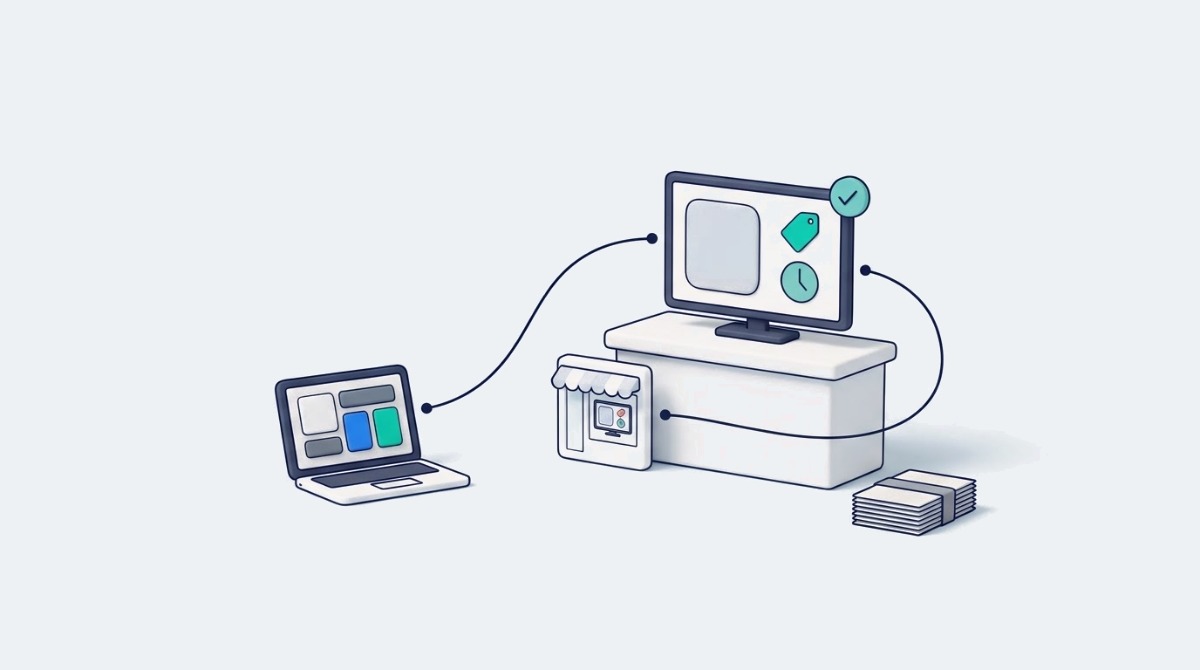
Small retailers need signs they can change in minutes without paying for another print run. Low cost options such as billiie.co let a retailer turn a compatible TV into a managed screen without buying new commercial hardware, and that screen becomes a clear channel for hours, prices, promos and daily updates.
The examples below are illustrative: a corner grocery, a sneaker and apparel shop, a pet supply store, a hardware store. None of them needs a video wall or an AV installer. Each needs the right message in the right spot, kept current by someone who has five spare minutes. If you are opening your first location, start with the window and the counter. If you already run several screens, skip to the readability and playbook sections, where the routine matters more than the hardware.
A screen connected to a digital signage CMS removes the reprint cycle, because changing a price or special becomes a file edit instead of a print job. Printed posters and window clings made sense when prices stayed put for months. Now a small store might change a special on Tuesday and adjust weekend hours on Friday, and a fast seller can vanish from the shelf by Thursday. Each paper change means editing a file, finding a printer, paying per copy and taping up a new sheet. That gets old fast, and the gap between “the price changed” and “the sign changed” is where customers get annoyed at the register.
Picture a corner grocery that runs produce specials based on what arrived that morning. With paper, staff write a new price card and fix the window poster before the lunch rush, if they remember. With a screen, the owner updates one image in the CMS from a laptop and sends it to the counter display and the window display within minutes. The old paper comes down and stays down.
The saving is not only the printing bill. It is the staff time spent chasing the printer, the stale specials that stay up because nobody had time to replace them, and the conversations at the counter that start with “the sign says…” A screen does not fix a store that never updates anything, but it removes the friction for a store that wants to.
Start with one playlist that covers the facts customers ask about most. That is usually hours and current prices. Keep the file names clear (“hours-winter”, “produce-special-tuesday”) so anyone on the team can find the right slide in seconds, and delete dated slides as soon as they expire so the playlist never shows last week’s offer.
A window facing screen answers the two questions people scan for as they walk past: is the store open, and is there something worth stopping for. Staff do not need to say a word, and the screen keeps working after the doors close.
Picture a small sneaker and apparel store on a busy block. Paper signs in the glass fade in the sun, and the tape peels by August. A suitably bright screen in the same spot can rotate new arrivals and store hours in large type that reads from the sidewalk. Late evening walkers see the morning opening time and the weekend special, which turns a closed store into a reason to come back.
Keep window content simple. One idea per slide keeps it readable at a glance, especially with high contrast and large type. Hold each slide long enough to read at walking pace. Western Michigan University’s digital signage accessibility guidance suggests about one second per word, with a minimum of five to 10 seconds for simple messages. Time it yourself from where passersby will actually see it, not from inside the store.
Glass glare can wash out a dim screen. Choose placement and mounting that follow the display maker’s guidance rather than relying on distance or tilt to fix reflections, and adjust brightness for daylight and evening conditions within that guidance. Not every consumer TV is bright enough to fight direct sun, so check before you commit a window to it. A quick walk outside during the day and again at night shows what customers actually see.
A small shop can usually start digital signage with a compatible TV it already owns, a small media player and browser based software, without buying commercial displays. Digital signage can involve commercial grade screens and dedicated media players, but the equipment should fit the store. A 600 square foot shop with one counter and one window has different needs from an airport or a mall. A spare consumer TV may be a practical starting point if it suits the location and works with the chosen player.
An existing TV plus a supported Fire TV or Android player can be enough to get started. The player plugs into an HDMI port and connects over Wi-Fi. Browser based software lets the owner build slides, set their play order and push changes without touching the TV. That is the setup the signage software mentioned above is built around: the TV stays the same, and the content becomes something you manage from a laptop.
Check the player before you rely on it. Consumer streaming sticks were built for home entertainment, and a 2024 Fire TV software update caused problems for businesses running third party signage apps, as Sixteen:Nine reported when Amazon launched its Signage Stick. Amazon now sells that purpose built Signage Stick for small and medium businesses. Whichever device you use, confirm your software lists it as supported. Fastlane’s guide to choosing a digital signage player for your setup covers compatibility, reliability and testing before you buy.
The setup also needs a reliable connection. Test the player’s Wi-Fi at the TV location before relying on daily updates. If content struggles to load, review router placement or access point coverage. Remote status tools can show whether a player is online, idle or offline, but staff should still check visible playback in the store and arrange onsite help when needed.
A screen near the shelf or service counter can answer the two questions customers ask most (what is new, and how does it work) while staff handle the people in front of them. Staff can answer those questions when the store is quiet. They cannot answer them for five people at once during a rush.
Think of it like a digital menu board in a cafe, applied to retail. One slide shows the new scent lineup with prices. The next shows how to use a refill pack without waste. The screen does the repeatable explaining, and staff are free for the conversations that actually need a person.
QR codes give customers more detail than a small screen can hold. A code in the corner of a slide can link to the full catalog or an online order page for sizes that are not on the shelf. Customers scan with their own phones and browse at their own pace. That link between the physical shelf and the online catalog helps most when floor space is tight. Fastlane’s breakdown of how to use QR codes in retail covers sizing, contrast and the security checks worth running on any code customers scan.
It also helps stores that sell both in person and online. A manually updated screen can highlight pickup or delivery options for an item missing from the shelf, provided staff have checked availability in the online catalog first. Keeping that information current remains a staff responsibility; the screen only repeats what someone told it. A code then lets customers explore the available options on a phone.
Keep teaching slides short, with one product and one price. Add genuine customer feedback, with permission, if it fits. End with a clear next step such as “Ask at the counter.”
The counter is the most valuable screen position in a small store, because customers stop and look while they wait to pay and still have time to notice a useful add-on. Point of purchase displays put that information within sight while customers finish shopping. Printed flyers near the register try to do the same job, but they blend into the clutter after a week.
Picture a pet supply store with treats and brushes stacked by the register. A small screen above that shelf can rotate two add-ons that pair with the main purchase. One slide shows a small bag of training treats. The next shows a brush with a two line tip for shedding season. The customer sees it while the card reader processes.
Do not crowd this screen. One add-on per slide works best, and there is no need for sound. Keep prices large, with a message tied to what people already hold in their hands. A counter screen that tries to sell everything in the store sells nothing.
Freshness matters more than polish here. Swap the add-on every week so regulars have something new to notice. Use the same template each time so the swap stays quick. If a slide stops sparking questions, replace it with a different pairing. Fastlane’s roundup of small store design ideas has more on using checkout space and customer flow in a tight footprint.
Playlist scheduling lets one screen do several jobs, because the owner sets what plays in the morning and what plays at night and the screen switches on its own. Staff do not need to touch the remote or remember to swap slides.
Think of a corner store that sells coffee in the morning and gifts later. It can show hot drinks and quick breakfast pairings before work hours, then switch to gift ideas and wrap service after school pickup. The same TV stays useful all day because the message matches the time and the customer standing in front of it.
Build the day’s schedule once, then check the timing after a week and adjust if lunch crowds arrive later than expected. The first schedule is a guess; the second one is based on what you saw.
Weekdays and weekends often need different timing too. A hardware store might run contractor tips early on weekdays and DIY demos on Saturday mornings. Set those as separate blocks once, and the system handles the switch without a morning huddle.
A screen is only useful if it can be read from where customers stand, which means large, high contrast text held on screen long enough to read twice. Small serif type and packed paragraphs belong on paper, not on a TV across the room.
Accessibility guidance gives useful starting numbers. The Western Michigan University guidance cited above uses roughly 1 inch of letter height per 10 feet of viewing distance, and the W3C’s WCAG contrast guidance sets a minimum contrast ratio of 4.5:1 between normal text and its background. Think of a narrow aisle where customers stand four to six feet from a wall display. If the price is buried in small type, they ask staff instead, which defeats the point. Use dark text on a light base or white text on a dark base, and test from the farthest spot a customer will stand rather than judging from two feet away. Fastlane’s complete guide to retail signage design covers hierarchy, color and placement in more depth.
Motion needs restraint. A gentle fade between slides is enough, while fast tickers and spinning graphics tire eyes and hide the price. Avoid anything that flashes; the W3C’s three flashes guideline exists because rapid flashing can trigger seizures.
Connection stability matters just as much. Test the player’s Wi-Fi where the screen will sit, and check that updates reach it reliably before settling on a back corner. Owners do not need to stare at the screen all day: online, idle or offline status can help them spot connection issues from a phone or laptop. A morning check should still include someone looking at the display to confirm playback. Add a second screen only after the first one stays current for a month without extra work.
A screen stays useful when one named person owns its content and rotates four types of slides: best sellers, proof, a dated special and practical store information. Screens need someone responsible for keeping content current after the initial setup, and a short playbook gives that person a manageable routine.
Each slide should point to one clear next step. Do not stack two requests on one slide. When every slide has one job, the next step is easy to follow. The dated special gives people a reason to act now only when the end date is real; a “limited time” offer that never ends teaches regulars to ignore the screen.
Small teams stay in control by giving each screen a clear owner. The owner can update slides from home while staff focus on customers in person. Keep templates plain so anyone can edit without design skills, and stick to two fonts and two colors across all slides.
Set one baseline playlist and let it run for two weeks. Replace only the dated slides. Note which slides spark questions at the counter, keep those and drop the rest. The goal is steady, correct information where customers already look. Window and counter screens each answer a different question, and together they give a store room to explain offers and keep promos current. Fastlane’s piece on why the physical retail experience still matters explains why that in-person layer is worth the effort.
A single shop needs one TV and one updating habit; a store with several screens or locations needs a named content owner, supported players and a weekly review before it needs better hardware. The order matters more than the budget.
If you are just starting, put one screen where the most customers already look (usually the counter or the window) and run hours, prices and one offer. Resist adding a second screen until the first has stayed current for a month without anyone chasing it. A second screen with stale content does more damage than no screen, because it tells customers the information around the store cannot be trusted.
If you are an established single location shop, the gains come from scheduling and the weekly add-on swap at the counter. That is where the screen starts doing work paper never could: morning and evening messages, weekday and weekend blocks, and a counter pairing that changes before regulars stop noticing it.
If you are running several screens or locations, the weak point shifts from content to reliability. Use players your software lists as supported, check online and offline status every morning, and keep one template set so every screen looks like the same store. At that stage, a purpose built signage player is usually worth the small premium over a consumer streaming stick.
Whatever the stage, start with one TV and one habit of updating on time. When that habit sticks, the screen earns a place in the store as the spot customers check for what is new and when to come back.
Yes, a regular consumer TV can work for digital signage in a small store if it is compatible with your chosen player and suits the location. Most setups connect a small media player, such as a supported Fire TV or Android device, to the TV’s HDMI port and run slides from browser based software over Wi-Fi. Check two things before you rely on it. First, brightness: a TV that looks fine indoors may wash out in a sunny window. Second, support: confirm your signage software lists the player as supported, because consumer streaming sticks were built for home use and software updates have disrupted signage apps before. If either check fails, a commercial display or a purpose built signage player is the safer choice.
A small retail store should show the facts customers ask about most, usually hours and current prices, plus one offer at a time. A simple playbook rotates four slide types: best sellers with a plain photo and a large price, genuine customer feedback used with permission, a dated special with a firm end date, and useful store information such as pickup options or holiday closures. Each slide should carry one idea and one clear next step, like “Ask at the counter” or “Scan for sizes.” Window screens should answer whether the store is open and what is worth stopping for, while counter screens work best showing one add-on that pairs with what customers already hold.
Text on a store digital sign should be large enough to read from the farthest spot a customer will stand, and a common rule of thumb is about 1 inch of letter height per 10 feet of viewing distance. Use sans serif type, avoid packed paragraphs and keep strong contrast between text and background; the W3C’s WCAG guidance sets a minimum contrast ratio of 4.5:1 for normal text. Hold each slide long enough to read twice, roughly one second per word with at least five to 10 seconds for a simple message. The only reliable test is physical: stand where customers stand, in daylight and in the evening, and read the screen.
Update store screen content whenever a price, special or opening hour changes, and review the rest of the playlist on a fixed weekly routine. A practical rhythm is to replace dated slides as soon as they expire, swap the counter add-on every week so regulars notice something new, and let a baseline playlist run for two weeks before judging it. Keep the slides that spark questions at the counter and drop the ones nobody mentions. Scheduling helps too: set morning, evening and weekend blocks once so the screen changes its message without anyone touching it. The habit matters more than the frequency, so give each screen one named owner.
You need a reliable Wi-Fi connection at the TV’s location more than a fast one, because the player must receive updates consistently to show current content. Test the connection where the screen will actually sit before relying on daily updates, and if content struggles to load, review router placement or access point coverage. Many signage tools show whether a player is online, idle or offline, which lets an owner spot problems from a phone or laptop. That status is not the same as seeing the screen, so a quick morning look at the display to confirm playback is still worth doing. Add a second screen only once the first stays current without extra work.