GPT Image 2 supports OpenAI’s Batch API, but reliable store publishing requires a separate product manifest. Match results by custom_id, reconcile successful and failed requests, review each asset against its source product, and import only approved image URLs mapped to the correct Shopify products and variants.
A successful generation request proves that an image was returned. It does not prove that the image depicts the right variant or belongs on the right product page.
GPT Image 2 supports OpenAI’s Batch API. The more useful question for a store preparing a collection of images is how to move from a submitted batch to the right approved asset on each product page.
The work is not finished when the generation requests complete. Results need to remain attached to their source products, failed attempts need to be separated from successful ones, and the files imported into the store need to be the versions someone actually approved. Put that record in place before generating the collection.
OpenAI’s April 21 release entry explicitly includes Batch API support for GPT Image 2. Its current Batch guide supports image generation and image-editing endpoints. This is a defined API workflow, distinct from a dashboard button that starts several ordinary image requests.
For OpenAI Batch, prepare a JSONL file with one request per line, a unique custom_id for each request and a single model throughout the file. The request bodies follow the underlying endpoint’s parameters. Generation and editing are different operations, so choose the one that matches your input material.
For example, a collection illustration can begin from a text brief. An image intended to show an existing product needs its source material carried into the appropriate editing request. A text-only description of a particular bag is not the same input as a photograph of that bag.
Hosted routes require their own reading. SeedRouter lists GPT Image 2, and reAPI lists GPT Image 2 as well. Before adapting a batch process to either service, check its request and result contract. A provider’s asynchronous task queue should not be assumed to implement OpenAI’s file-based Batch API.
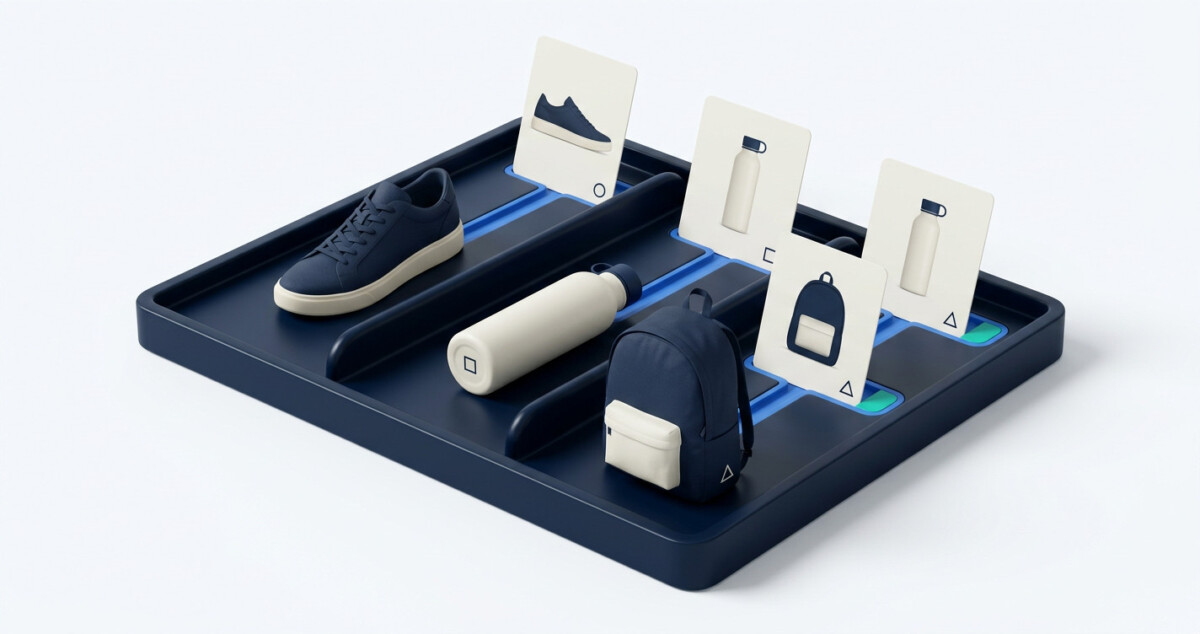
Make a small table that connects each intended asset to a product record. The table can start as a spreadsheet; its job is to preserve identity through generation, review and import.
Useful fields include the product handle or internal ID, variant, source image, intended placement, prompt revision, request identifier, output filename and review status. Give each requested asset its own row. If a product needs a collection-card image and a detail-page image, those are two separate jobs even when they use the same source photo.
An illustrative identifier such as bag-canvas-navy-detail-v1 makes the intended output recognizable. Keep the actual product mapping in a dedicated field too. A descriptive label should not be the only thing connecting an image to the store’s data.
Separate a design revision from a technical retry. A new prompt asking for different framing needs a new revision record. Resubmitting an unchanged failed request should retain its relationship to the original job. Otherwise, a reviewer cannot tell whether two different-looking outputs came from the same brief.
Before running the collection, inspect a small representative set: an item with fine details, another with a distinctive shape and one with several variants. Choose examples that expose problems your assortment actually contains. The purpose is to refine the brief and the acceptance rules before multiplying an avoidable mistake.
OpenAI warns that Batch output order can differ from input order. Match responses through custom_id; do not pair the first returned image with the first product in the spreadsheet.
Failed requests are recorded separately through the batch’s error file. A batch that expires can still have completed responses available. Read the output and error records together before deciding what needs another attempt.
For your own bookkeeping, give each manifest row a state such as waiting, generated, needs revision, approved or imported. These are store workflow labels, not claims about the API’s status names. A successful API response moves an asset to generated. It should not move directly to imported.
Save completed images with their request records. If the collection is interrupted, continue from the manifest rather than sending every product again. Investigate a failed request before retrying it; repeating an invalid body will not repair its parameters.
Review each output against both the source product and its intended placement. A visual suitable for a collection banner may be unsuitable as a factual detail photograph. Make that distinction explicit in the manifest.
For a pictured product, compare identifying features: fastenings, seams, print placement, accessory count and any wording. Reject an image that introduces an included item the buyer will not receive. Keep the accepted source photography available beside the generated result so the decision does not depend on memory.
The prompt can describe what must stay consistent, but the review needs to check whether it did. An attractive output with the wrong fastening is a revision candidate. Do not let a clean background or pleasing lighting compensate for a product mismatch.
Check the delivered crop as well. Open the image in the space where it will appear, including the mobile product page or collection card. If important details disappear, adjust the asset or its placement before approving it. That is a presentation check, separate from whether the pictured item is accurate.
If you import through Shopify’s product CSV, its help documentation calls for a publicly accessible HTTPS image URL without password protection. An API task ID, a local filename or an encoded image response is not that URL.
Upload approved files to the chosen hosting location, then add the actual image URLs to the product import data. Shopify’s CSV guidance uses one row per image and repeats the product handle for additional images. Preserve the mapping from your manifest when building those rows.
Inspect a small import before applying the rest. Check the product, variant association where applicable, image order and visible crop. Keep an export of the existing product data before making a bulk change, so the prior mapping remains available for comparison.
A dependable GPT Image 2 Batch API workflow ends with an auditable chain: intended asset, source material, generation request, reviewed file and store placement. Build that chain once, then use it to decide which images are ready and which still need work.
A reliable GPT Image 2 batch workflow requires separate checks for API support, request identity, partial results, image approval, and Shopify import mapping.
GPT Image 2 supports OpenAI’s Batch API, and OpenAI’s Batch guide lists image-generation and image-editing endpoints. Prepare a JSONL file with one request per line, a unique custom_id for each request, and one model throughout the file. Create the batch for the selected endpoint and use its supported request parameters. A third-party provider listing GPT Image 2 does not establish that it supports the same file-based Batch interface. Confirm the provider’s submission and result contract before reusing an OpenAI integration.
Keep batch-generated images matched to Shopify products by linking each request’s custom_id to a manifest record containing the intended product, variant, placement, and prompt revision. Resolve returned responses through that identifier rather than their position in the output file. Save the generated file alongside the request record, then identify the exact version approved for publication. Add its hosted URL to the same record before preparing the Shopify import. A descriptive filename helps reviewers, but it should not replace a dedicated product mapping.
When an image batch expires or returns errors, retrieve available successful results and reconcile them with the error records before deciding which requests need another attempt. OpenAI makes completed responses available even when a batch expires. Preserve those outputs rather than resubmitting the entire collection. Investigate invalid parameters before retrying, and retain the failed attempt in your records. Use a new attempt identifier linked to the same intended asset; if you change the creative brief, record a new prompt revision as well.
You cannot use an API task ID, local filename, or encoded image response as the image URL in Shopify’s product CSV. Shopify requires a publicly accessible HTTPS image URL without password protection. Save the generated file, approve the specific version, and upload it to suitable hosting before adding its URL to the import data. Preserve the product handle and use the appropriate variant-image field where needed. Test a small import and verify the resulting association before processing the rest of the collection.
A successful image-generation response means the API returned an output, not that the asset is accurate or ready to publish. Review the pictured product against its source photograph, checking identifying details, visible wording, and included accessories. Evaluate the crop in the intended placement separately. Record approval against the exact file, then confirm its product and variant association after import. Keep generated, approved, and imported as distinct workflow states so technical success cannot bypass product review or publishing verification.