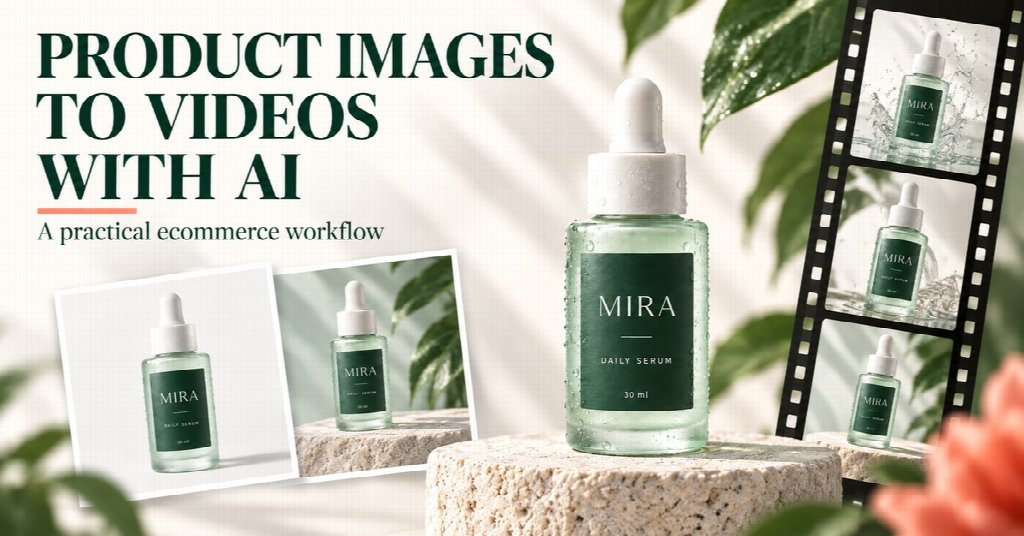
Creating AI product images and videos is most useful when every asset serves a real campaign role: a clear product reference, a scene with intentional copy space, and motion that preserves the same visual direction. This workflow shows how to create and review that sequence in PoYo using GPT Image 2.5 and Seedance 2.5.
AI creative becomes commercially useful when the product stays true, the composition leaves room for the message, and every generated asset has a specific job in the campaign.
Creating AI product images and videos is most useful when the results fit an actual store campaign. You might need a clean view of the item, a scene with room for an email headline, and a short clip that brings the same visual direction to life. The task is to make those pieces work together.
This guide follows that process in PoYo, using GPT Image 2.5 for the images and Seedance 2.5 for the video. A pale-green serum bottle moves from a white background to a campaign scene, then becomes the subject of an eight-second clip. The three completed generation tasks cost approximately $2.76 in credits in our September 22, 2026 test.
Everything was generated through the website playground, without building an application. Follow the six steps below to see the settings, prompts, and decisions behind the assets, and where to start if you already have product photography.
MIRA, the skincare brand shown here, is a fictional demonstration product. Its source image was also AI-generated. For your own store, start the reference-image stage with an approved photograph of the product you sell.
A useful brief starts with the message and destination, not just the desired visual style. For the MIRA example, the bottle is the focal point throughout. The setting introduces a botanical visual direction, while the video explores a closer view of the same scene.
For your own project, decide what the customer should notice first. Is it a new package, a particular product variant, or the item within a seasonal setting? Write that priority in one sentence and use it to judge each output.
Then assign a role to each asset. The white-background image can help establish the source and guide review. The campaign scene can become the basis for an email or on-site promotional layout. The video can provide a moving version for a placement that suits its format. These are suggested uses, not campaigns run in this demonstration.
Open GPT Image 2.5 in PoYo and select the Sunburst variant. For this demonstration, we chose high quality, 2K resolution, a 16:9 aspect ratio, an opaque background, and WebP output.
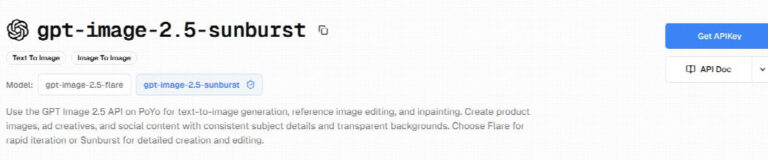
The model and settings used for the two image tasks in this walkthrough.
The first prompt established the product’s visual identity: a frosted pale-green glass bottle, a matte-white dropper cap, and a dark-green label reading MIRA, DAILY SERUM, and 30 ml. It asked for a white background, soft studio light, a contact shadow, and a front three-quarter view.
This is where a specific brief earns its place. Instead of asking for a generic luxury skincare image, describe the silhouette, materials, colors, and viewpoint you want. Those details give the next stage a defined reference to work from.
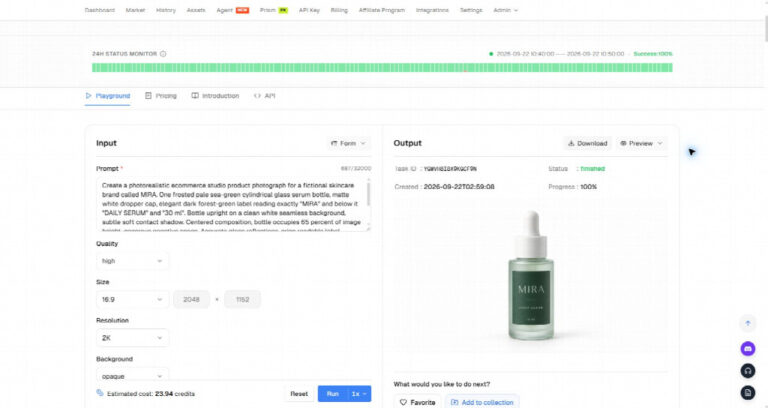
The generated starting image: a fictional MIRA serum bottle, downloaded at 2048 by 1152 pixels.
The result gives the workflow a clear starting point. The bottle sits against a simple background, with space around it and no competing props. That makes the product easy to inspect before building a more expressive scene.
For the second generation, we added the first image to the Reference Image field. The prompt described a cool-gray stone plinth, a softly focused leaf, a pale-mint wall, and daylight entering from the upper left. It placed the bottle toward the right, leaving room on the left for a headline.
We also specified what should carry through from the source: the bottle shape, pale-green glass, white dropper, and label. This gives the brief two clear parts: the product to retain and the environment to change.
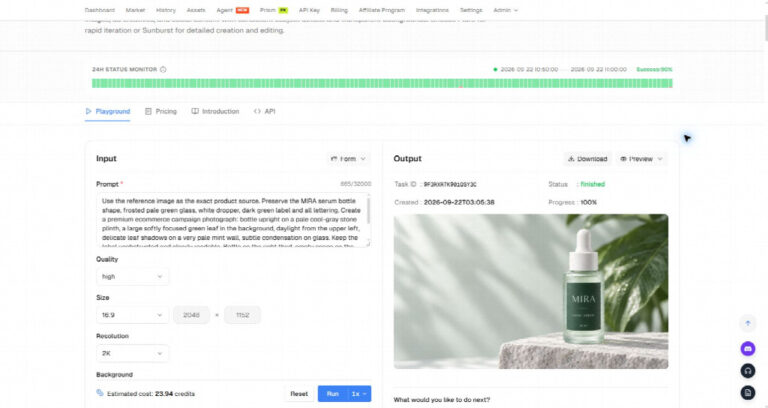
The second image introduces a campaign setting around the reference product, with the instructions visible beside the result.
The completed image brought the recognizable bottle into a new setting with leaf shadows, a raised display surface, and softer background detail. The change is visible immediately: the first image establishes the item; the second gives it a campaign direction.
Leave offer text and final typography to your normal design tools. An intentional area of negative space gives your designer somewhere to place the headline without covering the product. It also lets you update the promotion without rebuilding the whole visual.
The MIRA scene prompt can be understood as four practical decisions. First, identify the reference as the product source and name the details to preserve. Second, describe the surface and background: here, a stone plinth and pale-mint wall. Third, specify the lighting, including its direction and the shadows it creates. Finally, place the subject within the frame and reserve space for the message.
This structure helps make feedback specific. If a scene feels too busy, simplify the background instructions. If the headline has nowhere to sit, revise the composition. If the light hides the label, adjust the lighting brief. Change the part that addresses the issue instead of rewriting every instruction at once.
Keep a short note beside each candidate recording what changed and why. For a small team, a shared document with the source image, prompt, and selected result is enough to make those decisions visible. The goal is a clear creative direction that someone else can understand and continue.
To try this stage yourself, start with GPT Image 2.5 on PoYo, a clear product reference, and one specific scene brief. Choose the strongest composition before moving on to video.
Next, open Seedance 2.5 and add the campaign image as the First Frame. We selected eight seconds, 720p, automatic aspect ratio, and audio generation enabled.
The motion brief asked for a single continuous shot: a gentle camera push-in, a subtle sideways move, and leaf shadows shifting across the background. The bottle was to remain upright on the plinth, with no extra products, hands, or added titles.
This makes motion part of the composition rather than a separate creative concept. You have already chosen the setting and product placement; now you describe how the camera should reveal them.
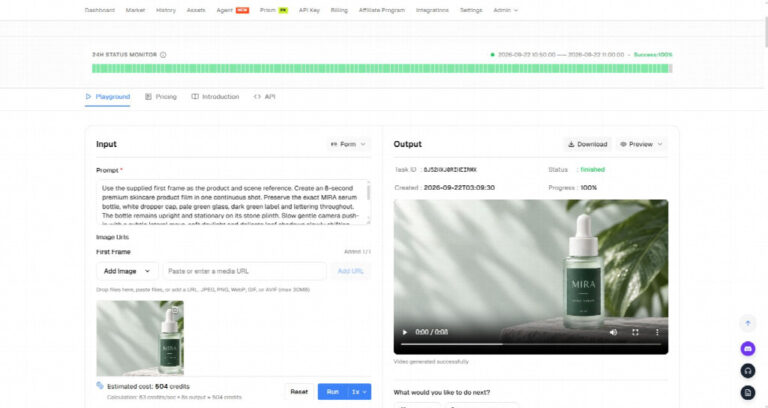
The campaign scene supplied as the first frame, alongside the completed eight-second video in PoYo.
The downloaded clip measured 1280 by 720 pixels and ran for approximately 8.06 seconds. Its final frame showed a closer view of the bottle. The task history recorded 202 seconds of processing time for this particular video request.
For a marketer, the useful handoff is simple: select a still you like, use it as the opening frame, and give the video model a focused motion brief. You can explore that handoff directly in Seedance 2.5 on PoYo, using the scene you prepared in the image stage.
Our example used landscape imagery. For another placement, choose the source composition and output settings around that placement from the beginning, leaving room for any copy or interface elements that will appear over the final creative.
A motion brief is easier to follow when it distinguishes what moves from what stays still. In this example, the camera and shadows were asked to move, while the bottle was asked to remain stationary. The first-frame image supplied the starting composition.
For your brief, choose one main camera action and explain the desired pace. Then describe any environmental movement and the elements that should remain fixed. This gives you a focused basis for reviewing the clip: did the movement serve the product presentation you chose?
Review the ending composition as well as the opening. A camera move can change the space available for a headline, so test the planned copy against the whole sequence before finalizing an overlay. Keep that finishing decision in your video editor, where you can place and time the text deliberately.
The generation charges were recorded separately for each task:
| Generation step | Credits used | Approximate cost at the test rate |
|---|---|---|
| White-background product image | 23.94 | $0.12 |
| Reference-based campaign image | 23.94 | $0.12 |
| Eight-second, 720p video | 504 | $2.52 |
| Total | 551.88 | $2.76 |
That gives you a concrete example budget for exploring the sequence. It covers these three generation tasks, not editing, review, additional attempts, or advertising spend. Prices and processing times can differ from this recorded run.
The image stage also creates a natural spending checkpoint. Compare and approve the scene before submitting it for video generation. In this example, that meant evaluating the roughly $0.12 scene image before committing to the $2.52 video task.
For your first trial, decide in advance how many scene candidates and video attempts you are willing to fund. Record the displayed charge for each request and keep it next to the review decision. This lets you distinguish the cost of exploring an idea from the cost of the version you actually select.
The same record helps with the next brief. If the team keeps rejecting scenes because there is no room for copy, improve that instruction before generating more candidates. If the still is already approved, focus the next attempt on motion rather than rebuilding the product scene.
Before publishing, compare the output with your real product, inspect the full video, and check the label and packaging details. Audio was enabled here but not evaluated. These are final creative checks, just as the offer and layout would need review before an ad goes live; this demonstration did not measure sales performance.
Once you have selected the image and clip, turn the outputs into a small, organized creative package. Download the original files, keep the product reference beside them, and identify which versions are approved for finishing. A clear filename that includes the product, scene, and revision makes the handoff easier to follow.
For an email layout, place the campaign image into the actual template and check how the bottle and headline work together. For an on-site promotion, preview the layout at both narrow and wide sizes. For a video placement, decide whether the clip needs a title, an end frame, or another edit to communicate the offer. These are finishing steps outside the three recorded generations.
Avoid treating a landscape master as a finished asset for every destination. A different crop can remove the bottle, label, or reserved copy space. Where the composition no longer works, plan a separate version around the intended format instead of forcing the original into it.
Give the reviewer the intended message, source product image, and selected output together. Ask for concrete feedback on product representation, composition, and copy placement. If a change is needed, identify whether it belongs in the scene prompt, motion brief, or final layout. That keeps the next revision focused and gives each person a clear responsibility.
No. The first task created a fictional product for this demonstration. If you have approved product photography, use it as the starting reference for your scene brief. You do not need to invent the item again to explore a different presentation.
Yes. This example passed a completed scene to Seedance 2.5 as its first frame. If your team already has a selected scene, begin with that stage and describe the motion you want around it.
No. It is the recorded generation spend for two images and one video in this test. Layout, review, extra attempts, and media spend are separate. The files still need to be prepared for their intended placements.
Pick one product and one message. Prepare the source image, build a scene with space for the message, then animate the selected composition. Keep the prompts and settings with the downloaded files so a teammate can follow the creative decisions.
PoYo puts the two model stages within reach of the same hands-on experiment: GPT Image 2.5 for the stills, Seedance 2.5 for the motion. Our MIRA example produced two images and a short video for about $2.76 in generation charges. Start with your own approved product reference and use the same sequence to explore the next visual direction for your store.