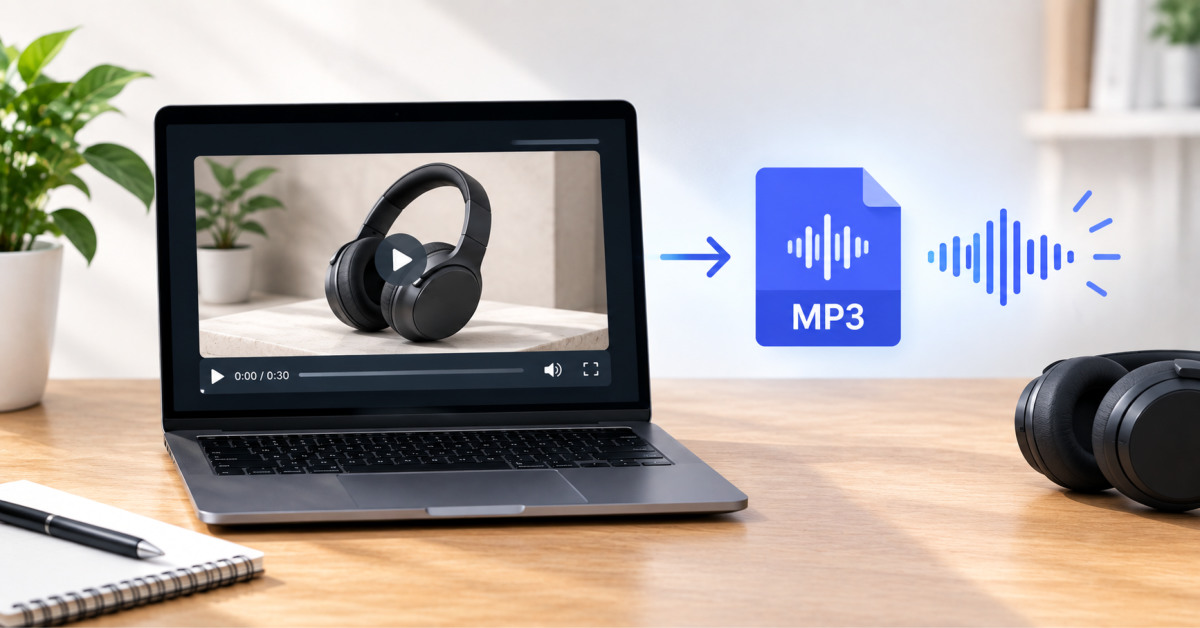
A browser-based video-to-MP3 workflow is useful for Shopify teams when it creates a trimmed, named audio asset beside the SKU without uploading an unreleased product video to another service. Use it for straightforward extracts, then move to a desktop editor when the job requires mixing, stems, restoration, or very large source files.
The useful asset is not the fifteen-minute product video. It is the clean, named, correctly trimmed voice file that the next person can find beside the SKU without asking where it came from.
Shopify launch folders fill up with unboxing clips, influencer takes, and phone videos of the same SKU. The listing copy and the ad still need a clean voice track. Operators often send the whole file to a cloud tab just to get that track. A local video to mp3 converter keeps the extract on the same desk that already owns the product folder.
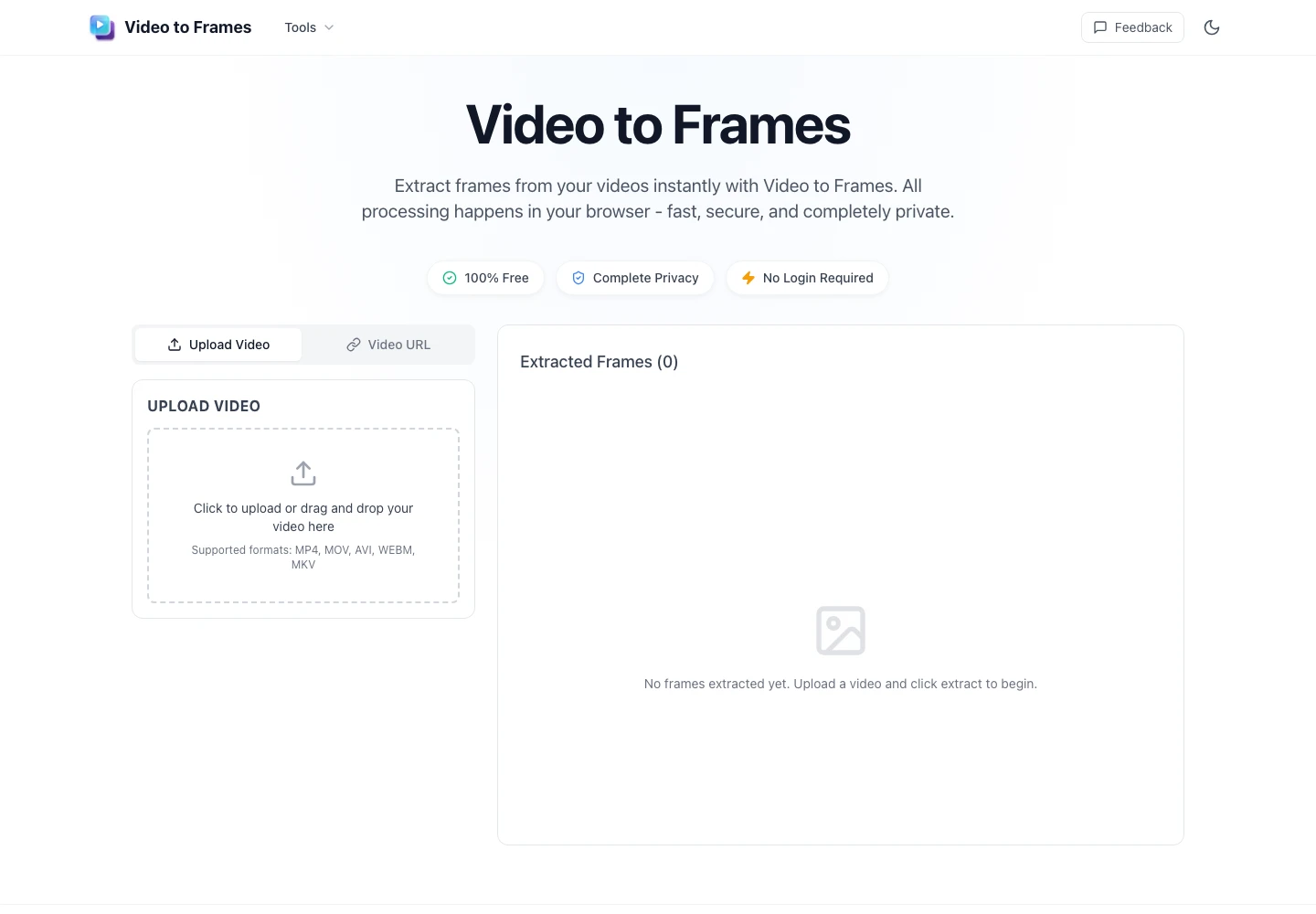
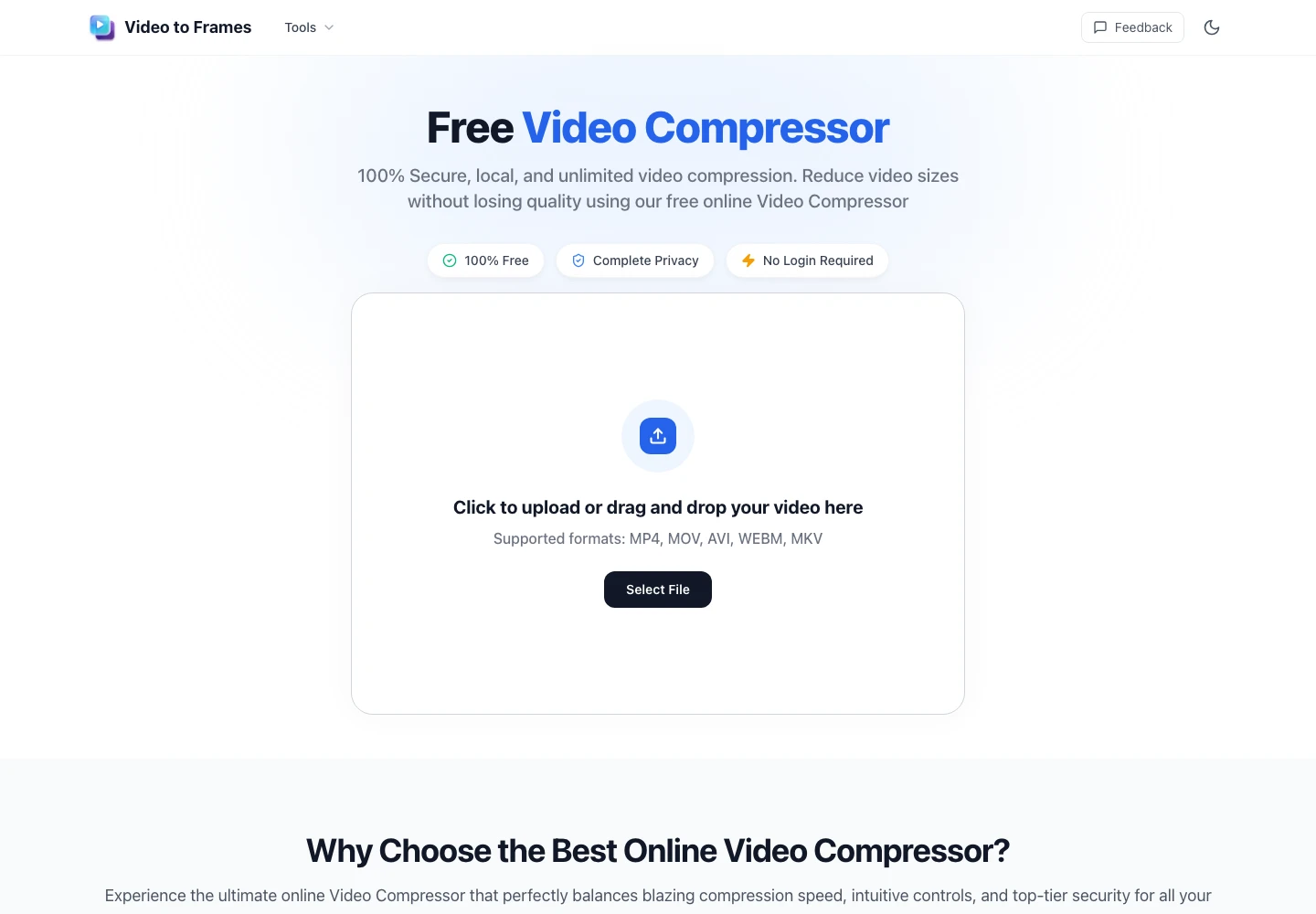
Video to Frames runs the conversion in the browser with FFmpeg, so the video does not go to a remote inbox for processing. The claim worth checking on a launch week is narrower than “it is free.” If the audio file can be trimmed and downloaded without creating an account, the SKU folder does not have to leave the operator who will write the PDP and the ad. That is the check. A second tab that asks for a login fails it even when the waveform looks fine later.
Most stores do not lack video. They lack a usable audio object next to the SKU. The unboxing take has the founder’s line. The influencer file has the product name said once, clearly. The phone clip from the warehouse has the restock note. Those lines are the listing asset. The MP4 is only the container. The usual “fix” is to drop the container into whatever converter the search bar offered and wait for an email with an MP3.
That path looks cheap because the click is free. The cost sits in the queue. The file is now on someone else’s machine. The operator who owns the SKU cannot trim the ten-second line without downloading a new copy. If the converter account is shared, the next person cannot tell which take belongs to which variant. Rework starts when the ad editor asks for the same line at a different length and nobody can find the original on the desk.
A browser extract does not invent a new creative system. It stops the container from leaving the folder before the audio object exists. The rest of the launch stack — PDP copy, UGC crop, email clip — can wait until that object is named and saved next to the SKU.
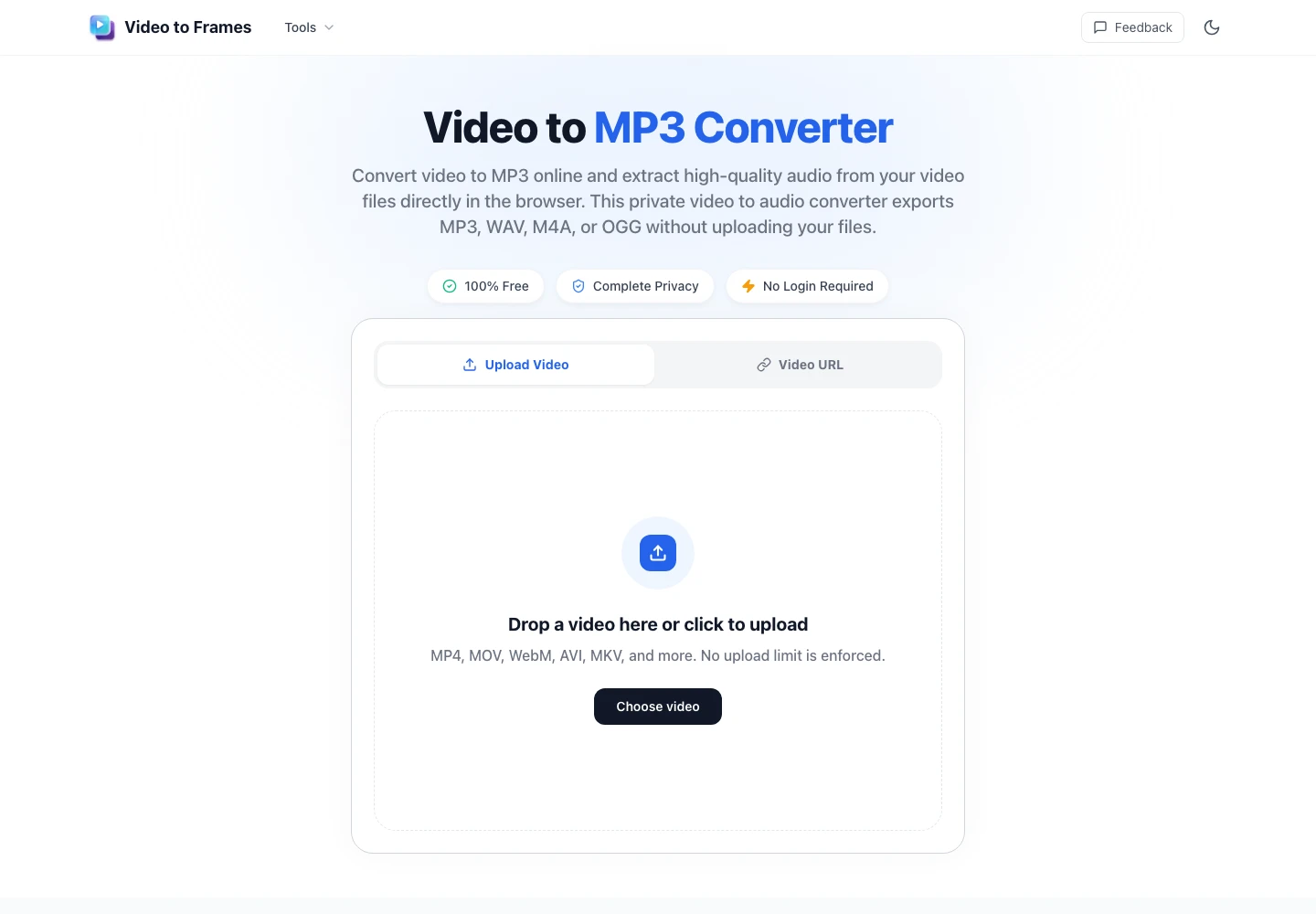
The useful difference is not speed. It is custody. If the conversion stays in the browser, the operator can refuse any step that opens a second inbox. Video to Frames is built around that refusal: add a local file, choose the audio settings, convert, download. No account sits between the folder and the MP3.
A cloud converter creates a ticket. Even a “no signup” upload still sends the bytes to a server that the store does not control. For a restock announcement that names a supplier, or a founder take that mentions a price that is not public yet, that ticket is the failure. The protocol is simple: if the page cannot finish without leaving the device, stop and use a local file instead. The reject rule is the same one finance already uses for unreleased product shots. Do not put the unreleased take on a machine you cannot name.
The page accepts a local upload or a direct video URL. Local upload is the default for a Shopify desk. The operator already has the take in the launch folder. Pasting a remote URL looks faster when the clip still sits on a Drive share or a creator’s page. Remote URLs fail when the host blocks the browser with CORS, a login wall, or hotlink rules. That failure is visible: the convert step does not start, and the folder still has no MP3. Download the file first, then add it locally. The extra minute is cheaper than a queue of “try the link again” messages.
An extract that keeps the whole fifteen-minute warehouse walk is not yet a listing asset. The ad needs one line. The PDP needs the same line at a length the theme can play. Video to Frames lets the operator set a bitrate and a start–end range before convert. Those two controls are the ones that prevent a second pass.
The page offers 128, 192, or 320 kbps. For a spoken product line that will sit under a static PDP player, 192 kbps is the balanced default. Use 128 kbps when the file only has to travel in a Slack handoff. Use 320 kbps when the same take will be cut into a paid ad and the voice has to stay clear after the editor compresses it again. Do not export three bitrates “just in case.” One named file next to the SKU beats a folder of near-copies that nobody can rank.
Start and end time controls exist so the operator can keep a quote and discard the rest. A founder take that buries the product name at 0:47 does not need to become a three-minute MP3. Mark the range, convert, and save the short file with the SKU in the name. If the ad later needs two more seconds, go back to the local video — still on the desk — and mark a wider range. That is the check: the source never left, so the second extract does not require a new upload ticket.
| Job | Keep | Reject |
| PDP voice line | 192 kbps, trimmed to the spoken name | Full warehouse walk as the listing file |
| Paid ad cut | 320 kbps from the local take | A cloud copy with no trim marks |
| Internal handoff | 128 kbps, SKU in the filename | An anonymous download from a shared converter |
The table is the pass rule. If a cell is blank, the convert click is early. A video to mp3 converter that cannot name bitrate and range is just another place the container sits. Name both, then convert.
Creator briefs often arrive as a link, not a file. The instinct is to paste that link into the converter and hope. The page will try. When the host refuses the browser, the extract does not happen. That is not a soft quality issue. It is a hard stop. The operator still has no audio object, and the launch calendar has moved.
Treat a failed URL as a filing error, not a product defect. Save the creator file into the SKU folder once. From that point the local upload path is the only one the desk uses. If a teammate later pastes the same public URL and it fails again, the folder already has the answer. Do not open a second converter to “see if their server is nicer.” The time waste is the duplicate download, not the first failed paste.
A launch folder is not closed when the video looks good. It is closed when the audio object is named, trimmed, and sitting next to the SKU. Video to Frames is the step that creates that object without a new account. Add the local file. Choose MP3 unless the editor asked for WAV. Set the bitrate. Mark the range. Convert. Download into the same folder. If any of those cells is missing, the folder is still open.
Large files get a soft warning instead of a hard block. Long warehouse takes can still run when the desktop browser and the machine have the memory. Mobile tabs are the weaker path. If the extract crawls or the tab reloads, move the same file to the desktop and run it there. Do not refresh mid-convert. The source is still local, so a stopped run does not create a half-file on a remote account. Start again on the machine that can hold the take.
Output can also be WAV, M4A, or OGG when the editor’s timeline needs that container. The default for a Shopify listing desk is still MP3. One extra format is a request from the editor, not a reason to export four files from the same range.
A browser extract is not a substitute for an NLE when the job is a full mix, stems, or a timeline with music beds. Very large 4K takes can exhaust a laptop tab even when the page does not set a hard upload cap. Remote URLs that require a login will not become local just because the converter is private. In those cases download first, or open the editor you already pay for. The tool still earns its place on the listing desk: one trimmed voice file, kept with the SKU, without a second inbox.
Close the folder on the named MP3. The next person who opens that SKU should find the line without asking who ran the convert.
Yes, you can convert a product video to MP3 without uploading it to a cloud service when the converter processes the file locally in your browser or through desktop software. A browser-based local workflow lets you select a source video from the product folder, choose the audio settings, trim the relevant range, and download the MP3 back into that same folder. This is useful for unreleased products, creator footage, internal warehouse recordings, and other assets that should not be sent to an unapproved third-party service. Always confirm how the tool handles files before using it for sensitive content.
Use 192 kbps as the default MP3 bitrate for most spoken product audio, including Shopify product-page clips, founder soundbites, and standard internal creative handoffs. Use 128 kbps for lightweight internal reference files where transfer speed matters more than editing quality. Use 320 kbps when the voice track is likely to be included in a paid advertisement, editing timeline, or another workflow that may compress the file again. Choose one bitrate based on the intended destination, keep the original video as the master asset, and avoid creating several duplicate exports without a defined use.
Yes, you should trim the video before converting it to MP3 when you only need a specific product line, testimonial, product name, or voice-over segment. Trimming before conversion creates a smaller and more usable file, reduces review time, and makes it easier for the next person to identify what the audio contains. Save the output with a name that includes the SKU, content description, and version number. Keep the original local video so you can create a wider or alternative cut later without needing to recover the source from a shared link or cloud account.
Video URLs fail in browser-based converters because the source host may require a login, restrict downloads, block hotlinking, use an expired sharing link, or prevent cross-origin browser access. The converter cannot extract audio if it cannot retrieve the original video file. The most reliable solution is to download the approved source video through authorised access and save it locally in the SKU folder before converting it. That removes repeated dependency on external links and gives your team a controlled master file for future ad cuts, PDP assets, and creative revisions.
Use a desktop audio or video editor instead of a browser converter when the task requires multitrack editing, music, sound effects, noise reduction, voice restoration, precise timing, mastering, stems, or processing a very large high-resolution source file. Browser conversion is best for simple extraction work: turning a local video into a named, trimmed voice file for a product page, ad brief, or internal handoff. A desktop editor is the right choice when that audio must become part of a polished commercial asset with multiple production elements and detailed quality control.