Shopify does not offer a native collection sort that places sold-out products last. To keep out-of-stock products visible without leaving them above buyable products, merchants need an inventory-aware process outside the theme, such as manual ordering, automated collection management, or an app that updates collection positions through the Admin API.
Best selling is supposed to put your winners first. Without inventory awareness, it can turn your most valuable collection slots into the most visible dead ends.
Open your best-selling collection right now and look at the very first row. On many Shopify stores, at least one of those top products is out of stock. Not buried on page four where nobody looks. It’s in the first spot a shopper sees, and the first thing Google reads.
That’s not a theme bug or a caching glitch. It’s exactly how Shopify’s collection sorting is built to work. And the frustrating part: the better a product sells, the more likely it is to be the sold-out tile sitting up top.
This piece covers:
Every collection uses one of a handful of sort orders: Manual, Best selling, Most relevant, Product title (A-Z or Z-A), Price (high or low), and Date created (newest or oldest).
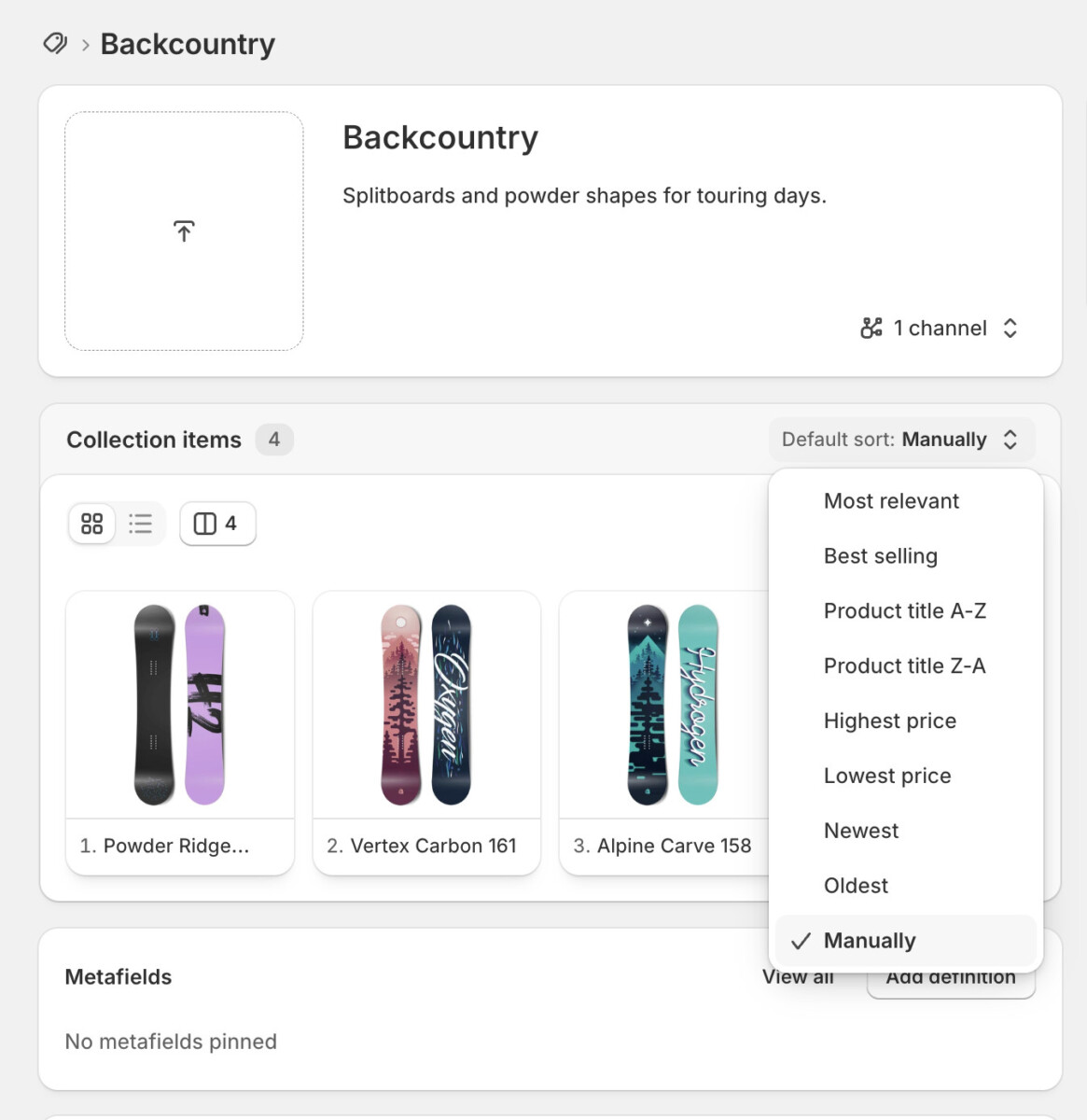
Read that list again and notice what’s missing. There’s no “in stock first” option. Not one of them looks at inventory. A sold-out item sits in the same slot it would hold if it had 500 units in the warehouse.
You can confirm this in Shopify’s own collection sort-order documentation: availability isn’t a factor in any of them. That single fact is the root of everything below.
This is where it gets ironic. “Best selling” is the most popular sort order on Shopify, because on paper it does what you want: put your winners first.
But “best selling” ranks products by how much they’ve sold (order count). It has no idea whether those winners are still buyable. So watch what happens:
The better a product performs, the harder Shopify promotes its own “Sold out” badge. Your strongest sellers quietly become your most visible dead ends.
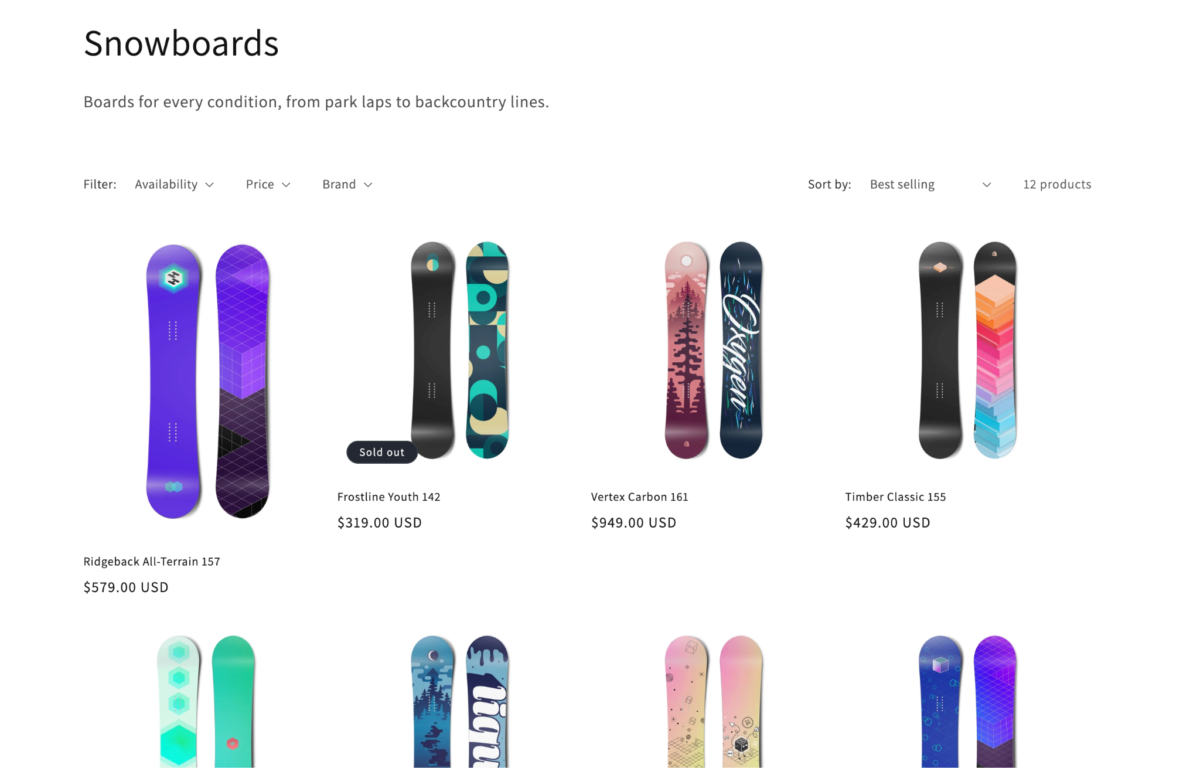
The other sorts break the same way. “Newest” strands a hyped launch up top the second it sells through. “Lowest price” pushes your cheapest item (often your fastest seller) to the front, stock or no stock.
Two bills come due. Most merchants only ever notice the first one.
Conversion. A shopper who hits a wall of greyed-out tiles doesn’t make a note to come back later. They decide the whole collection looks picked-over, and they leave. Those sold-out items at the top act like a filter that removes your highest-intent visitor/s: the exact people you paid to get there.
SEO and discovery. This is the invisible bill. Crawlers, and now AI shopping assistants, read your collection page top to bottom. If the first thing they parse is a run of sold-out products, that’s the signal they take about the page’s quality. You spent /months perfecting your product pages. The collection page above them is quietly undercutting the whole funnel.
Want the SEO side in depth? Fastlane’s own Shopify collection page SEO guide covers how these pages earn (and lose) rankings.
The obvious move. Switch to Manual sort and drag the dead tiles down.
Where it breaks: two places. First, manual sorting only works on manual collections. If you use automated (smart) collections, you can’t drag at all, and most stores end up on smart collections once they scale, because membership is rule-based. Second, inv/entory changes hourly and your sorting doesn’t. You’d be re-dragging tiles across every collection, forever, always one sale behind. It’s not a fix. It’s a part-time job.
The developer instinct: edit the collection template to loop through products, split the in-stock ones from the sold-out ones, and show available first. It feels right. It’s also the deepest trap.
Where it breaks: pagination. Shopify renders collections server-side and paginates them, like `{% paginate collection.products by 24 %}`. Inside that loop, Liquid only sees the current page’s slice of products, never the whole coll/ection.
So when you re-sort in Liquid, you’re only reordering the 24 products already on the page. A sold-out item the server put on page 1 stays on page 1. You can nudge it to the bottom of that page, but you can’t move it to page 5, because page 5 isn’t loaded on that request. You get tidier-looking pages while the real problem survives. And like every theme edit, it vanishes the next time you update your theme.
The other native lever: make the collection automated and add the condition “Inventory stock is greater than 0.” Now sold-out products drop out of the collection and come back when restocked.
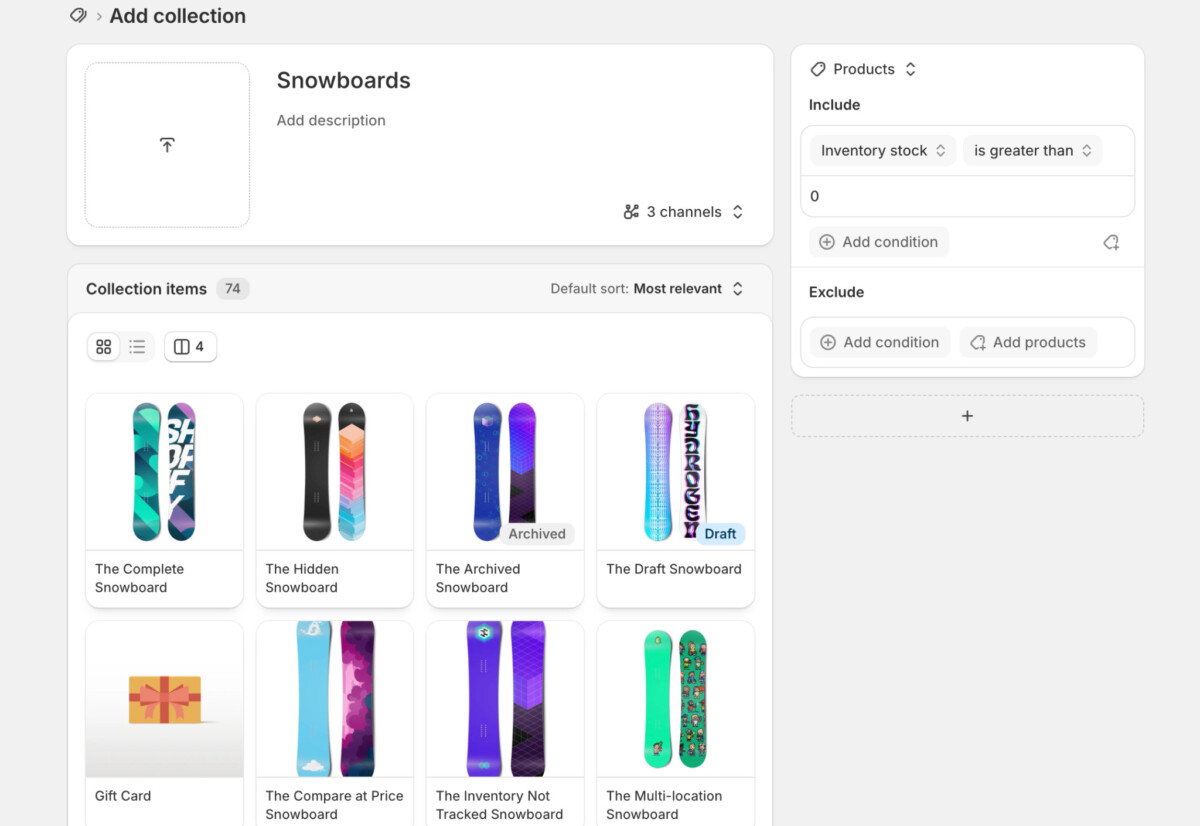
This works, and sometimes it’s the right call. But understand the trade-off: hiding isn’t sorting. You fixed the top-of-page problem by deleting the product from the browse experience, and that has costs:
Hiding makes sense for products you’ve discontinued for good. As your default strategy, it means amputating pages you actually want to keep.
Picture a collection with 60 products. A flash sale just cleared out 12 of them. Sorted by “best selling,” maybe 5 of those 12 sit in your first two rows.
That’s roughly 40% of a shopper’s first impression showing “Sold out.” Hide them with a condition and the collection shrinks to 48 products, and 5 pages you were relying on for internal links go quiet. Neither option is free. You’re picking which cost to pay. You just usually pick it by accident.
Strip away the tactics and the goal is simple to state. Sold-out products should fall to the bottom of the collection automatically, keep their page and their URL, and jump back to their original spot the moment they restock, with no dragging and no theme edit a future update will wipe.
None of Shopify’s native sort orders can do that, because none of them read inventory. You close the gap one of three ways: eat the manual labor, accept the discovery cost of hiding, or move the availability-aware sorting out of the theme so it survives theme changes and keeps up with stock in real time. For a full breakdown of how each Shopify sort order handles out-of-stock items, that reference walks through every one.
Don’t rebuild anything yet. Do this first: open your top three collections, sort each one the way your live storefront sorts it, and count the sold-out tiles above the fold.
If that number is zero, you’re fine. Move on. If it’s not, you’ve just found a revenue leak you can measure, on the pages that matter most. Decide, on purpose, which of the three fixes fits your store. The worst choice is the one most stores make by default: doing nothing, and paying the conversion-and-crawl bill on their best collections.
No. None of Shopify’s native sort orders factor in inventory. A sold-out product holds its position until you move it manually, edit your theme, hide it with a collection condition, or use an app.
No. “Best selling” ranks by order count only. A product that sold out precisely because it sold well will often stay near the top with a “Sold out” badge.
It can. Hiding removes the product from that collection’s internal links and browse navigation. For a short stockout on a page you want to keep ranking, that link loss can cost you more than leaving the product visible but sorted to the bottom.
Only partially. Liquid re-sorting works within a single paginated page, so it can’t move a sold-out item from page 1 to the last page of the collection. It also breaks on theme updates.
Usually not. If the product is coming back, keep the URL live and move the tile down. Delete or redirect only when the product is gone for good, and use a 301 redirect rather than letting it 404.
Trofim is the founder of Pushy, a Shopify app that automatically moves sold-out products to the bottom of collection pages and restores their original position on restock. No theme edits, and it respects each collection’s existing sort order. Connect on LinkedIn or X.