Resizing thousands of Shopify images is a framing problem before it is a dimensions problem. Write a per-channel spec first. On-model shots need body-aware crops that protect the garment, product-only shots need fixed margins, and at drop-scale volumes each output needs a saved recipe with people reviewing only flagged exceptions.
A resize that looks perfect on five hand-picked photos tells you almost nothing. The real test is image 2,347, the one where the model is sitting down, the coat runs past her knees, and the vendor shot it on a gray backdrop.
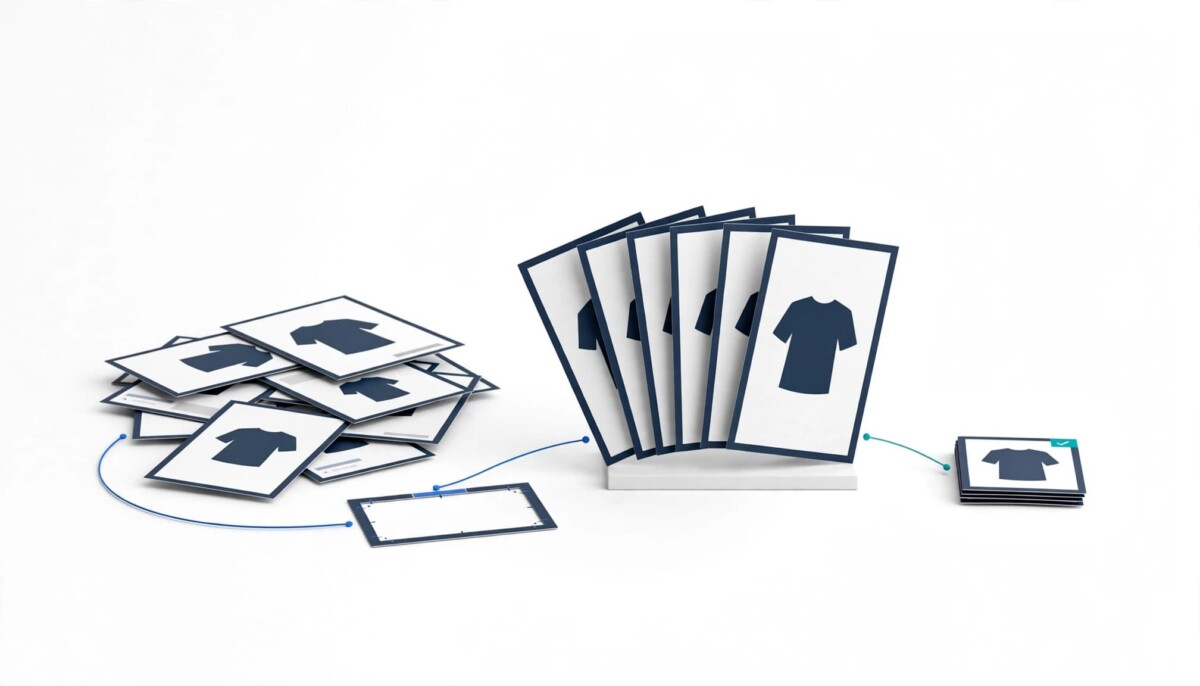
Picture a seasonal drop landing on a Monday: 2,500 images from three vendors and two studios. Some are full-length on-model shots, some are flat lays, some are footwear on white. Your storefront wants a consistent 3:4 portrait crop. A department store wants a headless crop with a fixed margin under the feet. Your ad team wants squares. Every one of those outputs has to look like it belongs next to the others.
This is the point where “just resize it” stops being an answer. A basic Shopify Image Resizer can change the canvas size of every file in your catalog. What it usually cannot do is decide where the crop line falls on a model’s body, keep the product the same size in every frame, or produce five channel versions from one source file without five separate runs.
Whether you are doing $10K months with a single photographer or running a multi-brand catalog into wholesale accounts, the underlying question is the same: what has to stay true about every image after it is resized? Answer that first, and the tool choice gets much easier.
Image type decides the resize because an on-model photo and a product-only photo fail in different ways when you change their shape. An on-model image fails when the crop cuts through the garment, a hem, a shoe, or a hand holding the bag. A product-only image fails when the product sits at a different size, position, or margin than the product next to it on the collection page.
On-model imagery needs pose-aware framing. The model might be standing, walking, seated, turned three quarters, or cropped at the knee by the photographer before the file ever reached you. A crop rule like “trim 10% from the top and center the rest” works on a standing front-facing shot and fails on almost everything else. The thing you are protecting is the garment and its key details: the neckline, the waistband, the hem length, and how the fabric falls.
Product-only imagery needs geometry. Flat lays, packshots, footwear, and accessories look professional on a grid when every product occupies roughly the same share of the frame, sits on the same baseline, and has the same breathing room on each side. The failure here is drift. One sneaker fills 90% of the frame, the next fills 60%, and the collection page reads as unpolished even though every file is technically the right size.
The practical step is to sort your catalog by image type before you choose any setting. Most apparel catalogs land in three or four buckets: full-length on-model, half-body or detail on-model, flat lay or ghost mannequin, and product-only on white. Each bucket gets its own crop logic. If you skip this step, you end up tuning one global setting that is slightly wrong for every bucket instead of right for any of them.
If you are earlier in your journey and still working out baseline dimensions, the Shopify image size reference for product, collection, and banner images is a good starting point. Just treat it as the floor, not the full spec.
Standard resizing falls short on fashion imagery because most resizers only know about the canvas, not what is inside it. They scale, pad, or crop the file to hit a target ratio, but they have no idea where the model’s head, waist, or feet are, so the result depends on where the subject happened to sit in the original frame.
Three failure patterns show up again and again. The first is the cut garment: a center crop from landscape to portrait slices through a wide-leg trouser or the edge of a long coat, and nobody notices until a customer asks what the hem looks like. The second is padding: the tool hits the target ratio by adding white or black bars, so the product shrinks inside an oversized frame and sits differently from everything around it. The third is stretching: the file gets forced into the new shape and the garment’s proportions change, which is worse than a bad crop because it misrepresents the product itself.
Shopify’s own guidance points at the real goal. Its product media documentation says square images around 2048 x 2048 pixels usually display best, that uploads can go up to 5000 x 5000 pixels or 25 megapixels under 20 MB, and that you should use a consistent aspect ratio for main images so they display at the same size on collection pages.
The common Shopify apps approach this differently, and it is worth knowing what each one is built for. Pixc Photo Resize crops or frames to set dimensions, can resize new uploads automatically, and offers an AI Extend option that fills the frame instead of padding it. VF Image Resizer+ bundles batch resizing with compression, background removal, format conversion, and alt text. Neither listing describes body or subject detection, which matters far more for on-model fashion than for a catalog of mugs on white. As of October 2026, both are inexpensive entry points, and for product-only catalogs they may be all you need.
Body-aware cropping keeps framing consistent by placing the crop line relative to landmarks on the model’s body instead of relative to the edges of the photo. The tool detects markers such as the eyes, nose bridge, shoulders, hips, and feet, then applies a rule like “crop at the nose bridge and hold a fixed margin under the feet” to every image, whatever the pose or where the model stood in the original frame.
That shift from the edges of the file to points on the body is what makes a crop intentional rather than accidental. A rule written against landmarks means the same thing on a tall model and a shorter one, on a walking shot and a standing one, and on a vendor file shot wide or tight. The garment ends up the same relative size in every frame, which is exactly what makes a product grid read cleanly.
Headless crops are the clearest example. Some department stores ask suppliers for on-model images cropped at the nose bridge, so that shoppers focus on the product and the grid looks uniform across brands. In the Mavi example below, the same headless crop also helped the brand stay within its model image rights for wholesale use. Where that applies, one body-aware rule handles both concerns at once.
Body-aware cropping still has limits, and you should test for them rather than assume them away. Seated and reclining poses, crossed legs, long coats and maxi dresses that run past the frame, oversized bags held across the body, and heavily cropped vendor files are the usual stress cases. A good tool flags images where it cannot find the landmarks it needs, instead of guessing silently. When you trial any tool, deliberately include 10 to 20 of your hardest images in the test batch, because the easy standing shots will pass everywhere.
Beyond dimensions, you need to check aspect ratio, pixel resolution, resolution metadata such as DPI, margins, background color, file format and size, and each retailer’s specific rules, because an image can hit the right width and height and still be rejected or look wrong. Write these into a one-page spec per channel before you build anything.
Resolution and DPI get confused more than anything else on the list. Pixel dimensions decide how sharp an image looks on screen. DPI is largely a metadata setting for print, and as Cloudinary’s explainer on DPI versus pixels puts it, DPI has no effect on how an image looks on a screen. That does not make DPI irrelevant. Some enterprise retailers check for 300 DPI at ingest and reject files that do not carry it, so your output needs the right tag even though the tag does not improve the photo. The opposite mistake is upscaling a small file to hit a pixel target, which adds pixels without adding detail.
Marketplaces add their own floor. Google Merchant Center’s image requirements set a 500 x 500 pixel minimum for all products from January 31, 2027, recommend about 1500 x 1500 pixels, cap files at 64 megapixels and 16 MB, and disallow borders and promotional watermarks. A padded image with a thick white border can fail there even if it looks acceptable on your own storefront.
The last check is the one most teams skip: compare the output against the original at 100% zoom, not just at thumbnail size. Fabric texture, stitching, and small hardware are where over-compression and bad upscaling show up first, and they are exactly the details a shopper zooms in on. For file naming, alt text, and keeping file sizes light on your own storefront, the guide to optimizing photography and video for your Shopify store covers the basics that still apply after resizing.
A repeatable image workflow is built from saved recipes: one recipe per image type per output, each holding the crop rule, ratio, dimensions, margins, background, DPI, and format, so any person on the team can run a whole batch and get the same result. The recipe is the spec turned into settings, which means the decisions get made once instead of on every file.
Start with outputs, not inputs. List every place an image goes: storefront main image, collection grid, zoom, ads, each wholesale account, each marketplace. Then map each image bucket to the outputs it needs. A full-length on-model shot might need four outputs: a 3:4 storefront crop, a square ad crop, a headless retailer crop, and a marketplace version on pure white. A recipe that produces all four from one source file in a single pass is what removes the problem of re-editing the same garment five different ways.
The second principle is exception-based quality control. Nobody can meaningfully review 6,000 output files by eye. The workflow should flag the images it was less sure about, such as missing landmarks, a product touching the frame edge, or a source file below the target resolution, and route only those to a person. Here is an illustrative example, assuming a 3,000-image drop, two outputs per image, and 5% of outputs flagged: the team reviews 300 images instead of 6,000. Your real flag rate will depend on how consistent your source photography is, so measure it on your first two or three batches before you plan headcount around it.
Tools that work this way are usually described as a Bulk Image Resizer, though the useful ones do more than resize: they crop against landmarks, extend backgrounds instead of padding, and produce several sizes in one run. Whatever you trial, test it on your own mixed sample batch, not on the vendor’s demo images. Keep your untouched originals, resize from the original every time rather than from a previous output, and check a handful of results at full size before you approve the batch.
One more rule keeps the recipe library from becoming its own mess: one owner. When three people each tweak the margins on their own copy of the recipe, you are back to crop drift, just slower.
Mavi’s experience shows that the bottleneck at scale is the whole image preparation loop, not the resize step on its own. According to Crop.photo’s published Mavi case study from July 2026, per-drop image preparation went from more than 30 days to about two hours after the team moved that loop onto saved recipes inside Shopify. Those figures are Crop.photo’s own reporting from that engagement, not an independent audit.
Mavi, the Istanbul-based denim and lifestyle brand, opened a US wholesale channel and began supplying product imagery to retailers including Bloomingdale’s and Macy’s. The case study describes each drop as 2,000 to 3,000 images across six or more brands on one workflow, arriving in a mix of poses, framing, resolution, DPI, and backgrounds. Each retailer enforced its own crop rules. The case study cites a headless crop at the nose bridge with a fixed margin held below the feet, which the case study gives as 50 pixels for Bloomingdale’s, plus 300 DPI output. Off-spec images were rejected at ingest.
The workflow problem was as much about where the files lived as how they were cut. Mavi uses Shopify as its product information hub and pulls approved images into the Mirakl seller platform for its retail partners. Before the change, every batch meant exporting from Shopify, editing elsewhere, and re-importing, which added time and errors for a small team. The case study describes the fix as one recipe per retailer spec, run in batches on Shopify SKUs directly, with one source image adapted to each retailer’s crop, size, and DPI.
Three lessons transfer even if you never sell to a department store. First, the spec came before the tool: the team knew exactly where each retailer’s crop line sat. Second, removing the export and re-import loop likely mattered as much as the cropping, because every handoff is a chance for the wrong version to ship. Third, the 30-days-to-two-hours figure describes the whole preparation cycle, not a resizer running faster, so read it as what happens when a backlog of manual steps is removed.
The case study does not say how much human review time sits inside those two hours, or how many images still needed manual fixes. If you are evaluating a similar setup, ask for that number on your own sample. If you are weighing wholesale channels in the first place, this roundup of online wholesale marketplaces for selling products is a useful map of where those image specs will come from.
The right image workflow depends on volume, image variety, and how many channels you feed: manual editing fits small single-channel catalogs, simple batch resizers fit growing product-only catalogs, and body-aware recipe tools earn their cost when you combine on-model imagery, multiple vendors, regular drops, and retailer specs.
If you are under a few hundred SKUs with one photographer and a consistent backdrop, fix the shot list before you buy software. Shoot every product at the same distance, framing, and background, and Shopify’s built-in editor handles the rest. Most resizing pain at this stage is a photography consistency problem in disguise. The exception is a small brand shooting on-model with a rotating cast of models: variety, not volume, is what breaks your crops, so test a body-aware tool on a sample even at a few hundred SKUs.
If you are growing into the hundreds or low thousands of SKUs with mostly product-only imagery, a simple batch resizer with consistent framing and background extension will usually cover you. This is where the costliest mistake tends to happen: adding a sophisticated tool before the spec exists. A tool cannot enforce a standard nobody has written down, and stacking apps before the fundamentals are solid is the pattern this guide to cleaning up Shopify app bloat warns against.
If you are running seasonal drops in the thousands, mixing on-model and product-only images from several vendors, and supplying retailers or marketplaces with strict specs, body-aware cropping and multi-output recipes stop being nice to have. Budget for it properly. As a worked example from public pricing, Crop.photo’s Shopify App Store listing showed its ProPlus plan at $100 a month for 1,000 credits as of October 24, 2026, with crop operations priced between 0.7 and 2.2 credits depending on the crop type. That works out to roughly 450 to 1,400 crops a month. A 3,000-image drop with two outputs per image is about 6,000 crops, well above the largest listed plan, so ask how usage beyond plan credits is billed and price against your real monthly output count, not your SKU count.
At any volume, compare the tool against the alternatives too: shooting to a locked template (fixed camera height, marked floor positions, one backdrop) and sending off-spec vendor files back for a reshoot or to a per-image retoucher can be cheaper when you control your studios. Whatever your stage, the sequence is the same: write the spec, sort the images by type, test on your hardest 50, then automate. Will this matter in 18 months? The tool you pick might change. A written image spec and clean, consistent source photography will still be paying off.
Shopify product images display best at around 2048 x 2048 pixels for square images, and Shopify accepts uploads up to 5000 x 5000 pixels or 25 megapixels under 20 MB. The exact size matters less than consistency. Shopify’s own guidance is to use one aspect ratio for all main product images so they display at the same size on collection pages. Many apparel brands use a 3:4 or 4:5 portrait ratio instead of square because it shows more of the garment. Pick one ratio for your storefront, size your images to it from high-resolution originals, and keep separate outputs for ads or marketplaces that require a different shape.
To bulk resize without cutting off the product, use a tool that detects the subject or body landmarks and extends the background to fill the new ratio, rather than one that center crops or pads with bars. Before you run a full batch, sort images by type, because on-model and product-only shots need different crop rules. Then test the settings on a sample of 50 to 100 real images that includes your hardest cases, such as seated poses, long garments, and tightly framed vendor files. Check the results at full size, keep your originals untouched, and only then process the whole catalog.
Body-aware cropping is a method that places the crop line relative to points on the model’s body, such as the nose bridge, shoulders, hips, or feet, rather than relative to the edges of the image. That lets one rule, like cropping at the nose bridge with a fixed margin under the feet, produce the same framing across different models, poses, and garments. It is a common approach for headless retailer crops and for keeping on-model collection grids uniform. It still struggles with some poses, such as seated or reclining shots and garments that run past the frame, so a good workflow flags uncertain images for a person to review.
For on-screen quality, 300 DPI does not matter, because pixel dimensions decide how sharp an image looks on a screen and DPI is mostly a print setting stored in the file. It can matter operationally. Some enterprise retailers check for a 300 DPI tag when they ingest supplier images and reject files that do not carry it. So set the DPI value your retail partners ask for, but do not treat it as a quality fix. If an image looks soft, the answer is a higher-resolution source file, not a different DPI tag, and upscaling a small file adds pixels without adding real detail.
A Shopify store should pay for a bulk image resizer when hand editing has become the bottleneck: regular drops of hundreds or thousands of images, several vendors or studios with inconsistent framing, or multiple channels that each need a different crop. Below that point, a consistent shot list and Shopify’s built-in editor are usually enough, and a new app adds cost without fixing the real problem. Before you buy, write a one-page image spec for each channel and test any tool on your own mixed sample batch. Compare pricing against your monthly output count, since one source image can produce several outputs.