Free every Thursday · 61,308 Readers
Fastlane Insider Newsletter: What's working for Shopify in the AI era?
Free every Thursday · 61,308 Readers
Fastlane Insider Newsletter: What's working for Shopify in the AI era?
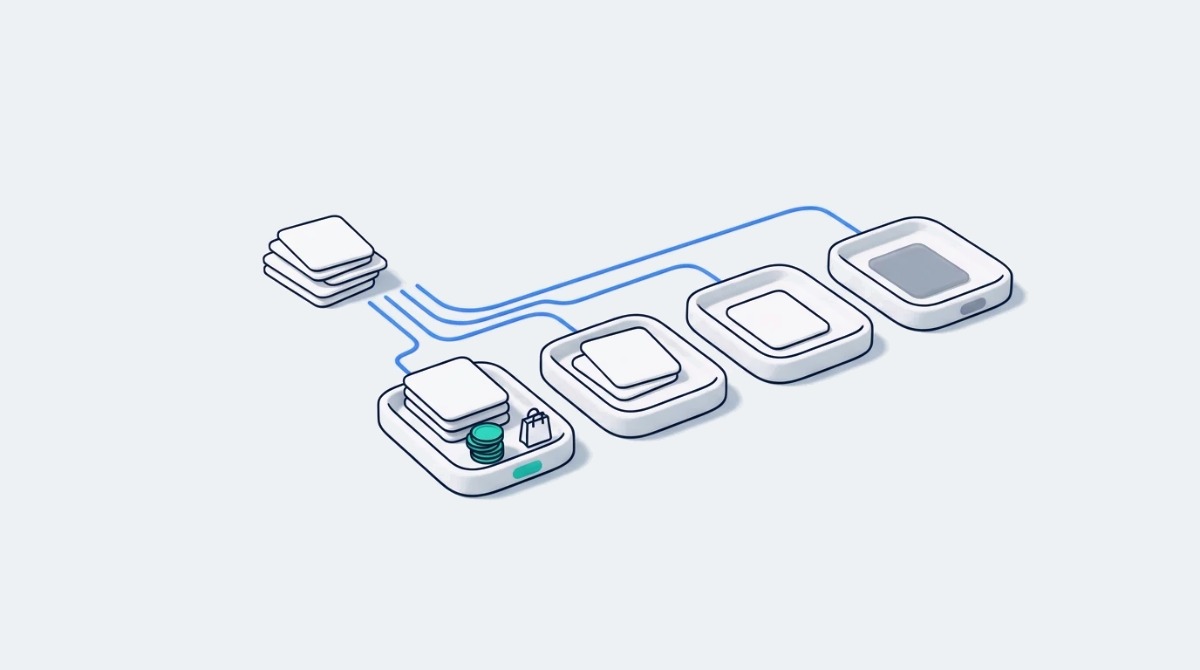
Every product in a shared Performance Max campaign competes for the same dollar, and Google does not always give that dollar to the product that deserves it.
Partner content: this article is a paid partnership with DataFeedWatch, edited by eCommerce Fastlane. The partnership does not change the assessment below, including who should skip this feature.
When your whole catalog sits in one Shopping or Performance Max campaign, your proven sellers and your never sellers draw from the same daily budget, and Google decides the split. Performance Max is built to find conversions, but it optimizes at the campaign level against the signals you give it. If the only structure in your account is “all products,” the algorithm has no instruction that the 40 items paying your bills deserve protection from the 400 that rarely convert.
That gap gets expensive at exactly the wrong time. Q4 peak season brings holiday shopping surges while click costs climb, so every wasted click hurts more. A product that burns $15 a day without a sale is an annoyance in March. In December, that same product is taking budget from your best seller, which could have turned into revenue at a much better return.
The standard fix is to group products by how they actually perform and give each group its own budget, target, or asset group. Google built a tool for exactly this: custom labels. Google’s Merchant Center documentation on custom labels describes five slots, custom_label_0 through custom_label_4, that you fill with your own values and then use to filter products in Performance Max and Shopping campaigns. The labels themselves never appear in your ads. They exist purely so you can split the catalog the way your business needs.
The catch has always been the “performance” part. Google gives you the slots but doesn’t fill them with performance data. Someone has to pull product level results from Google Ads, decide which bucket each product belongs in, write that value back into the feed, and keep doing it as results change. How merchants have handled that chore is where most of the pain lives.
Until recently, merchants built performance labels with a Google Ads script, a manually updated spreadsheet, or a paid tool dedicated to setting up performance labels, and each one breaks in its own way. All three can work. None is free of hidden costs, and that cost usually falls on whoever is least available during peak season.
Scripts are the most common route for agencies and technical in-house teams. A script pulls product performance from Google Ads, assigns each product a label, writes the result into a Google Sheet, and Merchant Center reads that sheet as a supplemental feed that overrides the primary feed’s custom label fields. When it runs, it works well. The problem is everything around it. Google’s own limits page for Ads scripts says scripts for advertiser accounts are canceled after 30 minutes, which large catalogs and busy accounts can hit. Scripts also break silently when Google changes reporting, when the person who installed one leaves, or when a campaign is split and the script only sees part of the data. Many teams discover a stale script weeks after it stopped running.
Spreadsheets are the workaround for merchants without a script. Someone exports a product report, sorts by ROAS or conversions, tags products by hand, and uploads the file. It is transparent and costs nothing, but it is only as current as the last time someone had a spare afternoon, which in peak season is never.
Paid tools dedicated to setting up performance labels solve the maintenance problem by running the logic for you on a schedule. They sit on top of the feed tool you already pay for. That means another monthly subscription and another vendor, which is exactly the kind of stack creep that slows growing stores.
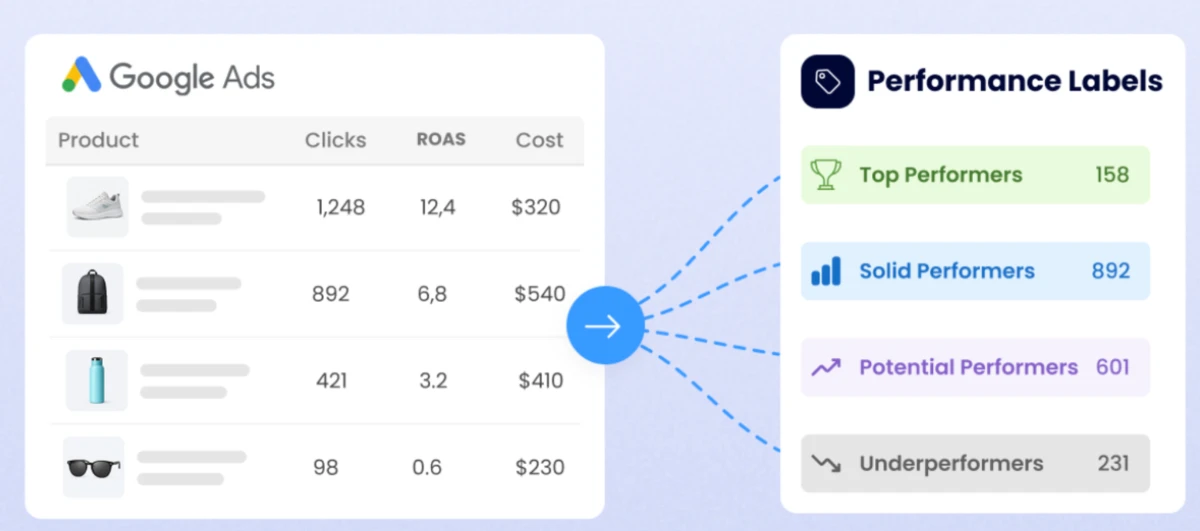
DataFeedWatch Performance Labels is a feature inside the DataFeedWatch feed management platform that reads your Google Ads product data and sorts every product into four groups: top performers, solid, potential, and underperformers. Each group becomes a custom label value, so the segmentation flows straight into the feed you already send to Merchant Center, with no script and no separate supplemental sheet.
You set the rules. You choose a target ROAS, how products should be distributed across the four groups, a minimum click threshold before a product is judged, and a lookback window of 1, 3, 7, 14, 30, 60, 90, or 180 days.
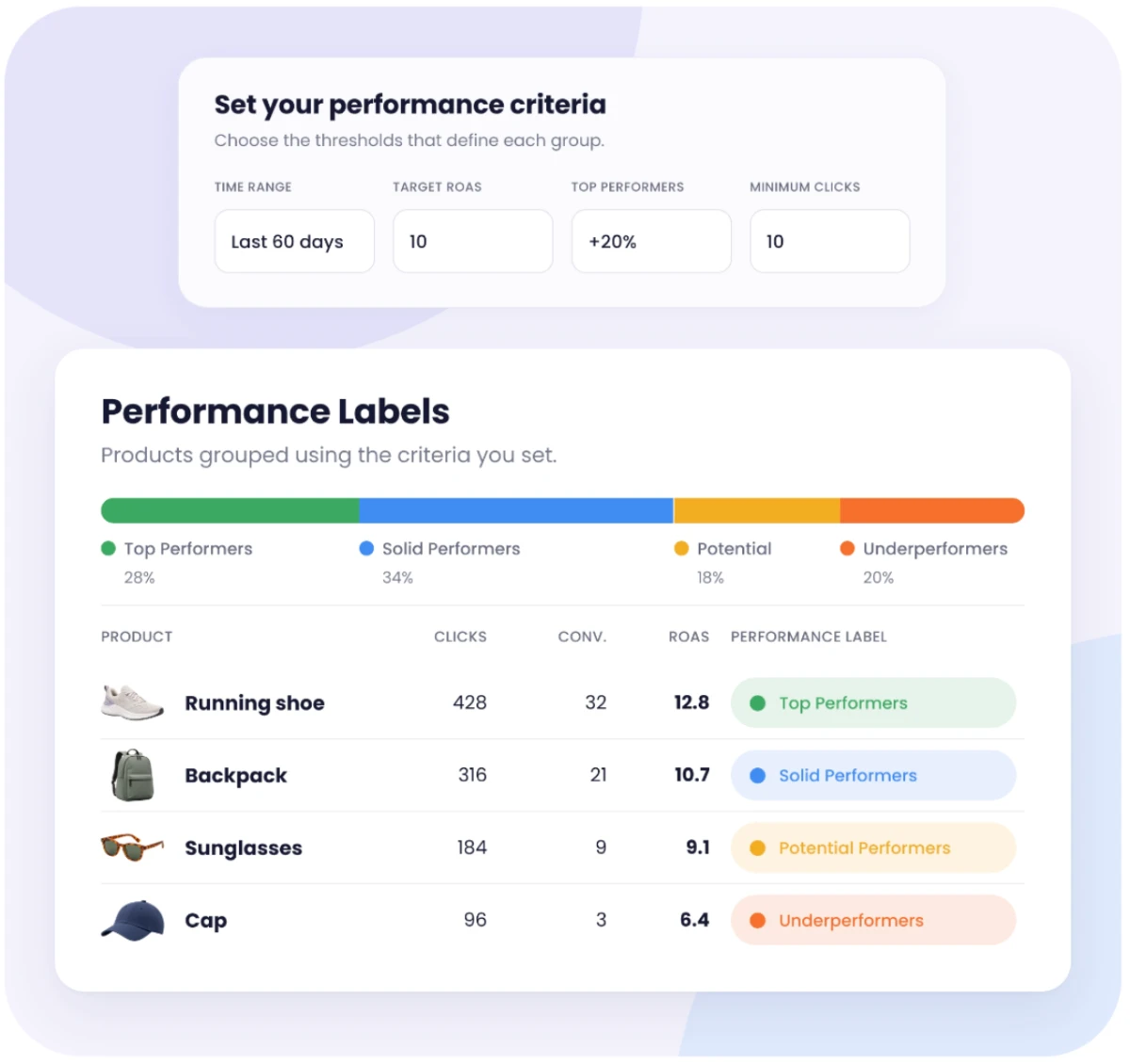
It draws on metrics including clicks, impressions, conversions, conversion value, ad cost, ROAS, and CPC. Performance data refreshes once a day, so labels move as results move rather than when someone remembers to update them.
Because the labels live inside the feed tool, they also connect to DataFeedWatch’s feed rules. That means you can do more than segment campaigns: you can build a rule that automatically keeps underperformers out of a feed entirely, or flags them for title and image work. The feature is included in all DataFeedWatch plans rather than sold as an add on, which is the real shift here. The capability itself isn’t new; what changes is that it no longer requires an extra tool, an extra fee, or someone to maintain code.
DataFeedWatch is offering eCommerce Fastlane readers three months free to try Performance Labels on their own feeds, with the option to cancel anytime. The offer runs until December 31, 2026.
The five most important uses are funding proven winners, cutting products that never convert, giving new products a fair test, reacting quickly in peak season, and finding listings that need repair. Each one is a different campaign decision built on the same label.
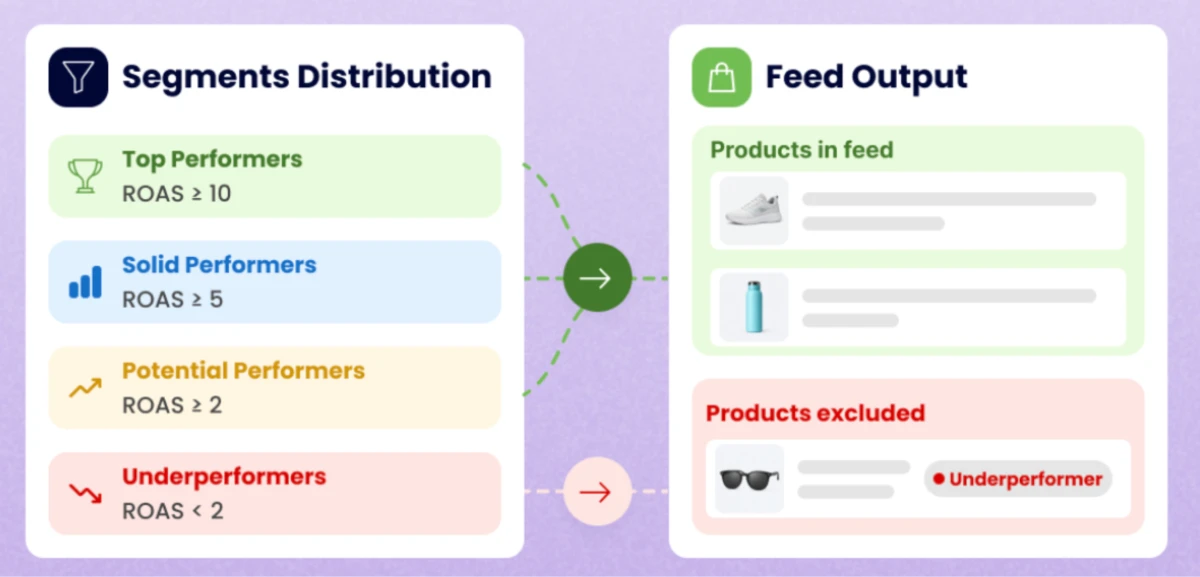
Move products labeled top performer into their own Performance Max campaign or asset group with a dedicated budget. This stops them from competing with the rest of the catalog, and you can raise spend on them intentionally instead of hoping Google spots them.
Move underperformers into a low budget campaign with a stricter ROAS target, or use a feed rule to drop them from the Google feed until something changes. The minimum click threshold matters here, because it stops a product from being judged on three clicks of bad luck.
Products labeled potential have too little data to judge. In a shared campaign, they often get starved because Google keeps spending on what it already knows. A separate campaign with a modest budget gives them enough traffic to prove themselves or fail properly.
A shorter lookback window, such as 7 or 14 days, lets labels reflect what is selling now rather than in August. Seasonal products move into the top group as demand arrives, and the daily refresh keeps campaigns in step.
A product with strong impressions and weak conversions is often a listing problem, not a product problem. Fastlane’s before and after rewrite of an 11,700 product Google Shopping feed shows how much title structure alone changes which searches a product matches.
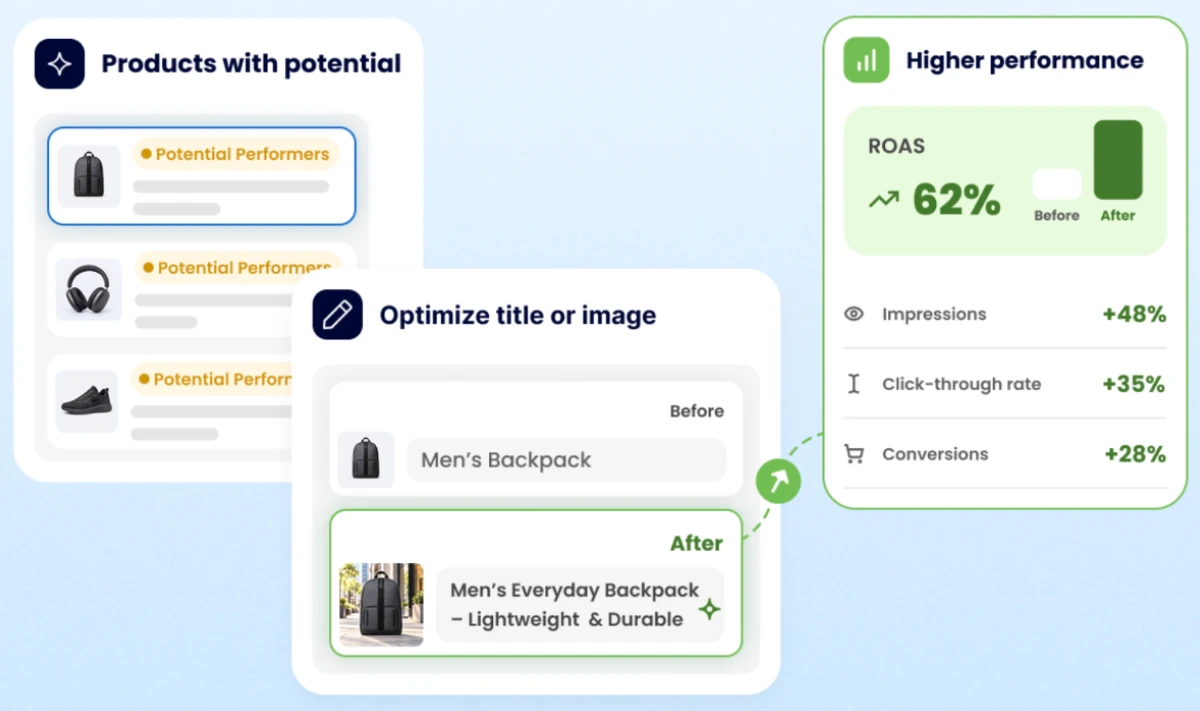
On titles specifically, DataFeedWatch’s built in AI feed optimization can rewrite all your titles in one pass against industry best practices, and you can still make granular adjustments by hand. DataFeedWatch reports that one customer saw a 44% increase in conversions after optimizing titles this way.
Better titles and attributes pay off beyond ads. Your feed now affects how products show up in Google’s AI shopping results, and DataFeedWatch can also send feeds to Perplexity and ChatGPT shopping.
Here is how the first two uses combine in practice. Illustrative example, assuming a 600 product apparel store spending $9,000 a month in one Performance Max campaign at a blended 3.5 ROAS, with a 30 day lookback and a 20 click minimum. If the performance labels show that 45 top performers produce most of the conversion value while 150 underperformers absorb $2,000 a month at under 1.0 ROAS, the merchant can split the account into three campaigns: top performers with $5,000, solid and potential with $3,000, and underperformers capped at $1,000 with a higher ROAS target.
The point here is not the exact numbers. Every budget decision now points to a group of products with a known track record, instead of the whole catalog.
Performance Labels works best when your products get enough clicks to be judged fairly, and clicks per product matter more than how much you spend on ads. Three things decide whether it fits.
First, data volume. A label is only as good as the clicks behind it. Each product needs enough clicks and sales to tell a real winner from a fluke. If most of your catalog gets only a handful of clicks a month, most products will land in the potential group. Smaller accounts can still get value from a longer lookback window, such as 60 or 90 days, which gives each product more data before it’s judged.
Second, performance labels sort on advertising results. The inputs include ROAS, conversions, and conversion value, so a product with strong ROAS and a thin margin can still land in the top group. DataFeedWatch covers this too: you can merge your cost or margin data into DataFeedWatch as an additional feed, turn it into a margin label in another custom label slot, and use the two labels together. According to DataFeedWatch, one Google Ads specialist who segmented campaigns by margin this way improved Shopping ROAS by 96%.
Third, Performance Labels is included at no extra cost in every DataFeedWatch plan. As of November 2026, DataFeedWatch’s pricing page lists plans from $64 a month for 1,000 SKUs and three feeds, up to $239 a month for the Agency plan, with custom pricing for Enterprise and lower rates on yearly billing. If you already use DataFeedWatch, it’s a free upgrade. eCommerce Fastlane readers can also try DataFeedWatch free for three months through the partner offer above and cancel anytime.
If you run your feed through Shopify’s Google and YouTube app or another feed tool, adopting Performance Labels means moving your feed. That move brings more than one feature. A dedicated feed tool helps close the product data gaps that cap Shopify stores on every ad channel. Better optimized feed data also helps AI channels such as Google’s AI Overviews and AI Mode understand your products, which can bring them more visibility.
If your catalog is still small, start with one well structured Performance Max campaign, as covered in Fastlane’s guide to optimizing Performance Max, and add performance labels once your products build up enough clicks.
Your first step is to see how your spend splits across products before you change a single campaign. Pull a 30 day product report in Google Ads and look at how much spend sits on products with zero conversions. If that share is meaningful, segmentation will pay for the effort.
How you act on it depends on how much data your products have. If most of your products get only a handful of clicks a month, set up labels with a longer lookback window, such as 60 or 90 days, and keep one campaign while the data builds. If a good share of your catalog gets steady clicks, labels are worth configuring now.
Give them two to three weeks of data before you split campaigns, and avoid major restructures during the busiest days of peak season, when learning periods cost the most. If you are an agency managing several clients, the bigger win is retiring the scripts you maintain account by account. One tool that refreshes daily removes a quiet source of peak season failure.
Whatever your stage, start with one change: separate your top performers so they stop sharing a budget with everything else. eCommerce Fastlane readers can try DataFeedWatch free for three months and set up Performance Labels on their own feeds until December 31, 2026.
Performance labels are custom label values that group products by how they actually perform in Google Ads, such as top performers, solid, potential, and underperformers. They sit in one of the five custom label fields in your Merchant Center feed and never appear in ads. Once products carry a performance label, you can filter Shopping campaigns or Performance Max asset groups by that label, giving proven sellers their own budget and limiting spend on products that rarely convert. Refresh labels regularly, because a product’s performance changes with season, price, and competition, and a stale label sends budget to the wrong place.
Segment Performance Max by product performance by assigning each product a performance based custom label in your feed, then building separate campaigns or listing groups filtered by those labels. A common structure puts top performers in one campaign with the largest budget, solid and unproven products in a second, and underperformers in a third with a tighter ROAS target or a small cap. The labels can come from a Google Ads script, a spreadsheet uploaded as a supplemental feed, or a feed tool such as DataFeedWatch that calculates them daily. Give new structures a few weeks before judging results.
DataFeedWatch Performance Labels is included at no extra cost in every DataFeedWatch plan, with no add on fee. As of November 2026, plans start at $64 a month for up to 1,000 SKUs and come with a 15 day free trial. eCommerce Fastlane readers can also try DataFeedWatch free for three months through the partner link in this article. For existing customers, it’s a free upgrade.
No, a Google Ads script is one way to create performance labels, but it is not the only way. Scripts pull product performance data, assign labels, and write them into a Google Sheet that Merchant Center reads as a supplemental feed. They cost nothing but need maintenance, and Google cancels advertiser account scripts that run longer than 30 minutes. Alternatives include manually tagging products in a spreadsheet, using a standalone labeling tool, or using a feed platform with built in labels, such as DataFeedWatch, which refreshes them daily without code.
Your store is probably too small for performance labels if you sell fewer than about 50 products, or if most of your products only get a handful of clicks a month. Labels depend on enough clicks and sales per product to tell a real winner from a fluke, so clicks matter more than ad spend. Smaller accounts can still get value from a longer lookback window, such as 60 or 90 days. If most of your catalog rarely sells, one well structured Performance Max campaign with a clean, detailed feed is the better place to start.